
Mastering the Art of Router Troubleshooting: Tips for a Stronger Connection
The humble router, a small box often relegated to a dusty corner, is the gateway to our digital lives. It’s the silent orchestrator of our internet connectivity, the unseen hand that directs data to our devices. When it functions flawlessly, we rarely give it a second thought. However, when problems arise, the frustration can be immense, turning a seamless online experience into a maddening ordeal. Mastering the art of router troubleshooting isn’t just about fixing a broken connection; it’s about reclaiming control and ensuring a robust, reliable, and secure digital environment. This comprehensive guide will equip you with the knowledge and practical steps to tackle common router woes and elevate your internet performance.
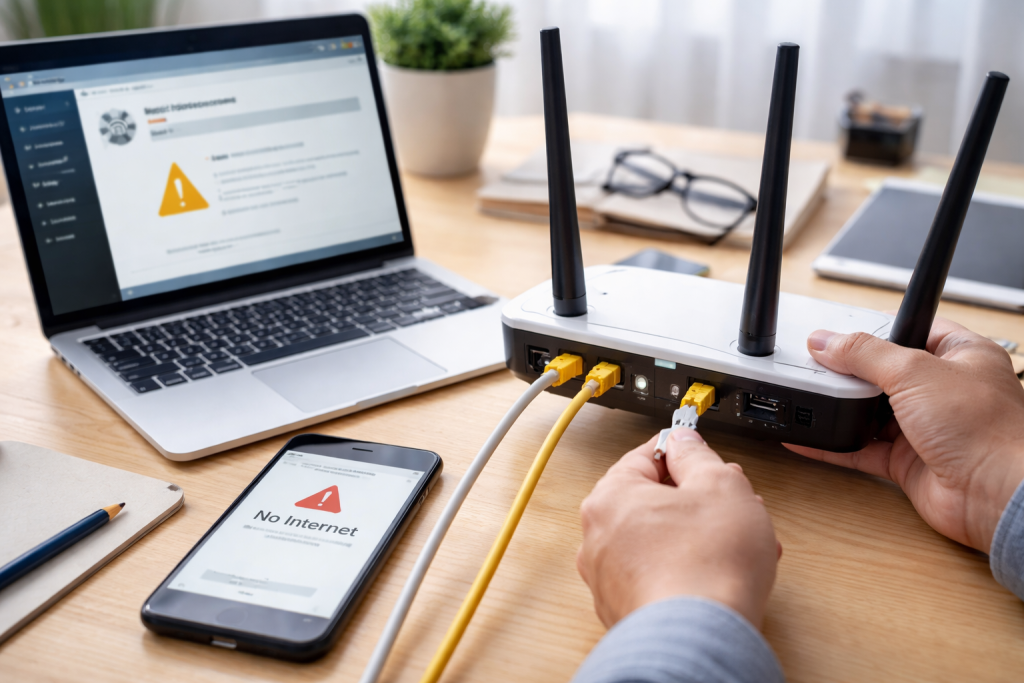
Before diving into complex diagnostics, a solid grasp of router basics is paramount. Essentially, a router manages network traffic by guiding internet traffic between your modem and your connected devices. It assigns unique IP addresses to each device on your local network, allowing them to communicate with each other and with the internet. The modem, on the other hand, is responsible for translating the signal from your Internet Service Provider (ISP) into a format your router can understand, and vice versa. Understanding this fundamental distinction is crucial. Many users mistakenly blame their router for slow speeds when the bottleneck might actually lie with their modem or even the ISP’s service.
Contents
- 0.1 The Modem-Router Relationship
- 0.2 The Importance of Basic Checks
- 0.3 The “No Internet” Scenario
- 0.4 Slow Internet Speeds
- 0.5 Intermittent Connectivity and Dropped Connections
- 0.6 Inability to Connect to Wi-Fi
- 0.7 Strategic Router Placement
- 0.8 Understanding Wi-Fi Channels and Bands
- 0.9 The Power of Router Placement and Obstructions
- 0.10 Bandwidth Hog Identification
- 0.11 Firmware Updates and Router Age
- 0.12 Testing Your Internet Speed Accurately
- 0.13 Investigating Wireless Interference
- 0.14 Overheating and Router Resets
- 0.15 Modem and Router Sync Issues
- 0.16 Strong Passwords and Encryption
- 0.17 Keeping Firmware Up-to-Date
- 0.18 Guest Networks and MAC Filtering
- 0.19 Channel Selection and Width
- 0.20 QoS (Quality of Service) Configuration
- 0.21 Router Band Steering and Beamforming
- 0.22 Router Administration Interface
- 0.23 Wi-Fi Analyzer Apps
- 0.24 Ping and Traceroute Commands
- 0.25 Physical Inspection and Reset Buttons
- 0.26 Overheating and Ventilation
- 0.27 ISP-Provided Devices
- 0.28 When to Call the Experts
- 0.29 Your ISP’s Role
- 0.30 Professional Network Technicians
- 1 FAQs
- 1.1 1. What are the common router issues that can affect my internet connection?
- 1.2 2. How can I improve my Wi-Fi signal strength?
- 1.3 3. What are some basic troubleshooting tips for router issues?
- 1.4 4. How can I secure my router for better performance?
- 1.5 5. When should I seek professional help for router problems?
- 1.6 About the Author
The Modem-Router Relationship
The partnership between your modem and router is symbiotic. The modem establishes the connection to the outside world, and the router distributes that connection to all your internal devices. If either component is malfunctioning or poorly configured, the entire network suffers. It’s common for ISPs to provide a single device that combines both modem and router functionalities, often referred to as a gateway. These all-in-one units are convenient but can be less flexible and more prone to issues if one component fails. Separating these functions with distinct modem and router units can offer greater control and easier troubleshooting.
The Importance of Basic Checks
Often, the simplest solutions are overlooked. Before embarking on a deep dive into settings or hardware, a few fundamental checks can resolve many common issues. Power cycling, the process of turning a device off and then back on, is remarkably effective. For your router, this means unplugging it from the power source, waiting for at least 30 seconds to allow capacitors to discharge, and then plugging it back in. Allow sufficient time for the router to boot up fully, which can take a few minutes. Similarly, rebooting your modem before or after rebooting your router can often refresh the connection to your ISP. Checking physical connections is another vital step. Ensure Ethernet cables are securely plugged into their respective ports on both the router and modem and that there are no visible signs of damage or fraying.
Recognizing the symptoms is the first step toward a cure. Router problems manifest in various ways, from intermittent connectivity to complete internet outages. Understanding these common issues will help you pinpoint the source of your frustration more accurately and efficiently.
The “No Internet” Scenario
This is perhaps the most dreaded issue. When no devices on your network can access the internet, despite the router appearing to be powered on, several culprits could be at play. It could be an ISP outage, a faulty modem, a malfunctioning router, or an issue with the physical connection between the modem and router. Ruling out an ISP outage is often the first step; checking your ISP’s website or contacting their support can confirm this.
Slow Internet Speeds
Experiencing sluggish websites, buffering videos, or slow downloads, even though your internet plan promises higher speeds, is another common problem. This can stem from various factors, including an overloaded router, interference with your Wi-Fi signal, outdated router firmware, or even your ISP throttling your connection. It’s also possible that too many devices are consuming bandwidth simultaneously.
Intermittent Connectivity and Dropped Connections
This is the frustrating experience of your Wi-Fi connection dropping out randomly or pages failing to load midway. It can feel like your internet is working, but then suddenly it isn’t. This often points to wireless interference, an overheating router, a weak Wi-Fi signal, or a backlog of tasks the router is struggling to manage.
Inability to Connect to Wi-Fi
When your devices simply refuse to connect to your Wi-Fi network, even though you can see the network name, the issue could be with the password, a disabled Wi-Fi radio on the router, or a temporary glitch in the router’s wireless settings.
A strong Wi-Fi signal is the bedrock of a seamless wireless experience. A weak signal leads to slower speeds, dropped connections, and dead zones throughout your home or office. Fortunately, several actionable steps can significantly boost your Wi-Fi’s reach and reliability.
Strategic Router Placement
The physical location of your router has a profound impact on signal strength. Routers emit signals in all directions, but these signals can be weakened by obstacles like walls (especially brick and concrete), metal objects, and even appliances like microwaves and cordless phones. Ideally, your router should be placed in a central, elevated location, away from major obstructions and potential sources of interference. Avoid placing it in basements, corners, or behind large furniture. Think of it as the heart of your network; it needs to be accessible to all its “limbs.”
Understanding Wi-Fi Channels and Bands
Modern routers broadcast on different Wi-Fi channels and bands (2.4 GHz and 5 GHz). The 2.4 GHz band offers a wider range but is more susceptible to interference and has slower speeds. The 5 GHz band provides faster speeds and less interference but has a shorter range. If you live in an area with many Wi-Fi networks (like an apartment building), multiple routers might be using the same channels, leading to congestion. Many routers automatically select the least congested channel. However, manually scanning and selecting a less crowded channel using a Wi-Fi analyzer app can often improve performance. Experimenting with both the 2.4 GHz and 5 GHz bands for different devices can also optimize your network. For example, use 5 GHz for devices close to the router that require high bandwidth, like streaming devices, and 2.4 GHz for devices further away or those that don’t require as much speed.
The Power of Router Placement and Obstructions
Reiterating the importance of placement, it’s worth emphasizing the types of obstructions that wreak havoc on Wi-Fi. Thick, solid materials like concrete walls, metal appliances, and even large aquariums can severely degrade signal strength. Even small items like mirrors can reflect Wi-Fi signals, causing them to dissipate. Try to keep a clear line of sight between your router and your devices as much as possible.
When your internet feels like a dial-up connection from the past, it’s time to investigate. Slow speeds can be a multi-faceted problem, and resolving them often requires a systematic approach.
Bandwidth Hog Identification
One of the most common culprits for slow internet is an overloaded network. If multiple devices are simultaneously streaming high-definition video, downloading large files, or engaging in bandwidth-intensive online gaming, even a robust internet plan can struggle. Access your router’s administration page and look for a list of connected devices and their current bandwidth usage. This can help identify any unexpected or excessive data consumption. QoS (Quality of Service) settings, if your router supports them, can be invaluable here. QoS allows you to prioritize certain devices or types of traffic, ensuring critical applications like video conferencing receive adequate bandwidth.
Firmware Updates and Router Age
Much like any electronic device, your router benefits from regular software updates, known as firmware. These updates often include performance enhancements, security patches, and bug fixes. Outdated firmware can lead to sluggish performance and compatibility issues. Checking your router’s administration page for firmware update options is a simple yet effective troubleshooting step. Additionally, older routers may simply lack the processing power and wireless technology to handle modern internet demands. If your router is several years old, it might be time to consider an upgrade. Newer routers support faster Wi-Fi standards (like Wi-Fi 6 and Wi-Fi 6E) that can significantly improve speeds and capacity.
Testing Your Internet Speed Accurately
To truly diagnose slow speeds, you need reliable measurements. Using online speed test websites is a good start, but ensure you perform these tests under various conditions and at different times of the day. Crucially, test your speed first when directly connected to your router via an Ethernet cable, bypassing Wi-Fi entirely. This will help determine if the issue lies with your internet service itself or with your Wi-Fi network. If the wired connection yields the expected speeds, then the problem is likely with your wireless setup.
The frustration of a stable connection suddenly dissolving is a common lament. Persistent connection drops can disrupt work, online classes, and entertainment.
Investigating Wireless Interference
As mentioned earlier, wireless interference is a major contributor to dropped connections. Devices like microwaves, Bluetooth speakers, baby monitors, and even neighboring Wi-Fi networks operating on the same channels can cause disruptions. If you notice connections dropping when certain appliances are in use, try moving them away from your router or vice versa. Switching to a less congested Wi-Fi channel also plays a crucial role in mitigating interference.
Overheating and Router Resets
Electronic devices, including routers, can experience performance issues when they overheat. Ensure your router has adequate ventilation and is not under any cover if it feels unusually hot to the touch. Unplugging it for a period to let it cool down might temporarily resolve the issue. Persistent overheating can, however, indicate a hardware problem with the router itself. Performing a factory reset on your router can also resolve software glitches that might be causing instability. Be aware that a factory reset will erase all your custom settings, including your Wi-Fi name and password, so you’ll need to reconfigure them afterwards.
Modem and Router Sync Issues
Sometimes, drops occur because the modem and router are not communicating effectively. Ensuring both devices are powered on and have stable indicator lights is a basic check. Rebooting both the modem and the router in sequence (modem first, then router) can often re-establish a solid link. If problems persist, it might be worth contacting your ISP to check the health of your modem and the line coming into your home.
Security isn’t just about protecting your data from hackers; it can also contribute to better network performance. An unsecured router can be an open gateway for unauthorized users, consuming your bandwidth and slowing down your connection.
Strong Passwords and Encryption
This might seem obvious, but many users still employ weak or default router passwords. This is akin to leaving your front door unlocked. Always change the default administrator password for your router to a strong, unique one. To secure your Wi-Fi network, use WPA3 encryption if your router supports it, or at minimum WPA2, and create a complex Wi-Fi password that is difficult to guess. Avoid using easily identifiable information like birthdays or common phrases.
Keeping Firmware Up-to-Date
As discussed earlier, firmware updates are not just for performance; they are critical for security. Manufacturers regularly release updates to patch vulnerabilities that hackers could exploit. To keep your router and network secure, regularly check for and install updates. Some modern routers offer automatic firmware updates, which can simplify this process.
Guest Networks and MAC Filtering
If you frequently have guests connect to your Wi-Fi, consider setting up a guest network. This creates a separate Wi-Fi network with its own password, isolating guests from your main network and preventing them from accessing your personal files or sensitive information. MAC filtering, while more technical, can provide an additional layer of security by allowing only devices with specific hardware (MAC) addresses to connect to your network. However, this type of setup can be cumbersome to manage for a large number of devices.
Beyond basic troubleshooting, reviewing your router’s advanced settings can unlock hidden performance gains.
Channel Selection and Width
As previously touched upon, selecting the optimal Wi-Fi channel is crucial, especially in densely populated areas. Experimenting with different channels within both the 2.4 GHz and 5 GHz bands can significantly reduce congestion. Channel width, often represented in MHz (e.g., 20 MHz, 40 MHz, 80 MHz, 160 MHz), determines how much spectrum your Wi-Fi signal uses. Wider channels can offer faster speeds but are more susceptible to interference. Your router might have an “auto” setting, but manually testing different widths can sometimes yield better results, especially if interference is a factor.
QoS (Quality of Service) Configuration
Quality of Service (QoS) allows you to prioritize certain types of network traffic or specific devices over others. If you experience lag during online gaming or stuttering during video calls, configuring QoS can ensure these activities receive the necessary bandwidth. You can often specify which applications (e.g., gaming, streaming, VoIP) or which devices have higher priority. This feature is an invaluable tool for managing a network with diverse usage patterns.
Router Band Steering and Beamforming
Many modern routers support features like band steering and beamforming. Band steering attempts to automatically guide dual-band devices to connect to the most appropriate band (2.4 GHz or 5 GHz) for optimal performance. Beamforming, on the other hand, directs Wi-Fi signals directly towards connected devices, rather than broadcasting them omnidirectionally, which can improve signal strength and range for those specific devices. Enabling these features, if available, can offer significant performance improvements.
When manual observation isn’t enough, diagnostic tools can provide deeper insights into your network’s health.
Router Administration Interface
The router’s web-based administration interface is your primary diagnostic tool. Accessible by typing your router’s IP address (usually 192.168.1.1 or 192.168.0.1) into a web browser, this interface provides a wealth of information. It allows you to view connected devices, monitor internet speed, check connection status, update firmware, and configure network settings. Familiarize yourself with its layout and capabilities; it’s your control center.
Wi-Fi Analyzer Apps
For wireless-specific issues, Wi-Fi analyzer apps for smartphones and computers are invaluable. These tools scan your surrounding environment and display nearby Wi-Fi networks, their channels, signal strengths, and potential interference. This information can help you identify congested channels and choose a less crowded one for your own network, directly improving your Wi-Fi performance.
Ping and Traceroute Commands
For command-line users, ping and traceroute are powerful diagnostic utilities built into most operating systems. The ping command sends small data packets to a specific IP address or domain name and measures the time it takes for them to return, indicating latency and packet loss. The traceroute command (or tracert on Windows) shows the path that data packets take from your device to a destination, highlighting any points of significant delay or failure along the way. These tools can help isolate whether slow speeds are occurring locally or further out on the internet.
Sometimes, the problem lies within the router itself, whether it’s a physical defect or a software glitch.
Physical Inspection and Reset Buttons
Visually inspect your router for any signs of damage, such as frayed power cords or burnt components. Many routers have a small, recessed reset button. Pressing and holding this button for typically 10-30 seconds will perform a factory reset. This is a last resort that will erase all your custom settings, but it can resolve persistent software conflicts or corrupted configurations.
Overheating and Ventilation
As mentioned before, overheating is a common hardware-related issue. Ensure your router has ample airflow. If it consistently feels hot, consider relocating it to a cooler spot or investing in a small, quiet fan to direct airflow towards it.
ISP-Provided Devices
If your ISP provided your router or gateway, they may have remote access to some of its settings and diagnostics. If you’ve exhausted all your troubleshooting options, contacting your ISP is often the next logical step, as they might be able to identify issues with the device or your service remotely.
While this guide empowers you to tackle many common issues, some problems require specialized expertise.
When to Call the Experts
If you’ve diligently followed troubleshooting steps, updated firmware, and experimented with settings, and your router continues to exhibit erratic behavior, connection drops, or complete failure, it’s time to consider professional assistance. Persistent issues that defy self-help solutions often point to deeper hardware failures or complex network configurations that require specialized tools and knowledge.
Your ISP’s Role
Your Internet Service Provider (ISP) is the first line of professional support for internet connectivity issues. They are responsible for the service delivered to your home and have the tools to diagnose problems with your modem, the line coming into your house, and potentially even your router if it’s an ISP-provided device. Don’t hesitate to contact their technical support line; they can often identify and resolve issues remotely.
Professional Network Technicians
For more complex home or small business network setups, or if your ISP cannot resolve the issue, a professional network technician can be invaluable. They can perform in-depth diagnostics, identify faulty hardware, optimize your network for better performance, and troubleshoot intricate configuration issues. While this may involve an upfront cost, the peace of mind and restored connectivity can be well worth it. Mastering router troubleshooting empowers you to navigate the digital landscape with confidence, ensuring a stronger, more stable, and secure connection for all your devices.
FAQs
1. What are the common router issues that can affect my internet connection?
Some common router issues include slow internet speeds, connection drops and interruptions, and weak Wi-Fi signal strength. These issues can be caused by a variety of factors, such as interference, outdated firmware, or hardware malfunctions.
2. How can I improve my Wi-Fi signal strength?
You can improve your Wi-Fi signal strength by placing your router in a central location, away from obstructions and electronic devices that can cause interference. Additionally, upgrading to a newer router with better range and using Wi-Fi extenders can also help improve signal strength.
3. What are some basic troubleshooting tips for router issues?
Some basic troubleshooting tips for router issues include power cycling your router, checking for firmware updates, and ensuring that your router is properly configured. You can also use diagnostic tools to identify and address any issues with your router.
4. How can I secure my router for better performance?
You can secure your router for better performance by changing the default administrator password, enabling WPA2 encryption, and disabling remote management. Additionally, regularly updating your router’s firmware can help protect it from security vulnerabilities.
5. When should I seek professional help for router problems?
You should seek professional help for router problems if you are unable to resolve the issues on your own or if you suspect that the problem is related to hardware malfunctions or complex software issues. A professional technician can diagnose and address more complex router problems effectively.

About the Author
Maya Ali is the founder of ByteSolving with experience in technology and digital solutions. His mission is to make technology easier to understand and help people solve everyday tech problems in a simple and practical way.