
Protect Your Data: How to Safely Update Your Android Device
Protecting your digital life hinges on the security of your Android device. In an era where our smartphones and tablets are repositories for our most sensitive information, from financial details to personal memories, data security is not just an option; it’s a necessity. This comprehensive guide will equip you with the knowledge and tools to navigate the crucial process of updating your Android device safely, ensuring your personal information remains protected and your device operates at its best.
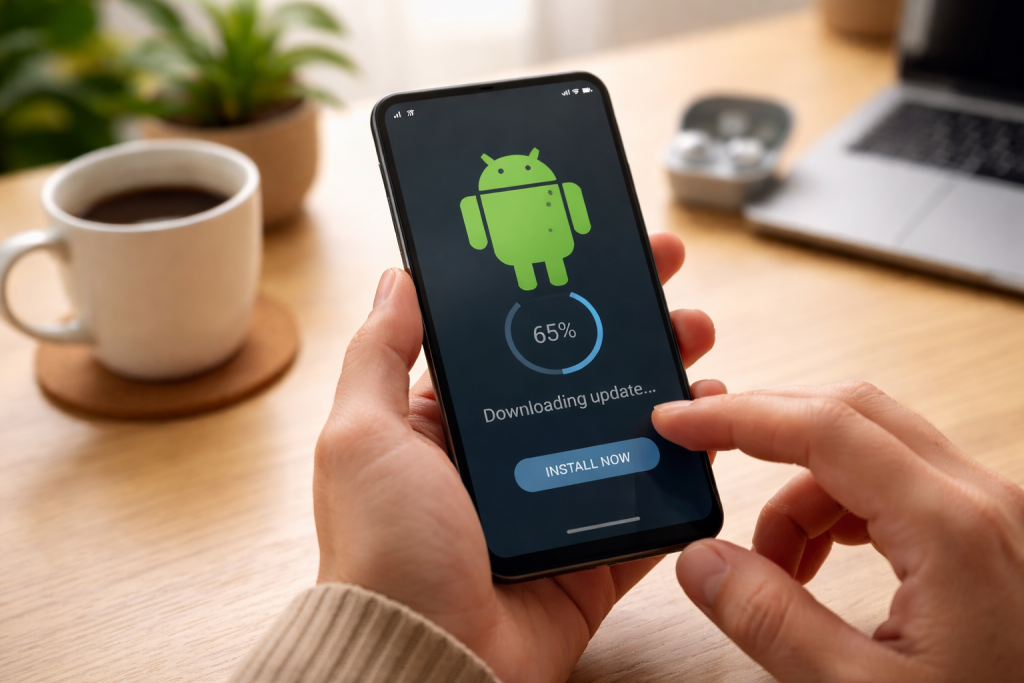
In today’s interconnected world, our Android devices are extensions of ourselves. They house our communications, our finances, our social connections, and often, our most precious memories. The data residing on these devices is immensely valuable, not only to us but also to cybercriminals. Data security, in essence, is the practice of safeguarding this digital information from unauthorized access, corruption, or theft. It encompasses a range of measures, both technical and behavioral, designed to maintain the confidentiality, integrity, and availability of your data. Without robust data security protocols, you expose yourself to a multitude of risks that can have far-reaching consequences.
Contents
- 0.1 The Growing Landscape of Cyber Threats
- 0.2 Why Your Android Device is a Prime Target
- 0.3 Exposure to Malware and Viruses
- 0.4 Vulnerability to Exploitation
- 0.5 Compromised Personal Information
- 0.6 Navigating Device Settings for Updates
- 0.7 Understanding Different Types of Updates
- 0.8 The Importance of a Reliable Backup
- 0.9 Insufficient Battery Power
- 0.10 Unstable Wi-Fi Connection
- 0.11 Lack of Storage Space
- 0.12 The Role of Encryption in Protecting Your Data
- 0.13 Secure Network Connections
- 0.14 Navigating App Permissions Wisely
- 0.15 Essential Security Settings to Configure
- 0.16 Understanding Manufacturer Support Cycles
- 0.17 Checking for Manufacturer-Specific Information
- 0.18 Considering Upgrade Options
- 0.19 Reliable Sources of Cybersecurity Information
- 0.20 Understanding Android’s Security Evolution
- 1 FAQs
- 1.1 1. Why is it important to update my Android device?
- 1.2 2. How can I check for and install updates on my Android device?
- 1.3 3. What are the best practices for backing up my data before updating my Android device?
- 1.4 4. How can I ensure the security of my personal information during updates?
- 1.5 5. What should I do if my Android device is not receiving updates?
- 1.6 About the Author
The Growing Landscape of Cyber Threats
The digital landscape is constantly evolving, and unfortunately, so are the methods employed by malicious actors. From sophisticated phishing attempts designed to trick you into revealing login credentials to ransomware that can lock you out of your device and demand payment, the threats are varied and persistent. These threats can target your personal photos, your banking information, your work-related documents, and virtually any other data stored on your device. The convenience of modern technology comes with an inherent responsibility to protect the information it holds.
Why Your Android Device is a Prime Target
Android’s open-source nature and its vast global market share make it an attractive target for cybercriminals. While this openness fosters innovation and accessibility, it also presents potential vulnerabilities. Malicious actors continuously seek out weaknesses in the operating system and its applications to exploit. Furthermore, the sheer volume of Android users means that a successful exploit can impact a colossal number of individuals, making it a highly lucrative endeavor for attackers.
Failing to keep your Android device updated is akin to leaving your digital doors unlocked in a high-crime neighborhood. Updates are not merely about new features; they are primarily about patching security vulnerabilities that have been discovered since the last release. When you skip updates, you are essentially leaving these critical security holes exposed for opportunistic attackers to exploit.
Exposure to Malware and Viruses
One of the most significant risks of not updating is increased susceptibility to malware and viruses. Software updates frequently include security patches that close loopholes that malware can exploit to infiltrate your device. Outdated software can provide an easy entry point for malicious code, leading to data theft, performance degradation, and even complete system compromise.
Vulnerability to Exploitation
Beyond general malware, outdated operating systems are vulnerable to specific exploits. These are targeted attacks designed to take advantage of known weaknesses in older versions of the software. Once an exploit is discovered, it can be used by attackers to gain privileged access to your device, allowing them to take control, steal data, or install further malicious software.
Compromised Personal Information
The ultimate consequence of neglecting updates can be the compromise of your personal information. This can range from sensitive financial data leading to identity theft and financial loss, to private photos and messages being leaked or used for blackmail. The ripple effect of such a breach can be devastating and long-lasting.
Fortunately, the process of updating your Android device is generally straightforward, and most devices are designed to notify you when an update is available. Staying proactive with updates is the first line of defense in protecting your data.
The exact location can vary slightly depending on your Android version and device manufacturer, but generally, you can find the update section within your device’s Settings.
Locating the System Update Option
Typically, you’ll navigate to Settings, then scroll down to find an option like “System” or “About Phone.” Within these menus, you should find a “Software Update,” “System Update,” or similar option. Tapping on this will initiate a check for available updates.
Initiating the Update Process
Once an update is detected, your device will usually present you with information about what the update includes. You’ll then have the option to “Download” or “Install.” It’s crucial to ensure you have a stable Wi-Fi connection and sufficient battery life before proceeding.
Understanding Different Types of Updates
It’s important to recognize that there are different types of updates you might encounter.
Operating System (OS) Updates
These are the major updates that bring new versions of Android, often introducing significant new features, design changes, and crucial security enhancements. These are the most important for overall system security.
Security Patches
These are smaller, more frequent updates focused specifically on addressing security vulnerabilities identified by Google or the device manufacturer. They are vital for patching immediate threats.
App Updates
While not directly related to the operating system’s core security, keeping your individual applications updated through the Google Play Store is also crucial. Developers often release updates that fix bugs and security flaws within their apps.
While updates are designed to be seamless, unforeseen issues can occasionally arise. Therefore, backing up your data before initiating an update is a crucial precautionary measure that can save you a great deal of stress and potential data loss.
The Importance of a Reliable Backup
A reliable backup ensures that even if something goes wrong during the update process, you have a recent copy of your important files, settings, and application data readily available to restore. This minimizes the impact of any potential disruption.
Utilizing Cloud Backup Services
Many Android devices offer integrated cloud backup solutions, often linked to your Google account.
Google Drive and Photos
Google Drive can automatically back up your device settings, app data, and contacts. Similarly, Google Photos provides a convenient way to back up your entire photo and video library. Ensure these services are enabled and actively syncing.
Third-Party Cloud Storage
Other cloud storage providers like Dropbox, OneDrive, or specialized backup apps can also be used to manually or automatically back up specific files and folders from your device.
Performing Local Backups
For an extra layer of security, consider creating local backups as well.
Transferring Files to a Computer
Connecting your Android device to a computer via USB cable allows you to manually transfer important files, such as photos, videos, documents, and music, to your computer’s hard drive.
Using External Storage Devices
Some devices support expandable storage via microSD cards. You can also use USB OTG (On-The-Go) adapters to connect external hard drives or USB flash drives to your device and perform backups directly to these portable storage solutions.
While the update process is generally reliable, there are a few common mistakes that users can make, leading to frustration or even data loss. Being aware of these pitfalls can help you navigate the update procedure smoothly.
Insufficient Battery Power
Attempting to update on a low battery is a recipe for disaster. If your device shuts down during the update process, it can lead to a corrupted operating system that may be difficult or impossible to recover without a factory reset. Always ensure your device is charged to at least 50%, or ideally, plugged into a power source.
Unstable Wi-Fi Connection
Large update files require a stable and consistent internet connection to download without interruption. A weak or intermittent Wi-Fi signal can lead to incomplete downloads, corrupted files, and update failures. Connect to a reliable Wi-Fi network for the entire duration of the download and installation.
Lack of Storage Space
Operating system updates require a certain amount of free storage space on your device to download and install. If your device is almost full, the update may fail. Before checking for updates, take a moment to clear out unnecessary apps, photos, videos, or other files to free up space.
The act of updating your device is a critical juncture for ensuring the ongoing security of your personal information. While updates themselves are designed to bolster security, certain preparatory and post-update steps are vital.
The Role of Encryption in Protecting Your Data
Encryption is a fundamental pillar of modern data security. When your data is encrypted, it is scrambled using complex algorithms, making it unreadable to anyone who does not possess the correct decryption key. This is especially important for data stored on your device.
Understanding Device Encryption
Most modern Android devices offer full-device encryption, which scrambles all data stored on the internal storage of your device. This means that even if your phone is lost or stolen, the data on it will be inaccessible without your device’s unlock pattern, PIN, or password.
Enabling and Maintaining Encryption
Device encryption is usually enabled by default on newer Android versions. However, it’s good practice to verify that it’s active in your device’s security settings. Ensure you use a strong and unique unlock method to protect your encryption key.
Secure Network Connections
When downloading updates, always use trusted Wi-Fi networks. Public Wi-Fi hotspots can be a security risk, as they may be monitored by malicious actors. If you must use public Wi-Fi, consider using a Virtual Private Network (VPN) to encrypt your internet traffic.
Verifying Update Authenticity
While rare, it’s theoretically possible for attackers to try and serve malicious updates. However, Android’s update system is designed with security in mind. Updates are cryptographically signed by Google and your device manufacturer. Your device verifies these signatures before installing any update, which helps prevent the installation of unauthorized or tampered software.
Beyond operating system updates, the security of your Android device is also heavily influenced by the apps you install and the settings you configure. A proactive approach to app selection and system configuration is paramount.
When you install a new app, it will request a range of permissions to access different parts of your device, such as your camera, microphone, contacts, or location.
Granular Permission Management
Be critical of the permissions requested by apps. Does a flashlight app really need access to your contacts? Regularly review the permissions granted to your apps in your device’s Settings > Apps > Permissions. Revoke any permissions that seem unnecessary or excessive for the app’s functionality.
Understanding the Play Store’s Role
The Google Play Store has security measures in place to scan for malicious apps. However, it’s not foolproof. Always read app reviews, check the developer’s reputation, and be wary of apps with a large number of downloads but very few reviews, or apps that make outlandish promises.
Essential Security Settings to Configure
Beyond app permissions, several system-level settings can significantly enhance your device’s security.
Strong Screen Lock
Utilizing a strong, unique PIN, pattern, or password for your screen lock is the first line of defense against unauthorized access. Avoid easily guessable combinations like birthdates or simple sequences.
Biometric Authentication
Features like fingerprint scanning and facial recognition offer a convenient and secure way to unlock your device. Ensure these are set up with a strong primary unlock method (PIN/password) as a fallback.
Find My Device
Enable the “Find My Device” feature. This allows you to remotely locate, lock, or erase your device if it’s lost or stolen, providing a crucial safety net for your data.
In some cases, you might encounter a situation where your Android device is not receiving available updates, or your device manufacturer has ceased providing updates for your model. This can be a cause for concern, as it leaves your device vulnerable.
Understanding Manufacturer Support Cycles
Device manufacturers have a finite support cycle for their devices. After a certain period, typically a few years, they will stop releasing new operating system and security updates for older models. This is often due to hardware limitations or the cost of ongoing development.
Checking for Manufacturer-Specific Information
If you suspect your device isn’t receiving updates it should be, check the official website of your device manufacturer. They often provide information about their update policies and timelines for different models.
Community Forums and Support Channels
Online forums dedicated to your specific device model or brand can be a valuable resource. Other users might be experiencing similar issues and may have found workarounds or solutions. Contacting your manufacturer’s customer support is also an option.
Considering Upgrade Options
If your device is no longer receiving security updates, it is important to consider upgrading to a newer device that is still supported. Continuing to use an unsupported device significantly increases your risk of security breaches.
The cybersecurity landscape is in constant flux, with new threats emerging and new security measures being developed continuously. Staying informed is an ongoing process that empowers you to protect yourself effectively.
Reliable Sources of Cybersecurity Information
Bookmark and regularly visit reputable sources that provide information on cybersecurity threats and Android security. This includes official blogs from Google’s security team, well-known cybersecurity news outlets, and trusted technology publications.
Following Security Blogs and News Sites
Many cybersecurity experts and organizations maintain blogs and news sites dedicated to reporting on the latest threats, vulnerabilities, and best practices. Subscribing to their newsletters or following them on social media can keep you updated.
Understanding Android’s Security Evolution
Google is continuously working to enhance the security of the Android platform. Familiarize yourself with new security features as they are rolled out, such as improved app sandboxing, enhanced permission controls, and more robust encryption capabilities.
The Role of Google Play Protect
Google Play Protect is a suite of security services built into the Google Play Store. It scans apps for malware, identifies potentially harmful apps, and provides warnings about suspicious activity. Understanding how to leverage these built-in security tools is essential. By committing to a regular update schedule, understanding the risks associated with outdated software, and employing robust data backup and security practices, you can significantly enhance the safety of your Android device and the precious information it holds. Your digital well-being depends on it.
FAQs
1. Why is it important to update my Android device?
It is important to update your Android device to ensure that it has the latest security patches and bug fixes. Updating your device helps protect it from potential security threats and vulnerabilities.
2. How can I check for and install updates on my Android device?
You can check for updates on your Android device by going to the “Settings” app, selecting “System,” and then tapping on “System updates.” If an update is available, you can download and install it from this menu.
3. What are the best practices for backing up my data before updating my Android device?
Before updating your Android device, it is important to back up your data to ensure that you do not lose any important information. You can back up your data by using cloud storage services, such as Google Drive, or by connecting your device to a computer and transferring your files.
4. How can I ensure the security of my personal information during updates?
To ensure the security of your personal information during updates, it is important to enable encryption on your Android device. Encryption helps protect your data by converting it into a code that can only be accessed with the correct credentials.
5. What should I do if my Android device is not receiving updates?
If your Android device is not receiving updates, you can try checking for updates manually in the “System updates” section of the “Settings” app. If there are still no updates available, you can contact your device manufacturer or carrier for assistance.

About the Author
Maya Ali is the founder of ByteSolving with experience in technology and digital solutions. His mission is to make technology easier to understand and help people solve everyday tech problems in a simple and practical way.