
Say Goodbye to WiFi Woes: Easy Fixes for Phone Connection Problems
The pervasive nature of smartphones in our daily lives means a stable and robust Wi-Fi connection isn’t a luxury; it’s a necessity. From streaming high-definition content to making video calls and managing smart home devices, our phones are constantly connected. Yet, frustratingly, Wi-Fi woes are a common occurrence, leading to slow loading times, dropped calls, and general digital despair. Understanding the root causes of these connection problems and equipping yourself with effective troubleshooting techniques can transform your smartphone experience from one of constant frustration to seamless connectivity.
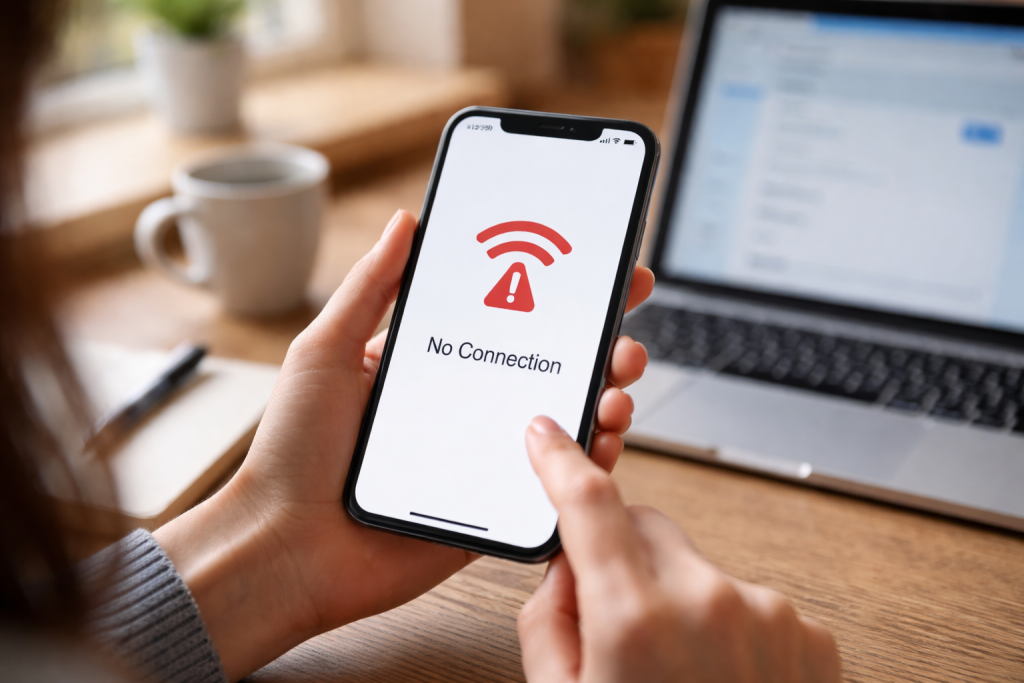
Before diving into solutions, it’s crucial to identify the types of Wi-Fi problems you might encounter. Often, seemingly complex issues can be traced back to a few fundamental culprits.
Contents
- 0.1 Identifying the Symptoms of Poor Wi-Fi
- 0.2 Common Causes of Wi-Fi Problems
- 0.3 The Basic On/Off Tactic
- 0.4 Checking Phone and Router Settings
- 0.5 Updating Software and Firmware
- 0.6 Optimizing Router Placement
- 0.7 Minimizing Interference
- 0.8 Utilizing Range Extenders and Mesh Systems
- 0.9 Identifying Bandwidth Hogs
- 0.10 Clearing Cache and Background Apps
- 0.11 Testing Internet Service Provider (ISP) Speed
- 0.12 Verifying Network Password and Security Protocols
- 0.13 Resetting Network Settings on Your Phone
- 0.14 Checking Router Access Restrictions
- 0.15 Analyzing Signal Stability and Interference
- 0.16 Examining Router Channel Selection
- 0.17 Checking for Device-Specific Problems
- 0.18 Leveraging Dual-Band Technology
- 0.19 Implementing Quality of Service (QoS) Settings
- 0.20 Regularly Monitoring Your Network
- 0.21 Strategic Use of Wi-Fi Repeaters and Extenders
- 0.22 Exploring Mesh Wi-Fi Systems for Whole-Home Coverage
- 0.23 Utilizing Powerline Adapters for Wired Backhaul
- 0.24 Upgrading to Wi-Fi 6/6E Technology
- 0.25 Considering Managed Wi-Fi Services
- 0.26 Embracing Software-Defined Networking (SDN) Solutions
- 1 FAQs
- 1.1 1. What are common WiFi connection issues that can affect phone connectivity?
- 1.2 2. How can I troubleshoot WiFi connectivity problems on my phone?
- 1.3 3. What are some tips for improving WiFi signal strength for better phone connectivity?
- 1.4 4. How can I address WiFi network congestion and interference to improve phone connectivity?
- 1.5 5. What advanced solutions can I use to future-proof my phone’s WiFi connection?
- 1.6 About the Author
Identifying the Symptoms of Poor Wi-Fi
Sometimes, the signs are obvious: a spinning loading wheel, an “Unable to connect” message, or apps that simply won’t load. Other times, the symptoms are more subtle: intermittent buffering, slow downloads, or a slight delay in voice calls. Recognizing these indicators is the first step toward diagnosing the problem. It’s also important to differentiate between a truly bad Wi-Fi connection and a slow internet connection from your ISP, as the solutions for each differ significantly.
Common Causes of Wi-Fi Problems
Numerous factors can contribute to a flaky Wi-Fi connection. These range from simple software glitches on your phone or router to more complex environmental interference. Knowing the potential causes helps narrow down the troubleshooting process. Misconfigured network settings, outdated router firmware, and even physical obstructions can all play a role in diminishing your internet experience. Overloaded networks, especially in densely populated areas, can also be a significant factor.
When your phone refuses to play nice with your Wi-Fi, a systematic approach to troubleshooting can save you a lot of headache. Start with the simplest fixes and gradually move to more advanced solutions.
The Basic On/Off Tactic
It might sound overly simplistic, but restarting your phone and your Wi-Fi router is often the most effective first step. This clears temporary glitches, refreshes network connections, and can resolve a surprising number of connectivity issues. Think of it as a digital reset button for your network. Similarly, turning your phone’s Wi-Fi off and then back on can often re-establish a clearer connection.
Checking Phone and Router Settings
A quick check of your phone’s Wi-Fi settings can reveal misconfigurations. Ensure you’re connected to the correct network, the password is entered accurately, and any forgotten networks aren’t causing conflicts. On the router side, logging into your router’s administration panel allows you to verify settings, including the Wi-Fi password, network name (SSID), and security protocols. Sometimes, a simple change in the Wi-Fi channel can significantly improve stability, especially in congested environments.
Updating Software and Firmware
Outdated software on your phone or, more critically, outdated firmware on your Wi-Fi router, can lead to security vulnerabilities and performance issues. Regularly checking for and installing updates ensures you have the latest bug fixes and performance enhancements. Router manufacturers frequently release firmware updates that address compatibility issues and improve overall network stability.
A weak Wi-Fi signal is a common culprit behind slow speeds and dropped connections. Boosting your signal strength directly equates to a more reliable and faster experience.
Optimizing Router Placement
The physical location of your router is paramount. Think of Wi-Fi signals as radio waves that can be obstructed and weakened by walls, furniture, and even household appliances. Placing your router in a central location, away from obstructions and other electronic devices, can make a significant difference. Elevating the router off the floor also helps its signal propagate more effectively across your home.
Minimizing Interference
Other electronic devices, such as microwaves, cordless phones, and even baby monitors, operate on similar frequencies to Wi-Fi and can cause interference. Identifying and relocating these devices away from your router can improve signal clarity. Using dual-band routers, which offer both 2.4 GHz and 5 GHz frequencies, allows you to choose the less congested band, with 5 GHz generally offering faster speeds over shorter distances and less interference.
Utilizing Range Extenders and Mesh Systems
For larger homes or areas with dead zones, a single router might not be sufficient. Wi-Fi range extenders amplify the existing signal, broadcasting it further. However, they can sometimes lead to reduced speeds. A more robust solution is a mesh Wi-Fi system, which uses multiple interconnected access points to create a seamless, strong Wi-Fi network throughout your entire property, eliminating dead zones and providing consistent speed.
Slow Wi-Fi speeds are arguably the most frustrating of all connectivity issues. Even with a strong signal, your internet can crawl to a halt.
Identifying Bandwidth Hogs
Multiple devices simultaneously using the internet, especially for data-intensive tasks like streaming 4K video or online gaming, can quickly saturate your bandwidth. Identifying which devices or applications are consuming the most data can help you prioritize or manage usage. Many routers offer a Quality of Service (QoS) setting, allowing you to prioritize traffic for your essential devices or applications.
Clearing Cache and Background Apps
Sometimes, the bottleneck isn’t the Wi-Fi itself but your phone’s performance. A cluttered cache or numerous background applications can slow down your phone, making it seem like your Wi-Fi is to blame. Regularly clearing app caches and closing unused background applications can free up resources and improve your phone’s overall responsiveness, including its ability to process data from the Wi-Fi.
Testing Internet Service Provider (ISP) Speed
Before blaming your Wi-Fi, it’s essential to confirm that your internet service provider is delivering the speeds you’re paying for. Conduct a speed test directly connected to your modem with an Ethernet cable to rule out any Wi-Fi related issues. If the speeds are still low, the problem lies with your ISP, and you’ll need to contact them.
Authentication failures are a common source of Wi-Fi frustration, leaving you unable to connect despite being within range. Security settings play a crucial role here.
Verifying Network Password and Security Protocols
The most common reason for authentication failure is an incorrect Wi-Fi password. Double-check your password, paying attention to capitalization and special characters. If you’ve recently changed your password, ensure your phone is updated with the new one. Also, confirm that your router is using a strong security protocol like WPA2 or WPA3, as older protocols like WEP are less secure and may cause compatibility issues with newer devices.
Resetting Network Settings on Your Phone
Sometimes, your phone’s saved network settings can become corrupted, leading to authentication problems. Forgetting the problematic Wi-Fi network on your phone and then reconnecting with the correct password can often resolve this. This essentially gives your phone a fresh start with that particular network.
Checking Router Access Restrictions
Many routers have settings that restrict access based on MAC addresses or device types. If your phone is suddenly unable to connect, it’s worth checking your router’s administration panel to ensure your device hasn’t been accidentally blocked or that a parental control feature isn’t preventing access. Temporarily disabling such features can help diagnose if they are the cause of the problem.
Nothing is more infuriating than a Wi-Fi connection that constantly drops, forcing you to reconnect repeatedly. Addressing these intermittent disconnections requires a focused approach.
Analyzing Signal Stability and Interference
Frequent disconnects often point to an unstable signal. Revisit your router placement and interference mitigation strategies. A signal that fluctuates wildly in strength is prone to dropping. Monitoring your signal strength using a Wi-Fi analyzer app can provide valuable insights into the stability of your connection.
Examining Router Channel Selection
Wi-Fi networks operate on various channels. In congested areas, multiple networks on the same channel can lead to interference and frequent disconnects. Most routers can be configured to automatically select the least congested channel, but manually choosing a less-used channel can also significantly improve stability. Experimenting with different channels on both the 2.4 GHz and 5 GHz bands can yield positive results.
Checking for Device-Specific Problems
While often a network issue, sometimes disconnects can stem from the phone itself. Ensure your phone’s Wi-Fi antenna is not physically damaged and that there are no software bugs causing the problem. A factory reset of your device, as a last resort, can sometimes resolve persistent hardware or software-related Wi-Fi issues on the phone.
Beyond troubleshooting, there are proactive steps you can take to ensure your phone always enjoys the best possible Wi-Fi experience.
Leveraging Dual-Band Technology
If your router supports both 2.4 GHz and 5 GHz bands, utilize them effectively. The 2.4 GHz band offers wider coverage and better penetration through walls but is slower and more prone to interference. The 5 GHz band provides faster speeds and less interference but has a shorter range. Connect devices that need higher speeds and are closer to the router to the 5 GHz band, and use the 2.4 GHz band for devices further away or those that don’t require high bandwidth.
Implementing Quality of Service (QoS) Settings
Many modern routers include QoS features that allow you to prioritize network traffic. By assigning higher priority to your phone or specific applications on your phone (like video calls or streaming), you can ensure that even when the network is busy, your phone’s essential activities receive sufficient bandwidth. This prevents other devices from hogging all the resources and creates a smoother experience.
Regularly Monitoring Your Network
Tools are available, both built into some routers and as third-party apps, that allow you to monitor your network’s performance, identify connected devices, and detect potential bottlenecks. Regularly checking these metrics can help you proactively identify and address issues before they significantly impact your phone’s connectivity. Understanding your network’s behavior is key to maintaining optimal performance.
When distance or architectural challenges limit your Wi-Fi’s reach, specific solutions are needed to extend coverage effectively.
Strategic Use of Wi-Fi Repeaters and Extenders
While mentioned earlier, it’s worth reiterating the importance of strategic placement when using repeaters. Don’t place an extender in a dead zone, as it merely extends a weak signal. Instead, place it where there is still a decent signal, allowing it to effectively rebroadcast and extend the network further into previously uncovered areas.
Exploring Mesh Wi-Fi Systems for Whole-Home Coverage
For comprehensive coverage, especially in larger or multi-story homes, a mesh Wi-Fi system is often the superior solution. These systems use multiple nodes that communicate with each other to create a single, unified network, providing consistent speeds and seamless roaming as you move around your home. This eliminates the need to manually switch between different network SSIDs, providing a truly seamless experience for your phone.
Utilizing Powerline Adapters for Wired Backhaul
In some scenarios, particularly where wireless signals struggle to penetrate thick walls, powerline adapters can offer a robust alternative. These adapters use your home’s electrical wiring to transmit network data, allowing you to create wired access points in different rooms. While primarily for wired connections, some powerline adapters also include Wi-Fi access points, effectively extending your wireless network through your electrical outlets.
As technology evolves, so do the capabilities of Wi-Fi. Staying informed about the latest standards can provide a significant advantage for your phone’s connectivity.
Upgrading to Wi-Fi 6/6E Technology
Wi-Fi 6 (802.11ax) and the newer Wi-Fi 6E offer significant improvements in speed, efficiency, and capacity, especially in environments with many connected devices. If your phone and router support Wi-Fi 6/6E, upgrading can provide a substantial boost to your network performance, leading to fewer delays and a smoother experience overall. These newer standards are designed to handle the increasing demands of smart homes and multiple high-bandwidth devices.
Considering Managed Wi-Fi Services
For those less technically inclined or in larger properties, managed Wi-Fi services offered by ISPs can be a compelling option. These services often include professional installation, ongoing monitoring, and support, ensuring your Wi-Fi network is always optimized for performance. While it comes with a recurring cost, it offloads the complexities of network management, providing peace of mind and consistent connectivity.
Embracing Software-Defined Networking (SDN) Solutions
In more advanced home networking setups, or for small businesses, software-defined networking (SDN) solutions can offer unprecedented control and flexibility over your Wi-Fi network. These systems allow for highly customized configurations, intelligent traffic management, and sophisticated security features, ensuring your phone’s connection is always prioritized and optimized in a dynamic environment, adapting to your usage patterns and network conditions for truly seamless connectivity.
FAQs
1. What are common WiFi connection issues that can affect phone connectivity?
Some common WiFi connection issues that can affect phone connectivity include slow WiFi speeds, authentication and security issues, network congestion and interference, disconnects and drops, and range and coverage limitations.
2. How can I troubleshoot WiFi connectivity problems on my phone?
You can troubleshoot WiFi connectivity problems on your phone by checking for software updates, restarting your phone and router, forgetting and re-joining the WiFi network, adjusting your router’s settings, and using WiFi signal boosting devices.
3. What are some tips for improving WiFi signal strength for better phone connectivity?
Some tips for improving WiFi signal strength for better phone connectivity include placing your router in a central location, minimizing obstructions, using a WiFi range extender or mesh system, updating your router’s firmware, and optimizing your WiFi network settings.
4. How can I address WiFi network congestion and interference to improve phone connectivity?
You can address WiFi network congestion and interference to improve phone connectivity by using a less congested WiFi channel, minimizing interference from other electronic devices, upgrading to a dual-band or tri-band router, and using WiFi extenders or access points.
5. What advanced solutions can I use to future-proof my phone’s WiFi connection?
Some advanced solutions to future-proof your phone’s WiFi connection include upgrading to a WiFi 6 router, using a mesh WiFi system, implementing Quality of Service (QoS) settings, and considering WiFi 6E technology for even greater bandwidth and less interference.

About the Author
Maya Ali is the founder of ByteSolving with experience in technology and digital solutions. His mission is to make technology easier to understand and help people solve everyday tech problems in a simple and practical way.