
Maximize Your Internet Speed: 5 Simple Hacks for Stronger WiFi
In today’s hyper-connected world, a sluggish internet connection isn’t just an inconvenience; it’s a productivity killer, an entertainment disruptor, and a source of perpetual frustration. We’ve all experienced the agony of a buffering movie, the dropped video call, or the eternally loading webpage. The good news is that achieving a stronger, faster Wi-Fi signal isn’t a dark art reserved for tech experts. With a few strategic adjustments and a deeper understanding of how your home network operates, you can significantly enhance your online experience.
Contents
- 0.1 Understanding the Factors That Affect Your Internet Speed
- 0.2 Choosing the Best Location for Your Wi-Fi Router
- 0.3 Optimizing Your Wi-Fi Network Settings for Maximum Performance
- 0.4 Upgrading Your Router for Faster Internet Speeds
- 0.5 Maximizing Your Network’s Potential: Coverage, Control, and Security
- 0.5.1 Using Wi-Fi Extenders and Boosters to Improve Coverage
- 0.5.2 Managing and Limiting the Number of Connected Devices
- 0.5.3 Securing Your Wi-Fi Network to Prevent Interference and Slowdowns
- 0.5.4 Utilizing the Latest Wi-Fi Technology for Faster Speeds
- 0.5.5 Monitoring and Troubleshooting Common Wi-Fi Issues
- 0.5.6 Tips for Maintaining a Strong and Reliable Wi-Fi Connection
- 1 FAQs
- 1.1 1. What factors can affect my internet speed?
- 1.2 2. How can I choose the best location for my WiFi router?
- 1.3 3. What are some ways to optimize my WiFi network settings for maximum performance?
- 1.4 4. How can I upgrade my router for faster internet speeds?
- 1.5 5. What are some tips for maintaining a strong and reliable WiFi connection?
- 1.6 About the Author
Understanding the Factors That Affect Your Internet Speed
Before we dive into solutions, it’s crucial to grasp the various elements that conspire to either supercharge or cripple your internet connection. Think of your internet speed as a complex interplay of hardware, software, and environmental factors.
Your Internet Service Provider (ISP) and the Package You Choose
The most fundamental factor is often overlooked when troubleshooting Wi-Fi issues. Your internet speed is ultimately capped by the plan you subscribe to with your ISP. If you’re paying for a 50 Mbps connection and expecting gigabit speeds, no amount of Wi-Fi optimization will bridge that gap. Regularly review your ISP plan and consider upgrading if your household’s demands have increased. Streaming high-definition content, online gaming, and multiple users simultaneously all require substantial bandwidth.
The Quality and Age of Your Router
Your Wi-Fi router is the heart of your home network. An old, outdated router simply can’t keep up with modern internet speeds and device demands. Routers, like any electronic device, have a lifespan, and their internal components degrade over time. Furthermore, older routers often lack support for newer, faster Wi-Fi standards.
Physical Obstacles and Interference
Wi-Fi signals are electromagnetic waves, and they are susceptible to various forms of interference and obstruction. Walls, particularly those made of concrete or brick, are notorious signal killers. Large appliances like refrigerators and microwaves can also scatter or absorb Wi-Fi signals. Even your neighbors’ Wi-Fi networks can compete for the same airwaves, leading to congestion.
The Number of Connected Devices and Their Demands
Every device connected to your Wi-Fi network consumes a portion of the available bandwidth. If you have numerous smartphones, tablets, smart TVs, streaming sticks, gaming consoles, and smart home devices all vying for data simultaneously, your network can quickly become saturated. Certain activities, like 4K streaming or large file downloads, are particularly bandwidth-intensive.
Software and Driver Issues
Less commonly, but still a factor, out-of-date drivers on your computer’s Wi-Fi adapter or even malware can impact your internet speed. Ensuring your operating system and network card drivers are always up-to-date is a good practice for overall system health.
Choosing the Best Location for Your Wi-Fi Router
The physical placement of your Wi-Fi router is perhaps the simplest yet most impactful adjustment you can make to improve your signal strength. Think of your router as a lighthouse, broadcasting its signal outwards.
Centralizing Your Router for Optimal Coverage
The ideal location for your router is usually as central as possible within your home. This allows the signal to radiate outwards evenly, minimizing dead zones. Avoid tucking it away in a corner, inside a cabinet, or behind large pieces of furniture. These locations will invariably block or weaken the signal.
Elevating Your Router Above Obstacles
Wi-Fi signals tend to travel outwards and downwards. Placing your router on a higher shelf, on top of a cabinet, or even mounting it on a wall can significantly improve its reach. This helps the signal clear common household obstacles and provides a clearer line of sight to more of your devices.
Avoiding Signal-Blocking Materials
As mentioned earlier, certain materials are notorious for hindering Wi-Fi signals. Keep your router away from thick concrete or brick walls. Similarly, large metal objects, such as filing cabinets, refrigerators, or even mirrors with metallic backing, can absorb or reflect signals, creating dark spots in your coverage. Even fish tanks, with their large volume of water, can be surprisingly effective at blocking Wi-Fi.
Minimizing Interference from Other Electronics
Many household appliances emit electromagnetic waves that can interfere with your Wi-Fi signal. Try to keep your router away from microwave ovens, cordless phones, baby monitors, and even certain Bluetooth devices. These devices operate on similar frequencies (usually 2.4 GHz), leading to signal clashes.
Optimizing Your Wi-Fi Network Settings for Maximum Performance
Beyond physical placement, a dive into your router’s settings can unlock further performance gains. These adjustments often require logging into your router’s administration interface, usually via a web browser.
Upgrading Firmware Regularly
Router manufacturers frequently release firmware updates that can improve performance and security and add new features. Think of firmware as the operating system for your router. Keeping it updated is analogous to updating your computer’s operating system. Check your router manufacturer’s website for the latest firmware and follow their instructions for updating.
Choosing the Right Wi-Fi Channel
Wi-Fi networks operate on different channels, much like radio stations. In congested areas, multiple networks using the same channel can lead to interference. Most modern routers have an “auto” channel selection, but this isn’t always optimal. You can use Wi-Fi analyzer apps on your smartphone or computer to identify less congested channels in your area and manually select one in your router settings. In the 2.4 GHz band, channels 1, 6, and 11 are non-overlapping and generally recommended.
Utilizing Both 2.4 GHz and 5 GHz Bands
Modern dual-band routers offer two distinct frequency bands: 2.4 GHz and 5 GHz. The 2.4 GHz band offers wider coverage and better penetration through walls but is more susceptible to interference and generally slower. The 5 GHz band provides faster speeds and less interference but has a shorter range and struggles more with obstacles. For optimal performance, connect devices that are closer to the router and require high bandwidth (e.g., streaming devices, gaming PCs) to the 5 GHz band. Devices further away or those with less demanding needs (e.g., smart home devices) can connect to the 2.4 GHz band. Some routers offer “band steering,” which automatically directs devices to the most appropriate band.
Setting a Strong Security Protocol
While it might seem counterintuitive for speed, using a robust security protocol like WPA2 or WPA3 is crucial. An open or easily hackable network not only exposes your personal data but also allows unauthorized users to connect, stealing your bandwidth and slowing down your entire network.
Prioritizing Traffic with Quality of Service (QoS)
Many routers offer a Quality of Service (QoS) feature. This allows you to prioritize certain types of internet traffic or specific devices. For example, you can give priority to video streaming or online gaming traffic, ensuring a smoother experience even when other devices are active. This can be particularly useful in households with diverse internet usage patterns.
Upgrading Your Router for Faster Internet Speeds
Sometimes, no amount of optimization can overcome the limitations of outdated hardware. If your router is several years old, an upgrade can provide a significant boost in speed and overall network performance.
Embracing Newer Wi-Fi Standards (Wi-Fi 6/802.11ax and Beyond)
Modern routers support the latest Wi-Fi standards, such as Wi-Fi 6 (802.11ax) and, increasingly, Wi-Fi 6E, and soon, Wi-Fi 7. These standards offer significant improvements in speed, efficiency, and capacity compared to older standards like Wi-Fi 5 (802.11ac) or Wi-Fi 4 (802.11n). Upgrading to a Wi-Fi 6 router, especially if your devices also support it, will unlock substantially faster speeds and a more robust connection in congested environments.
Considering Mesh Wi-Fi Systems for Large Homes
For larger homes or those with complex layouts and persistent dead zones, a single router might not be sufficient. Mesh Wi-Fi systems consist of multiple interconnected units that work together to create a seamless, whole-home Wi-Fi network. This eliminates dead spots and provides consistent, strong coverage throughout your entire property.
The Benefits of a Powerful Processor and Antennas
Newer, higher-end routers often feature more powerful processors and more sophisticated antenna arrays. A robust processor can handle more simultaneous connections and process data more efficiently, preventing network bottlenecks. High-gain directional antennas can also help focus the Wi-Fi signal towards specific areas, improving performance in those regions.
Maximizing Your Network’s Potential: Coverage, Control, and Security
Beyond the core hacks, several additional strategies contribute to a consistently strong and reliable Wi-Fi experience.
Using Wi-Fi Extenders and Boosters to Improve Coverage
While not ideal for raw speed, Wi-Fi extenders and boosters can be a cost-effective solution for extending your Wi-Fi signal into previously uncovered areas of your home. They work by latching onto your existing Wi-Fi signal and rebroadcasting it. Be aware that extenders can sometimes halve your bandwidth, so they are best used for areas where full speed isn’t critical, but coverage is essential. For superior range extension without the speed penalty, consider powerline adapters or, ideally, a wired Ethernet connection where possible.
Managing and Limiting the Number of Connected Devices
A congested network is a slow network. Regularly review the devices connected to your Wi-Fi and disconnect any that are not actively in use. Many routers allow you to view a list of connected devices. If you have guests, consider setting up a separate guest Wi-Fi network to isolate their traffic and maintain control over your primary network. Prioritizing devices with QoS, as mentioned earlier, can also help manage bandwidth allocation.
Securing Your Wi-Fi Network to Prevent Interference and Slowdowns
A secure Wi-Fi network is not just about protecting your data; it’s also about preventing unauthorized access that can hog your bandwidth. Use a strong, unique password for your Wi-Fi network and change it regularly. Enable WPA2 or WPA3 encryption. Disabling Wi-Fi Protected Setup (WPS) on your router, a feature designed for easy device pairing, is also recommended, as it can be a security vulnerability. Regularly check your router’s logs for any suspicious activity.
Utilizing the Latest Wi-Fi Technology for Faster Speeds
Staying current with Wi-Fi technology is key to maximizing speed. As new standards like Wi-Fi 7 emerge, they bring even greater bandwidth, lower latency, and better handling of multiple devices. While upgrading your router, ensure your client devices (laptops, smartphones) also support these newer standards to fully reap the benefits. A Wi-Fi 6 router won’t deliver Wi-Fi 6 speeds to a Wi-Fi 5 device, for example.
Monitoring and Troubleshooting Common Wi-Fi Issues
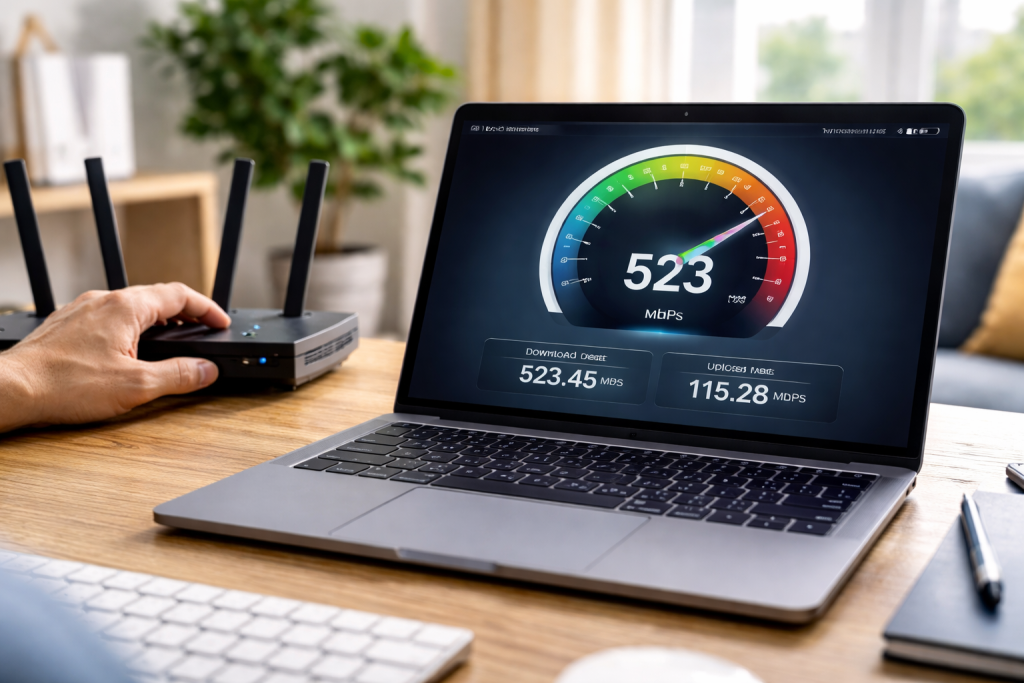
A proactive approach to network management can prevent many headaches. Regularly check your internet speed using online speed test tools. If you notice a sudden drop, start troubleshooting. Rebooting your router is often the simplest fix for minor glitches. If the problem persists, check your ISP’s outage map, inspect your router’s indicator lights for error signals, and systematically work through the tips outlined above.
Tips for Maintaining a Strong and Reliable Wi-Fi Connection
Maintaining a strong Wi-Fi connection is an ongoing process, not a one-time fix. Schedule regular router reboots, perhaps once a month, to clear out any memory leaks or minor software glitches. Keep your router’s firmware updated. Periodically check for new sources of interference in your home or from neighbors. Consider running an Ethernet cable for any stationary devices that demand high bandwidth, such as desktop computers or smart TVs, as a wired connection will always be faster and more reliable than Wi-Fi. Finally, remember that your environment is constantly changing, so a solution that worked perfectly before might need slight adjustments in the future. By staying vigilant and applying these simple hacks, you can ensure your digital highway remains clear, fast, and always open for business.
FAQs
1. What factors can affect my internet speed?
Factors that can affect your internet speed include the distance between your device and the WiFi router, physical obstructions like walls and furniture, interference from other electronic devices, the number of connected devices, and the quality of your router and internet service provider.
2. How can I choose the best location for my WiFi router?
To choose the best location for your WiFi router, place it in a central area of your home, away from physical obstructions and electronic devices. Elevating the router and positioning its antennas vertically can also help improve signal strength and coverage.
3. What are some ways to optimize my WiFi network settings for maximum performance?
You can optimize your WiFi network settings by selecting the best WiFi channel, enabling Quality of Service (QoS) settings to prioritize certain types of internet traffic, updating your router’s firmware, and using WPA3 encryption for enhanced security and performance.
4. How can I upgrade my router for faster internet speeds?
To upgrade your router for faster internet speeds, consider purchasing a router with the latest WiFi technology (such as WiFi 6), dual-band or tri-band capabilities, and multiple antennas for improved coverage and performance.
5. What are some tips for maintaining a strong and reliable WiFi connection?
Tips for maintaining a strong and reliable WiFi connection include regularly updating your router’s firmware, using WiFi extenders or boosters to improve coverage in dead zones, managing and limiting the number of connected devices, and securing your WiFi network with a strong password and encryption. Additionally, monitoring and troubleshooting common WiFi issues can help ensure a stable connection.

About the Author
Maya Ali is the founder of ByteSolving with experience in technology and digital solutions. His mission is to make technology easier to understand and help people solve everyday tech problems in a simple and practical way.