
Don’t Get Locked Out: Simple Solutions for Windows Login Issues
User account and password management can be a recurring source of frustration for many computer users. A forgotten password or a glitch in the login process can turn a productive day into a time-consuming ordeal. This article aims to demystify common Windows login issues, offer practical solutions, and equip you with the knowledge to prevent and resolve these annoyances effectively.
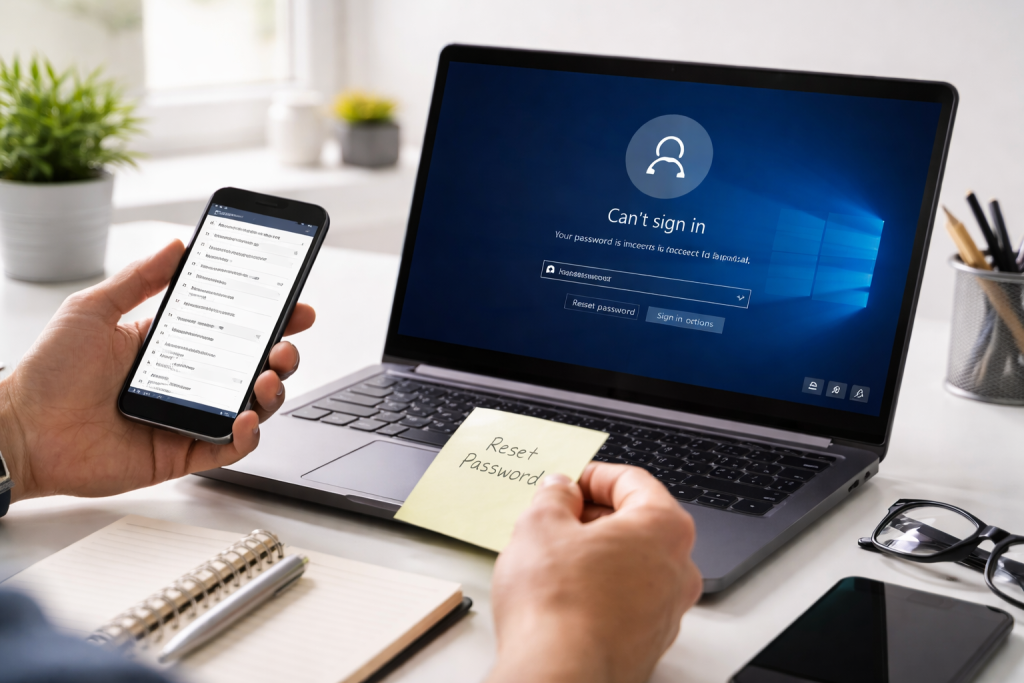
The Windows operating system, while robust, can sometimes present login challenges. These issues can stem from various sources, ranging from simple user oversight to more complex system errors. Recognizing the symptoms and potential causes is the first step toward a swift resolution.
Contents
- 0.1 Forgotten Passwords: The Most Frequent Culprit
- 0.2 Corrupted User Profiles
- 0.3 Incorrect Login Credentials: Typos and Caps Lock Issues
- 0.4 Account Lockout Policies
- 0.5 System Files and Driver Issues
- 0.6 Network and Domain Login Problems
- 0.7 The Power of Passphrases
- 0.8 Password Managers: Your Digital Vault
- 0.9 Strategic Password Variation
- 0.10 Written Records: Stored Securely
- 0.11 Using the Security Questions (Microsoft Accounts)
- 0.12 Utilizing the Password Reset Disk
- 0.13 Using Another Administrator Account
- 0.14 The Advanced Options and Command Prompt are available for Local Accounts.
- 0.15 Fingerprint Recognition
- 0.16 Facial Recognition with Windows Hello
- 0.17 Iris Scanning
- 0.18 Restart Your Computer
- 0.19 Check for Caps Lock and Num Lock
- 0.20 Safe Mode Troubleshooting
- 0.21 System File Checker (SFC)
- 0.22 Check for Windows Updates
- 0.23 Secure and Memorable Passwords
- 0.24 Regular Password Changes
- 0.25 Back Up Your Data Regularly
- 0.26 Be Wary of Suspicious Links and Downloads
- 0.27 Create a Password Reset Disk or Set Up Recovery Options
- 0.28 Fingerprint Reader Setup
- 0.29 Facial Recognition Configuration
- 0.30 Setting Up a PIN
- 0.31 Microsoft Account Recovery Website
- 0.32 Using a Different User Account
- 0.33 Advanced Startup Options and Command Prompt
- 0.34 Strong Antivirus and Anti-Malware Software
- 0.35 Enable Two-Factor Authentication (2FA)
- 0.36 Regularly Review Account Activity
- 0.37 Keep Your Operating System and Software Updated
- 0.38 When to Contact IT Support
- 0.39 When to Consider a Computer Repair Professional
- 0.40 Documenting the Problem
- 1 FAQs
- 1.1 1. What are some common Windows login issues?
- 1.2 2. How can I reset my Windows password?
- 1.3 3. What are some tips for remembering passwords?
- 1.4 4. How can I prevent Windows login issues and enhance security?
- 1.5 5. When should I seek professional help for Windows login troubles?
- 1.6 About the Author
Forgotten Passwords: The Most Frequent Culprit
Undoubtedly, forgetting your password is the most common reason for locking out of your Windows account. This is particularly common for users who have multiple online accounts and struggle to remember unique credentials for each. The human brain, despite its remarkable capacity, isn’t designed to be a perfect password repository.
Corrupted User Profiles
Sometimes, the user profile itself can become corrupted. This corruption can occur due to software conflicts, unexpected shutdowns, or malware infections. When a user profile is damaged, Windows may struggle to load your user data, leading to login failures or scenarios where you can log in but find your settings and files missing.
Incorrect Login Credentials: Typos and Caps Lock Issues
A simple typo or an errant Caps Lock key can be the reason you’re repeatedly denied access. Despite its simplicity, it’s easy to overlook such fundamental errors in the midst of pressing deadlines. The system is case-sensitive, so “Password123” is entirely different from “password123.”
Account Lockout Policies
For security reasons, especially in corporate environments, Windows may implement account lockout policies. The system will temporarily lock the account to prevent brute-force attacks if too many incorrect login attempts occur. The account lockout is a security feature, but it can be a significant inconvenience if you’re unaware of the policy or have forgotten your password.
System Files and Driver Issues
More technical causes can include corrupted system files essential for the login process or outdated or incompatible device drivers. Damage to critical components of the operating system responsible for user authentication can render login impossible. This can sometimes happen after a Windows update or the installation of new hardware.
Network and Domain Login Problems
For computers connected to a network or domain, login issues can also arise from network connectivity problems, domain controller issues, or incorrect domain credentials. If your computer cannot communicate with the authentication server, you won’t be able to log in, even if you have the correct username and password.
The mental strain of remembering complex, unique passwords for every online service can be overwhelming. Fortunately, there are strategies to make this task more manageable and less prone to error, thus significantly reducing the likelihood of login woes.
The Power of Passphrases
Instead of short, complex passwords, consider using passphrases. A passphrase is a sequence of words, often from a phrase or sentence, that is easy for you to remember but difficult for others to guess. For instance, “MyFavoriteBookIsTaleOfTwoCities!” is a strong passphrase. You can then incorporate numbers or symbols for added security, such as “MyFavBook_Tale2Cities!”
Password Managers: Your Digital Vault
Password managers are invaluable tools for managing your digital security. These applications securely store all your usernames and passwords, often encrypted. You only need to remember one strong master password to access the vault. Many password managers can also generate strong, unique passwords for you, eliminating the need to create and remember them yourself. Popular options include LastPass, 1Password, and Bitwarden.
Strategic Password Variation
While unique passwords for every account are ideal, for less critical accounts, some users opt for strategic variations of a base password. For example, you might have a base password and then append a specific number or word related to the website. For instance, if your base password is “SunnyDays,” you might use “SunnyDays_Bank” for your banking site and “SunnyDays_Shopping” for your online store. However, this method should be used with caution, as a compromised base password could compromise multiple accounts.
Written Records: Stored Securely
For those who prefer a physical record, keeping a written list of passwords can be an option, but it demands extreme care. This list should never be stored near your computer or in an easily accessible location. Consider a notebook kept in a secure drawer or a locked filing cabinet. The key is to ensure it’s only accessible to you and well-protected from prying eyes.
When a forgotten password leads to a lockout, knowing how to reset it is crucial. Fortunately, Windows offers several built-in mechanisms to help you regain access to your account.
Using the Security Questions (Microsoft Accounts)
If you use a Microsoft account to log into Windows, one of the simplest methods for password recovery is through the security questions you set up during account creation. On the login screen, after entering an incorrect password, you should see an option to reset your password. Clicking this will guide you through a process of answering your security questions. If you answer them correctly, you’ll be prompted to create a new password.
Utilizing the Password Reset Disk
For local accounts, you can create a password reset disk beforehand. This is often a USB flash drive. If you’ve forgotten your password, you can insert the password reset disk into your computer. The system will then guide you through a wizard to set a new password for your local account. It’s a proactive measure that requires foresight but is incredibly effective if you have one prepared.
Using Another Administrator Account
If you have another administrator’s account on the same computer, you can log in with that one. Once logged in, you can navigate to the User Accounts section in the Control Panel or Computer Management and change or reset the password for the locked-out account. This is a common solution in shared computer environments.
The Advanced Options and Command Prompt are available for Local Accounts.
For more technically inclined users or in situations where other methods fail, the Windows Recovery Environment offers advanced options. By booting from a Windows installation media (USB or DVD) and accessing the Command Prompt, you can employ commands to reset passwords for local accounts. This method is more complex and requires caution to avoid unintended system changes.
Biometric authentication offers a highly convenient and secure method for logging into your Windows device, often eliminating the need to remember or type passwords altogether. This technology leverages unique biological characteristics to verify your identity.
Fingerprint Recognition
Many modern laptops and some desktops come equipped with fingerprint readers. After an initial setup where you register your fingerprints, you can simply place your finger on the sensor to log in. It’s quick, easy, and significantly more secure than typing a password, as your fingerprint is unique to you.
Facial Recognition with Windows Hello
Windows Hello supports facial recognition using specialized cameras. Once you’ve set up facial recognition, the camera scans your face, and if it recognizes you, you’re logged in. This provides a seamless and hands-free login experience. The security of facial recognition technology has advanced significantly, making it a reliable authentication method.
Iris Scanning
Though less common in consumer devices, some high-end laptops and specialized equipment may offer iris scanning as an authentication method. The scanner reads the unique patterns in your iris, providing a highly secure and accurate way to verify your identity.
When login issues persist, a systematic troubleshooting approach can help pinpoint and resolve the problem. Don’t panic; often, a few targeted steps can get you back into your system.
Restart Your Computer
The classic “turn it off and on again” remains surprisingly effective. A simple restart can resolve temporary software glitches, clear out system memory, and refresh critical services that might be hindering the login process.
Check for Caps Lock and Num Lock
As previously mentioned, a simple oversight such as activating Caps Lock or Num Lock can hinder you from correctly entering your password. Please verify these indicators on your keyboard before trying to log in again.
Safe Mode Troubleshooting
Booting Windows into Safe Mode loads only essential drivers and services. If you can log in successfully in Safe Mode, it indicates that a third-party application or driver is likely causing the problem. You can then proceed to uninstall recently installed software or update drivers to identify the culprit.
System File Checker (SFC)
Windows has a built-in tool called the System File Checker (SFC) that scans for and repairs corrupted system files. To use it, you’ll need to access the Command Prompt as an administrator and run the command sfc /scannow. This can resolve issues caused by damaged operating system files.
Check for Windows Updates
Sometimes, login problems can be caused by bugs in older versions of Windows. Ensuring your operating system is up-to-date with the latest patches and updates can resolve known issues, including those related to the login process.
Proactive measures are always better than reactive fixes. By implementing a few beneficial habits, you can significantly reduce the chances of encountering login problems in the first place.
Secure and Memorable Passwords
The foundation of good security and easy access is using secure, yet memorable, passwords. As discussed earlier, passphrases and password managers are excellent tools for achieving this balance.
Regular Password Changes
While not always necessary with strong, unique passwords, periodically changing your passwords, especially for critical accounts like your Microsoft account, adds an extra layer of security and can prevent potential issues if a password has been compromised without your knowledge.
Back Up Your Data Regularly
While not directly related to login, having regular backups of your important data is crucial. If a severe login issue renders your system inaccessible, a recent backup ensures you won’t lose your valuable files.
Be Wary of Suspicious Links and Downloads
Malware and viruses can corrupt system files and user profiles, leading to login problems. Be cautious about clicking on unknown links or downloading software from untrusted sources.
Create a Password Reset Disk or Set Up Recovery Options
As previously mentioned, preparing a password reset disk for local accounts or ensuring your Microsoft account recovery options (like an alternate email or phone number) are up-to-date is a vital preventative step.
Windows Hello aims to make logging into your Windows devices not only secure but also incredibly fast and convenient. It integrates various biometric authentication methods directly into the operating system.
Fingerprint Reader Setup
Getting started with fingerprint login is straightforward. You typically need to use a compatible fingerprint reader. Once connected, navigate to “Settings” > “Accounts” > “Sign-in options” and select “Windows Hello Fingerprint.” Follow the on-screen prompts to register your fingerprints.
Facial Recognition Configuration
For facial recognition, your device needs a compatible infrared camera. Similar to fingerprint setup, you’ll find the “Windows Hello Face” option under “Sign-in options” in the Settings app. The guided setup will ensure the camera can accurately scan your face.
Setting Up a PIN
Even when using biometrics, Windows Hello often requires a PIN as a fallback authentication method. This PIN is linked to your user account and provides a quick way to log in if your biometric device isn’t available or working correctly. It’s generally more secure than a simple password and faster to enter.
If you find yourself locked out of your Windows account, and the initial password reset methods don’t work, there are further steps you can take to recover access.
Microsoft Account Recovery Website
For Microsoft accounts, the dedicated account recovery website is an invaluable resource. You can access this service from any device by visiting the Microsoft website and following the account recovery procedures. This process often involves providing specific details about your account to prove ownership.
Using a Different User Account
If you have administrative privileges on the computer, logging in with another administrator account is a direct way to manage the locked account. From there, you can reset the password for the affected user.
Advanced Startup Options and Command Prompt
As touched upon, the Windows Recovery Environment provides advanced tools. Accessing the Command Prompt through these options allows for more technical interventions, such as using specific commands to manipulate user accounts and their passwords. This method is best suited for those with a good understanding of command-line interfaces.
Robust security practices are intrinsically linked to avoiding login issues. By reinforcing your overall Windows security, you indirectly protect your login credentials and system integrity.
Strong Antivirus and Anti-Malware Software
Keeping your antivirus and anti-malware software up-to-date and running regular scans is paramount. Malicious software can compromise your system, leading to various issues, including login failures.
Enable Two-Factor Authentication (2FA)
For your Microsoft account (and other online services), enabling two-factor authentication adds a significant layer of security. This means even if your password is compromised, an attacker won’t be able to log in without access to your second authentication factor, such as your phone.
Regularly Review Account Activity
Periodically checking your Microsoft account activity or other sensitive accounts for any unusual or unrecognized login attempts can help you detect and respond to potential security breaches early on.
Keep Your Operating System and Software Updated
As discussed, updates often contain security patches that fix vulnerabilities. Regularly updating Windows and your installed applications helps fortify your system against exploits that could lead to login problems.
Sometimes, despite your best efforts, Windows login issues can be stubborn and require expert intervention. Knowing when and how to seek professional help is a sign of sound problem-solving.
When to Contact IT Support
If you are in a corporate or educational environment, your first port of call should almost always be your IT support department. They have the tools, knowledge, and permissions to resolve complex login issues within the organizational network.
When to Consider a Computer Repair Professional
For home users, if you’ve exhausted all troubleshooting steps and are uncomfortable with more advanced technical procedures, consulting a reputable computer repair technician is advisable. They can diagnose hardware issues, perform deep system scans, and offer solutions that might be beyond the scope of typical user knowledge.
Documenting the Problem
Before seeking external help, try to document the exact error messages you are seeing, the steps you have already taken, and any recent changes made to your system. This information will be invaluable to the technician or IT support specialist and can significantly speed up the diagnostic process. Understanding your login challenges, from common pitfalls to advanced recovery options, empowers you to navigate the digital world with greater confidence and less frustration.
FAQs
1. What are some common Windows login issues?
Some common Windows login issues include forgetting your password, being locked out of your account due to multiple failed login attempts, and encountering problems with biometric authentication or Windows Hello.
2. How can I reset my Windows password?
You can reset your Windows password by using the “I forgot my password” option on the login screen, using a password reset disk, or accessing the “Reset this PC” feature in Windows settings.
3. What are some tips for remembering passwords?
Some tips for remembering passwords include using a password manager, creating unique and complex passwords, and utilizing password hints or mnemonic devices to jog your memory.
4. How can I prevent Windows login issues and enhance security?
You can prevent Windows login issues and enhance security by enabling two-factor authentication, keeping your system and software updated, using strong and unique passwords, and enabling features like Windows Hello for seamless login.
5. When should I seek professional help for Windows login troubles?
You should seek professional help for Windows login troubles if you have exhausted all DIY troubleshooting methods, are unable to recover your account on your own, or suspect that your account has been compromised.

About the Author
Maya Ali is the founder of ByteSolving with experience in technology and digital solutions. His mission is to make technology easier to understand and help people solve everyday tech problems in a simple and practical way.