
Maximize Your Connection Speed: The Complete Tutorial on Updating Network Drivers
In our increasingly interconnected world, a fast and stable internet connection is no longer a luxury—it’s a necessity. From remote work and online learning to streaming high-definition content and competitive gaming, a sluggish connection can significantly impede productivity and enjoyment. While many factors contribute to internet speed, one critical yet often overlooked aspect is the health and currency of your network drivers. This comprehensive tutorial will delve deep into the world of network drivers, equipping you with the knowledge and tools to maximize your connection speed and unlock your internet’s full potential.
Contents
- 0.1 Understanding the Importance of Network Drivers
- 0.2 Step-by-Step Guide to Updating Network Drivers
- 0.3 The Best Tools for Updating Network Drivers
- 0.4 Troubleshooting Common Issues When Updating Network Drivers
- 0.5 Tips for Maximizing Your Connection Speed After Updating Network Drivers
- 0.6 The Benefits of Regularly Updating Network Drivers
- 0.7 How to Identify the Right Network Drivers for Your System
- 0.8 The Impact of Updated Network Drivers on Online Gaming and Streaming
- 0.9 Expert Advice on Maintaining Optimal Connection Speed through Network Driver Updates
- 1 FAQs
- 1.1 What are network drivers, and why are they important for connection speed?
- 1.2 How do outdated network drivers affect connection speed?
- 1.3 What are the steps involved in updating network drivers?
- 1.4 What are the best tools for updating network drivers?
- 1.5 How do updated network drivers impact online gaming and streaming?
- 1.6 About the Author
Understanding the Importance of Network Drivers
Imagine your computer’s operating system as the brain and your network adapter as the communication mechanism that allows it to interact with the internet. Network drivers are the specialized software that acts as the translator between these two components. They instruct your operating system on how to use your network adapter effectively, enabling it to send and receive data packets across your local network and the vast expanse of the internet. Without the correct drivers, or with outdated ones, your network adapter simply won’t function optimally, if at all.
The Role of Drivers in Network Communication
Every piece of hardware in your computer, from your graphics card to your printer, requires a specific driver to communicate with the operating system. Network drivers are particularly crucial because they directly impact the efficiency and stability of your internet connection. They govern everything from data transfer rates and signal strength to the error correction mechanisms employed during data transmission.
How Outdated Network Drivers Affect Connection Speed
Outdated network drivers are a silent killer of internet speed. As technology evolves, so too do the protocols and standards for network communication. Older drivers may not be optimized for these newer standards, leading to several detrimental effects on your connection.
Firstly, they can result in slower data transfer rates. Drivers are constantly updated to improve their efficiency, often incorporating bug fixes and performance enhancements. An old driver might be using inefficient algorithms or be unable to fully utilize the capabilities of your network adapter, creating a bottleneck that prevents your internet from reaching its advertised speeds.
Secondly, outdated drivers can lead to connection instability and frequent disconnections. Compatibility issues with the latest operating system updates or network device firmware can cause your network adapter to falter, leading to intermittent internet access. Imagine trying to stream a movie only to have it buffer every few minutes—this is a common symptom of an ailing network driver.
Finally, older drivers can contribute to higher latency, particularly noticeable in online gaming. Latency, often referred to as “ping,” is the time it takes for data to travel from your computer to a server and back. Outdated drivers can introduce unnecessary delays in this process, manifesting as lag in real-time applications and a frustrating user experience.
Step-by-Step Guide to Updating Network Drivers
Updating your network drivers might seem daunting, but with a systematic approach, it’s a straightforward process. Before you begin, it’s always a good idea to perform a speed test to establish a baseline for comparison after the update.
Identifying Your Network Adapter
The first crucial step is to identify the make and model of your network adapter. This information is essential for downloading the correct drivers.
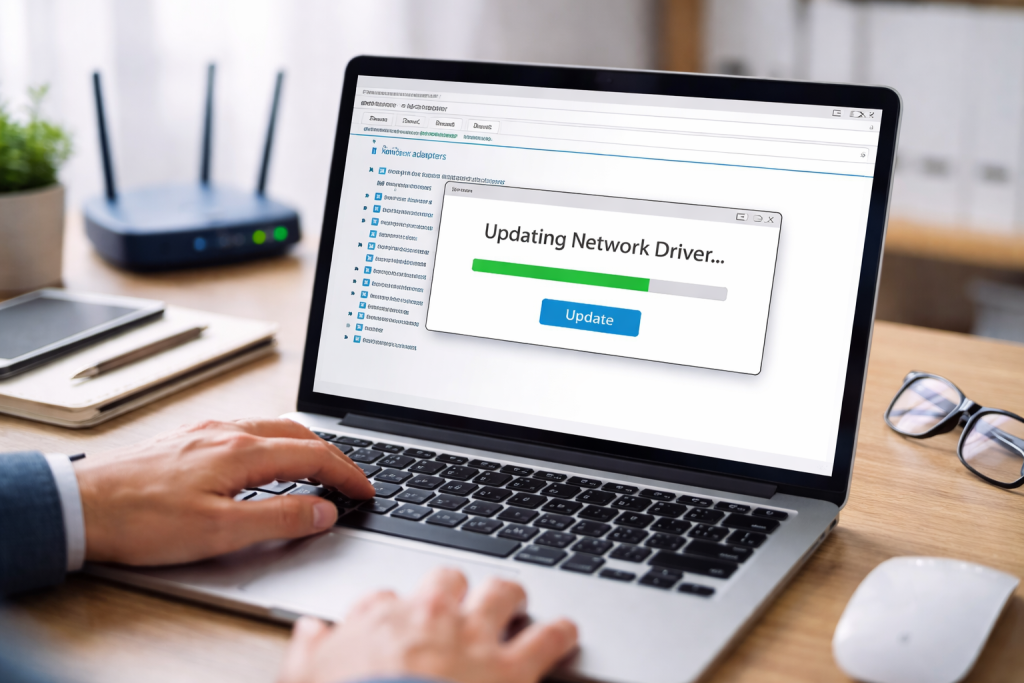
On Windows, you can access the Device Manager by right-clicking the Start button and selecting “Device Manager.” Expand the “Network adapters” section, and you’ll see a list of your installed network devices. Note down the full name of your primary Wi-Fi or Ethernet adapter. For Mac users, navigate to “About This Mac,” then “System Report,” and then “Network.”
Choosing the Right Driver Source
Once you know your adapter’s model, the most reliable source for drivers is the manufacturer’s official website. Avoid third-party driver download sites, as they can sometimes bundle unwanted software or even malware with their drivers.
Search for your network adapter model on the manufacturer’s support page. Look for a “Drivers” or “Support & Downloads” section. Ensure you select the drivers compatible with your operating system (e.g., Windows 11 64-bit, macOS Sonoma).
Performing the Update
There are generally two methods for updating drivers:
1. Manual Update: Download the driver package from the manufacturer’s website. This will usually be an executable file (.exe) or a compressed archive (.zip). If it’s an executable, simply run it and follow the on-screen instructions. If it’s a .zip file, extract its contents to a folder. Then, go back to Device Manager, right-click on your network adapter, select “Update driver,” choose “Browse my computer for drivers,” and navigate to the folder where you extracted the driver files.
2. Automatic Update (via Device Manager): While less reliable for finding the absolute latest drivers, Device Manager can sometimes identify and install newer versions. Right-click on your network adapter, select “Update driver,” and then choose “Search automatically for updated driver software.”
Restarting Your System
After updating your drivers, it’s imperative to restart your computer. This ensures that the new drivers are properly loaded and integrated into the operating system.
The Best Tools for Updating Network Drivers
While manual updates are the most robust, several tools can automate or simplify the process, especially for users who prefer a more hands-off approach.
Manufacturer-Specific Utilities
Many hardware manufacturers provide their own driver update utilities. For example, Intel has its Driver & Support Assistant, and NVIDIA offers GeForce Experience for their graphics cards, which sometimes includes network driver updates for integrated chipsets. If your network adapter is from a major manufacturer, check their website for such a tool.
Third-Party Driver Updaters (Use with Caution)
Several third-party driver updater programs exist, such as Driver Booster or IObit Driver Booster. These tools scan your system for outdated drivers and can download and install them automatically. While convenient, it’s crucial to exercise caution. Some free versions may install bloatware, and even reputable ones can sometimes install incorrect or unstable drivers. Always create a system restore point before using such tools.
Troubleshooting Common Issues When Updating Network Drivers
Despite careful execution, issues can sometimes arise during or after a driver update.
Connection Loss After Update
If you lose your internet connection immediately after an update, it’s possible the new driver is incompatible or corrupted.
Solution: Restart your computer in Safe Mode with Networking. Access Device Manager, locate your network adapter, right-click, and select “Roll Back Driver.” This will revert to the previously installed driver. If “Roll Back Driver” is greyed out, you may need to uninstall the driver and then restart, allowing Windows to reinstall a generic driver or for you to install a known working version.
“Best Driver Already Installed” Message
Sometimes, Device Manager will tell you that the “best driver” is already installed, even if you know there’s a newer version available.
Solution: This usually means Device Manager couldn’t find a newer driver in its own repository. Proceed with the manual update method by downloading the latest driver directly from the manufacturer’s website.
Driver Signature Verification Issues
Windows has security measures that verify the digital signature of drivers. If a driver is unsigned or its signature is invalid, Windows may prevent its installation.
Solution: In rare cases, you might need to temporarily disable driver signature enforcement to install a legitimate, but unsigned, driver. However, this should only be done if you are absolutely certain of the driver’s source and integrity, as it can expose your system to security risks.
Tips for Maximizing Your Connection Speed After Updating Network Drivers
Updating your network drivers is a significant step, but it’s part of a broader strategy for optimal connection speed.
Optimize Wi-Fi Channel and Placement
Even with updated drivers, interference can degrade Wi-Fi performance. Use a Wi-Fi analyzer app on your smartphone to identify congested channels in your area and switch your router to a less crowded one. Also, ensure your router is centrally located and away from obstructions.
Use Ethernet When Possible
For crucial tasks like gaming or large file transfers, a wired Ethernet connection will almost always outperform Wi-Fi, offering lower latency and higher stability.
Consider a Router Upgrade
If your router is several years old, it might not be supporting the latest Wi-Fi standards (e.g., Wi-Fi 6 or Wi-Fi 6E). An upgraded router can significantly improve your overall network performance.
The Benefits of Regularly Updating Network Drivers
Regularly updating your network drivers isn’t just about fixing problems; it’s about continuous improvement and preventative maintenance.
Enhanced Performance and Stability
Manufacturers frequently release driver updates that include performance optimizations and bug fixes. These can lead to faster speeds, reduced latency, and a more stable connection, especially as new operating system versions or network technologies emerge.
Improved Security
Driver updates can also patch security vulnerabilities that could potentially be exploited by malicious actors. Keeping your drivers current helps protect your network from unauthorized access.
Compatibility with New Technologies
As new Wi-Fi standards (like Wi-Fi 7) or increased network bandwidth become available, updated drivers ensure your hardware can take full advantage of these advancements.
How to Identify the Right Network Drivers for Your System
While we touched upon identifying your adapter, a deeper understanding ensures you download the absolutely correct drivers.
Utilizing System Information Tools
On Windows, the “System Information” tool (type msinfo32 in the Run dialog) provides a comprehensive overview of your hardware, including detailed network adapter information. On macOS, the “System Report” provides similar depth.
Cross-Referencing with Manufacturer Sites
Once you have the adapter model, always cross-reference it with the manufacturer’s official support website. Pay close attention to the specific sub-model or revision numbers, as drivers can sometimes differ even for seemingly similar hardware.
Checking Operating System Version and Architecture
Ensure you download drivers that specify compatibility with your exact operating system version (e.g., Windows 11 version 23H2) and architecture (32-bit or 64-bit). Installing the wrong version can lead to instability or nonfunctional hardware.
The Impact of Updated Network Drivers on Online Gaming and Streaming
For online gamers and avid streamers, updated network drivers are not just beneficial—they are transformative.
Reduced Latency and Stuttering in Gaming
As mentioned, latency is critical in online gaming. Optimized drivers can significantly reduce ping times and minimize packet loss, leading to a smoother, more responsive gaming experience. This translates to quicker reactions, fewer frustrating lags, and a competitive edge.
Smoother, High-Resolution Streaming
Streaming high-definition (HD) or 4K content demands a consistent and high-bandwidth connection. Updated network drivers ensure your adapter can efficiently handle the increased data flow, reducing buffering, dropped frames, and overall playback issues. This results in a seamless and enjoyable viewing experience, free from interruptions.
Expert Advice on Maintaining Optimal Connection Speed through Network Driver Updates
Maintaining optimal connection speed is an ongoing process, not a one-time fix.
Establish a Regular Driver Update Schedule
Make it a habit to check for network driver updates every few months, or whenever your operating system receives a major update. Manufacturers often release new drivers in conjunction with these updates to ensure compatibility and performance.
Monitor Network Performance
Utilize built-in operating system tools (like Task Manager on Windows or Activity Monitor on macOS) or third-party network monitoring software to keep an eye on your connection speed, latency, and data usage. This can help you identify subtle performance degradations that might indicate a need for driver updates.
Back Up Existing Drivers
Before undertaking any major driver update, consider backing up your current, working drivers. Tools like Double Driver can help with this. This provides a safety net if a new driver causes unforeseen problems, allowing you to easily revert to a stable configuration.
By understanding the vital role network drivers play and consistently applying these best practices, you can ensure your internet connection remains robust, fast, and primed for all your online activities. Maximize your connection speed and unlock the full potential of your digital world.
FAQs
What are network drivers, and why are they important for connection speed?
Network drivers are software programs that enable communication between the operating system and the network hardware. They are crucial for maintaining optimal connection speed, as they facilitate the transfer of data between the computer and the network.
How do outdated network drivers affect connection speed?
Outdated network drivers can lead to slow connection speeds, intermittent connectivity issues, and even complete network failure. This is because outdated drivers may not be able to efficiently handle the latest network protocols and technologies, resulting in degraded performance.
What are the steps involved in updating network drivers?
Updating network drivers involves identifying the current driver version, downloading the latest driver from the manufacturer’s website, and installing the new driver. It is important to follow the manufacturer’s instructions and ensure compatibility with the operating system.
What are the best tools for updating network drivers?
There are several reputable tools available for updating network drivers, such as Driver Booster, Driver Easy, and Snappy Driver Installer. These tools can automatically scan for outdated drivers and download the latest versions, simplifying the update process.
How do updated network drivers impact online gaming and streaming?
Updated network drivers can significantly improve the online gaming and streaming experience by reducing latency, minimizing lag, and providing a more stable connection. This can result in smoother gameplay, faster downloads, and higher-quality streaming content.

About the Author
Maya Ali is the founder of ByteSolving with experience in technology and digital solutions. His mission is to make technology easier to understand and help people solve everyday tech problems in a simple and practical way.