
Mastering the Art of Fixing Ethernet Connection Problems: A Comprehensive Guide
The ubiquitous Ethernet connection, the reliable workhorse of wired networking, often goes unnoticed until it fails. When that familiar icon suggesting “no internet access” appears, or your network speeds plummet, it can be a source of immense frustration. This guide will equip you with the knowledge and techniques to diagnose and resolve a wide array of Ethernet connection issues, transforming you from a bewildered user into a confident troubleshooter. From understanding the common culprits to implementing effective solutions across different operating systems and environments, we’ll cover every facet of maintaining a robust and dependable wired network.
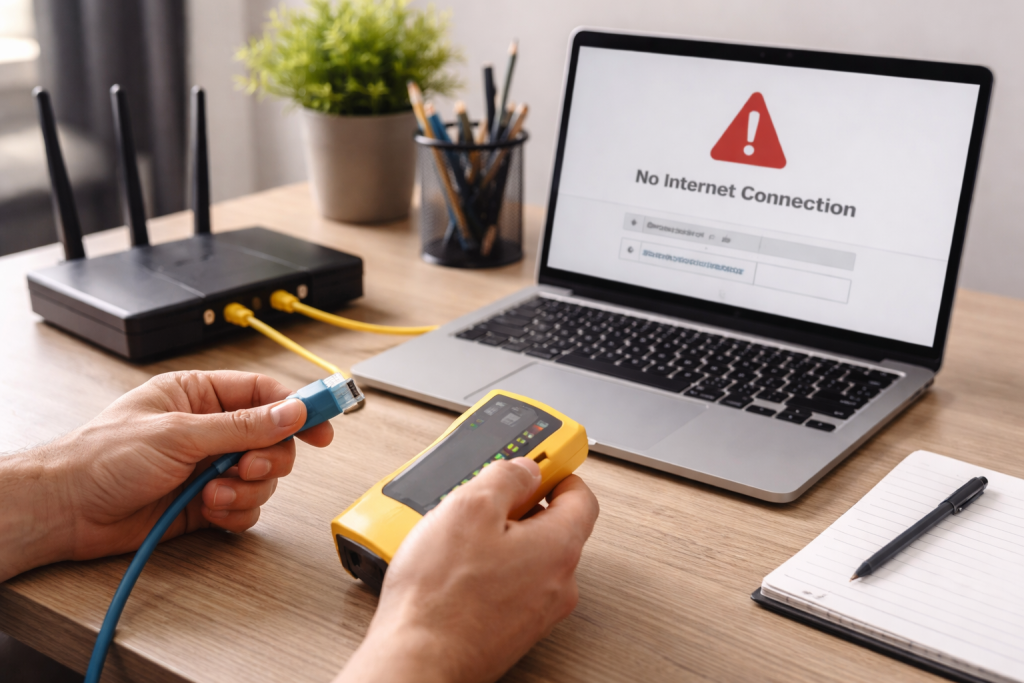
Before diving into solutions, it’s important to remember the fundamental reasons why your Ethernet connection might be acting up. These issues often fall into several broad categories, each with its set of diagnostic clues.
Contents
- 0.1 Physical Cable Damage and Connections
- 0.2 Network Adapter (NIC) Malfunctions
- 0.3 Router/Switch Problems and Network Configuration
- 0.4 Initial Checks and Basic Resets
- 0.5 Utilizing Diagnostic Tools
- 0.6 Updating and Reinstalling Drivers
- 0.7 Inspecting and Testing Cables
- 0.8 Choosing the Right Cable Type
- 0.9 Checking Device Manager (Windows) and System Information (Mac)
- 0.10 Reinstalling or Updating Network Card Drivers
- 0.11 Utilizing Windows Network Troubleshooter
- 0.12 Resetting Network Settings
- 0.13 Disabling and Re-enabling the Adapter
- 0.14 Checking Network Preferences
- 0.15 Using Network Diagnostics
- 0.16 Renewing DHCP Lease and Resetting PRAM/NVRAM
- 0.17 Identifying Bottlenecks
- 0.18 Checking for Network Congestion and Duplex Mismatch
- 0.19 Router Firmware and Quality of Service (QoS) Settings
- 0.20 Simplifying the Network for Diagnosis
- 0.21 Checking for IP Address Conflicts
- 0.22 Resetting Router to Factory Defaults
- 0.23 Consulting with Network Administrators
- 0.24 Understanding Office Network Infrastructure
- 0.25 Regular Maintenance and Cable Management
- 0.26 Keeping Drivers and Firmware Updated
- 0.27 Investing in Quality Hardware
- 1 FAQs
- 1.1 1. What are common Ethernet connection issues that users may encounter?
- 1.2 2. How can users troubleshoot and resolve Ethernet connection problems on their own?
- 1.3 3. What are some tips for identifying and fixing network card problems related to Ethernet connections?
- 1.4 4. How can users address slow Ethernet connection speeds in their home or office environment?
- 1.5 5. What are some preventive measures to avoid future Ethernet connection problems?
- 1.6 About the Author
Physical Cable Damage and Connections
One of the most frequent culprits is the Ethernet cable itself. These seemingly robust cables can be surprisingly delicate. Kinks, sharp bends, pinches, or even a pet’s playful chew can sever internal wires, leading to complete signal loss or intermittent connectivity. Similarly, loose connections at either end—where the cable plugs into your device or the router/switch—are surprisingly common. A slightly dislodged connector can sometimes appear to be fully seated but still fail to establish a reliable connection. Even dust or debris accumulating within the port can impede proper contact.
Network Adapter (NIC) Malfunctions
The network interface card (NIC), whether integrated into your motherboard or an external USB adapter, is the bridge between your device and the Ethernet cable. Like any piece of hardware, NICs can fail. The operating system may not recognize the adapter, it may consistently report connection errors, or it may dramatically underperform. Outdated or corrupted drivers are another significant cause of NIC-related issues. Drivers are the software instructions that allow your operating system to communicate with the hardware, and incorrect or old versions can lead to compatibility problems and erratic behavior.
Router/Switch Problems and Network Configuration
Your router or network switch is the central hub of your wired network. If it malfunctions, every device connected to it via Ethernet will be affected. The problems could range from the device completely failing to power on to its Ethernet ports not functioning correctly or its internal software (firmware) becoming corrupted. Incorrect network settings on the router, such as DHCP issues (Dynamic Host Configuration Protocol—the service that assigns IP addresses), can also prevent devices from obtaining a valid network configuration. Sometimes, a simple overload of network traffic can temporarily overwhelm a router, causing performance degradation.
When an Ethernet connection problem arises, a systematic approach to troubleshooting is far more effective than randomly trying fixes. Start with the simplest and most common solutions, gradually escalating to more complex diagnostics.
Initial Checks and Basic Resets
Always begin with the basics. Check the Ethernet cable for any visible damage. Ensure it is securely plugged into both your device and the router/switch, listening for a reassuring “click.” If possible, try a different port on your router/switch to rule out a faulty port. A simple power cycle of your router and modem can often resolve a myriad of transient network issues. Unplug both devices from their power source, wait 30 seconds, then plug the modem back in. Once it’s fully booted (indicated by stable lights), plug the router back in and wait for it to stabilize.
Utilizing Diagnostic Tools
Both Windows and macOS offer built-in diagnostic tools that can be invaluable. The “Network Troubleshooter” in Windows can automatically detect and suggest fixes for common network problems. On a Mac, the “Network Diagnostics” utility can guide you through a series of checks. Familiarize yourself with basic command-line tools like ipconfig Windows or ifconfig Mac to check your IP address, subnet mask, and default gateway. The ping command is excellent for testing connectivity to specific devices or websites. Typing ping google.com will tell you if your device can reach Google’s servers.
Updating and Reinstalling Drivers
Outdated or corrupted network adapter drivers are a common source of trouble. Regularly checking for driver updates, especially after operating system upgrades, can prevent many issues. You can usually find the latest drivers on your computer manufacturer’s website or the network adapter manufacturer’s website. If an update doesn’t help, try uninstalling the existing driver and then reinstalling it. This forces the system to recognize the adapter afresh.
The physical layer is often overlooked but is a critical component of any wired network. A problem with your Ethernet cable can mimic more complex issues, so it’s essential to address it systematically.
Inspecting and Testing Cables
Carefully examine the entire length of your Ethernet cable for any cuts, kinks, or severe bends. Pay close attention to the RJ45 connectors at each end. Are the plastic tabs intact? Are the individual pins within the connector straight and not bent or pushed in? If you suspect a cable issue, the most straightforward test is to replace it with a known good cable. The result immediately tells you whether the cable was the problem. For more advanced diagnostics, a dedicated Ethernet cable tester can identify continuity issues or miswired pairs within the cable.
Choosing the Right Cable Type
Not all Ethernet cables are created equal. Different categories (Cat5e, Cat6, Cat6a, Cat7, and Cat8) offer varying levels of performance and shielding. For most home networks, Cat5e or Cat6 is sufficient. However, if you’re experiencing slow speeds over long distances or in environments with significant electromagnetic interference, upgrading to a shielded Cat6a or higher category cable might be beneficial. Ensure your cables are appropriate for the speeds your network is designed to support.
When the cable is ruled out, your focus shifts to the network interface card (NIC) itself. This can be a more intricate diagnosis, but several indicators can point to an NIC malfunction.
Checking Device Manager (Windows) and System Information (Mac)
In Windows, open “Device Manager” and expand “Network adapters.” Look for any yellow exclamation marks or red “X” symbols next to your Ethernet adapter, which indicate a problem. On a Mac, navigate to “About This Mac” > “System Report” > “Network” and check the status of your Ethernet adapter. If the adapter isn’t listed or shows an error, it’s a strong indication of a hardware or driver issue.
Reinstalling or Updating Network Card Drivers
As mentioned earlier, outdated or corrupted drivers are a primary cause of NIC problems. Attempt to update your driver first. If that fails, uninstall the driver completely from Device Manager (making sure to check the box to delete the driver software) and then restart your computer. Windows will often reinstall a generic driver, which you can then replace with the latest version from the manufacturer. If your NIC is a separate expansion card, ensure it is properly seated in its PCIe slot.
Windows, being the most widely used operating system, often presents its set of specific troubleshooting steps for Ethernet issues.
Utilizing Windows Network Troubleshooter
Windows’ built-in “Network Troubleshooter” is surprisingly effective for common problems. You can access it by right-clicking the network icon in the system tray and selecting “Troubleshoot problems.” It will automatically run diagnostics and attempt to apply fixes or provide guidance.
Resetting Network Settings
Performing a network reset can sometimes resolve deeply ingrained network configuration issues. In Windows 10/11, go to “Settings” > “Network & Internet” > “Status” and then scroll down to “Network reset.” This will remove and reinstall all network adapters and revert network components to their original settings. Be aware you’ll need to re-enter Wi-Fi passwords afterward.
Disabling and Re-enabling the Adapter
A quick fix for a temporarily unresponsive adapter can be to disable and then re-enable it. In Device Manager, right-click your Ethernet adapter and choose “Disable device,” then right-click again and select “Enable device.” This step can often kickstart a stalled connection.
Mac users face similar challenges but have a distinct set of tools and approaches for diagnosing Ethernet issues.
Checking Network Preferences
On macOS, the “Network” pane in “System Preferences” is your primary hub for Ethernet settings. Ensure your Ethernet connection is listed on the left and shows a green indicator light, signifying an active connection. If it’s orange or red, there’s an issue. Check the configuration, ensuring it’s set to “Using DHCP” unless you have a specific reason for a static IP address.
Using Network Diagnostics
macOS includes a utility called “Network Diagnostics.” You can find it by holding down the Option key and clicking the Wi-Fi icon in the menu bar, then selecting “Open Wireless Diagnostics,” and within that utility, you’ll locate “Network Diagnostics.” This tool will guide you through a series of checks for your internet connection, including Ethernet.
Renewing DHCP Lease and Resetting PRAM/NVRAM
If your Mac isn’t getting an IP address, try renewing the DHCP lease in Network Preferences. Select your Ethernet adapter, click “Advanced,” go to the “TCP/IP” tab, and click “Renew DHCP Lease.” For persistent, inexplicable hardware-related issues, resetting the PRAM or NVRAM can sometimes resolve underlying system-level glitches that affect network adapters.
A slow wired connection can be just as frustrating as a completely disconnected one. Pinpointing the cause of slow speeds requires a different analytical approach.
Identifying Bottlenecks
The first step is to identify where the bottleneck lies. Is it your internet service provider (ISP)? Run a speed test directly connected to your modem (not router). If those speeds are normal, the issue is internal. Test speeds with different Ethernet cables, different ports on your router, and even different devices to isolate the problem. An outdated or inexpensive router might not be able to handle the full bandwidth provided by your ISP.
Checking for Network Congestion and Duplex Mismatch
Heavy network traffic, especially on older or lower-end routers, can cause significant slowdowns. If multiple devices are streaming high-definition content or downloading large files simultaneously, it can saturate your network’s capacity. Another technical issue is a “duplex mismatch,” where one device is set to full-duplex (sending and receiving simultaneously) and the other is half-duplex (one at a time), leading to collisions and dramatically reduced speeds. While modern devices usually auto-negotiate, manual configuration issues can sometimes arise.
Router Firmware and Quality of Service (QoS) Settings
Ensure your router’s firmware is up to date, as updates often include performance improvements and bug fixes. Many routers also offer Quality of Service (QoS) settings, which allow you to prioritize certain types of traffic (e.g., gaming or video streaming) over others. Misconfigured QoS can sometimes inadvertently slow down other devices or applications. Experiment with these settings if you suspect they might be contributing to performance issues.
Home networks often have a mix of devices and varying technical expertise among users. Troubleshooting here benefits from a holistic perspective.
Simplifying the Network for Diagnosis
When things go wrong, temporarily simplify your network. Disconnect all but one device connected via Ethernet to your router. If that device works, slowly reintroduce other devices one by one until the problem reappears, helping you pinpoint the culprit device. This strategy of “dividing and conquering” proves to be highly effective.
Checking for IP Address Conflicts
If two devices on your network unintentionally get assigned the same IP address, it can cause intermittent connectivity or complete network failure for one or both. Your router’s DHCP server is usually responsible for assigning unique IP addresses. If you’ve manually configured static IP addresses for some devices, double-check that they don’t overlap with the DHCP range or with each other.
Resetting Router to Factory Defaults
Consider performing a factory reset on your router as a final solution for persistent router-related issues. This will wipe all custom settings and revert it to its original state. Warning: You will need to reconfigure all your network settings, including Wi-Fi passwords, after a factory reset. Only reset the factory if you have no other options and are ready to set up your network again.
Office networks have additional layers of complexity, such as managed switches, VLANs, and corporate firewalls. Solutions often require coordination with IT staff.
Consulting with Network Administrators
Unless you are the network administrator, your first step in an office environment should almost always be to contact your IT department or network administrator. They have access to network monitoring tools, server logs, and the expertise specific to your organization’s infrastructure. Attempting to troubleshoot or change settings without authorization can lead to further complications.
Understanding Office Network Infrastructure
Office networks often utilize managed switches, which require specific configurations for each port, including VLAN assignments, speed/duplex settings, and potentially Power over Ethernet (PoE) options. Your device won’t connect correctly if you misconfigure or assign a port to the wrong VLAN. Likewise, corporate firewalls and proxy servers can block certain types of traffic or require specific authentication, which might manifest as a connection problem.
It is crucial to prioritize prevention over cure. By adopting good practices, you can significantly reduce the likelihood of encountering future Ethernet issues.
Regular Maintenance and Cable Management
Periodically inspect your Ethernet cables for wear and tear. Use cable ties or Velcro straps to manage cables neatly, preventing kinks and accidental disconnections. Avoid running Ethernet cables in high-traffic areas where they might be stepped on or snagged. Properly labeling cables, especially in complex setups, can save immense troubleshooting time later.
Keeping Drivers and Firmware Updated
Make it a habit to regularly check for and install updates for your network adapter drivers and router firmware. Manufacturers frequently release updates that improve performance, enhance security, and resolve bugs that could lead to connectivity issues.
Investing in Quality Hardware
While budget options can be tempting, investing in good-quality Ethernet cables, network adapters, and routers can prevent many headaches down the line. Higher-quality components often offer better durability, shielding, and more stable performance, especially under heavy network loads. For critical connections, consider using shielded cables to minimize interference.
By understanding the common causes of Ethernet connection problems, systematically troubleshooting issues, and implementing preventative measures, you can ensure a stable and fast wired connection, keeping your digital life running smoothly.
FAQs
1. What are common Ethernet connection issues that users may encounter?
Some common Ethernet connection issues include slow connection speeds, network card problems, cable issues, and general connectivity problems on both Windows and Mac operating systems.
2. How can users troubleshoot and resolve Ethernet connection problems on their own?
Users can troubleshoot and resolve Ethernet connection problems by checking for physical cable issues, updating network card drivers, resetting network settings, and running diagnostic tests on their devices.
Some tips for identifying and fixing network card problems include checking for driver updates, ensuring the card is properly installed, and testing it on another device to rule out hardware issues.
4. How can users address slow Ethernet connection speeds in their home or office environment?
Users can address slow Ethernet connection speeds by checking for network congestion, using quality Ethernet cables, updating router firmware, and optimizing network settings for better performance.
5. What are some preventive measures to avoid future Ethernet connection problems?
Some preventive measures to avoid future Ethernet connection problems include regularly updating network equipment, using surge protectors for network devices, organizing and securing Ethernet cables, and implementing network security measures to prevent potential issues.

About the Author
Maya Ali is the founder of ByteSolving with experience in technology and digital solutions. His mission is to make technology easier to understand and help people solve everyday tech problems in a simple and practical way.