
Mute No More: A Step-by-Step Guide to Resolving Sound Issues on Your Computer
Your computer’s sudden silence can halt productivity and entertainment. Whether you’re trying to participate in a crucial video conference, enjoy your favorite music, or even hear system alerts, a lack of sound can be incredibly frustrating. Fortunately, a systematic approach can often resolve the most common computer sound issues, making them manageable. This guide strives to enable you to restore your audio and guarantee that your computer is no longer silent.
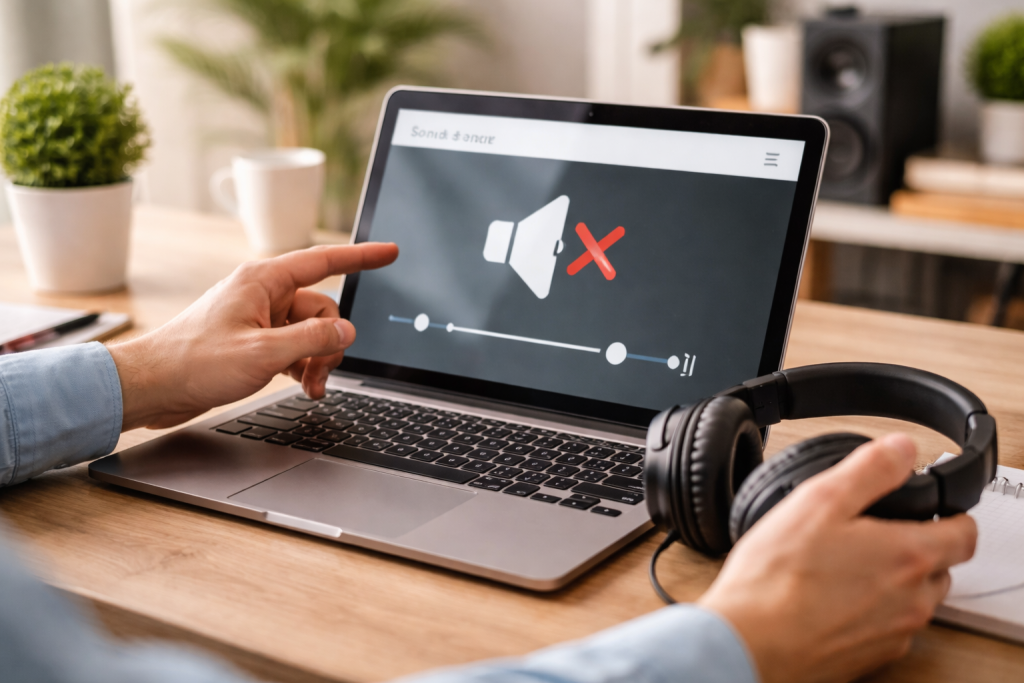
Before diving into solutions, it’s beneficial to understand the landscape of typical audio problems that plague computer users. Recognizing the symptoms can often point you toward the most probable cause. These issues can manifest in various ways, from no sound at all to distorted audio or intermittent glitches.
Contents
- 0.1 No Sound at All
- 0.2 Distorted or Broken Sound
- 0.3 Intermittent Sound Issues
- 0.4 Low Volume or Uneven Sound
- 0.5 Verifying Mute Status and Volume Levels
- 0.6 Selecting the Correct Audio Output Device
- 0.7 Examining Application-Specific Sound Settings
- 0.8 Understanding the Role of Audio Drivers
- 0.9 Methods for Updating Audio Drivers
- 0.10 Reinstalling Drivers When Necessary
- 0.11 Inspecting Physical Connections
- 0.12 Testing Speakers and Headphones Separately
- 0.13 Checking for Physical Damage to the Sound Card
- 0.14 Running the Windows Audio Troubleshooter
- 0.15 Leveraging macOS Audio MIDI Setup
- 0.16 Exploring Linux Sound Settings and Tools
- 0.17 USB Sound Cards and DACs
- 0.18 External Speakers and Amplifiers
- 0.19 Bluetooth Headphones and Speakers
- 0.20 Checking In-App Audio Settings
- 0.21 Verifying Program Permissions
- 0.22 Reinstalling Problematic Applications
- 0.23 Understanding System Restore Points
- 0.24 How to Use System Restore
- 0.25 When to Call a Technician
- 0.26 What Information to Provide
- 0.27 Keeping Software and Drivers Updated
- 0.28 Performing Regular System Checks
- 0.29 Practicing Good Hardware Care
- 1 FAQs
- 1.1 1. What are some common sound issues that can occur on a computer?
- 1.2 2. How can I check and adjust sound settings on my computer?
- 1.3 3. How do I update audio drivers for better sound quality?
- 1.4 4. What are some troubleshooting steps for hardware issues with my computer’s sound?
- 1.5 5. How can I prevent future sound problems with regular maintenance?
- 1.6 About the Author
No Sound at All
The most drastic symptom is a complete absence of sound. This could mean no audio from speakers, headphones, or even system alerts. This scenario is often the most perplexing, as it leaves you with no audible feedback whatsoever. It could stem from a simple oversight or a more complex internal problem.
Distorted or Broken Sound
Sometimes, sound might be present, but it’s far from listenable. This can include crackling, popping, static, or a muffled quality. This type of sound often indicates an issue with the audio driver, speaker hardware, or potentially interference. The sound might be there, but its integrity is compromised, making it unpleasant or impossible to discern.
Intermittent Sound Issues
If your sound cuts in and out randomly, it can be incredibly disruptive. This might happen during playback, video calls, or even system sounds. The unpredictable nature of this problem makes it challenging to diagnose, as it doesn’t present a consistent failure.
Low Volume or Uneven Sound
You may hear sound, but it’s much quieter than it should be, or one speaker is much louder than the other. This can be due to incorrect volume settings, software limitations, or even a hardware imbalance.
The first and often simplest step in resolving sound issues is to meticulously check your computer’s audio settings. Many problems arise from accidentally muted channels, incorrect output devices, or volume levels set too low. This is the most straightforward approach to audio troubleshooting and should always be your initial step.
Verifying Mute Status and Volume Levels
Within your operating system, there’s a dedicated volume mixer that allows you to control the overall system volume as well as individual application volumes. Ensure that neither the master volume nor the volume for the specific application you’re using is muted. Look for a speaker icon with a red circle and a slash through it, indicating mute. Clicking this icon should unmute the device or application. Similarly, ensure that the volume sliders are set to an audible level. Sometimes, applications have their internal volume controls separate from the system-wide settings, so check those as well.
Selecting the Correct Audio Output Device
Computers can be connected to multiple audio output devices simultaneously, such as internal speakers, external speakers, headphones, or even HDMI audio through a monitor. If your computer is defaulting to the wrong output device, you won’t hear sound from your intended source. Navigate to your sound settings and identify the list of available playback devices. Ensure that the device you want to use—your speakers, for example—is selected as the default playback device. You can usually identify the active device by a green checkmark or by right-clicking and selecting “Set as Default Device.”
Examining Application-Specific Sound Settings
As mentioned, many programs have their audio configurations. For instance, a video conferencing application might have settings for microphone input and speaker output that override system defaults. Before assuming a system-wide problem, check the settings of the specific application experiencing the sound issue. Look for audio or sound tabs where you can select input and output devices and adjust volume levels within that application.
Audio drivers are essential software components that allow your operating system to communicate effectively with your sound card. Outdated, corrupted, or incompatible drivers are a very common cause of audio problems, ranging from basic functionality to the nuances of sound quality. Keeping your audio drivers up-to-date is crucial for optimal performance.
Understanding the Role of Audio Drivers
Think of audio drivers as translators. Your operating system speaks one language (digital data), and your sound hardware speaks another (analog signals for speakers or headphones). The driver bridges this gap, interpreting the operating system’s commands and translating them into instructions that your sound hardware can understand, and vice versa for microphone input. If this translation is faulty, the result is garbled or no sound at all.
Methods for Updating Audio Drivers
There are several ways to update your audio drivers. The most straightforward is through your operating system’s device manager. You can access this folder by searching for “Device Manager” in the Windows search bar. Once open, expand the “Sound, video, and game controllers” section. Right-click on your audio device (it might be named something like “Realtek High Definition Audio” or similar) and select “Update driver.” You’ll have the option to search automatically for updated driver software, which Windows will attempt to find online.
Alternatively, you can visit the website of your computer’s manufacturer or the manufacturer of your sound card. They usually provide a support or downloads section where you can find the latest drivers for your specific model. Downloading and installing these drivers directly often yields the most up-to-date and stable versions. Avoid downloading drivers from unofficial third-party websites, as these can sometimes contain malware.
Reinstalling Drivers When Necessary
If updating doesn’t resolve the issue, or if you suspect the driver is corrupted, you can try uninstalling and then reinstalling the audio driver. In Device Manager, right-click your audio device and select “Uninstall device.” Check the box that says “Delete the driver software for this device” if prompted, and then restart your computer. Windows will typically attempt to reinstall a generic driver automatically upon restart, or you can then manually install the driver you downloaded from the manufacturer’s website.
While software issues are prevalent, it’s also important to consider that your computer’s audio hardware might be the culprit. This includes the sound card itself, the speakers, the headphones, or the various cables connecting them. A systematic check of these components can rule out or identify hardware-related faults.
Inspecting Physical Connections
Loose or damaged cables are a surprisingly common cause of sound problems. Ensure that your speakers or headphones are securely plugged into the correct audio jack on your computer. Most computers have color-coded jacks; the green one is typically for audio output. If you’re using USB speakers or headphones, try plugging them into a different USB port to rule out a faulty port. Examine the cables for any visible signs of damage, such as nicks, cuts, or bent pins.
Testing Speakers and Headphones Separately
To ascertain whether the issue originates from your output device, please try isolating the problem. If you have external speakers, try plugging in a different set of headphones to see if you get sound. Conversely, if you usually use headphones, try connecting external speakers to your computer. If sound works with one device but not the other, you’ve likely identified a faulty output device.
Checking for Physical Damage to the Sound Card
Less commonly, the sound card itself might be physically damaged. This is more likely in desktop computers where components are more accessible. If you’re comfortable opening your computer, you can visually inspect the sound card (if it’s a separate, discrete card) for any obvious signs of damage, such as blown capacitors or burnt components. However, for most users, this level of inspection is beyond the scope of basic troubleshooting. Integrated sound cards are part of the motherboard and are not easily replaced.
Operating systems come equipped with powerful built-in diagnostic tools designed to identify and resolve common issues, including sound problems. These tools can often automate the detection and repair process, saving you time and effort.
Running the Windows Audio Troubleshooter
Windows offers a dedicated audio troubleshooter that can automatically detect and fix many common sound problems. You can typically find this by navigating to “Settings” > “Update & Security” > “Troubleshoot” > “Additional troubleshooters” and then selecting “Playing Audio.” The troubleshooter will guide you through a series of checks, asking you questions about the problem you’re experiencing and attempting to apply the most appropriate fix.
Leveraging macOS Audio MIDI Setup
For Mac users, the Audio MIDI Setup utility is a powerful tool for managing audio devices and troubleshooting. You can find this in the “Utilities” folder within your “Applications” folder. This utility allows you to check sample rates, bit depths, and test your audio output devices. You can also configure more advanced audio routing and settings. Sometimes, simply resetting audio configurations within Audio MIDI Setup can resolve persistent issues.
Exploring Linux Sound Settings and Tools
Linux distributions offer various ways to manage sound. The specific tools might vary depending on your desktop environment (e.g., GNOME, KDE). Generally, you’ll find sound settings within your system settings panel. You can often access ALSA or PulseAudio configuration tools that allow you to inspect and adjust audio devices, volumes, and input/output routing. Command-line tools can also be used for more advanced diagnostics in Linux.
Sometimes, the limitations of your computer’s built-in audio hardware might be the root of your problem, or you simply desire a superior audio experience. In such cases, external sound devices can be a fantastic solution, offering both improved quality and a way to bypass internal issues.
USB Sound Cards and DACs
External USB sound cards and Digital-to-Analog Converters (DACs) can dramatically improve sound quality. They bypass your computer’s integrated sound chip, offering cleaner audio processing. Many offer higher fidelity audio playback and can be a boon for audiophiles or those working with music production. Simply plug them into a USB port, install any necessary drivers, and select them as your default audio output device.
External Speakers and Amplifiers
If your issue is with your current speakers, upgrading to a better set of external speakers can resolve both quality and volume problems. For those seeking the ultimate in audio fidelity and power, connecting your computer to an external amplifier and passive speakers can provide a rich, immersive sound experience.
Bluetooth Headphones and Speakers
Wireless audio solutions like Bluetooth headphones and speakers offer convenience and can sometimes circumvent issues with physical audio jacks. Ensure your computer has Bluetooth capability and that the device is paired correctly. The quality of Bluetooth audio has improved significantly over the years, making it a viable option for many users.
It’s common for sound problems to be isolated to a particular program or application, rather than affecting your entire system. This often points to a configuration issue within that specific software.
Checking In-App Audio Settings
As previously mentioned, many applications, especially media players, gaming clients, and communication tools, have their audio settings. Thoroughly investigate these settings. Look for options to select audio output devices, adjust volume, and enable or disable specific audio features. Sometimes, a default setting might be incorrectly configured, leading to the problem.
Verifying Program Permissions
In some modern operating systems, applications require specific permissions to access hardware like microphones and speakers. If an application is unable to access the audio hardware, it won’t produce any sound. Check your operating system’s privacy settings to ensure that the application in question has the necessary permissions for audio input and output.
Reinstalling Problematic Applications
If you’re unable to resolve the sound issue with a single application, you might want to consider uninstalling and then reinstalling that program. This can resolve corrupted program files that might be interfering with its audio functionality. Make sure to back up any important data associated with the application before proceeding with the reinstallation.
System Restore is a valuable feature in Windows that allows you to revert your computer’s system files and settings to a previous point in time. If your sound issues began after a recent software installation, driver update, or system change, System Restore can often be a quick and effective fix.
Understanding System Restore Points
System Restore works by creating “restore “points”—snapshots of your system’s state. When you encounter a problem, you can choose to restore your system to a point before the issue began. This process does not affect your personal files, but it will uninstall any programs, drivers, or updates installed after the chosen restore point.
How to Use System Restore
To use System Restore, search for “Create a restore point” in the Windows search bar and open it. In the System Properties window, click on the “System Restore” button. This will launch the System Restore wizard, which will guide you through selecting a recommended restore point or choosing a different one from a list. Select a restore point that predates the onset of your sound problems and follow the on-screen instructions to complete the restoration. Your computer will restart, and upon completion, your audio settings should be reverted to the state they were in at that restore point.
While this guide covers many common solutions, there are instances where sound problems can be more complex and require expert intervention. If you’ve exhausted all the troubleshooting steps outlined above and are still experiencing audio issues, or if you’re uncomfortable performing certain technical procedures, it’s time to seek professional assistance.
When to Call a Technician
If your sound problems persist after trying all the software and basic hardware troubleshooting steps, it might indicate a more serious hardware failure, such as a faulty motherboard or a component failure within the sound card. If you’ve tried swapping out components like speakers and headphones without success, and you’re not comfortable diagnosing internal hardware, a professional technician can diagnose and repair or replace faulty components.
What Information to Provide
When you contact a technician, be prepared to provide them with as much detail as possible about the problem. This includes a clear description of the symptoms, when the issue started, what troubleshooting steps you’ve already taken, and any recent changes you’ve made to your computer. The more information they have, the quicker they can diagnose and resolve the issue.
The best approach to sound issues is often prevention. By implementing a few regular maintenance practices, you can significantly reduce the likelihood of encountering audio problems in the future and ensure a smooth, uninterrupted audio experience.
Keeping Software and Drivers Updated
Regularly checking for and installing operating system updates, as well as updates for your audio drivers, is paramount. Many updates include bug fixes and performance improvements that can prevent potential conflicts and issues. Automating these updates where possible can save you time and ensure your system is always running with the latest stable software.
Performing Regular System Checks
Occasional system scans for malware can also help prevent sound issues, as some malicious software can interfere with system functionality, including audio. Running disk cleanup and defragmentation tools can also contribute to overall system health and prevent performance degradation that might indirectly affect audio.
Practicing Good Hardware Care
While not as frequent as software maintenance, basic care for your audio hardware is also important. Keep speakers and headphones clean, avoid exposing them to extreme temperatures or moisture, and handle them with care to prevent physical damage. Ensuring proper ventilation for your computer can also prevent overheating, which can sometimes lead to component malfunctions. By being proactive with these simple steps, you can keep your computer’s sound system performing optimally and enjoy your audio without interruption.
FAQs
1. What are some common sound issues that can occur on a computer?
Some common sound issues that can occur on a computer include no sound coming from the speakers, distorted or crackling sound, low volume, and sound cutting in and out.
2. How can I check and adjust sound settings on my computer?
You can check and adjust sound settings on your computer by right-clicking on the sound icon in the taskbar, selecting “Open Sound settings,” and adjusting the volume and other sound settings as needed.
3. How do I update audio drivers for better sound quality?
You can update audio drivers for better sound quality by going to the Device Manager, locating the audio device, right-clicking on it, and selecting “Update driver.” You can also visit the manufacturer’s website to download and install the latest audio drivers.
4. What are some troubleshooting steps for hardware issues with my computer’s sound?
Some troubleshooting steps for hardware issues with your computer’s sound include checking the connections of the speakers or headphones, testing the sound on another device, and ensuring that the sound card is properly installed and functioning.
5. How can I prevent future sound problems with regular maintenance?
You can prevent future sound problems with regular maintenance by keeping your audio drivers up to date, cleaning the speakers or headphones regularly, and avoiding exposing your computer to extreme temperatures or moisture.

About the Author
Maya Ali is the founder of ByteSolving with experience in technology and digital solutions. His mission is to make technology easier to understand and help people solve everyday tech problems in a simple and practical way.