
Troubleshooting WiFi Woes: Expert Tips for a Stronger Connection
The hum of modern life is often accompanied by the silent, invisible waves of Wi-Fi, connecting us to the digital world. When these waves falter, our productivity, entertainment, and even our ability to communicate can grind to a halt. Troubleshooting Wi-Fi woes requires a systematic approach, moving from understanding the fundamentals to implementing advanced solutions. This comprehensive guide will equip you with the knowledge and strategies to achieve a stronger, more reliable Wi-Fi connection.
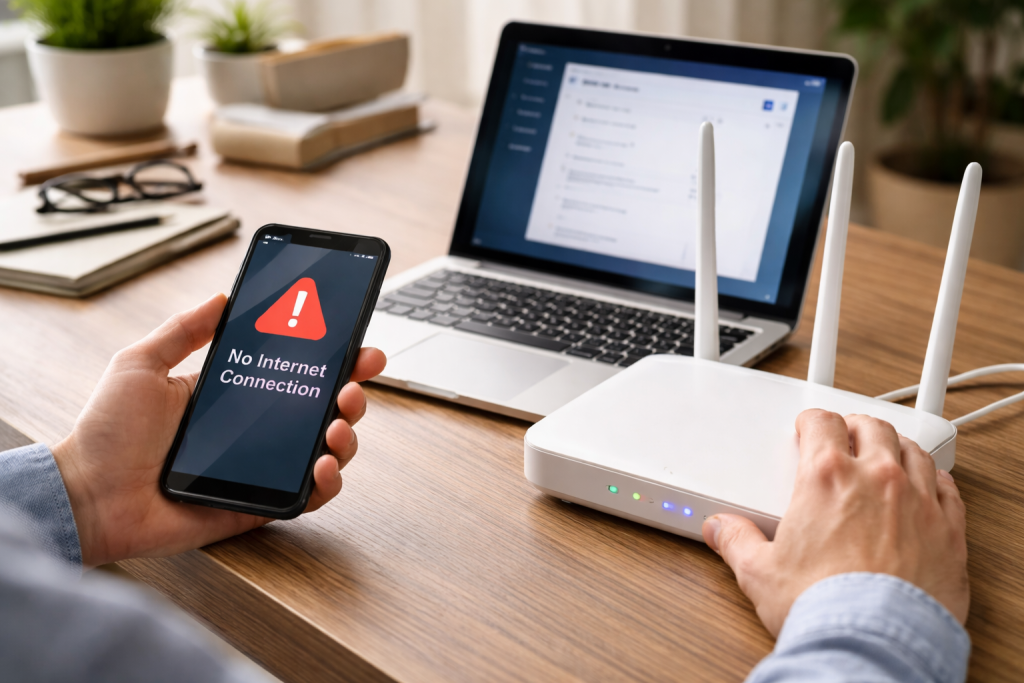
Many of us have experienced the frustration of a weak signal, intermittent drops, or painfully slow speeds. These are not isolated incidents but rather common manifestations of underlying Wi-Fi problems. Recognizing these issues is the first step toward resolution.
Contents
- 0.1 The Ghost of Connectivity: Intermittent Disconnections
- 0.2 The Speed Bump: Slow Wi-Fi Performance
- 0.3 The Dead Zone Conundrum: Limited Coverage
- 0.4 The Error Message Enigma: “No Internet Connection”
- 0.5 The Physical Obstacles: Walls, Furniture, and Appliances
- 0.6 The Electromagnetic Interference Minefield: Other Wireless Devices
- 0.7 The Distance Dilemma: Router Placement and Device Proximity
- 0.8 The Router’s Own Limitations: Age and Firmware
- 0.9 The Strategic Repositioning: Finding the Sweet Spot
- 0.10 The Firmware Freshen-Up: Keeping Your Router Up-to-Date
- 0.11 The Channel Shift: Navigating the Airwaves
- 0.12 The Bandwidth Balancing Act: Utilizing Dual-Band Routers
- 0.13 The Bandwidth Hog Hunt: Identifying Resource-Intensive Devices
- 0.14 The Router Reboot Ritual: The Universal Fix
- 0.15 The Speed Test Sanctuary: Quantifying the Problem
- 0.16 The Wired Connection Check: Isolating the Issue
- 0.17 The Crowded Airwaves: Neighboring Wi-Fi Networks
- 0.18 The Household Hijackers: Household Appliances
- 0.19 The Signal Scramble: Signal Overlap and Channel Overlap
- 0.20 The Physical Barriers Revisited: Dense Materials and Reflective Surfaces
- 0.21 The Repeater Rescue: Extending the Signal
- 0.22 The Mesh Network Marvel: A Seamless Solution
- 0.23 The Powerline Problem Solver: Utilizing Your Home’s Wiring
- 0.24 The External Antenna Advantage: Boosting Your Router’s Reach
- 0.25 The Device Dance: Router Capacity and Overload
- 0.26 The IP Address Impasse: DHCP Server Issues
- 0.27 The Firmware Façade: Device-Specific Compatibility
- 0.28 The Security Scan Surprise: Malware and Rogue Connections
- 0.29 The Password Fortress: Strong and Unique Passwords
- 0.30 The Encryption Embrace: WPA2/WPA3 Protection
- 0.31 The SSID Stealth: Disabling Network Broadcasting (with caution)
- 0.32 The Guest Network Grace: Isolating Visitors
- 0.33 The Router Revolution: Next-Generation Technology
- 0.34 The Modem Modernization: Ensuring ISP Compatibility
- 0.35 The Mesh System Merit: Comprehensive Coverage
- 0.36 The Switch to Gigabit: Higher Bandwidth Potential
- 0.37 The ISP Investigation: When the Problem Lies Beyond Your Walls
- 0.38 The Network Guru: Professional Wi-Fi Installation and Audits
- 0.39 The Router Replacement Revelation: Expert Recommendations
- 0.40 The Deep Dive Diagnosis: Advanced Troubleshooting Tools
- 1 FAQs
- 1.1 1. What are common WiFi issues that can affect signal strength and performance?
- 1.2 2. How can I optimize my WiFi performance and enhance signal strength and coverage?
- 1.3 3. What are some tips for troubleshooting slow WiFi speeds and addressing connectivity issues on multiple devices?
- 1.4 4. When should I consider upgrading my WiFi equipment, and how can I secure my WiFi network?
- 1.5 5. When should I seek professional help for persistent WiFi problems?
- 1.6 About the Author
The Ghost of Connectivity: Intermittent Disconnections
Perhaps the most vexing Wi-Fi problem is the seemingly random disconnection. Your device might work perfectly for minutes, or even hours, before suddenly dropping off the network. This can leave you scrambling to reconnect, disrupting online meetings, video calls, or streaming sessions. Factors contributing to this can range from minor signal fluctuations to more significant interference.
The Speed Bump: Slow Wi-Fi Performance
Another prevalent issue is slow Wi-Fi speeds. Websites load sluggishly, downloads take an eternity, and streaming buffers incessantly. While some of this can be attributed to your internet service provider’s plan, often the bottleneck lies within your home’s Wi-Fi network. This can be due to an overloaded router, a weak signal reaching your device, or competing for bandwidth with other connected devices.
The Dead Zone Conundrum: Limited Coverage
The dread of the Wi-Fi dead zone, those areas in your home where the signal simply refuses to reach, is a familiar frustration. You might have a strong signal in your living room, only to find it nonexistent in your bedroom or backyard. This is a common problem, especially in larger homes or those with construction materials that impede wireless signals.
The Error Message Enigma: “No Internet Connection”
Receiving a “No Internet Connection” error, even when your Wi-Fi is visibly connected, can be particularly bewildering. This indicates that your device is communicating with your router, but the router itself is not successfully connecting to the internet. This often points to a problem with the modem or the connection between your modem and your internet service provider.
A robust Wi-Fi signal is the foundation of a good online experience. Numerous factors can diminish its strength, and understanding them is crucial for effective troubleshooting.
The Physical Obstacles: Walls, Furniture, and Appliances
The very architecture of your home can act as a barrier to Wi-Fi signals. Dense materials like brick, concrete, plaster, and even reinforced drywall can significantly weaken the signal. Large metal objects, such as refrigerators, filing cabinets, and even mirrors (due to their metal backing), can also reflect or absorb Wi-Fi waves. The placement of your router is paramount; avoid tucking it away in a corner behind thick furniture or near large electronic appliances.
The Electromagnetic Interference Minefield: Other Wireless Devices
Your Wi-Fi network doesn’t operate in a vacuum. A multitude of other wireless devices in your home emit radio waves that can interfere with your Wi-Fi signal. Microwaves, cordless phones, Bluetooth devices, baby monitors, and even neighboring Wi-Fi networks can all contribute to this interference, creating a chaotic electromagnetic environment that degrades your connection.
The Distance Dilemma: Router Placement and Device Proximity
The further your device is from the router, the weaker the signal will be. This is a fundamental principle of radio wave propagation. Likewise, the router itself needs to be strategically placed to maximize its reach. Placing it in a central location in your home, away from external walls and obstructions, will ensure a more even distribution of the signal throughout your living space.
The Router’s Own Limitations: Age and Firmware
Your router is a piece of technology that, like any other, ages and benefits from updates. Older routers may not be equipped to handle the demands of modern internet usage, such as streaming high-definition video or supporting numerous connected devices. Outdated firmware, the software that runs your router, can also lead to performance issues, security vulnerabilities, and compatibility problems.
Once you understand the common issues and the factors influencing signal strength, you can begin to implement strategies to optimize your Wi-Fi performance. These steps are often simple and can yield significant improvements.
The Strategic Repositioning: Finding the Sweet Spot
The most straightforward optimization is to simply move your router. Instead of hiding it away, elevate it and place it in a central location within your home. This ensures that the Wi-Fi signal can radiate outwards efficiently, reaching more of your living space without being obstructed by too many physical barriers. Experiment with different locations to find the one that provides the most consistent coverage.
The Firmware Freshen-Up: Keeping Your Router Up-to-Date
Manufacturers regularly release firmware updates for routers to improve performance, fix bugs, and enhance security. Accessing your router’s administrative interface, usually through a web browser, allows you to check for and install these updates. This is a crucial, often overlooked step that can resolve many performance-related issues.
Wi-Fi networks operate on specific radio channels. If your router is using a channel that is heavily utilized by neighboring networks, it can lead to congestion and slow speeds. Most modern routers allow you to manually select a Wi-Fi channel. Using a Wi-Fi analyzer app on your smartphone can help you identify the least congested channels in your area, allowing you to switch your router to a clearer frequency.
The Bandwidth Balancing Act: Utilizing Dual-Band Routers
Many modern routers are dual-band, meaning they broadcast on both the 2.4 GHz and 5 GHz frequencies. The 2.4 GHz band offers a wider range but is more susceptible to interference and generally slower. The 5 GHz band provides faster speeds and less interference but has a shorter range. By strategically connecting devices to the appropriate band—placing high-bandwidth devices like streaming boxes and gaming consoles on the 5 GHz band and devices like smart home sensors on the 2.4 GHz band—you can distribute the load and improve overall performance.
When your Wi-Fi is persistently slow, it’s time for a more focused approach to diagnose and resolve the speed-related issues.
The Bandwidth Hog Hunt: Identifying Resource-Intensive Devices
Some devices on your network might be consuming a disproportionate amount of bandwidth. This could be due to automatic background updates, file sharing, or malicious software. Accessing your router’s administrative interface often allows you to see which devices are actively using the network and their data consumption. Temporarily disconnecting devices one by one can help pinpoint the culprit.
The Router Reboot Ritual: The Universal Fix
It sounds too simple, but restarting your router and modem can resolve a surprising number of connectivity issues, including slow speeds. Unplug both devices, wait for about 30 seconds, and then plug the modem back in first. Once the modem is fully online, plug in the router. This process essentially refreshes the connection and can clear temporary glitches.
The Speed Test Sanctuary: Quantifying the Problem
To truly understand your Wi-Fi speed, you need to measure it. Websites like Speedtest.net or Fast.com allow you to run speed tests from your devices. Performing these tests at different times of the day and in different locations within your home can help you identify patterns and pinpoint where the speeds are dipping. Compare these results to your internet service provider’s advertised speeds.
The Wired Connection Check: Isolating the Issue
If you suspect your Wi-Fi is the problem, test your internet speed by connecting a device directly to your router or modem using an Ethernet cable. If your wired speeds are significantly faster than your Wi-Fi speeds, it confirms that the issue lies within your wireless network. If even your wired connection is slow, the problem might be with your modem or your internet service provider.
Interference is a silent saboteur of Wi-Fi signals, often leading to intermittent drops and reduced speeds. Recognizing and mitigating these sources of interference is key to a stable connection.
The Crowded Airwaves: Neighboring Wi-Fi Networks
In densely populated areas, the airwaves are often crowded with Wi-Fi signals from neighboring homes. This can create interference, especially on the highly common 2.4 GHz band. As mentioned earlier, using a Wi-Fi analyzer app to identify less congested channels and manually selecting a different channel on your router can significantly reduce interference from other networks.
The Household Hijackers: Household Appliances
Certain household appliances emit radio frequencies that can clash with Wi-Fi signals. Microwaves, in particular, operate on the same frequency as the 2.4 GHz Wi-Fi band and can cause severe interference when in use. Cordless phones, Bluetooth devices, and even some older wireless security cameras can also contribute to this problem. Moving your router away from these devices or disabling them when not in use can help.
The Signal Scramble: Signal Overlap and Channel Overlap
When multiple Wi-Fi networks in close proximity use the same or overlapping channels, it creates a “noisy” environment for your signal. Each Wi-Fi network occupies a certain “width” on its chosen channel. Some channels are more prone to overlap than others. By strategically choosing non-overlapping channels, you can minimize this interference.
The Physical Barriers Revisited: Dense Materials and Reflective Surfaces
As discussed, materials like concrete, brick, metal, and even water can absorb or reflect Wi-Fi signals, effectively weakening them and making them more susceptible to interference. Large metal appliances and mirrors also fall into this category. Ensuring your router is in an open space, free from these obstructions, is a crucial step in mitigating interference.
For larger homes or properties with significant dead zones, extending your Wi-Fi range and coverage is essential for a seamless experience throughout.
The Repeater Rescue: Extending the Signal
Wi-Fi extenders or repeaters are devices that pick up your existing Wi-Fi signal and rebroadcast it, effectively extending the range of your network. They are relatively inexpensive and easy to set up. However, it’s important to note that extenders can sometimes halve your Wi-Fi speed, as they effectively create a new network that requires communication back to the original router. Place an extender halfway between your router and the dead zone for optimal results.
The Mesh Network Marvel: A Seamless Solution
For a more robust and integrated solution, consider a Wi-Fi mesh system. These systems consist of a main router and one or more satellite nodes placed around your home. They work together to create a single, unified Wi-Fi network with seamless roaming. Devices automatically connect to the strongest node, ensuring consistent coverage and speeds throughout your entire home. Mesh systems are generally more expensive than extenders but offer superior performance and a more user-friendly experience.
The Powerline Problem Solver: Utilizing Your Home’s Wiring
Powerline adapters use your home’s existing electrical wiring to transmit your internet signal. You plug one adapter into a wall outlet near your router and connect it via Ethernet cable. The second adapter is plugged into an outlet in the area where you need Wi-Fi, and it can either broadcast a Wi-Fi signal itself or provide an Ethernet port for a wired connection. This is a great option for reaching areas where running Ethernet cables is difficult.
The External Antenna Advantage: Boosting Your Router’s Reach
Some routers have detachable external antennas that can be replaced with higher-gain antennas. These upgraded antennas can amplify your router’s signal, allowing it to reach further and penetrate obstacles more effectively. Ensure that any replacement antennas are compatible with your router model.
When multiple devices struggle to connect or maintain a stable connection, it points to broader network-wide issues.
The Device Dance: Router Capacity and Overload
Every router has a limit to the number of devices it can effectively manage simultaneously. If you have a large number of smart home devices, phones, tablets, and laptops all trying to connect, your router might become overloaded, leading to slow speeds and dropped connections. Consider upgrading your router to one with a higher client capacity if this is a recurring problem.
The IP Address Impasse: DHCP Server Issues
Your router acts as a DHCP (Dynamic Host Configuration Protocol) server, assigning unique IP addresses to each device on your network. If the DHCP server encounters problems or runs out of available IP addresses, new devices may struggle to connect, or existing connections might become unstable. Restarting your router can often resolve DHCP issues by refreshing the IP address assignments.
The Firmware Façade: Device-Specific Compatibility
While less common, some older devices might have compatibility issues with newer Wi-Fi standards or router settings. Ensure that your devices’ drivers and operating systems are up to date. If a specific device consistently struggles to connect, try forgetting the Wi-Fi network on that device and reconnecting.
The Security Scan Surprise: Malware and Rogue Connections
In rare cases, malware on a device or an unauthorized device connected to your network can consume bandwidth or interfere with network operations. Running a thorough malware scan on your devices and reviewing your connected device list in your router’s settings can help identify any potential threats.
A robust Wi-Fi connection isn’t just about speed and coverage; it’s also about security. Protecting your network from unauthorized access is paramount.
The Password Fortress: Strong and Unique Passwords
This is the most fundamental security measure. Use a strong, unique password for your Wi-Fi network. Avoid easily guessable combinations like “12345678” or your address. Aim for a mix of uppercase and lowercase letters, numbers, and symbols. Regularly changing your password adds another layer of security.
The Encryption Embrace: WPA2/WPA3 Protection
Ensure your router is using the latest and most secure encryption protocol. WPA3 is the most current and recommended standard, offering enhanced security. If your router doesn’t support WPA3, WPA2 is the next best option. Avoid older, insecure protocols like WEP.
The SSID Stealth: Disabling Network Broadcasting (with caution)
You can choose to disable your Wi-Fi network’s SSID (Service Set Identifier) broadcast. This means your network name won’t be visible in lists of available networks. While this adds a small layer of obscurity, it’s not a foolproof security measure, and it can make connecting new devices more difficult. It’s generally more effective to rely on strong passwords and encryption.
The Guest Network Grace: Isolating Visitors
Most modern routers offer a guest network feature. This allows you to create a separate Wi-Fi network for visitors, with a different password and limited access to your main network. This prevents guests from accessing your personal files or devices and also isolates them from any potential security threats they might inadvertently introduce.
Sometimes, the limitations of your current Wi-Fi setup are simply due to outdated or underperforming equipment.
The Router Revolution: Next-Generation Technology
If your router is several years old, it’s likely not keeping pace with modern Wi-Fi standards like Wi-Fi 6 (802.11ax) or Wi-Fi 6E. These newer standards offer significantly faster speeds, improved efficiency, and better performance in crowded environments. Upgrading to a Wi-Fi 6 or 6E router can provide a dramatic boost in your network’s capabilities.
The Modem Modernization: Ensuring ISP Compatibility
Your modem is the gateway to your internet service. If your modem is outdated or not fully compatible with your ISP’s service, it can bottleneck your internet speeds, even with a top-of-the-line router. Check with your ISP to ensure you have the latest compatible modem for your service plan.
The Mesh System Merit: Comprehensive Coverage
As discussed earlier, a mesh Wi-Fi system is an excellent upgrade for larger homes or those with persistent dead zones. The seamless coverage and intelligent device management provided by a mesh network can transform your entire home’s Wi-Fi experience.
The Switch to Gigabit: Higher Bandwidth Potential
If your internet plan offers gigabit speeds, ensure your router and modem can support them. Older equipment might not be capable of handling gigabit-level bandwidth, rendering your high-speed internet plan ineffective.
When you’ve exhausted all troubleshooting steps and your Wi-Fi woes persist, it might be time to call in the cavalry.
The ISP Investigation: When the Problem Lies Beyond Your Walls
If you’ve tried everything and your internet is still slow or unreliable, the issue might originate with your Internet Service Provider (ISP). Contact their support team to have them test your line and modem from their end. They can identify issues with the external connection or with your provided equipment.
The Network Guru: Professional Wi-Fi Installation and Audits
For complex home layouts or businesses, a professional network installer or IT consultant can be invaluable. They have the expertise and specialized equipment to diagnose intricate Wi-Fi problems, design optimal network layouts, and ensure your network is secure and performing at its best.
The Router Replacement Revelation: Expert Recommendations
If an upgrade is necessary, a professional can provide unbiased recommendations for routers, mesh systems, or other networking equipment that best suits your specific needs and budget. They can also assist with the installation and configuration process, ensuring everything is set up correctly for optimal performance.
The Deep Dive Diagnosis: Advanced Troubleshooting Tools
Professionals have access to advanced diagnostic tools and software that can uncover subtle issues that might be missed by standard troubleshooting methods. They can analyze network traffic, identify the root cause of interference, and fine-tune your network settings for maximum efficiency.
By systematically working through these troubleshooting steps, from understanding the basics to seeking professional assistance when needed, you can transform your Wi-Fi frustrations into a strong, reliable, and secure connection. A well-functioning Wi-Fi network is an integral part of modern living, and with the right knowledge, you can ensure yours is always performing at its peak.
FAQs
1. What are common WiFi issues that can affect signal strength and performance?
Common WiFi issues include interference from other electronic devices, physical obstructions, outdated equipment, and network congestion.
2. How can I optimize my WiFi performance and enhance signal strength and coverage?
You can optimize your WiFi performance by placing your router in a central location, minimizing interference, updating firmware, using WiFi extenders or mesh systems, and securing your network with strong passwords.
3. What are some tips for troubleshooting slow WiFi speeds and addressing connectivity issues on multiple devices?
To troubleshoot slow WiFi speeds, you can try rebooting your router, checking for firmware updates, limiting the number of connected devices, and using Quality of Service (QoS) settings to prioritize certain devices.
4. When should I consider upgrading my WiFi equipment, and how can I secure my WiFi network?
You should consider upgrading your WiFi equipment if it’s outdated or if you’re experiencing persistent connectivity issues. To secure your WiFi network, use strong encryption (WPA2 or WPA3), change default passwords, and enable network firewalls.
5. When should I seek professional help for persistent WiFi problems?
You should seek professional help for persistent WiFi problems if you’ve tried troubleshooting on your own without success, if you need to optimize a large network, or if you require specialized solutions for complex interference issues.

About the Author
Maya Ali is the founder of ByteSolving with experience in technology and digital solutions. His mission is to make technology easier to understand and help people solve everyday tech problems in a simple and practical way.