
No More Unexpected Reboots: A Step-by-Step Guide to Fixing Automatic Computer Restarts
The sudden, jarring interruption of an automatic computer restart is a frustrating experience, often striking at the most inconvenient moments—mid-project, during a crucial online meeting, or even while simply browsing the web. Beyond the immediate annoyance, it signifies a deeper underlying problem that, if left unaddressed, can lead to data loss, system instability, and ultimately, a compromised computing experience. This comprehensive guide will equip you with the knowledge and tools to diagnose and resolve these unwelcome reboots, transforming your computer from an unpredictable machine into a reliable workhorse.
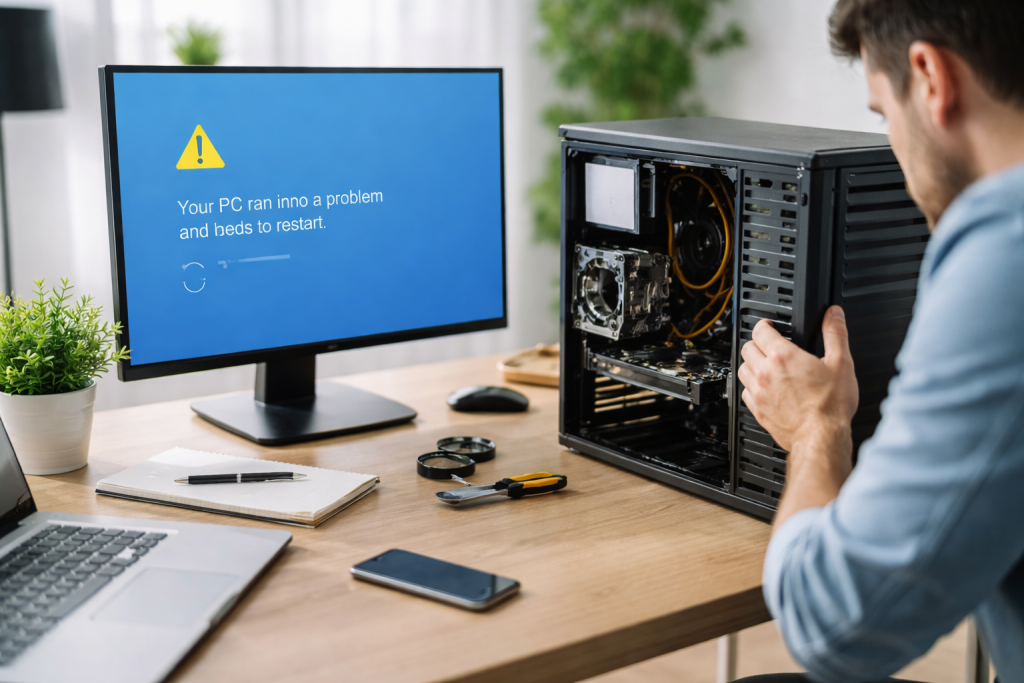
Before delving into solutions, it’s crucial to grasp the diverse array of reasons why your computer might be taking matters into its hands and restarting without your consent. These causes range from minor software glitches to critical hardware failures.
Contents
- 0.1 Software and Driver-Related Issues
- 0.2 Hardware Malfunctions and Overheating
- 0.3 Power Supply and Electrical Problems
- 0.4 Pre-Reboot Warnings and Errors
- 0.5 Frequency and Context of Restarts
- 0.6 Audible and Visual Cues
- 0.7 Initial Checks and Basic Solutions
- 0.8 Updating Drivers and Software
- 0.9 Adjusting Power Settings
- 0.10 Checking for Overheating and Hardware Issues
- 0.11 Event Viewer Analysis
- 0.12 Memory Diagnostic Tools
- 0.13 Hard Drive Health Checks
- 0.14 Performing a Clean Boot
- 0.15 Utilizing System Restore and Fresh Installations
- 0.16 BIOS/UEFI Settings Review
- 0.17 When to Call for Expert Assistance
- 0.18 What a Professional Technician Can Do
- 1 FAQs
- 1.1 What are the common causes of automatic computer restarts?
- 1.2 What are the common symptoms of automatic computer restarts?
- 1.3 What are the steps for troubleshooting automatic computer restarts?
- 1.4 How can system tools be used to diagnose and fix automatic restarts?
- 1.5 When should professional help be sought for persistent automatic restart issues?
- 1.6 About the Author
Software and Driver-Related Issues
Operating system bugs, corrupt system files, and outdated or incompatible drivers are frequent culprits behind automatic restarts. A faulty graphics driver, for instance, can lead to display issues that escalate into system crashes and reboots. Similarly, conflicting software applications might trigger instability. Malware and viruses can also inject malicious code that interferes with system processes, causing unpredictable behavior, including restarts.
Hardware Malfunctions and Overheating
The physical components of your computer are equally susceptible to causing these issues. Overheating is a primary suspect. When components like the CPU or GPU reach critical temperatures, the system automatically shuts down or reboots to prevent permanent damage. A malfunctioning power supply unit (PSU) can deliver inconsistent voltage, leading to system instability and abrupt restarts. Faulty RAM (random access memory) modules or a failing hard drive/SSD can also introduce errors that crash the system.
Power Supply and Electrical Problems
Beyond a failing PSU, external power fluctuations can play a role. An unreliable power outlet, a faulty power strip, or even internal wiring issues within your home or office can cause momentary power interruptions that your computer interprets as a need to restart. Furthermore, certain power-saving features, if misconfigured, can lead to unexpected shutdowns or restarts.
Recognizing the patterns and symptoms accompanying automatic restarts can significantly aid in diagnosis. It’s rarely a standalone event; often, there are telltale signs beforehand.
Pre-Reboot Warnings and Errors
Before a sudden restart, you might encounter specific error messages. The dreaded “Blue Screen of Death” (BSOD) on Windows systems is a classic example, providing a hexadecimal error code that can be incredibly useful for pinpointing the root cause. Other less dramatic warnings might include applications freezing, slow system responsiveness, or unusual graphical glitches.
Frequency and Context of Restarts
The timing and frequency of the restarts offer important clues. Do they occur only when running specific applications, such as a demanding video game or a video editing suite (suggesting a hardware or driver issue related to that application)? Do they happen randomly, even when the computer is idle (potentially indicating a power supply or deeper system issue)? Or do they only happen after a certain period of continuous use (pointing towards overheating)?
Audible and Visual Cues
Beyond on-screen messages, pay attention to physical cues. Is your computer unusually loud before a restart, indicating fans working overtime due to overheating? Are there any unusual smells emanating from the case, potentially signifying burnt components? Does the display flicker or distort before the system reboots? These sensory details, while subtle, can provide valuable diagnostic information.
A systematic approach is key to resolving automatic restart issues. Resist the urge to jump directly to the most complex solutions; often, the fix is simpler than you imagine.
Initial Checks and Basic Solutions
Begin with the simplest and most accessible checks. Ensure all cables are securely connected, including the power cable, monitor cable, and internal components if you’re comfortable opening your case. Perform a full system scan for malware and viruses using reputable antivirus software. Restart your computer in Safe Mode to see if the issue persists; if it doesn’t, it suggests a software or driver conflict.
Updating Drivers and Software
Outdated or corrupt drivers are a frequent cause of instability. Regularly check for and install updates for your operating system, graphics card, chipset, and other critical hardware components. You can usually find these on the manufacturer’s website or through your operating system’s update utility. Similarly, ensure all your installed software is up to date, as developers often release patches to address bugs and improve stability.
Adjusting Power Settings
Misconfigured power settings can sometimes trick your computer into restarting. Access your power options (in Windows, search for “Power & sleep settings”) and review your chosen power plan. Ensure that settings like “Turn off hard disk after” or “Sleep after” are not set to excessively short durations or are causing conflicts. Consider temporarily disabling “Fast Startup” in Windows, as it can sometimes lead to boot-up issues.
Checking for Overheating and Hardware Issues
Overheating is a serious concern. Use monitoring software (such as HWMonitor or Core Temp) to track your CPU, GPU, and hard drive temperatures. If temperatures consistently run high, especially under load, consider cleaning out dust from your computer’s fans and vents. For desktops, ensure proper airflow within the case. For laptops, consider a cooling pad.
Modern operating systems provide a suite of built-in tools designed to help diagnose and repair system issues. Leveraging these can save you time and effort.
Event Viewer Analysis
The Event Viewer (on Windows) is an invaluable resource. It logs all system events, including errors, warnings, and critical failures. After an automatic restart, open the Event Viewer, navigate to “Windows Logs” -> “System,” and look for red error icons or yellow warning icons around the time of the restart. The details associated with these events often provide specific error codes or descriptions that point directly to the problem.
Memory Diagnostic Tools
Faulty RAM can cause unpredictable restarts. Most operating systems include a built-in memory diagnostic tool. On Windows, type “Windows Memory Diagnostic” into the search bar and follow the prompts. This tool will test your RAM for errors. If it finds issues, you may need to replace the faulty memory module.
Hard Drive Health Checks
A failing hard drive or SSD can also be a source of restarts. Use tools like chkdsk chkdsk (on Windows, run from Command Prompt as administrator) to scan your hard drive for errors and attempt to repair them. For SSDs, use the manufacturer’s diagnostic tools, which often provide more detailed health reports.
If the basic and intermediate steps haven’t yielded a solution, it’s time to delve into more advanced methods.
Performing a Clean Boot
A clean boot starts your computer with a minimal set of drivers and startup programs, helping you isolate software conflicts. By systematically re-enabling services and startup items, you can pinpoint the offending application or driver. This process can be time-consuming but is highly effective for software-related issues.
Utilizing System Restore and Fresh Installations
If the problem began recently, a System Restore point can roll back your system to a previous, stable state. This can effectively undo changes that might have introduced the restart issue. As a last resort, a fresh installation of your operating system can eliminate all software-related problems. Before doing this, ensure you have backed up all your important data.
BIOS/UEFI Settings Review
Incorrect BIOS/UEFI settings can occasionally lead to restarts. Access your BIOS/UEFI (usually by pressing a specific key like Del, F2, or F10 during startup) and ensure settings like CPU voltage, fan curves, and boot order are configured correctly. If you’ve recently made changes, try resetting the BIOS/UEFI to its default settings. Be cautious when modifying these settings, as incorrect changes can cause further issues.
There comes a point where DIY troubleshooting reaches its limits. If you’ve diligently followed all the steps above and your computer continues to experience automatic restarts, it’s wise to consider professional assistance.
When to Call for Expert Assistance
If you suspect a hardware failure but are uncomfortable opening your computer or replacing components, a professional technician has the tools and expertise to perform a thorough diagnosis. Similarly, if the Event Viewer logs point to complex driver conflicts or kernel panics that you don’t understand, a specialist can interpret these errors. Continuous BSODs with cryptic error codes, even after driver updates and memory checks, also warrant professional intervention.
What a Professional Technician Can Do
A certified technician can perform specialized hardware diagnostics, test components like the power supply, motherboard, and individual RAM sticks, and use advanced tools to pinpoint elusive software issues. They can also perform controlled environment tests to rule out external factors like power fluctuations. Their experience often allows them to quickly identify problems that might take an inexperienced user days or weeks to uncover. Investing in professional help can ultimately save you time and frustration and potentially prevent further damage to your system. Don’t let unexpected reboots dictate your computing experience. By systematically approaching the problem with the information and tools provided in this guide, you can restore stability and predictability to your computer, ensuring a smoother, more productive workflow.
FAQs
What are the common causes of automatic computer restarts?
Automatic computer restarts can be caused by a variety of factors, including software issues, hardware malfunctions, overheating, power settings, and driver problems. Identifying the root cause is crucial in preventing unexpected reboots.
What are the common symptoms of automatic computer restarts?
Common symptoms of automatic computer restarts include sudden shutdowns without warning, error messages before the restart, and repetitive rebooting cycles. Understanding these symptoms can help in diagnosing the underlying issue.
What are the steps for troubleshooting automatic computer restarts?
The step-by-step troubleshooting process for automatic computer restarts involves utilizing system tools to diagnose and fix the issue, updating drivers and software, adjusting power settings, checking for overheating and hardware issues, utilizing system restore and recovery options, and implementing advanced troubleshooting techniques if necessary.
How can system tools be used to diagnose and fix automatic restarts?
System tools such as Event Viewer, Reliability Monitor, and Windows Memory Diagnostic can be used to identify the cause of automatic restarts. These tools provide valuable information about system errors, crashes, and hardware issues.
When should professional help be sought for persistent automatic restart issues?
If the troubleshooting steps do not resolve the automatic restart problem, or if the issue persists despite efforts to fix it, seeking professional help from a computer technician or IT specialist is recommended. They can provide advanced diagnostics and repair services to address the underlying cause of the automatic restarts.

About the Author
Maya Ali is the founder of ByteSolving with experience in technology and digital solutions. His mission is to make technology easier to understand and help people solve everyday tech problems in a simple and practical way.