
Mastering the Art of Fixing Network Issues on Your Phone: A Step-by-Step Guide
The modern smartphone, an indispensable tool for communication, entertainment, and productivity, is only as good as its network connection. When that connection falters, the world shrinks, and frustration mounts. This comprehensive guide will equip you with the knowledge and techniques to diagnose and rectify the most common network woes, transforming you from a helpless bystander to a confident network troubleshooter.
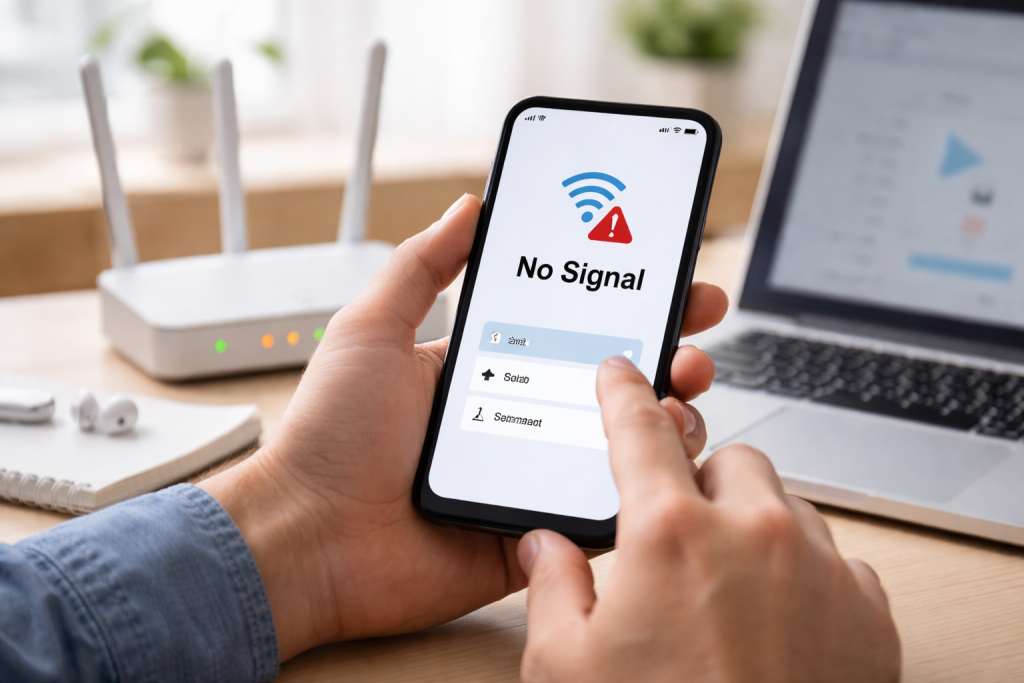
Before diving into solutions, it’s crucial to grasp the various forms network problems can take. Recognizing the symptoms is the first step toward a cure.
Contents
- 0.1 Slow Internet Speeds
- 0.2 Dropped Calls and Unreliable Connectivity
- 0.3 Inability to Connect to Wi-Fi
- 0.4 Cellular Data Not Working
- 0.5 A Simple Restart: The Universal Fix
- 0.6 Checking Your SIM Card
- 0.7 Verifying Airplane Mode Status
- 0.8 Testing in Different Locations
- 0.9 Confirming Mobile Data is Enabled
- 0.10 Reviewing APN Settings
- 0.11 Assessing Network Mode (2G/3G/4G/5G)
- 0.12 Network Settings Reset
- 0.13 Forgetting and Reconnecting to Wi-Fi Networks
- 0.14 Installing System Updates
- 0.15 Updating Carrier Settings
- 0.16 Cycling Airplane Mode On and Off
- 0.17 Rebooting Your Router and Modem
- 0.18 Checking Other Devices on the Network
- 0.19 Changing Wi-Fi Channel and Frequency
- 0.20 Contacting Your Mobile Carrier
- 0.21 Checking for Network Outages in Your Area
- 0.22 Visiting a Service Center
- 0.23 Consulting Your Carrier’s Technical Support
- 0.24 Regularly Clearing Cache and Data for Network-Dependent Apps
- 0.25 Keeping Your Phone’s Software Up to Date
- 0.26 Avoiding Physical Damage to Your Phone
- 0.27 Using Strong and Secure Wi-Fi Passwords
- 1 FAQs
- 1.1 1. What are common network issues that can occur on a phone?
- 1.2 2. How can I troubleshoot network problems on my phone?
- 1.3 3. What are some tips for preventing future network problems on my phone?
- 1.4 4. When should I seek professional help for persistent network issues on my phone?
- 1.5 5. How can I deal with cellular network problems on my phone?
- 1.6 About the Author
Slow Internet Speeds
One of the most vexing issues is a sluggish internet connection. Pages load excruciatingly slowly, videos buffer endlessly, and apps struggle to refresh. This can manifest on both Wi-Fi and cellular connections, and the underlying causes can vary widely. It might be due to network congestion, especially in densely populated areas, or a weak signal from your router or cell tower. Sometimes, it’s an issue with your device itself, such as an overloaded cache or outdated software.
Dropped Calls and Unreliable Connectivity
Imagine being mid-conversation only for the call to abruptly disconnect, or consistently seeing the “No Service” indicator appear in areas where you previously enjoyed a strong signal. These frustrating occurrences point to issues with maintaining a stable cellular connection. This could stem from localized network outages, poor signal penetration in certain buildings, or even a damaged SIM card. Your phone’s antenna might also be a culprit, especially if the device has been dropped or sustained physical damage.
Inability to Connect to Wi-Fi
You’re at home or at a coffee shop, ready to surf the web, but your phone refuses to join the Wi-Fi network. It might repeatedly ask for the password, show “Authentication Problem,” or simply fail to acquire an IP address. This can be caused by incorrect password entries, an overloaded router, or even a conflict with other devices on the network. Sometimes, the phone’s Wi-Fi module itself might be experiencing a temporary glitch.
Cellular Data Not Working
Despite having cellular signal bars, your internet connection remains absent when you’re away from Wi-Fi. Apps refuse to load new content, and web browsers display an offline message. This particular problem often indicates an issue with your data plan, APN settings, or a temporary network disruption from your carrier. It’s also worth considering if you’ve exceeded your data allowance, leading to throttling or a complete cut-off of service.
When faced with a network issue, a systematic approach is key. Instead of randomly trying solutions, begin with these fundamental checks.
A Simple Restart: The Universal Fix
It might sound overly simplistic, but a good old-fashioned reboot often works wonders for a multitude of electronic glitches, and network issues are no exception. Turning your phone completely off, waiting for a minute, and then powering it back on can clear temporary software bugs, refresh network connections, and resolve minor conflicts that might be hindering your connectivity. This should always be your very first step, regardless of the specific problem you’re encountering.
Checking Your SIM Card
Your SIM card is the bridge between your phone and your cellular carrier’s network. If it’s not seated correctly or has become damaged, it can prevent your phone from registering on the cellular network. Power off your phone, carefully eject the SIM tray, and inspect the SIM card for any visible damage or dirt. Reinsert it firmly and ensure it’s properly aligned in the tray. If you have a dual-SIM phone, try swapping the SIM card to the other slot to rule out a slot-specific issue. If you suspect damage, contacting your carrier for a replacement SIM is advisable.
Verifying Airplane Mode Status
Accidentally toggling Airplane Mode on is a surprisingly common reason for a sudden loss of all network connectivity, including cellular and Wi-Fi. Quickly glance at your phone’s status bar for an airplane icon or swipe down to access the quick settings panel and ensure Airplane Mode is, in fact, off. If it’s on, simply tap the icon to disable it and observe if your network returns.
Testing in Different Locations
Network signal strength can vary dramatically depending on your physical location. What might be a dead zone in one building could be a perfectly functional area a few blocks away. If you’re experiencing cellular issues, try moving outdoors or to a different part of your home or office. For Wi-Fi problems, try getting closer to your router. This helps determine if the problem is localized to your immediate environment or a broader issue with your phone or carrier.
Beyond the initial basic checks, a deeper dive into your phone’s internal settings can often uncover the root cause of connectivity problems.
Confirming Mobile Data is Enabled
It sounds obvious, but sometimes, during app usage or settings adjustments, mobile data can inadvertently be switched off. Navigate to your phone’s settings, typically under “Network & Internet” or “Connections,” and ensure that “Mobile data” is toggled on. While you’re there, also verify that any data roaming options are enabled if you’re traveling internationally and require cellular data outside your home network.
Reviewing APN Settings
Access Point Names (APNs) are crucial configurations that allow your phone to connect to your carrier’s data network. Incorrect or missing APN settings are a common culprit for cellular data issues. These settings are usually automatically configured when you insert a SIM card, but they can occasionally become corrupted or misconfigured, especially after software updates or migrating from an older phone. You can typically find APN settings in your phone’s settings under “Mobile networks” or “Cellular data options.” It’s best to consult your carrier’s website for the correct APN settings for your specific plan and region, as they vary widely. You might need to create a new APN profile or modify an existing one.
Assessing Network Mode (2G/3G/4G/5G)
Your phone offers various network modes, influencing speed and stability. While 5G offers the fastest speeds, its coverage might be spotty. Sometimes, forcing your phone to use a lower generation network (e.g., 4G instead of 5G) can improve connection stability, especially in areas with weak or inconsistent 5G signals. In your mobile network settings, you’ll usually find an option for “Preferred network type” or “Network mode.” Experiment with selecting 4G/LTE as the preferred type to see if it resolves intermittent connectivity. Reverting to automatic selection once connectivity improves is generally recommended for optimal performance.
When software glitches stubbornly persist, a complete reset of the network connections can often clear the slate and restore functionality.
Network Settings Reset
This powerful troubleshooting step clears all network-related settings on your phone, including Wi-Fi passwords, Bluetooth pairings, and VPN configurations. It essentially restores these settings to their factory defaults without affecting your personal data, apps, or other phone settings. You can usually find this option in your phone’s settings under “System,” “Reset options,” or “General management.” Look for “Reset Wi-Fi, mobile & Bluetooth” or “Reset network settings.” After performing this reset, you’ll need to re-enter your Wi-Fi passwords and re-pair any Bluetooth devices.
Forgetting and Reconnecting to Wi-Fi Networks
If you’re having persistent trouble with a specific Wi-Fi network, the “forget network” option can be invaluable. By forgetting the network, you’re essentially deleting all stored information about it from your phone, including the password and any specific configurations. This forces your phone to treat it as a completely new network when you try to reconnect, often resolving authentication issues or IP address conflicts. Go to your Wi-Fi settings, tap on the problematic network, and select “Forget” or “Remove network.” Then, attempt to reconnect by re-entering the password.
Software updates are not just about new features; they frequently contain crucial bug fixes and performance enhancements, including those related to network connectivity.
Installing System Updates
Manufacturers regularly release operating system updates (e.g., Android versions, iOS updates) that often include fixes for known network issues, improve modem firmware, and enhance overall network stability. Always keep your phone’s operating system updated to the latest available version. Navigate to your phone’s settings, find “Software update” or “System update,” and check for any pending updates. Installing these can resolve underlying software conflicts that might be affecting your network performance.
Updating Carrier Settings
For iOS devices specifically, carrier settings updates are small files pushed by your mobile operator to improve cellular network connectivity, voicemail settings, and other carrier-specific features. These updates are often silently installed, but sometimes require manual confirmation. On Android, similar updates might be bundled with regular system updates or pushed as separate “prl” or “profile” updates. Ensuring these are current can be vital for optimal cellular performance, especially after changes to your carrier’s network infrastructure.
The Airplane Mode toggle is more than just a flight companion; it can be a quick and effective network reset tool.
Cycling Airplane Mode On and Off
When you activate Airplane Mode, your phone quickly disconnects from all cellular, Wi-Fi, and Bluetooth radios. Toggling it back off forces your phone to re-establish these connections from scratch. This acts like a mini-restart for your network radios and can often resolve minor glitches or temporary connection blocks without requiring a full phone reboot. If you’re experiencing intermittent signal loss or slow data, try turning Airplane Mode on for about 10-15 seconds and then turning it off again.
Wi-Fi problems require a different set of diagnostic steps, often involving your router as much as your phone.
Rebooting Your Router and Modem
Just like your phone, your home Wi-Fi router and modem can benefit from a fresh start. These devices can accumulate temporary errors or become bogged down over time. Power cycle both your modem (the device that connects to your internet service provider) and your Wi-Fi router (the device that broadcasts the Wi-Fi signal). Unplug them both from power, wait for at least 30 seconds, and then plug the modem back in first. Once the modem’s lights stabilize, plug in your router. This process often resolves IP conflicts, clears cached data, and refreshes the network connection.
Checking Other Devices on the Network
If your phone is struggling but other devices are connecting perfectly, it points to a phone-specific issue. However, if multiple devices are struggling, the problem likely lies with your router, internet service provider (ISP), or the network itself. Test connection on a laptop or another smartphone to distinguish between these scenarios. An overloaded Wi-Fi network with too many connected devices or bandwidth-hungry applications can also slow down performance for everyone.
Changing Wi-Fi Channel and Frequency
Wireless routers operate on specific channels. If your neighbors are using the same channel, it can lead to interference and slower speeds. Many routers allow you to manually change the Wi-Fi channel in their settings (accessed via a web browser on a computer connected to the network). Using a Wi-Fi analyzer app on your phone can help identify less congested channels. Furthermore, most modern routers support both 2.4GHz and 5GHz frequencies. While 2.4GHz offers wider coverage, 5GHz provides faster speeds and less interference, albeit with a shorter range. Experiment with connecting to the alternative frequency band if your router supports it.
When your mobile data is refusing to cooperate, these steps can help diagnose and fix the problem.
Contacting Your Mobile Carrier
If all else fails, or if you suspect a broader network issue, your mobile carrier is your next point of contact. They can check for known outages in your area, verify your account status and data plan, and troubleshoot network-specific issues that are beyond your control. Be prepared to provide them with details of the problem, including when it started and what troubleshooting steps you’ve already taken.
Checking for Network Outages in Your Area
Before calling your carrier, a quick online search for “[Your Carrier Name] network outage [Your City]” can often reveal if other users are experiencing similar problems. Websites like DownDetector compile user reports of service outages, providing valuable real-time information. This can save you a potentially lengthy support call if the problem is widespread.
Sometimes, despite your best efforts, the problem persists. Knowing when to escalate is crucial.
Visiting a Service Center
If you’ve exhausted all troubleshooting steps and suspect a hardware fault with your phone’s antenna, Wi-Fi module, or other internal components, visiting an authorized service center or a reputable phone repair shop is the logical next step. They have specialized diagnostic tools and can perform hardware repairs or replacements. Ensure you back up your phone’s data before handing it over for repair.
Consulting Your Carrier’s Technical Support
For truly elusive network problems, especially those impacting cellular service, your carrier’s advanced technical support team might have solutions or insights not available through standard customer service. They can perform more in-depth diagnostics on their end, reset network connections specific to your account, or provision a new SIM card if yours is faulty.
Proactive measures can significantly reduce the likelihood of encountering network issues down the line.
Regularly Clearing Cache and Data for Network-Dependent Apps
Over time, apps accumulate cached data that can become corrupted and lead to performance issues, including network connectivity. Periodically clear the cache and data for apps that heavily rely on network connections (e.g., social media, streaming apps, browsers). This can be done in your phone’s app settings.
Keeping Your Phone’s Software Up to Date
As mentioned earlier, software updates are vital. Make it a habit to regularly check for and install both operating system updates and carrier settings updates. These updates often include critical bug fixes and optimizations that improve network performance and security.
Avoiding Physical Damage to Your Phone
Drops, impacts, and exposure to water can damage internal components, including the delicate antennas and network modules. Using a protective case and being mindful of where you place your phone can prevent physical damage that could lead to persistent network issues.
Using Strong and Secure Wi-Fi Passwords
A weak Wi-Fi password can allow unauthorized users to connect to your network, hogging bandwidth and potentially exposing your privacy. Ensure your home Wi-Fi network uses a strong, unique password with WPA2 or WPA3 encryption to prevent external interference and maintain optimal network performance.
By understanding the common issues, approaching troubleshooting systematically, and taking preventative measures, you can confidently navigate the complexities of your phone’s network, ensuring a smooth and reliable connection to the digital world.
FAQs
1. What are common network issues that can occur on a phone?
Common network issues on a phone can include slow internet connection, dropped calls, inability to connect to Wi-Fi, and poor cellular reception.
2. How can I troubleshoot network problems on my phone?
You can start troubleshooting network problems on your phone by checking your phone’s network settings, resetting your phone’s network connection, updating your phone’s software, using airplane mode to reset network connections, and troubleshooting Wi-Fi connection issues.
3. What are some tips for preventing future network problems on my phone?
To prevent future network problems on your phone, you can regularly update your phone’s software, avoid overloading your phone with apps and data, keep your phone’s network settings optimized, and avoid physical obstructions that can interfere with cellular reception.
4. When should I seek professional help for persistent network issues on my phone?
If you have tried troubleshooting network issues on your phone and they persist, it may be time to seek professional help. This can include contacting your phone carrier for assistance or taking your phone to a professional technician for further diagnosis.
5. How can I deal with cellular network problems on my phone?
To deal with cellular network problems on your phone, you can try troubleshooting steps such as restarting your phone, checking for network coverage in your area, removing and reinserting your SIM card, and ensuring that your phone’s network settings are correctly configured. If the issue persists, you may need to contact your phone carrier for further assistance.

About the Author
Maya Ali is the founder of ByteSolving with experience in technology and digital solutions. His mission is to make technology easier to understand and help people solve everyday tech problems in a simple and practical way.