
Don’t Panic! Here’s How to Fix No Internet Access in Minutes
Don’t Panic! Here’s How to Fix No Internet Access in Minutes
The dreaded “No Internet Access” message can send shivers down even the most technologically savvy spine. In our hyper-connected world, a sudden loss of internet feels like being cut off from civilization. But before you succumb to the urge to factory reset every device in your home, take a deep breath.
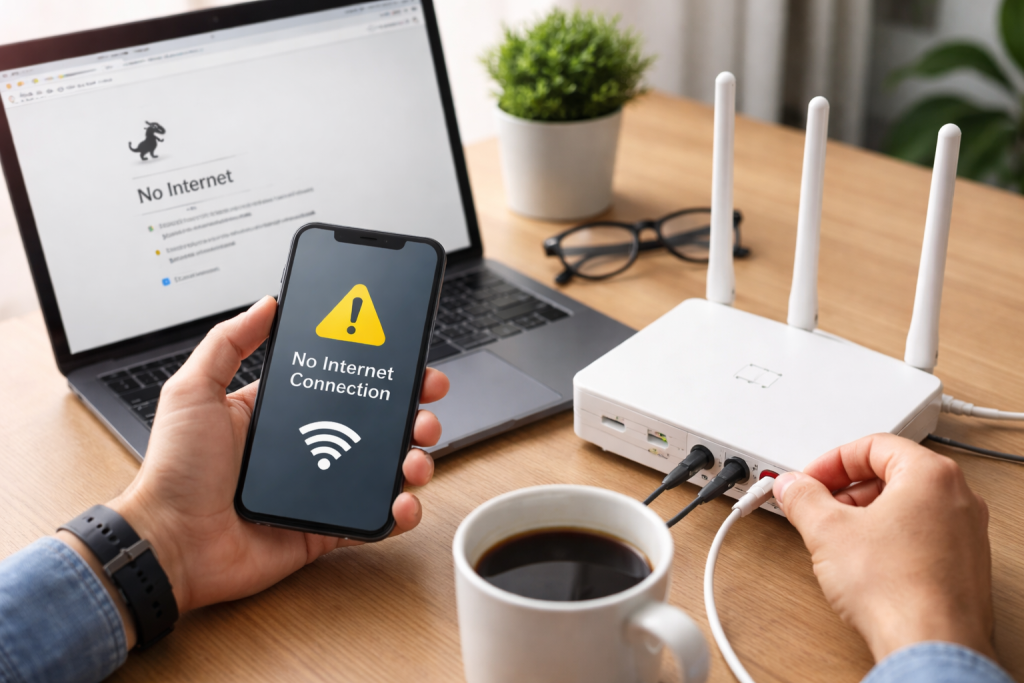
Most internet connectivity issues are surprisingly simple to resolve, often within a matter of minutes. This comprehensive guide will walk you through a series of troubleshooting steps, starting with the easiest and progressing to more involved solutions, empowering you to reclaim your internet connection with confidence.
Contents
- 0.1 The First Line of Defense: Simple Checks
- 0.2 The Power of a Reboot: Router and Modem
- 0.3 Digging Deeper: Software and Settings
- 0.4 External Factors and Advanced Troubleshooting
- 1 FAQs
- 1.1 1. What are some common troubleshooting steps for fixing no internet access?
- 1.2 2. How can I check my Wi-Fi connection?
- 1.3 3. What should I do if I experience no internet access due to service outages?
- 1.4 4. How can I reset my network settings?
- 1.5 5. What should I do if I suspect that my firewall settings are causing no internet access?
- 1.6 About the Author
The First Line of Defense: Simple Checks
When your internet goes dark, the initial reaction might be to assume the worst. However, many common problems stem from surprisingly simple oversights. A methodical approach, beginning with these basic checks, can often save you a lot of time and frustration.
Check Your Wi-Fi Connection
The most common culprit for perceived internet loss is often a disconnected Wi-Fi signal. It’s easy for a device to accidentally disconnect or for a temporary glitch to occur.
- Verify Your Device is Connected: On your computer, smartphone, or tablet, look for the Wi-Fi icon. Is it showing a strong signal, or is there an “X” or a disconnected symbol? If it’s disconnected, try to reconnect to your home network. Ensure you’re selecting the correct network name (SSID) and entering the password accurately. Often, a simple typo or selecting the wrong network can be the issue.
- Toggle Wi-Fi On and Off: A quick toggle of your device’s Wi-Fi feature can often resolve minor software hiccups. Turn off Wi-Fi for a few seconds, then turn it back on. This refreshes the connection and can clear temporary conflicts.
- Forget and Reconnect: If toggling doesn’t work, consider “forgetting” your Wi-Fi network on your device and then reconnecting. This process clears any stored network profiles that might be corrupted and forces your device to establish a fresh connection. Remember to have your Wi-Fi password handy!
The Power of a Reboot: Router and Modem
Many tech support professionals will tell you that a significant percentage of issues can be resolved with a simple reboot. This is particularly true for networking equipment, which, like any other computer, can benefit from a fresh start.
Restart Your Router
Your router is the central nervous system of your home network, directing traffic between your devices and the internet. Over time, its internal processes can become bogged down, leading to performance issues or complete connectivity loss.
- The Gentle Restart: The safest and most effective way to restart your router is to unplug it from its power source. Wait for about 30 seconds to a full minute. This allows the capacitors to fully discharge and completely reset the device. Then, plug it back in. Give it a few minutes to fully boot up and re-establish its connection. You’ll usually see a series of blinking lights as it goes through its startup sequence.
- Understanding Router Lights: Pay attention to the indicator lights on your router. A solid “Internet” or “WAN” light typically indicates a successful connection to your ISP. Blinking lights usually signify data activity. If critical lights remain off or stubbornly red, it might point to a deeper issue or a problem with your internet service itself.
Reset Your Modem
While often mistaken for one device, your modem and router serve distinct purposes. The modem is responsible for communicating directly with your Internet Service Provider (ISP), translating the internet signal into a format your router can understand. If the internet access light on your modem is off, or if you have a combined modem/router unit and a router restart doesn’t help, a modem reset is the next logical step.
- The Power Cycle: Similar to the router, unplug your modem from its power outlet. Wait for at least 30 seconds, preferably a full minute, before plugging it back in. Modems often take longer to boot up than routers, as they need to re-establish a handshake with your ISP. Be patient and observe the indicator lights. A solid “Online” or “Internet” light on the modem is a good sign.
- Order of Operations: If you have separate modem and router units, always restart the modem first. Once the modem is fully online and its indicator lights confirm a connection, then restart your router. This ensures the router receives a clear signal from the modem.
Digging Deeper: Software and Settings
If simple reboots haven’t restored your internet, it’s time to look at the software and settings on your computer or device that govern its network connectivity. Sometimes, a corrupted setting or an outdated piece of software can be the root cause.
Reset Your Network Settings
Operating systems, whether Windows, macOS, Android, or iOS, maintain a complex set of network configurations. These settings can occasionally become corrupted, leading to connectivity problems. A network reset effectively clears these configurations, forcing your device to rebuild them from scratch.
- Windows Network Reset: In Windows, you can find “Network reset” under “Settings” > “Network & Internet” > “Advanced network settings.” This process will remove and reinstall your network adapters and revert all network components to their default settings. Your computer will likely restart after this. Be prepared to re-enter your Wi-Fi password for any networks you connect to.
- macOS Network Preferences: On a Mac, you don’t have a single “network reset” button, but you can achieve a similar effect by deleting specific network preference files. This requires a bit more technical comfort, and a simpler first step is often to delete and re-add your Wi-Fi service under “System Settings” > “Network.”
- Mobile Device Reset: On smartphones and tablets, look for “Reset Wi-Fi, mobile & Bluetooth” or “Reset Network Settings” in your device’s settings menu. This will clear all stored Wi-Fi networks, Bluetooth pairings, and cellular data settings, so you’ll need to reconfigure them.
Update Your Network Drivers
Network drivers are software programs that allow your operating system to communicate with your computer’s network adapter. Outdated or corrupted drivers can lead to a host of connectivity issues.
- Checking for Updates (Windows): Open Device Manager (right-click the Start button and select it). Expand “Network Adapters,” right-click on your Wi-Fi adapter, and select “Update driver.” Choose to search automatically for updated driver software. If nothing is found, you might need to visit your computer manufacturer’s website or the network adapter manufacturer’s website to download the latest drivers manually.
- macOS and Mobile Devices: For macOS, network drivers are typically updated as part of regular system updates. For mobile devices, network functionality is tightly integrated with the operating system, and updates usually come through system software updates.
External Factors and Advanced Troubleshooting
Sometimes the problem isn’t within your home network or devices at all. It might be further up the chain or a more obscure setting impacting your connection. These steps address those possibilities.
Check for Service Outages
Before you pull your hair out troubleshooting, consider whether your internet service provider (ISP) is experiencing an outage in your area. This is often the simplest explanation for a widespread internet loss.
- ISP’s Website or Social Media: Most ISPs provide status updates on their websites or official social media channels (like Twitter). Check these resources using your smartphone’s cellular data or a neighbor’s Wi-Fi if available.
- Down Detector and Similar Sites: Websites like Down Detector aggregate reports of service outages from users. A quick search for your ISP on such a site can confirm if others in your area are experiencing similar issues.
Try a Different Device
If one device can’t connect, but your phone, tablet, or another computer can, then the problem is likely with that specific device, not your internet connection or router. If no devices can connect, that points to an issue with your router, modem, or ISP.
- Isolate the Problem: Attempt to connect to your Wi-Fi network with at least one other device. If one device gets online but another doesn’t, focus your troubleshooting efforts on the non-connecting device, perhaps by reviewing network settings or updating drivers on that particular machine.
Contact Your Internet Service Provider
If you’ve gone through the basic troubleshooting steps and still have no internet, it’s time to contact the experts. Your ISP has diagnostic tools and can check the connection to your home from their end.
- Before You Call: Have your account information ready. Be prepared to describe the troubleshooting steps you’ve already taken (restarting modem/router, checking different devices, etc.). This will save time and prevent them from asking you to repeat steps you’ve already performed.
- Be Patient: ISP support lines can sometimes have long wait times, but their technical staff can often identify and resolve issues that are beyond your control. They might be able to confirm an outage, reset your connection remotely, or schedule a technician visit.
Check Your Firewall Settings
Firewalls, whether built into your operating system or your router, are designed to protect your network from unauthorized access. However, overly aggressive firewall settings can sometimes inadvertently block legitimate internet traffic.
- Temporarily Disable Firewall: As a diagnostic step, you can temporarily disable your computer’s firewall (e.g., Windows Defender Firewall, macOS firewall) and attempt to access the internet. If you regain connectivity, then your firewall settings are likely the culprit. Remember to re-enable it immediately after testing to protect your system.
- Review Firewall Rules: If disabling the firewall resolves the issue, you’ll need to review your firewall’s rules and exceptions. Ensure that your web browser and other internet-dependent applications are not being blocked. Consult your firewall software’s documentation for guidance on configuring its settings.
Consider Using a Different DNS Server
The Domain Name System (DNS) acts like a phonebook for the internet, translating human-readable website names (like “google.com”) into computer-readable IP addresses. If your ISP’s default DNS servers are experiencing issues, it can make it seem like you have no internet access, even if your connection is otherwise fine.
- Public DNS Servers: Try configuring your device to use public DNS servers, such as Google DNS (8.8.8.8 and 8.8.4.4) or Cloudflare DNS (1.1.1.1 and 1.0.0.1). This can often resolve issues related to slow website loading or an inability to access certain sites.
- How to Change DNS: The method for changing DNS settings varies by operating system. In Windows, you can do this within the “Network and Sharing Center” by going to your adapter’s properties. On macOS, it’s in the “Network” preferences. On routers, you can often configure DNS settings in the web-based administration interface, which would then apply to all devices on your network.
By systematically working through these steps, from the simplest checks to more advanced troubleshooting techniques, you significantly increase your chances of quickly diagnosing and resolving your “No Internet Access” dilemma. Don’t let a temporary connection hiccup disrupt your day; empower yourself with knowledge and get back online in minutes.
FAQs
1. What are some common troubleshooting steps for fixing no internet access?
Some common troubleshooting steps for fixing no internet access include checking your Wi-Fi connection, restarting your router, resetting your network settings, updating your network drivers, checking for service outages, trying a different device, and contacting your internet service provider.
2. How can I check my Wi-Fi connection?
You can check your Wi-Fi connection by ensuring that your device is connected to the correct network, checking if other devices are able to connect to the Wi-Fi, and moving closer to the router to see if the signal improves.
3. What should I do if I experience no internet access due to service outages?
If you experience no internet access due to service outages, you can check for service outages in your area by contacting your internet service provider or checking their website for any reported outages.
4. How can I reset my network settings?
You can reset your network settings by going to your device’s network settings and selecting the option to reset network settings. This will reset all network-related settings to their default configurations.
5. What should I do if I suspect that my firewall settings are causing no internet access?
If you suspect that your firewall settings are causing no internet access, you can check your firewall settings to ensure that they are not blocking your internet connection. You can also consider temporarily disabling your firewall to see if it resolves the issue.

About the Author
Maya Ali is the founder of ByteSolving with experience in technology and digital solutions. His mission is to make technology easier to understand and help people solve everyday tech problems in a simple and practical way.