
Don’t Panic! Here’s How to Fix Your Browser When Pages Won’t Load
The digital world is an indispensable part of modern life, facilitating communication, information access, entertainment, and work. When the gateway to this world—your web browser—seizes up and refuses to load pages, it can be incredibly frustrating. The immediate urge is often panic, a feeling of being cut off and powerless. However, this common technological hiccup is rarely insurmountable. With a systematic approach and a bit of patience, most browser loading issues can be resolved. This comprehensive guide will walk you through a series of troubleshooting steps, empowering you to regain control and get back online without undue stress.
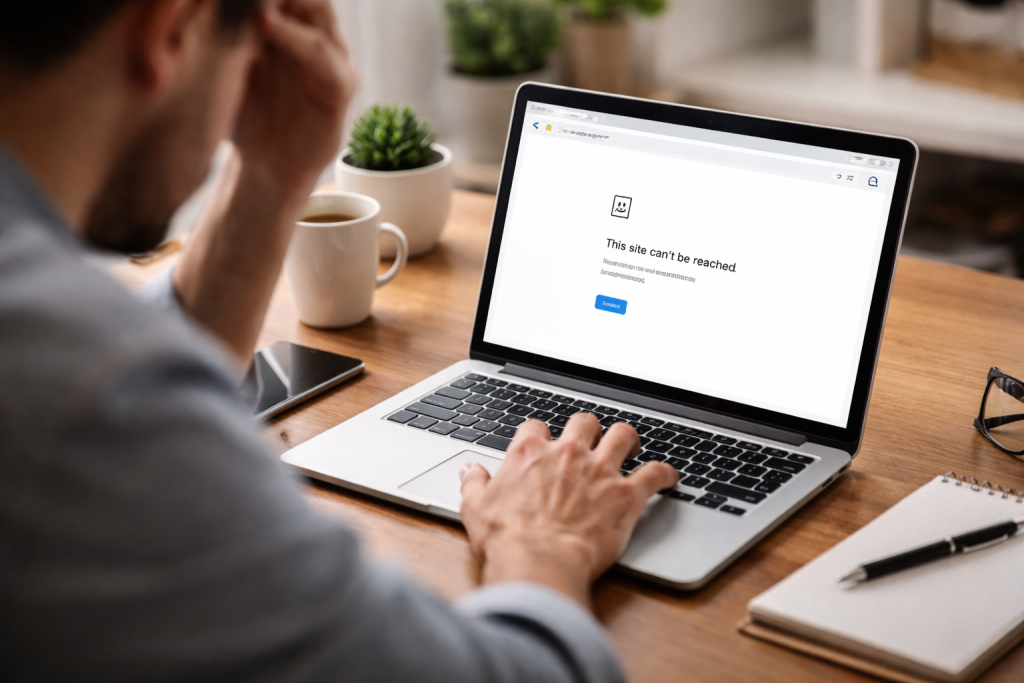
Before diving into browser-specific fixes, it’s crucial to rule out the most common culprit: your internet connection. A stable and active internet connection is the bedrock upon which all web browsing relies. If this connection is faltering, no amount of browser tinkering will bring webpages to life. This initial step is often overlooked in the rush to address the more visible browser problem, but it’s a fundamental diagnostic that can save you considerable time and effort.
Contents
- 0.1 Verifying Your Internet Connection Strength
- 0.2 Troubleshooting Network Hardware
- 0.3 Understanding Cache and Cookies
- 0.4 Step-by-Step Cache and Cookie Removal
- 0.5 Identifying Potentially Problematic Extensions
- 0.6 Managing and Removing Extensions
- 0.7 Understanding Browser Update Mechanisms
- 0.8 Benefits of a Current Browser Version
- 0.9 Why Restarts Work Wonders
- 0.10 The Art of a Proper Restart
- 0.11 The Benefits of Browser Diversity
- 0.12 Popular Browser Alternatives and How to Try Them
- 0.13 Understanding the Scope of a Browser Reset
- 0.14 The Procedure for a Browser Reset
- 0.15 Recognizing Signs of Malware Infection
- 0.16 Performing a Malware Scan and Removal
- 0.17 Contacting Your Internet Service Provider (ISP)
- 0.18 Seeking Help from a Tech Support Professional
- 1 FAQs
- 1.1 1. How can I fix my browser when pages won’t load?
- 1.2 2. What should I do if my internet connection is causing pages not to load?
- 1.3 3. How do I clear my browser’s cache and cookies?
- 1.4 4. How can I disable browser extensions and add-ons?
- 1.5 5. What should I do if none of the above solutions work?
- 1.6 About the Author
Verifying Your Internet Connection Strength
The most straightforward way to check your internet connection is to observe the indicators on your router or modem. These devices typically have lights that signify power, internet connectivity, and wireless activity. If any of these lights are off, flashing erratically, or indicate an error, it’s a strong signal that the problem lies with your internet service. Beyond the hardware, you can also try accessing a different website or application that requires internet access. If other online services are also failing, the issue is almost certainly with your general internet connectivity. A simple test is to try loading a well-known, relatively static website like Google.com. If even that struggles to load, the problem is almost certainly not isolated to your browser. A quick reboot of your modem and router can often resolve temporary glitches in your internet service. Simply unplug them, wait for about 30 seconds, and then plug them back in. Give them a few minutes to re-establish their connection.
Troubleshooting Network Hardware
If restarting your modem and router doesn’t resolve the issue, it might be time to investigate your network hardware more closely. Ensure all cables are securely plugged in, both from the wall to the modem and from the modem to the router (if you have a separate router). Loose connections are surprisingly common and can lead to intermittent or complete loss of internet access. If you are connected via Wi-Fi, try moving closer to the router or temporarily connecting your device directly to the router using an Ethernet cable. This helps to determine if the problem is with your wireless signal strength or reliability. If you have multiple devices connected to your network, and only one is experiencing browser issues, it points more towards a device-specific problem. However, if all devices are struggling, the problem is almost certainly with your network.
Web browsers, in their effort to speed up your browsing experience, store a significant amount of data locally on your device. This includes cached website information, cookies that track your online activity, and other temporary files. While beneficial for performance, this stored data can, in rare instances, become corrupted or outdated, leading to conflicts that prevent pages from loading correctly. Think of it as your browser accumulating digital clutter that, over time, can impede its ability to function smoothly. Clearing this data effectively gives your browser a clean slate, forcing it to fetch fresh versions of webpages.
Understanding Cache and Cookies
The browser cache is essentially a temporary storage area for website data. When you visit a website, your browser downloads elements like images, scripts, and stylesheets to store them locally. The next time you visit that same website, your browser can load these elements from the cache instead of downloading them again, significantly speeding up page load times. Cookies, on the other hand, are small text files that websites place on your computer to remember information about you. This can include login credentials, user preferences, or items in a shopping cart. While cookies are essential for many online functionalities, they can also store outdated or conflicting information that interferes with website rendering.
Step-by-Step Cache and Cookie Removal
The process for clearing cache and cookies varies slightly depending on the browser you use. In Google Chrome, you would typically navigate to “Settings,” then “Privacy and security,” and select “Clear browsing data.” Here, you can choose the time range and specify whether to clear cache, cookies, or both. Mozilla Firefox offers a similar path through its “Options” or “Preferences,” under the “Privacy & Security” tab, allowing you to manage browsing history, cache, and cookies. For Microsoft Edge, you’ll find these options under “Settings,” then “Privacy, search, and services,” where you can clear browsing data. Apple’s Safari has its clearing options within “Preferences,” typically under the “Privacy” tab. It’s often recommended to clear data for “All time” to ensure a complete refresh. After clearing, you should close and reopen your browser before attempting to load pages again.
Browser extensions and add-ons are powerful tools that can enhance your browsing experience, adding functionality like ad-blocking, password management, or productivity features. However, like any software, they can sometimes malfunction, conflict with each other, or become incompatible with website updates, leading to pages failing to load. This is a common source of troubleshooting because extensions often operate at a deeper level within the browser, influencing how content is displayed and processed.
Identifying Potentially Problematic Extensions
The most effective way to determine if an extension is the culprit is to disable them one by one. This systematic approach allows you to isolate the problematic extension. Start by disabling all extensions. If your pages begin to load correctly, then you know an extension is indeed the issue. Subsequently, re-enable them in small groups or individually, testing after each re-enabling to pinpoint the specific extension causing the problem. Most browsers provide a dedicated “Extensions” or “Add-ons” section within their settings menu, where you can easily toggle individual extensions on and off. Look for extensions that you recently installed or updated, as these are often the most likely to cause conflicts.
Managing and Removing Extensions
Once you’ve identified a troublesome extension, you have a few options. The simplest is to disable it temporarily. If this resolves the loading issue, you can decide whether to keep it disabled, look for an alternative, or try updating it if an update is available. If an extension is consistently causing problems, it might be best to remove it entirely. Most browsers allow you to uninstall extensions directly from the extensions management page. Before removing, consider if the functionality it provided is essential to your browsing habits. If it is, you might be able to find a more stable or reliable alternative. Remembering to restart your browser after making changes to extensions is always a good practice to ensure the changes take full effect.
Software, including web browsers, is constantly evolving. Developers release updates to fix bugs, improve security, and introduce new features. An outdated browser can struggle to render modern webpages correctly because it may lack the necessary rendering engines or support for the latest web standards. Moreover, security vulnerabilities are often patched in updates, making it crucial for both performance and safety to keep your browser current.
Understanding Browser Update Mechanisms
Most modern browsers are designed to update automatically in the background. However, sometimes these automatic updates can fail, or the user may have inadvertently disabled the auto-update feature. It’s important to periodically check if your browser is up-to-date manually. You can usually find the “About” section within your browser’s settings menu, which will typically display the current version number and prompt you to check for updates. If an update is available, following the on-screen instructions will usually download and install it. This process can sometimes require a browser restart to finalize the installation.
Benefits of a Current Browser Version
The advantages of using the latest browser version extend beyond just fixing loading issues. Updates frequently bring significant performance improvements, making webpages load faster and your overall browsing experience smoother. Security is also a paramount concern. Outdated browsers can be vulnerable to malware and phishing attacks, as newly discovered security flaws are addressed in each new version. Furthermore, the internet is constantly innovating, and newer browser versions are better equipped to handle the latest web technologies and interactive features, ensuring you can access all aspects of websites.
When faced with a plethora of technical issues, sometimes the simplest solution is the most effective. A restart of your computer or device is often referred to as the “universal fix” for a reason. It’s a process that effectively shuts down all running programs and processes, clears temporary memory (RAM), and reinitializes the operating system. This can resolve a wide range of software glitches, memory leaks, and background processes that might be interfering with your browser’s ability to function correctly.
Why Restarts Work Wonders
Think of your computer or device as a busy office. Over time, papers pile up, phones ring incessantly, and tasks get deferred. A restart is like closing down the entire office for the night, clearing all the desks, and starting fresh in the morning. This process can resolve issues like a hung process that is consuming excessive system resources, preventing your browser from accessing them, or a minor software conflict that was introduced during a previous session. It’s a fundamental way to clear out any digital “dust bunnies” that may have accumulated.
The Art of a Proper Restart
A proper restart involves more than just closing and opening the application. It means initiating a full shutdown and then powering the device back on. On most computers, this option is found within the Start menu (Windows) or the Apple menu (macOS). For mobile devices, it typically involves holding down the power button until a shutdown or restart option appears. After your device has fully powered down, wait a few seconds before pressing the power button again to turn it back on. Once your device has booted up completely, open your browser and attempt to load a webpage. This simple step often resolves a surprising number of problems without requiring more complex interventions.
If you’ve diligently followed the steps above and your browser continues to struggle, it might be time to consider that the issue could be specific to that particular browser itself, rather than a broader system-wide problem. Testing with a different browser is an excellent diagnostic step that helps isolate whether the problem lies with your hardware, internet connection, or a specific browser installation.
The Benefits of Browser Diversity
Different browsers are built with different underlying technologies and rendering engines. What might cause a problem in one browser could be handled seamlessly by another. For instance, a website might employ a specific JavaScript library that is interpreted differently by Chrome, Firefox, or Edge. If your primary browser has a bug or incompatibility with that particular interpretation, a different browser might load the page without any issues. This allows you to continue your browsing while you investigate the problem with your preferred browser further.
Popular Browser Alternatives and How to Try Them
Several excellent and free web browsers are available for download. Popular choices include Google Chrome, Mozilla Firefox, Microsoft Edge, and Apple Safari. If you are currently using Chrome, for example, try downloading and installing Firefox to see if the same pages load. When trying a new browser, it’s often best to do so with extensions disabled initially (as outlined in step 3) to ensure a clean test. If pages load correctly in an alternative browser, it strongly suggests that the issue is indeed with your original browser installation, its settings, or its extensions. You can then focus your troubleshooting efforts on that specific browser.
When faced with persistent browser issues that resist further troubleshooting, a drastic but often effective measure is to reset your browser’s settings to their original, default configuration. This process effectively wipes away any custom configurations, extensions, themes, and startup pages that you may have previously set, returning the browser to a state similar to when it was first installed. While this might seem like a considerable undertaking, it can be a powerful solution for resolving deep-seated conflicts and corrupted settings.
Understanding the Scope of a Browser Reset
Resetting your browser typically won’t delete your bookmarks, browsing history, or saved passwords, as these are often stored separately. However, it will disable all your extensions, clear your cache and cookies (effectively undoing step 2), reset your homepage and startup pages, and revert any other customization preferences you’ve made. The exact options available during a reset can vary by browser, but the core function is to return the browser to its factory default state. This ensures that no lingering custom settings are contributing to the loading problem.
The Procedure for a Browser Reset
The process for resetting your browser is generally found within the browser’s settings menu. In Google Chrome, you would go to “Settings,” then “Advanced,” and under the “Reset and clean up” section, you will find the “Restore settings to their original defaults” option. For Mozilla Firefox, it’s typically under “Help” and then “More troubleshooting information,” where you’ll find a “Refresh Firefox” button. Microsoft Edge offers a similar reset option within its settings, usually under a “Reset settings” or “Restore settings to their default values” heading. After initiating the reset, you will likely need to restart your browser to apply the changes. This step, while more involved than simply clearing the cache, can be a highly effective way to resolve persistent and elusive browser problems.
While the previous steps focus on software configurations within your browser and system, it’s also imperative to consider external threats that can hijack your browsing experience. Malware and viruses can infect your computer and directly interfere with your browser’s functionality, redirecting you to malicious websites, blocking access to legitimate sites, or corrupting browser settings. If pages aren’t loading, and none of the above steps have resolved the issue, it’s wise to perform a thorough scan for any malicious software.
Recognizing Signs of Malware Infection
Beyond pages failing to load, malware can manifest in various ways. You might experience an increase in pop-up advertisements, unexpected browser redirects, or find new toolbars or search engines installed that you didn’t authorize. Your computer’s performance might also significantly slow down. If you notice any of these symptoms in conjunction with your loading issues, a malware infection becomes a highly probable cause. It’s important to be vigilant about the websites you visit and the files you download, as these are common entry points for malware.
Performing a Malware Scan and Removal
To address a potential malware infection, you will need to run a reputable antivirus and anti-malware scan. Ensure your security software is up-to-date, as new threats emerge constantly. If you don’t have antivirus software installed, or if you suspect yours might not be effective, consider downloading a free trial of a well-regarded program or using a reputable online scanner. Run a full system scan, which can take some time depending on the size of your hard drive and the speed of your computer. Follow the instructions provided by your security software to quarantine or remove any detected threats. After the scan and removal process, restart your computer and try loading pages again.
After exhausting all the self-help troubleshooting steps, if your internet pages still refuse to load, it may be time to leverage external resources. There are two primary avenues for further assistance: contacting your Internet Service Provider (ISP) and seeking help from a tech support professional. These options are best employed when you suspect the problem lies beyond your immediate control or technical understanding.
Contacting Your Internet Service Provider (ISP)
Your ISP is responsible for providing and maintaining your internet connection. If you’ve ruled out problems with your own devices and network hardware, the issue might be with their infrastructure. When contacting your ISP, be prepared to explain the troubleshooting steps you’ve already taken. This will help them diagnose the problem more efficiently. They can check for outages in your area, test your line from their end, and guide you through any specific modem or router configurations that might be necessary. It’s important to perform initial checks like restarting your modem and router yourself, as ISPs often ask these questions upfront.
Seeking Help from a Tech Support Professional
If your ISP confirms that your internet service is functioning correctly, and you’ve still encountered persistent browser issues, it might be time to consult a professional IT technician. They have specialized knowledge and tools to diagnose complex computer and network problems that may be beyond the scope of typical user troubleshooting. This could involve deeper system diagnostics, identifying software conflicts that are not easily apparent, or even addressing hardware failures. While this option often involves a cost, it can be invaluable for resolving stubborn and perplexing problems, allowing you to get back to a fully functional digital experience without further frustration.
FAQs
1. How can I fix my browser when pages won’t load?
To fix your browser when pages won’t load, you can try checking your internet connection, clearing your browser’s cache and cookies, disabling browser extensions and add-ons, updating your browser to the latest version, restarting your computer or device, trying a different browser, resetting your browser settings to default, checking for malware or viruses, contacting your internet service provider, or seeking help from a tech support professional.
2. What should I do if my internet connection is causing pages not to load?
If your internet connection is causing pages not to load, you can troubleshoot by checking your Wi-Fi connection, restarting your router, checking for any outages in your area, or contacting your internet service provider for assistance.
To clear your browser’s cache and cookies, you can go to your browser’s settings or preferences, find the option to clear browsing data, and select the cache and cookies to clear. This will vary depending on the browser you are using.
4. How can I disable browser extensions and add-ons?
To disable browser extensions and add-ons, you can go to your browser’s settings or extensions menu, find the list of installed extensions or add-ons, and disable or remove the ones that may be causing issues with page loading.
5. What should I do if none of the above solutions work?
If none of the above solutions work, you can seek help from a tech support professional who can further diagnose and troubleshoot the issue with your browser.

About the Author
Maya Ali is the founder of ByteSolving with experience in technology and digital solutions. His mission is to make technology easier to understand and help people solve everyday tech problems in a simple and practical way.