
5 Simple Steps to Troubleshoot and Fix Network Adapter Issues
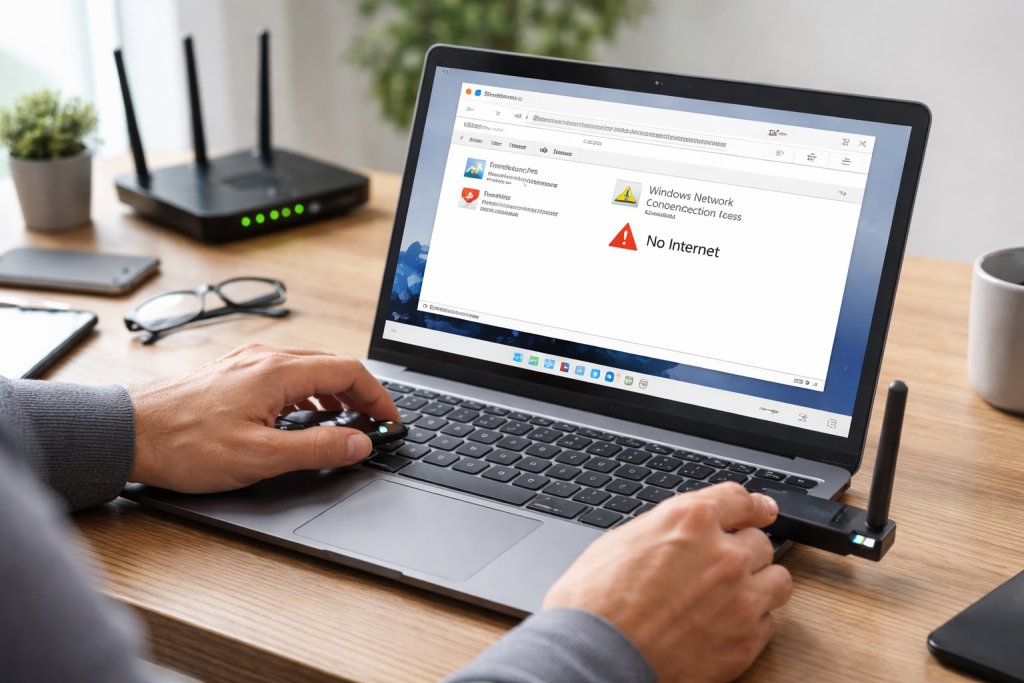
Navigating the digital world without a functional network adapter is like sailing without a compass—you’re adrift. Network adapters, those unsung heroes of our interconnected lives, bridge the gap between our devices and the vast expanse of the internet. When they falter, our productivity grinds to a halt, entertainment is suspended, and communication ceases. Understanding common network adapter issues is the first step toward regaining control. These problems can manifest in myriad ways, from complete loss of internet access to intermittent connectivity, slow speeds, or even mysterious error messages during device startup. Oftentimes, the culprit is not a catastrophic failure but a minor glitch that can be resolved with a methodical approach.
Contents
- 0.1 Understanding Common Network Adapter Issues
- 0.2 Step-by-Step Guide to Troubleshooting Network Adapter Problems
- 0.3 Identifying Network Adapter Hardware and Software Issues
- 0.4 Resolving Connectivity Problems with Network Adapters
- 0.5 Fixing Network Adapter Driver and Software Errors
- 0.6 Dealing with Network Adapter Configuration Settings
- 0.7 Recognizing and Responding to Hardware Failures
- 0.8 Proactive Measures for Network Stability
- 0.9 Leveraging Built-in and Third-Party Diagnostic Tools
- 0.10 When to Consult an Expert
- 1 FAQs
- 1.1 1. What are common network adapter issues that users may encounter?
- 1.2 2. How can I troubleshoot and fix network adapter problems on my own?
- 1.3 3. What are some tips for preventing future network adapter issues?
- 1.4 4. When should I seek professional help for complex network adapter problems?
- 1.5 5. What are some diagnostic tools that can be used for network adapter problem solving?
- 1.6 About the Author
Understanding Common Network Adapter Issues
The digital landscape is rife with potential pitfalls for your network adapter. One of the most prevalent issues is a complete disconnection, where the adapter simply refuses to acknowledge the presence of any network. This can be due to a disabled adapter, outdated drivers, or even physical damage. Another frequent complaint is intermittent connectivity, where your device connects and disconnects from the network seemingly at random. This often points to interference, a weak Wi-Fi signal, or conflicting network settings. Slow network speeds, even when other devices on the same network are performing optimally, can indicate a bottleneck within the adapter itself, perhaps due to driver inefficiencies or faulty hardware. Finally, the dreaded “limited or no connectivity” message often signifies an IP address conflict, a problem with your DHCP server, or incorrect network configuration. Recognizing these symptoms is crucial for an effective triage.
When your internet connection goes awry, panic can easily set in. However, a structured approach to troubleshooting can often resolve the issue without the need for an IT professional. These five simple steps provide a solid foundation for diagnosing and rectifying most common network adapter problems.
Step-by-Step Guide to Troubleshooting Network Adapter Problems
The first line of defense against network woes is a series of fundamental checks. Begin by ensuring the network adapter is actually enabled. This might sound rudimentary, but it’s a surprisingly common oversight. For wired connections, physically inspect the Ethernet cable for any damage or loose connections at both ends—your computer and your router. If using Wi-Fi, ensure your device’s Wi-Fi is turned on and that you are within range of your wireless router. A simple reboot of your computer and your router/modem can often clear temporary glitches and refresh network settings. This “turn it off and on again” truism holds considerable weight in the world of technology. After these initial checks, if the problem persists, it’s time to delve deeper.
Identifying Network Adapter Hardware and Software Issues
Distinguishing between hardware and software problems is paramount for an efficient solution. Hardware issues might involve a physically damaged adapter, a faulty port, or even an internal component failure. Software issues, on the other hand, typically stem from outdated or corrupted drivers, incorrect configuration settings, or conflicts with other software. To discern the difference, observe if other devices can connect to the network. If multiple devices are affected, the problem likely lies with the router or the internet service provider. If only your device is experiencing issues, the problem is localized to your network adapter or its software. Device Manager in Windows or System Information in macOS can provide clues about the adapter’s status, indicating if it’s operating normally or if there are error codes present.
Resolving Connectivity Problems with Network Adapters
Once you’ve performed the initial checks and differentiated between potential hardware and software issues, the next step involves directly addressing connectivity problems. For wired connections, try a different Ethernet cable or a different port on your router. For wireless, try connecting to a different Wi-Fi network if available, or move closer to your router to rule out signal strength issues. Temporarily disabling your firewall or antivirus software can help determine if they are interfering with the network connection, but remember to re-enable them afterwards for security. Renewing your IP address using commands like ipconfig /release and ipconfig /renew (Windows) or sudo dhclient -r and sudo dhclient (Linux) can often resolve IP conflicts.
Fixing Network Adapter Driver and Software Errors
Outdated or corrupt drivers are a frequent culprit behind network adapter malfunctions. Regularly updating your drivers is a vital preventative measure. Access your device manager, locate your network adapter, and select “Update Driver.” If the system can’t find a new driver, visit the manufacturer’s website to download the latest version directly. Sometimes, a clean reinstallation of the driver is necessary. This involves uninstalling the current driver, restarting your computer, and then installing the fresh driver. Furthermore, network configuration errors, such as incorrect static IP addresses or DNS settings, can also disrupt connectivity. Ensure your adapter is set to obtain an IP address and DNS server address automatically unless you have a specific reason for manual configuration.
Beyond driver issues, incorrect configuration and settings can render a perfectly good network adapter useless. Understanding these settings and how to adjust them is key to restoring connectivity.
Dealing with Network Adapter Configuration Settings
Within your operating system’s network settings, there are a myriad of options that can impact your adapter’s performance. For Wi-Fi adapters, ensure the correct network profile is selected and that the security key is entered accurately. Check the network adapter’s properties for settings related to power management; sometimes, the operating system might be configured to turn off the adapter to save power, leading to intermittent disconnections. Disabling this option can often resolve such issues. Furthermore, verifying that the appropriate network protocols (like TCP/IP v4) are enabled and configured correctly under the adapter’s properties is essential. Incorrect proxy settings can also hinder internet access, so ensure these are either automatically detected or disabled unless specifically required.
While less common than software issues, hardware failures can occur and often require a more definitive solution.
Recognizing and Responding to Hardware Failures
If, after exhausting all software troubleshooting steps, your network adapter still refuses to function, it’s highly probable you’re dealing with a hardware issue. Signs of a hardware failure might include the adapter disappearing from Device Manager, physical damage to the port or antenna, or persistent error codes that indicate a device malfunction. For external USB adapters, simply trying a different USB port can rule out a faulty port. For internal adapters (especially on laptops), diagnosing a hardware failure can be more challenging and might require opening the device. In such cases, replacing the adapter is often the most straightforward and cost-effective solution. Dedicated network interface cards (NICs) for desktop computers are relatively inexpensive and easy to replace.
A proactive approach can significantly reduce the likelihood of encountering network adapter problems in the future. Prevention is always better than cure.
Proactive Measures for Network Stability
diskRegularly updating your operating system and network adapter drivers is perhaps the most critical preventative measure. These updates often include bug fixes, performance enhancements, and improved compatibility that can prevent future issues. Keeping your operating system clean by regularly performing disc cleanup and running antivirus scans can prevent software conflicts that might impact network functionality. For wireless networks, ensure your router’s firmware is up to date and consider placing it in a central location to maximize signal strength and minimize interference. Avoiding physical damage to your network cables and adapter ports is also paramount. Using surge protectors for your computer and network equipment can safeguard them against electrical fluctuations.
Modern operating systems come equipped with a suite of diagnostic tools that can be invaluable in pinpointing network adapter issues. Learning to effectively leverage these tools can save considerable time and frustration.
Leveraging Built-in and Third-Party Diagnostic Tools
Windows, for instance, offers the “Network Troubleshooter,” a powerful built-in utility that can automatically detect and often fix common network problems. Accessing it through the right-click menu on the network icon in the system tray or through the Settings app can initiate a diagnostic scan. Command-line tools like ping traceroute and ipconfig Windows or ifconfig aLinux/macOS provide detailed insights into network connectivity, latency, and adapter configuration. Third-party tools, while sometimes offering more advanced features, should be used with caution and only from reputable sources. These tools can help monitor network traffic, identify bottlenecks, and pinpoint specific points of failure. Understanding the output of these tools can guide you toward a more precise solution.
While many network adapter issues can be resolved with a methodical approach, there are instances where professional intervention becomes necessary.
When to Consult an Expert
If you’ve diligently followed all the troubleshooting steps outlined and utilized diagnostic tools, and the problem persists, it’s a strong indicator that the issue might be beyond the scope of a typical user’s repair capabilities. This is especially true for internal hardware failures on laptops or integrated network adapters on motherboards, which often require specialized tools and expertise to replace. If your internet service provider (ISP) confirms that their services are working correctly and other devices on your network are functioning without issue, then the problem is definitively localized to your device’s network adapter. In such scenarios, a qualified IT technician can perform a more in-depth diagnosis, potentially identifying advanced driver conflicts, firmware issues, or subtle hardware malfunctions that are not immediately apparent. Investing in professional help can ultimately save you time, effort, and potentially further damage to your device.
FAQs
1. What are common network adapter issues that users may encounter?
Common network adapter issues include connectivity problems, driver and software errors, hardware failures, and configuration/settings issues. These issues can result in a slow or intermittent internet connection, an inability to connect to a network, or a complete loss of network connectivity.
2. How can I troubleshoot and fix network adapter problems on my own?
You can troubleshoot and fix network adapter problems by following simple steps such as checking physical connections, restarting the computer and router, updating or reinstalling network adapter drivers, adjusting network adapter settings, and using diagnostic tools to identify and resolve issues.
3. What are some tips for preventing future network adapter issues?
To prevent future network adapter issues, you can regularly update network adapter drivers, keep your operating system and security software up to date, avoid physical damage to the network adapter hardware, and use surge protectors to protect against power surges.
4. When should I seek professional help for complex network adapter problems?
You should seek professional help for complex network adapter problems when you have tried basic troubleshooting steps without success, when you suspect hardware failures that require repair or replacement, or when you encounter persistent and unexplained network connectivity issues.
5. What are some diagnostic tools that can be used for network adapter problem solving?
Diagnostic tools such as Windows Network Diagnostics, Ping, Tracert, and Network Adapter Troubleshooter can be used to identify and troubleshoot network adapter problems. These tools can help diagnose connectivity issues, hardware failures, and configuration problems.

About the Author
Maya Ali is the founder of ByteSolving with experience in technology and digital solutions. His mission is to make technology easier to understand and help people solve everyday tech problems in a simple and practical way.