
Maximize Your Phone’s Storage: Simple Tricks to Free Up Space
In today’s digital age, our smartphones have become central to our lives, storing everything from precious memories to crucial work documents. As our reliance on these devices grows, so does the demand for storage. The dreaded “Storage Full” notification can be a frustrating roadblock, yet with a few simple strategies, you can reclaim valuable space and ensure your phone runs smoothly. This comprehensive guide will equip you with the knowledge to expertly manage your phone’s storage, allowing you to maximize its potential without constant worry.
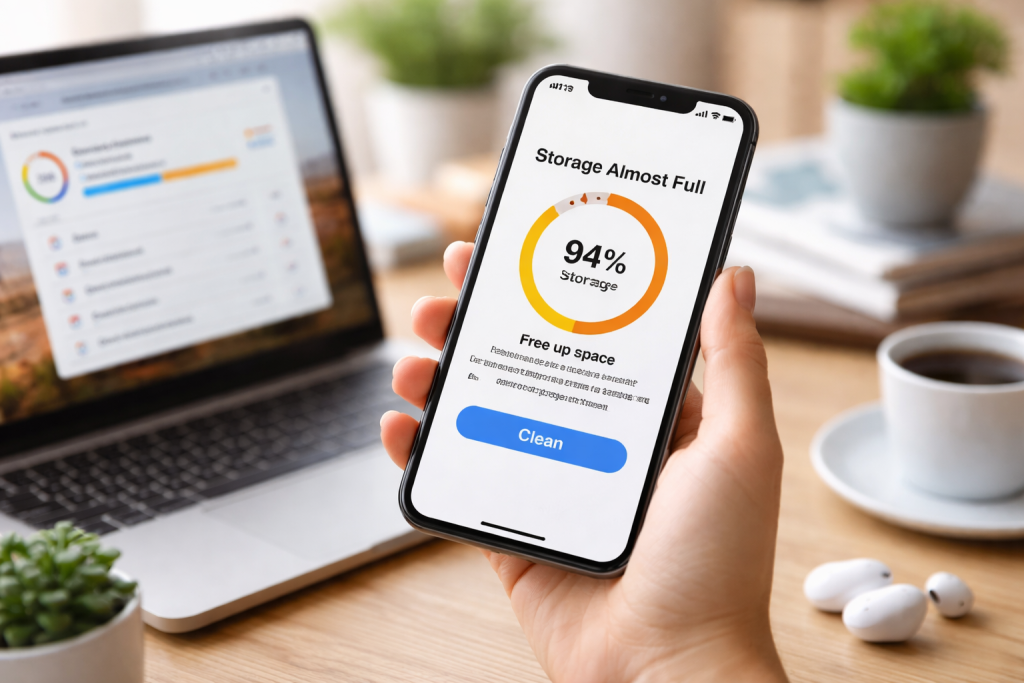
One of the most immediate and impactful ways to free up storage is by addressing the often-overlooked culprits: cache and temporary files. Every app on your phone, from social media to web browsers, creates cached data to speed up loading times and improve user experience. While beneficial in the short term, this data accumulates, silently consuming significant portions of your storage over time.
Contents
- 0.1 Understanding App Cache and Its Impact
- 0.2 Steps to Clear Cache Across Android and iOS
- 0.3 Identifying and Removing Seldom-Used Applications
- 0.4 Strategically Managing Your Photo and Video Library
- 0.5 Beyond Photos: Cloud for Documents and Other Files
- 0.6 Understanding Offline Access and Syncing Options
- 0.7 Consolidating Downloads and Unnecessary Project Files
- 0.8 Naming Conventions and Folder Structures for Efficiency
- 0.9 MicroSD Cards for Android Devices
- 0.10 USB OTG Drives for Both Android and iOS
- 0.11 Removing Unnecessary Downloads and Offline Content
- 0.12 Managing Your Music and Video Libraries Effectively
- 0.13 Utilizing Storage Management Apps and Built-in Optimization Features
- 0.14 The Ultimate Safeguard: Backing Up and Restoring Your Data
- 1 FAQs
- 1.1 1. What are some simple tricks to free up space on my phone?
- 1.2 2. How can I utilize cloud storage services to free up space on my phone?
- 1.3 3. What are some external storage options I can use it to expand my phone’s storage capacity?
- 1.4 4. Are there any built-in storage optimization features on my phone that I can utilize?
- 1.5 5. How can I back up and restore my data to free up space on my phone?
- 1.6 About the Author
Understanding App Cache and Its Impact
an uncheckedThink of app cache as a temporary storage area where apps keep frequently accessed information. For instance, your browser caches images from websites you visit, so they load faster the next time. Similarly, social media apps cache posts, videos, and profile pictures. While this optimizes performance, unchecked cache can easily mushroom into gigabytes of occupied space. It’s important to distinguish between essential app data (like your login information or saved games) and temporary cache. Clearing the cache solely removes these temporary files, leaving your core app data intact. Performing this routine maintenance can often free up a surprising amount of space, giving your phone a noticeable performance boost in the process.
Steps to Clear Cache Across Android and iOS
the cacheThe process for clearing cache varies slightly between operating systems. On Android, you can usually navigate to “Settings” > “Apps & notifications” (or “Apps”) > select an app > “Storage & cache” > “Clear cache.” Some Android versions also offer a “Storage Manager” feature that allows you to clear cached data for all apps at once. On iOS, individual app cache clearing is less straightforward. While you can’t clear cache for an individual app directly in the same way as Android, you can often “offload” an app (which frees up its data but keeps its icon and user data) or simply delete and reinstall an app to achieve a similar effect. For browser cache on both platforms, you’ll typically find an option within the browser’s settings to clear browsing data, including cached images and files. Regularly clearing both app and browser cache is a habit worth cultivating for optimal storage management.
Beyond the invisible clutter of cache, the most obvious space hogs are often the apps we rarely use and the countless photos and videos we accumulate. A proactive approach to decluttering these elements can make a dramatic difference.
Identifying and Removing Seldom-Used Applications
Most of us are guilty of downloading apps out of fleeting interest, only for them to sit dormant, taking up valuable space. Take a critical look at your app drawer. Do you truly use that game you downloaded six months ago? What about that specialized photo editor you tried once and never opened again? Deleting these unused applications not only frees up space but also reduces background activity, potentially improving battery life and overall phone performance. Both Android and iOS provide straightforward methods for uninstalling apps: on Android, long-press the app icon and drag it to the uninstall option or go through “Settings” > “Apps & notifications”; on iOS, long-press the app icon until it jiggles, then tap the “X” or minus sign. Be ruthless in your assessment; if you haven’t used an app in over a month, consider deleting it. You can always re-download it later if the need genuinely arises.
Strategically Managing Your Photo and Video Library
Our phone cameras have become incredibly sophisticated, leading to an explosion of high-resolution photos and videos. These media files are often the single biggest consumers of storage space. Instead of indiscriminately deleting everything, adopt a more strategic approach.
Reviewing and Deleting Duplicate or Unnecessary Media
Start by reviewing your photo gallery. Many phones automatically take burst shots, resulting in multiple near-identical images. Take the time to delete duplicates, blurry photos, and screenshots you no longer need. Consider whether every photo you take needs to be kept in high resolution on your device. For videos, which are even larger file consumers, be discerning. Do you really need to keep that five-minute video of your cat sleeping? Be honest with yourself about what truly holds sentimental or practical value.
Leveraging Cloud Storage for Media Backups
This leads directly to one of the most effective strategies for managing media: cloud storage. Services like Google Photos, iCloud Photos, Dropbox, and OneDrive offer excellent solutions for backing up your photos and videos off your device. Once backed up and confirmed, you can then safely delete the local copies from your phone, freeing up significant space without sacrificing your precious memories. Many cloud services also offer automatic backup features, ensuring your new photos are uploaded as soon as they’re taken, creating a seamless and worry-free backup solution. Some even offer “free up space” features that automatically remove local copies after they’ve been successfully uploaded to the cloud.
Cloud storage is no longer a luxury; it’s an essential component of modern digital life, offering virtually limitless potential for managing your phone’s storage. By offloading data to remote servers, you not only free up local space but also gain accessibility and peace of mind.
Beyond Photos: Cloud for Documents and Other Files
While excellent for photos and videos, cloud services are equally valuable for documents, PDFs, presentations, and other important files. Services like Google Drive, Dropbox, and Microsoft OneDrive offer robust features for storing, organizing, and sharing a wide array of file types. Instead of saving large attachments or work documents directly to your phone’s internal storage, upload them to the cloud. You can then access them from any device with an internet connection, effectively turning your phone into a gateway to your larger digital library rather than the primary storage location. This approach is particularly beneficial for professionals or students who deal with numerous documents.
Understanding Offline Access and Syncing Options
A common concern with cloud storage is the need for an internet connection. However, most cloud services offer “offline access” features. This allows you to selectively mark certain files or folders to be available even without an internet connection, ensuring you can still access critical documents on the go. Furthermore, synchronization features ensure that any changes you make to a document on one device are reflected across all your connected devices. This flexibility makes cloud storage an incredibly powerful tool for both freeing up space and enhancing productivity.
A disorganized phone is not only aesthetically displeasing but also contributes to storage inefficiency. Taking the time to properly organize your files can prevent duplication, quickly identify unnecessary items, and enhance your overall user experience.
Consolidating Downloads and Unnecessary Project Files
Our “Downloads” folder often becomes a digital graveyard of forgotten installers, random PDFs, and temporary media. Regularly review this folder and delete anything you no longer need. Similarly, if you work on projects on your phone, ensure you’re not keeping multiple versions of the same file or retaining project components long after a project is complete. Develop a habit of moving important downloads to more appropriate, organized folders or transferring them to cloud storage.
Naming Conventions and Folder Structures for Efficiency
Just as you would organize physical documents, apply structured naming conventions and folder hierarchies to your digital files. For example, create folders for “Work,” “Personal,” “Travel,” and “Studies.” Within these, you might have subfolders like “Work Reports 2023” or “Travel Photos Paris.” Consistent naming conventions (e.g., “Event_Date_Description.jpg”) make it much easier to find specific files and perform bulk cleanups. While it might seem like a small detail, a well-organized file system significantly reduces clutter and aids in identifying redundant data.
While internal storage is finite, many smartphones offer ways to physically expand your storage capacity, providing a direct solution to space constraints.
MicroSD Cards for Android Devices
For many Android users, the microSD card slot is a game-changer. These tiny cards can add tens, or even hundreds, of gigabytes of additional storage to your device. You can then configure your phone to save photos, videos, music, and even some apps directly to the microSD card. This effectively offloads large media files from your internal storage, leaving it free for essential system files and performance-critical applications. When purchasing a microSD card, pay attention to its speed class (e.g., Class 10, U1, U3), as a faster card will ensure smoother performance for things like video recording and app execution. Regularly backing up the contents of your microSD card to a computer or cloud service is also a wise practice.
USB OTG Drives for Both Android and iOS
USB On-The-Go (OTG) technology allows your smartphone to act as a host, enabling it to connect to other USB devices, including flash drives. With an appropriate OTG adapter (often a small cable or dongle), you can plug a standard USB flash drive directly into your phone. This provides an excellent way to temporarily transfer large files, back up specific folders, or even watch movies stored on the drive without consuming your phone’s internal memory. Both Android and iOS (with certain adapters and file management apps) support USB OTG, offering a versatile solution for expanding storage on demand. This is particularly useful for transferring files between your phone and computer without needing a network connection.
Maximizing your phone’s storage isn’t a one-time task; it’s an ongoing process. Incorporating routine maintenance and leveraging built-in or third-party tools can keep your phone lean and efficient.
Removing Unnecessary Downloads and Offline Content
As mentioned earlier, the “Downloads” folder is a frequent offender. Make it a monthly habit to clear out old documents, accidental downloads, and temporary files that have served their purpose. Similarly, many apps allow you to download content for offline viewing—think Netflix movies, Spotify playlists, or podcast episodes. While convenient, this content can quickly consume multiple gigabytes. Regularly review your offline content within these apps and delete anything you’ve already consumed or no longer need. This simple check can often free up substantial space.
Managing Your Music and Video Libraries Effectively
Music and video files, especially in high quality, are notorious storage hogs. If you’re a heavy media consumer, consider streaming services over local downloads whenever possible. For music, services like Spotify and Apple Music offer vast libraries accessible without storing thousands of songs on your device. If you prefer downloaded music, be selective and consider lower bitrate options if audio quality isn’t paramount. For video, stream whenever feasible. If you must download, delete content immediately after viewing. Consolidate your personal video library to external hard drives or cloud storage, keeping only a curated selection on your phone for immediate access.
Utilizing Storage Management Apps and Built-in Optimization Features
Many smartphones now come with built-in storage management tools accessible through the settings menu. These tools often provide a visual breakdown of what’s consuming space (apps, photos, system files, etc.) and offer suggestions for freeing up space, such as identifying large files or apps used infrequently. Take advantage of these features. Furthermore, various third-party storage management apps are available on both Android and iOS app stores. These apps often provide more detailed analytics, identify junk files, and offer advanced cleaning options. However, exercise caution when choosing third-party apps, ensuring they are reputable and do not request excessive permissions.
The Ultimate Safeguard: Backing Up and Restoring Your Data
Finally, the most crucial aspect of storage management is a robust backup strategy. While freeing up space is important, ensuring your data is safe is paramount. Regularly backing up your phone’s data to a cloud service (like iCloud, Google Drive, or OneDrive) or to your computer ensures that even in the unlikely event of data loss or a factory reset, your precious information can be restored. This empowers you to be more aggressive in deleting local files, knowing that a secure copy exists elsewhere. Whether it’s automatic cloud backups for photos and contacts or planned full device backups to your computer, having an up-to-date backup provides peace of mind and the flexibility to truly maximize your phone’s storage without fear.
By consistently applying these strategies, from diligent cache clearing to strategic cloud integration and regular maintenance, you can transform your phone from a perpetually full device into an optimized, efficient machine, ready to capture new memories and facilitate your digital life without limitation.
FAQs
1. What are some simple tricks to free up space on my phone?
Some simple tricks to free up space on your phone include clearing cache and temporary files, deleting unused apps and photos, removing unnecessary downloads, and managing your music and video libraries.
2. How can I utilize cloud storage services to free up space on my phone?
You can utilize cloud storage services such as Google Drive, Dropbox, or iCloud to store your files, photos, and videos in the cloud, freeing up space on your phone. This allows you to access your files from any device with an internet connection.
3. What are some external storage options I can use it to expand my phone’s storage capacity?
You can use external storage options such as microSD cards or external hard drives to expand your phone’s storage capacity. These devices can be used to store large files, photos, videos, and music, freeing up space on your phone’s internal storage.
4. Are there any built-in storage optimization features on my phone that I can utilize?
Many smartphones have built-in storage optimization features that can help you free up space on your phone. These features may include storage cleaners, file managers, and storage usage analyzers that can help you identify and delete unnecessary files.
5. How can I back up and restore my data to free up space on my phone?
You can back up your data to a cloud storage service or to an external storage device to free up space on your phone. This allows you to safely store your files, photos, videos, and other data and restore them to your phone when needed.

About the Author
Maya Ali is the founder of ByteSolving with experience in technology and digital solutions. His mission is to make technology easier to understand and help people solve everyday tech problems in a simple and practical way.