
The Ultimate Guide to Removing Corrupted Software from Your Device
The frustrating reality of modern computing is the inevitable encounter with corrupted software. This insidious issue can manifest in numerous ways, from sluggish performance and unexpected crashes to refused program launches and outright system instability. Left unchecked, corrupted software can disrupt your workflow and pose a security risk, making it crucial to understand how to identify, remove, and prevent such problems. This comprehensive guide will equip you with the knowledge and tools necessary to tackle corrupted software effectively across various operating systems and devices.
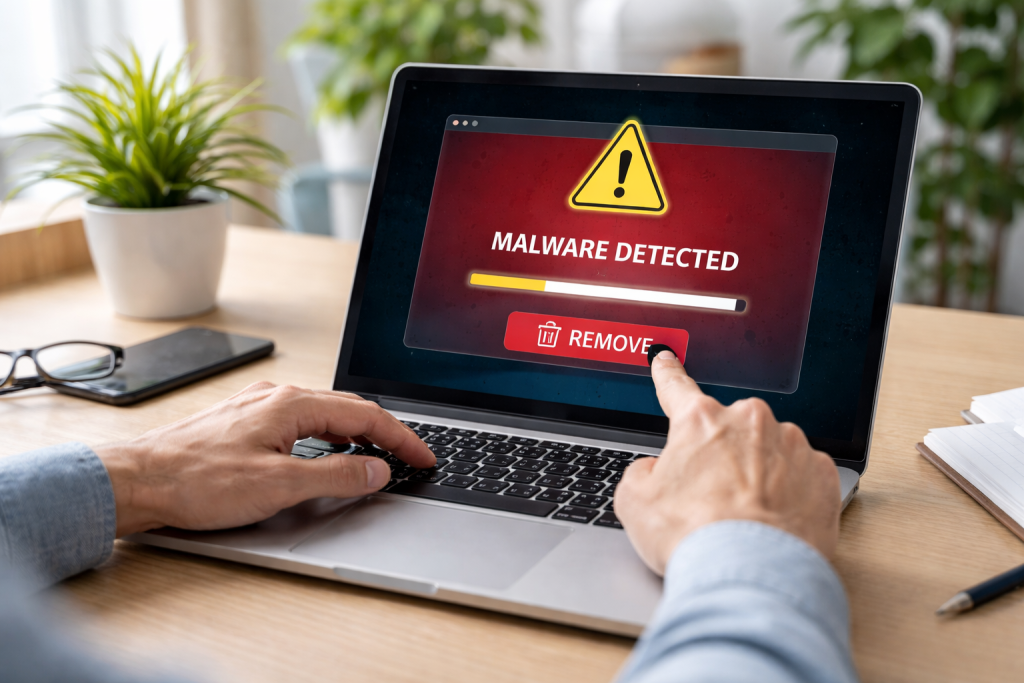
Before embarking on the removal process, it’s essential to accurately diagnose the problem. When you piece together the peculiar symptoms left by corrupted software, you can pinpoint the culprit directly. By identifying these indicators, you can avoid wasting time and effort on issues unrelated to software corruption.
Contents
- 0.1 Common Performance Degradations
- 0.2 Unexpected Application Behavior and Crashes
- 0.3 System-Wide Instability and Errors
- 0.4 File and Data Corruption
- 0.5 Back Up Your Important Data
- 0.6 Create a System Restore Point or Snapshot
- 0.7 Gather Necessary Installation Media or Files
- 0.8 Deleting Program Files and Folders
- 0.9 Removing Application Registry Entries (Windows)
- 0.10 Clearing Configuration Files and User Data
- 0.11 Running Full System Scans
- 0.12 Utilizing Specialized Removal Tools
- 0.13 Quarantining and Deleting Detected Threats
- 0.14 Windows: Standard and Advanced Uninstall Methods
- 0.15 macOS: Moving Applications to the Trash and Beyond
- 0.16 Linux: Package Managers and Manual Deletion
- 0.17 Android: App Manager and System Settings
- 0.18 iOS: Standard Uninstallation and Troubleshooting
- 0.19 Registry Cleanup Utilities (Windows)
- 0.20 Deleting Temporary Files and Cache Data
- 0.21 Checking for Corrupted System Files
- 0.22 Downloading from Official Sources
- 0.23 Performing a Clean Installation
- 0.24 Keep Your Operating System and Software Updated
- 0.25 Install Software Only from Trusted Sources
- 0.26 Use Reputable Antivirus and Anti-Malware Protection
- 0.27 Practice Safe Browsing Habits
- 0.28 IT Support Specialists and Technicians
- 0.29 Manufacturer Support and Forums
- 1 FAQs
- 1.1 What are the signs of corrupted software on my device?
- 1.2 What steps should I take before removing corrupted software from my device?
- 1.3 How can I manually remove corrupted software from my device?
- 1.4 What are the best practices for preventing future software corruption?
- 1.5 When should I seek professional help for stubborn corrupted software?
- 1.6 About the Author
Common Performance Degradations
One of the most prevalent signs of corrupted software is a noticeable decline in your device’s performance. This can include drastically slower loading times for applications and the operating system itself, frequent freezing or unresponsiveness, and a general feeling of sluggishness that wasn’t present before. You might find yourself waiting for minutes just to open a simple document or navigate between folders, a stark contrast to the smooth operation you once enjoyed.
Unexpected Application Behavior and Crashes
Beyond general slowdowns, corrupted software frequently causes individual applications to behave erratically. This can manifest as programs unexpectedly closing, displaying error messages that are cryptic or nonsensical, or failing to launch altogether. You might experience data loss within an application, or features may cease to function as intended. These symptoms often appear suddenly and without any discernible user action that would trigger such issues.
System-Wide Instability and Errors
More severe cases of software corruption can extend beyond individual applications and affect the entire operating system. This can lead to widespread system instability, including frequent Blue Screen of Death (BSOD) errors on Windows, kernel panics on macOS and Linux, or unexpected reboots. Error dialog boxes, often displaying hexadecimal codes or generic warnings, can appear at random intervals, interrupting your work and causing significant frustration.
File and Data Corruption
In some instances, software corruption can directly impact your files. You might find that specific documents or data files become inaccessible, displaying errors when you attempt to open them. Occasionally, the content of these files may appear garbled or partially missing, suggesting a compromise in the underlying software handling them. This is a particularly worrying symptom, as it directly jeopardizes your personal or professional data.
Attempting to remove corrupted software without proper preparation can sometimes exacerbate the problem or lead to accidental data loss. Taking a few precautionary steps beforehand ensures a smoother and safer removal process.
Back Up Your Important Data
This is arguably the most critical step before undertaking any significant system changes, especially when dealing with potentially unstable software. Corrupted software can sometimes have unforeseen consequences. Creating a complete backup of your important files and documents—photos, videos, documents, creative projects, and any other data you cannot afford to lose—is paramount. Utilize external hard drives, cloud storage services, or network-attached storage solutions to safeguard your data.
Create a System Restore Point or Snapshot
Most operating systems offer a mechanism to revert your system to a previous state. On Windows, this is known as a System Restore point. On macOS and Linux, you might utilize system snapshotting tools or specialized backup software. This provides a safety net, allowing you to roll back your system if the removal process causes unintended harm or if you encounter further issues. It’s a vital last resort to return your system to a known optimal configuration.
Gather Necessary Installation Media or Files
If the corrupted software is a program you frequently use and wish to reinstall after its removal, it’s wise to have its installation media or downloaded installer readily available. Finding these files might become difficult if the program’s website changes or if the source becomes unavailable. Once you purge the corrupted version, having them on hand ensures a swift and hassle-free reinstallation process.
While standard uninstallers often fail with corrupted software, manual intervention can be necessary. This involves carefully deleting program files and associated entries from various system locations.
Deleting Program Files and Folders
The most straightforward manual removal step is to locate and delete the program’s installation directory. This is typically found within the ‘Program Files’ or ‘Program Files (x86)’ folders on Windows, or within the ‘Applications’ folder on macOS and Linux. Exercise caution and ensure you are deleting the correct folder to avoid removing essential system files.
Removing Application Registry Entries (Windows)
On Windows systems, corrupted software often leaves behind remnants in the Windows Registry. This hierarchical database stores configuration settings for applications and the operating system. Access the Registry Editor (by typing regedit in the Run dialog) and carefully search for keys associated with the corrupted software. Deleting these entries can be complex and requires a thorough understanding of the Registry to avoid system instability. It is highly recommended to export the relevant registry keys before deleting them for potential recovery.
Clearing Configuration Files and User Data
Beyond the main program files, applications often store configuration settings and user data in hidden folders. On Windows, these are often located in %APPDATA% and %LOCALAPPDATA%. On macOS, they are typically found in the user’s ~/Library folder. Identifying and deleting these associated files can be crucial for a complete purge.
Specialized security software is often the most effective and safest way to remove deeply entrenched or malicious corrupted software. These tools are designed to detect and neutralize a wide range of threats, including those that mimic or cause software corruption.
Running Full System Scans
Antivirus and anti-malware programs are equipped with extensive databases of known threats. Performing a full system scan with your preferred security software is an essential first step. This process is vital for finding and removing any harmful elements that may be causing software corruption, but it can take a long time.
Utilizing Specialized Removal Tools
Many antivirus and anti-malware vendors provide specific removal tools for stubborn or well-known malware and unwanted programs. These tools are often more aggressive and thorough than standard uninstallers and can effectively eliminate corrupted software that resists other removal methods. Searching the vendor’s website for a dedicated removal tool for the suspected software is a beneficial strategy.
Quarantining and Deleting Detected Threats
Security software typically provides options to either quarantine or delete a threat after identifying it. Quarantining isolates the suspicious files, preventing them from causing further harm. Deleting permanently removes them from your system. In cases of software corruption, immediate deletion is usually the preferred course of action after confirming the detected item is indeed the cause.
The process of uninstalling software varies slightly depending on the operating system you are using. Understanding these platform-specific methods is key to a successful removal.
Windows: Standard and Advanced Uninstall Methods
On Windows, the primary method is to use the “Programs and Features” control panel. If the software is not listed there or if the uninstaller corrupts itself, you might need to delve into the Registry or use third-party uninstaller tools. Some applications also provide their uninstallation executables within their installation directories.
macOS: Moving Applications to the Trash and Beyond
For most macOS applications, simply dragging the application icon from the “Applications” folder to the Trash and then emptying it is sufficient. However, some applications install components in system-wide locations or create configuration files in the user’s Library folder. For these, you might need to use command-line tools or specialized uninstaller applications to achieve a complete removal.
Linux: Package Managers and Manual Deletion
Linux distributions rely heavily on package managers like apt Debian/Ubuntu, Fedora/CentOS, or pacman Arch Linux. Using the correct command to uninstall a package is generally the most effective approach (e.g., sudo apt remove package_name). If software was installed from source or without a package manager, manual deletion of files and directories might be necessary.
Mobile devices, with their app-centric nature, are not immune to software corruption. Removing corrupted apps from your smartphone or tablet requires a slightly different approach than their desktop counterparts.
Android: App Manager and System Settings
On Android, you can uninstall corrupted apps through the device’s Settings menu, navigating to “Apps” or “Application Manager.” If an app is causing significant issues or is unresponsive, you can also try clearing its cache and data from this menu before proceeding with uninstallation. In rare cases, a factory reset might be necessary for persistent, system-level corruption originating from a rogue app.
iOS: Standard Uninstallation and Troubleshooting
For iOS devices, corrupted apps can typically be removed by pressing and holding the app icon on the Home screen until it jiggles, then tapping the “X” or circular minus icon. If the app continues to misbehave or causes system instability, reinstalling it from the App Store or, as a last resort, backing up and restoring your device might be required.
After successfully removing corrupted software, it’s essential to clean up any lingering remnants that could cause future conflicts or performance issues.
Registry Cleanup Utilities (Windows)
Several reputable third-party utilities are designed to scan and clean the Windows Registry for orphaned entries, invalid file associations, and other junk data left behind by uninstalled programs. Using these tools judiciously can help maintain system stability and improve performance. Exercise caution and always back up your registry before using such utilities.
Deleting Temporary Files and Cache Data
Operating systems and applications generate temporary files and cache data that can accumulate over time. Clearing these can free up disk space and potentially resolve minor performance issues. Windows has a built-in Disk Cleanup tool, while macOS and Linux offer similar functionalities or can be managed through command-line utilities.
Checking for Corrupted System Files
In cases of severe corruption, system files themselves might have become damaged. Windows includes a System File Checker tool (sfc /scannowin an elevated Command Prompt) that can scan for and repair corrupted system files. Similar integrity-checking tools exist for macOS and Linux.
Once the corrupted software is removed and your system is cleaned, you can proceed to reinstall a fresh, uncorrupted version. This ensures you have a stable and functional application.
Downloading from Official Sources
Always download software installers directly from the official website of the software vendor. This guarantees you are getting the latest, legitimate version and minimizes the risk of downloading a compromised installer that could introduce new corruption or malware.
Performing a Clean Installation
During the reinstallation process, opt for a “custom” or “advanced” installation if available. This allows you to specify the installation location and potentially deselect any optional components that might not be necessary, ensuring a cleaner and more streamlined installation.
The best defense against corrupted software is proactive prevention. By adopting beneficial computing habits, you can significantly reduce the chances of encountering these issues.
Keep Your Operating System and Software Updated
Software updates often include security patches and bug fixes that address known vulnerabilities and stability issues. Regularly updating your operating system and all installed applications is one of the most effective ways to prevent corruption.
Install Software Only from Trusted Sources
Be extremely cautious about where you download software from. Stick to official vendor websites, reputable app stores, or well-known software repositories. Avoid pirated software or downloads from suspicious or unsolicited sources, as these are often bundled with malware or compromised code.
Use Reputable Antivirus and Anti-Malware Protection
Maintaining active and up-to-date antivirus and anti-malware software on your devices is crucial. These security tools can detect and block malicious software before it has a chance to corrupt your existing programs or system files. Schedule regular scans and ensure real-time protection is enabled.
Practice Safe Browsing Habits
Be wary of clicking on suspicious links in emails, on websites, or in advertisements. Avoid downloading files from untrusted websites, and be cautious when opening email attachments, especially from unknown senders. These are common vectors for malware that can lead to software corruption.
When all your attempts to remove corrupted software fail, or if you are uncomfortable with manual system modifications, seeking professional assistance is the wisest course of action.
IT Support Specialists and Technicians
If you’re dealing with a complex or persistent software corruption issue, particularly on a work device or a system containing critical data, don’t hesitate to contact an IT support professional. They have the expertise and specialized tools to diagnose and resolve even the most challenging problems without risking further damage.
Manufacturer Support and Forums
For hardware-specific or operating system-related corruption issues, contacting the manufacturer of your device or operating system vendor can provide valuable assistance. Many operating systems and software vendors have comprehensive support sections, knowledge bases, and community forums where you can find solutions or get direct help from experts.
By understanding the signs, preparing diligently, employing the right tools, and adopting preventative measures, you can effectively manage and overcome the challenges posed by corrupted software, ensuring a smoother and more secure computing experience.
FAQs
What are the signs of corrupted software on my device?
Some signs of corrupted software on your device include frequent crashes, error messages, slow performance, unexpected pop-up ads, and unusual behavior from the software.
What steps should I take before removing corrupted software from my device?
Before removing corrupted software, it’s important to back up any important data, run a full system scan with antivirus and anti-malware tools, and try to repair the software using built-in repair options or reinstalling the software.
How can I manually remove corrupted software from my device?
To manually remove corrupted software, you can use the built-in uninstaller, delete leftover files and folders, remove related registry entries, and use third-party uninstaller tools if necessary.
What are the best practices for preventing future software corruption?
To prevent future software corruption, it’s important to keep your operating system and software up to date, use reputable antivirus and anti-malware tools, avoid downloading software from untrustworthy sources, and regularly back up your data.
When should I seek professional help for stubborn corrupted software?
If you have tried all the troubleshooting steps and the corrupted software still persists, it’s best to seek professional help from a computer technician or IT specialist who can diagnose and resolve the issue.

About the Author
Maya Ali is the founder of ByteSolving with experience in technology and digital solutions. His mission is to make technology easier to understand and help people solve everyday tech problems in a simple and practical way.