
Driver Distress: Tips and Tricks for Solving Device Problems
Driver Distress: Navigating the Labyrinth of Device Malfunctions
In the intricate symphony of our digital lives, devices are the instruments, and drivers are the invisible conductors, ensuring they play their notes harmoniously. When these conductors falter, when the communication between hardware and software breaks down, we enter the realm of “driver distress.” This pervasive issue can manifest in a myriad of frustrating ways, from a printer refusing to print to a graphics card that makes games unplayable. Understanding the root causes and implementing effective solutions is paramount to maintaining a smooth and productive computing experience. This comprehensive guide will identify the common culprits of driver distress, provide actionable troubleshooting steps, and offer preventative measures to keep your devices in optimal working order.
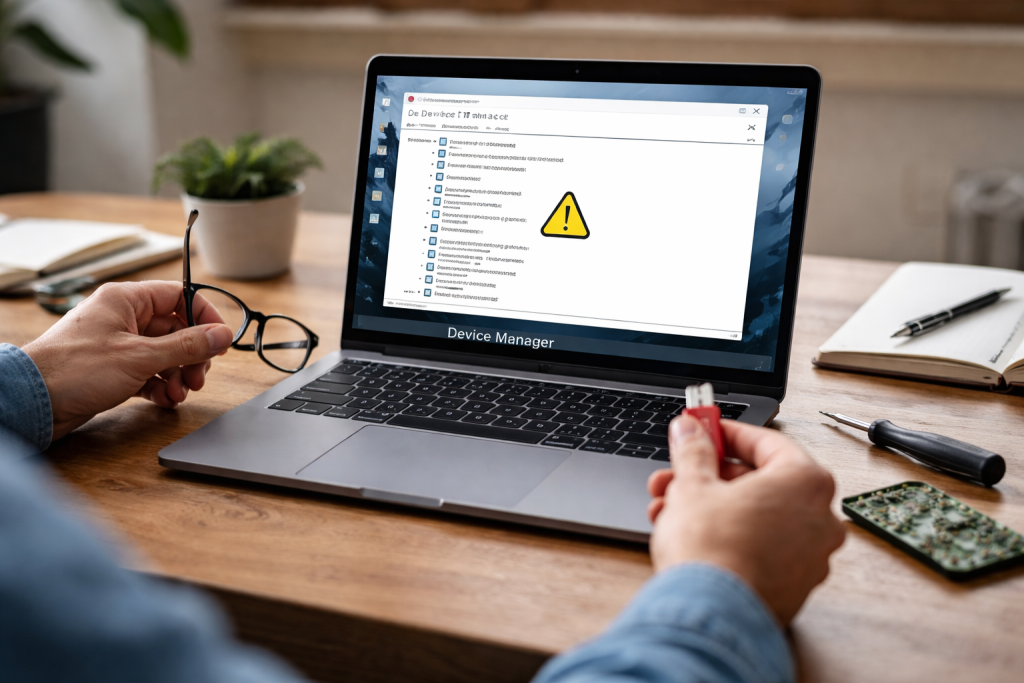
At its core, driver distress arises from an incompatibility, corruption, or outdated nature of the software that allows your operating system to communicate with your hardware. These small but mighty pieces of code are essential for your devices to function correctly, dictating how they perform tasks, respond to commands, and interact with other components. When this communication channel is disrupted, our devices can behave erratically, leading to a cascade of problems that can disrupt workflow and cause significant frustration.
Contents
- 0.1 The Silent Saboteurs: Common Driver Distress Issues
- 0.2 Decoding the Symptoms: Recognizing the Signs of Driver Trouble
- 0.3 Where to Begin Your Diagnostic Journey
- 0.4 Isolating the Issue: The Power of Elimination
- 0.5 Tips for Resolving Driver Distress on Different Devices
- 0.6 Understanding Device Manager Errors (Windows)
- 0.7 Navigating macOS Information for Issues
- 0.8 How to Update and Reinstall Drivers for Better Performance
- 0.9 The “Roll Back Driver” Function: A Precautionary Measure
- 0.10 Solving Driver Distress: Tips for Windows Users
- 0.11 Overcoming Driver Issues on Mac Devices
- 0.12 Best Practices for Device Maintenance
- 0.13 The Importance of Regularly Updating Device Drivers
- 0.14 When to Call in a Professional for Driver Problems
- 0.15 Tips and Tricks for Solving Driver Distress on Mobile Devices
- 1 FAQs
- 1.1 1. What are common driver distress issues that users may encounter on their devices?
- 1.2 2. How can users troubleshoot device problems related to driver distress?
- 1.3 3. What are some tips for resolving driver distress on different devices, such as Windows, Mac, and mobile devices?
- 1.4 4. Why is it important to regularly update and reinstall device drivers for better performance?
- 1.5 5. When should users consider seeking professional help for driver problems, and what are the best practices for preventing driver distress through device maintenance?
- 1.6 About the Author
The Silent Saboteurs: Common Driver Distress Issues
Several common scenarios contribute to driver distress. Perhaps the most frequent offender is an outdated driver. As hardware evolves and operating systems receive updates, older drivers can become obsolete, losing compatibility with newer software. This can lead to performance degradation, unexpected crashes, or outright device failure. Another major culprit is driver corruption. This process can occur due to sudden system shutdowns, malware infections, or faulty installation processes, rendering the driver incapable of performing its intended functions. Accidental deletion of driver files, though less common, can also leave a device inoperable. Incompatibility issues also frequently arise, particularly when installing new hardware or after a significant operating system upgrade, where the existing driver simply isn’t designed to work with the new environment.
Decoding the Symptoms: Recognizing the Signs of Driver Trouble
The symptoms of driver distress are as varied as the devices they affect. For peripherals like printers and scanners, you might encounter error messages like “device not recognized” or print jobs that mysteriously vanish. For audio devices, it might be the complete absence of sound, crackling noises, or distorted audio playback. Graphics cards are notorious for exhibiting driver distress through graphical glitches, screen flickering, delayed responses in games, or even complete black screen outages. Network adapters, responsible for your internet connectivity, might show signs of distress with intermittent connection drops, slow browsing speeds, or the inability to connect to Wi-Fi networks altogether. Even seemingly minor issues like a malfunctioning mouse or keyboard can often be traced back to driver problems.
When faced with a malfunctioning device, the temptation to panic is strong, but a systematic approach is crucial. Instead of randomly tinkering, follow a logical sequence of diagnostic steps to pinpoint the source of the problem and implement the most effective solution. This disciplined method will save you time, reduce frustration, and increase your chances of a successful resolution.
Where to Begin Your Diagnostic Journey
The first and often most overlooked step is a simple reboot. Restarting your computer can resolve many temporary glitches and software conflicts. If the problem persists, it’s time to investigate the device’s status within your operating system. For Windows users, the Device Manager is your central hub for hardware information. Here, you can see a list of all connected devices and identify any that are exhibiting problems, often indicated by a yellow exclamation mark. On macOS, the System Information utility provides a similar overview of your hardware. Inspecting any error messages that pop up during the normal operation of the device can also offer valuable clues.
Isolating the Issue: The Power of Elimination
Once you’ve identified a potentially problematic device, the next step is to isolate the issue. If the problem affects a recently installed piece of hardware or a peripheral, try disconnecting it and seeing if the rest of your system returns to normal. If the issue only occurs when using a specific application, the problem might lie with the software rather than the driver itself, although driver conflicts can certainly cause application instability. Testing the device on another computer, if possible, is an excellent way to determine if the fault lies with the hardware itself or your computer’s configuration.
The strategies for solving driver distress can vary depending on the type of device and the operating system you’re using. While the underlying principles remain similar, specific interfaces and tools will differ, requiring a nuanced approach to effective problem-solving.
Tips for Resolving Driver Distress on Different Devices
For external devices like printers, webcams, and external hard drives, ensure they are properly connected via their cables and powered on. Sometimes, simply unplugging and replugging the USB cable can resolve a temporary communication breakdown. For internal components like graphics cards or sound cards, the troubleshooting often centers on their software drivers. If you’re experiencing issues with a wireless network adapter, check your router and ensure it’s functioning correctly, as well as verify the Wi-Fi password and network settings on your computer.
Understanding Device Manager Errors (Windows)
Within Windows’ Device Manager, specific error codes can provide valuable insights. For instance, an “Error 10” typically indicates that the device is not working properly because Windows cannot start it. An “Error 43” is a more generic error that can point to a hardware malfunction or a driver issue. These codes, while cryptic at first glance, can be searched online for more specific guidance and troubleshooting steps recommended by Microsoft or hardware manufacturers.
On macOS, the System Information app allows you to drill down into the details of each hardware component. If a device is not appearing or is listed with an error, it signals a potential driver or hardware problem. While macOS generally manages drivers automatically through system updates, specific third-party devices might require manual driver installations or updates directly from the manufacturer.
Keeping your drivers up-to-date is a cornerstone of maintaining optimal device performance and stability. Outdated drivers are a leading cause of performance bottlenecks and system instability, while corrupted or missing drivers can render devices completely unusable. The process of updating and reinstalling drivers is a critical skill for any computer user.
How to Update and Reinstall Drivers for Better Performance
Updating drivers usually involves visiting the manufacturer’s website for your specific device or, in the case of many common components, using your operating system’s built-in update mechanisms. For Windows, this often involves searching for driver updates through Windows Update or accessing the Device Manager and selecting the “Update driver” option. Reinstalling a driver is advisable when an update fails or you suspect the driver is corrupt. This approach typically involves uninstalling the existing driver through Device Manager and then installing a fresh copy downloaded from the manufacturer’s website.
The “Roll Back Driver” Function: A Precautionary Measure
Windows offers a “Roll Back Driver” feature within Device Manager. This is an invaluable tool for situations where a recent driver update has caused more problems than it solved. By rolling back to a previous version of the driver, you can often restore functionality and stability if the new driver introduced bugs or incompatibilities. This is a quick and easy way to undo a problematic update without needing to manually search for and reinstall an older driver.
While the general principles of driver troubleshooting apply universally, specific operating systems offer unique tools and approaches to address driver distress. Understanding these platform-specific nuances can significantly streamline the resolution process.
Solving Driver Distress: Tips for Windows Users
For Windows users, the Device Manager is your most powerful ally. After a reboot and checking physical connections, opening Device Manager to look for yellow exclamation marks is the logical next step. Right-clicking on a problematic device and selecting “Update driver” will initiate a search for newer drivers, either online or from your computer’s storage. If that fails, “Uninstall device” followed by a scan for hardware changes (which will attempt to reinstall the driver) can be effective. For more complex issues, Windows Update often includes driver updates, so ensuring your system is up-to-date is crucial.
Overcoming Driver Issues on Mac Devices
macOS has a reputation for simplified driver management, often integrating driver updates seamlessly with system updates. However, when encountering driver distress, the first step is always to ensure your macOS is fully updated. For third-party peripherals that don’t work out-of-the-box, visiting the manufacturer’s website to download specific drivers or utility software is the standard procedure. Sometimes, simply removing and re-adding the device in System Preferences > Bluetooth or System Preferences > Printers & Scanners can resolve minor connectivity glitches. If a key part of macOS seems to be having problems, resetting the SMC (System Management Controller) or NVRAM/PRAM can sometimes fix serious hardware issues that might be affected by driver performance.
Proactive maintenance is far more effective than reactive troubleshooting. By adopting a regimen of good device management practices, you can significantly minimize the occurrence of driver distress and ensure your devices function optimally for longer periods.
Best Practices for Device Maintenance
Regularly check for operating system updates, as these often bundle important driver updates for core components. Schedule periodic manual checks for driver updates for critical hardware like graphics cards and network adapters, especially if you’re experiencing performance issues or using demanding applications. Avoid installing drivers from untrusted sources; always download them directly from the official manufacturer’s website. Be cautious with “driver updater” software from third-party vendors, as some can be overly aggressive or install incompatible drivers, leading to new problems. Performing regular virus and malware scans is also important, as malicious software can sometimes corrupt or delete driver files.
The Importance of Regularly Updating Device Drivers
The digital landscape is constantly evolving, and manufacturers release driver updates to improve performance, fix bugs, enhance security, and ensure compatibility with new software and hardware. Neglecting these updates is akin to driving with worn-out tires; it increases the risk of accidents and compromises overall performance. By staying current with driver updates, you ensure your devices are operating with the latest optimizations and security patches, contributing to a more stable and efficient computing experience.
While most driver distress issues can be resolved with a bit of patience and the right guidance, there are times when the problem extends beyond the scope of typical user troubleshooting. Knowing when to seek professional help can save you time, prevent further damage, and ensure a correct and lasting solution.
When to Call in a Professional for Driver Problems
If you’ve exhausted all the troubleshooting steps outlined in this guide, including updating and reinstalling drivers, and the device remains unresponsive or problematic, it might be time to consult a professional. This is especially true if the issue involves critical or expensive hardware, such as a graphics card or an internal hard drive. If you’re uncomfortable performing advanced troubleshooting steps or if the problem is impacting your ability to work or conduct essential tasks, contacting a qualified computer technician is a wise decision. They possess specialized tools and expertise to diagnose complex hardware and software conflicts that might be beyond the average user’s capabilities.
In today’s mobile-first world, our smartphones and tablets are indispensable tools. Just like their desktop counterparts, these devices rely on drivers to function, though the management and updating process are handled differently. Neglecting mobile device drivers can lead to a range of performance issues and functional impairments.
Tips and Tricks for Solving Driver Distress on Mobile Devices
For mobile devices, driver management is largely integrated into the operating system’s update mechanism. Keeping your iOS or Android operating system updated is the primary way to ensure your device’s drivers are current. If you’re experiencing issues with specific peripherals, like Bluetooth headphones or external keyboards, ensure they are paired correctly and that their firmware is up-to-date, which is often managed through a companion app. For more persistent issues, a factory reset of your mobile device can sometimes resolve deep-seated software conflicts that might be related to driver problems, effectively reinstalling the core operating system and its associated drivers. If the problem persists after a factory reset, it strongly suggests a hardware malfunction requiring professional attention.
FAQs
1. What are common driver distress issues that users may encounter on their devices?
Common issues associated with driver distress include the inability to recognize hardware, malfunctioning devices, slow performance, and frequent crashes or errors.
Users can start by checking for driver updates, ensuring that the device is properly connected, and running diagnostic tools to identify any hardware or software issues.
3. What are some tips for resolving driver distress on different devices, such as Windows, Mac, and mobile devices?
For Windows, users can use Device Manager to update drivers, while Mac users can utilize the App Store or manufacturer websites. People who use mobile devices can check for updates in the settings of their device or on the manufacturer’s website.
4. Why is it important to regularly update and reinstall device drivers for better performance?
Regularly updating and reinstalling device drivers can improve device functionality, fix bugs and security vulnerabilities, and enhance overall performance and stability.
5. When should users consider seeking professional help for driver problems, and what are the best practices for preventing driver distress through device maintenance?
Users should consider seeking professional help if they are unable to resolve driver issues on their own or if they persist despite troubleshooting efforts. Best practices for preventing driver distress include regularly updating drivers, performing routine maintenance, and using reputable software and hardware.

About the Author
Maya Ali is the founder of ByteSolving with experience in technology and digital solutions. His mission is to make technology easier to understand and help people solve everyday tech problems in a simple and practical way.