
Don’t Panic! Here’s How to Easily Fix System File Errors on Your Computer
Experiencing system file errors can be a daunting prospect for any computer user. A sudden blue screen, a program refusing to launch, or general sluggishness can all be indicators of underlying issues with your operating system’s critical files. However, before you succumb to a costly repair or data loss, take a moment to relax. Many system file errors are surprisingly straightforward to resolve, and with the right knowledge and tools, you can often bring your computer back to optimal health. This guide will demystify system file errors, walk you through identification and troubleshooting, and empower you to take control of your computer’s stability.
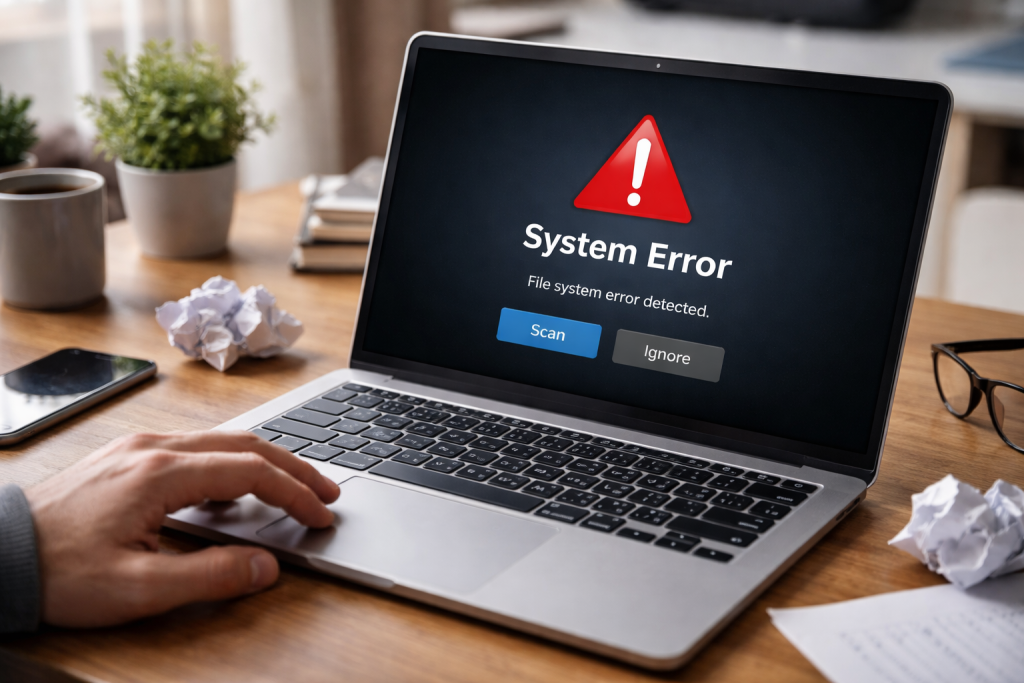
At the heart of every functioning computer lies a complex ecosystem of files. Among these, system files are the bedrock, containing the essential instructions and data that allow your operating system to function. Think of them as the engine and chassis of a car; without them, nothing else can function. When these vital components become corrupted, missing, or damaged, the entire system can suffer.
System file errors can have a variety of causes. Often, they arise from abrupt shutdowns or power outages. Imagine saving a document; a power outage mid-save could leave the file incomplete or corrupted. Malware and viruses are notorious culprits, actively seeking to damage or delete critical system files as part of their malicious agenda. Software installations and uninstalls can also occasionally go awry, leaving behind orphaned or conflicting system files. Even aging hardware, particularly hard drives experiencing read/write errors, can contribute to file corruption. Furthermore, insufficient disk space can prevent the operating system from properly writing temporary files or applying updates, leading to issues with the integrity of system files.
The impact of these errors on your computer can range from mild annoyances to catastrophic failures. At the lower end, you might notice applications crashing more frequently, programs taking longer to load, or minor glitches in the user interface. More severe errors can lead to persistent freezing, the dreaded “blue screen of death” (BSOD), rendering your computer unusable until a restart, and in the worst cases, a complete inability to boot into the operating system, leaving your data inaccessible. Understanding these potential consequences emphasizes the value of addressing system file errors promptly.
Contents
- 0.1 Identifying Common System File Errors: Symptoms and Warning Signs
- 0.2 Ensuring System Stability
- 0.3 Enhancing Performance
- 0.4 Preventing Data Loss
- 0.5 Maintaining Software Compatibility
- 0.6 Extending Hardware Lifespan
- 0.7 Using System File Checker (SFC)
- 0.8 Utilizing Deployment Image Servicing and Management (DISM)
- 0.9 Bootable Repair Environments
- 0.10 System Repair Suites
- 0.11 Registry Cleaners and Optimizers
- 0.12 Regular Windows Updates
- 0.13 Install Reputable Antivirus and Anti-Malware Software
- 0.14 Perform Regular Backups
- 0.15 Graceful Shutdowns and Power Protection
- 0.16 Maintain Sufficient Disk Space
- 0.17 Be Cautious with Software Installations
- 0.18 Perform a clean boot.
- 0.19 Check for Driver Updates
- 0.20 Run Disk Error Checking (chkdsk)
- 0.21 System Restore
- 0.22 Inability to Boot or Access Windows
- 0.23 Persistent and Recurring Errors
- 0.24 Data Recovery Needs
- 0.25 Lack of Technical Confidence
- 0.26 Escalation of Problems
- 0.27 Increased Chance of Data Loss
- 0.28 Impaired Software Functionality
- 0.29 Reduced System Performance and Lifespan
- 0.30 Costly Repairs
- 1 FAQs
- 1.1 What are system file errors, and what causes them?
- 1.2 How do system file errors affect my computer’s performance?
- 1.3 What are the common symptoms and warning signs of system file errors?
- 1.4 What are the best methods for fixing system file errors?
- 1.5 When should I consider seeking professional help for system file errors?
- 1.6 About the Author
Identifying Common System File Errors: Symptoms and Warning Signs
Recognizing system file errors before they escalate is crucial. While the BSOD is a definitive indicator, subtler symptoms can also point to underlying problems. Familiarizing yourself with these warning signs can help you intervene early.
Program Crashes and Freezes
One of the most common symptoms is encountering unexpected program crashes. If applications frequently stop responding or close without warning, it’s a strong indicator that they are struggling to access or utilize necessary system files. Similarly, your entire computer might freeze periodically, requiring a hard reset.
Slow Performance and Unresponsiveness
A significant slowdown in overall computer performance, where tasks take an unusually long time to complete and the system feels generally sluggish, can also be a sign of system file corruption. Applications might lag, mouse movements can become jerky, and even simple operations like opening a folder can test your patience.
Boot-Up Problems
Trouble starting your computer is a more serious symptom. This can manifest as error messages during the boot process, such as “NTLDR is missing” or “BOOTMGR is missing,” preventing Windows from loading. In some cases, the computer might simply fail to boot, displaying a black screen or continuously restarting.
Error Messages and Pop-ups
You might also encounter specific error messages that explicitly mention system files. These could be pop-up notifications from Windows or error codes displayed when trying to launch specific software. While the exact wording can vary, phrases like “corrupt system file,” “missing .dll file,” or “access denied” are cause for concern.
Unexpected Behavior
Beyond crashes and slowdowns, you might observe peculiar behavior from your operating system. This could include corrupted icons, incorrect display of text, or settings reverting to default without your intervention. When it comes to system file integrity, these seemingly minor anomalies can sometimes be just the beginning.
Ignoring system file errors is akin to ignoring a leaky pipe in your house—the problem will likely worsen and eventually cause more significant damage. The ramifications extend beyond mere inconvenience, directly impacting your computer’s performance, stability, and even the longevity of its components.
Ensuring System Stability
The most immediate concern addressed by fixing system file errors is restoring system stability. Corrupted or missing files disrupt the delicate balance of the operating system, leading to unpredictable behavior. By repairing these files, you rebuild the foundation of your OS, allowing it to function smoothly and reliably. This translates to fewer crashes, fewer unexpected shutdowns, and a more dependable computing experience.
Enhancing Performance
System file errors can indirectly but significantly degrade your computer’s performance. When the OS struggles to access or interpret critical files, it expends extra resources trying to compensate. This problem can manifest as increased CPU usage, excessive disk activity, and longer loading times for applications and even the operating system itself. Rectifying these errors frees up those wasted resources, allowing your computer to operate at its intended speed and responsiveness.
Preventing Data Loss
In severe cases, persistent system file errors can lead to a corruption of larger data structures, potentially causing data loss. If the operating system cannot properly manage its file system due to corrupted system files, it might be unable to locate or access your personal documents, photos, or other important files. Proactive repair can prevent this dire outcome.
Maintaining Software Compatibility
Many applications rely on specific system files to function correctly. If these system files are damaged, software may fail to install, launch, or operate as intended. Fixing system file errors ensures that your applications have the necessary system resources available, promoting better software compatibility and a more seamless user experience.
Extending Hardware Lifespan
While system file errors are software-related, they can indirectly stress hardware. For instance, if the hard drive is constantly struggling to read or write data due to corrupted files, it can lead to increased wear and tear. By resolving software issues, you can reduce unnecessary strain on your hardware, potentially extending its lifespan.
Fortunately, Windows comes equipped with powerful built-in tools designed to diagnose and repair system file corruption. These are often the first and most effective line of defense.
Using System File Checker (SFC)
The System File Checker (SFC) is Windows’ primary tool for scanning and verifying the integrity of protected system files. It compares the current version of system files with cached copies and replaces any corrupted or missing files with the correct versions.
Accessing Command Prompt as Administrator
To use SFC, you need to open the Command Prompt with administrative privileges. The easiest way is to click on the Start button, type “cmd” in the search bar, then right-click on “Command Prompt” in the search results and select “Run as administrator. ” You’ll likely be prompted to allow the app to make changes to your device; click “Yes.”
Running the SFC Scan
Once the elevated Command Prompt window is open, type the following command and press Enter: sfc /scannow
This command initiates a comprehensive scan of all protected system files. The process can take some time, depending on the speed of your computer and the extent of any potential corruption. You will see a progress bar indicating the scan’s status.
Interpreting SFC Results
After the scan completes, SFC will provide a report.
- “Windows Resource Protection did not find any integrity violations.” This means your system files are likely in good condition.
- “Windows Resource Protection found corrupt files and successfully repaired them.” This is the ideal outcome, indicating that SFC has identified and fixed issues.
- “Windows Resource Protection found corrupt files but was unable to repair some of them.” This suggests that SFC couldn’t resolve all issues automatically. You may need to proceed with further troubleshooting steps or consider other tools.
- “Windows Resource Protection could not perform the requested operation.” This might indicate a deeper issue with your system or the SFC tool itself.
Utilizing Deployment Image Servicing and Management (DISM)
If SFC encounters persistent issues or reports that it cannot repair files, the Deployment Image Servicing and Management (DISM) tool can be used to repair the Windows image that SFC relies on. This is like repairing the source from which SFC draws its clean files.
Running DISM Commands
Again, you’ll need an elevated Command Prompt. First, run a command to check the health of your Windows image: DISM /Online /Cleanup-Image /CheckHealth
If this indicates issues, you can proceed to scan and repair the image. Run the following command: DISM /Online /Cleanup-Image /ScanHealth
Finally, to attempt repairs if problems are found, execute this command: DISM /Online /Cleanup-Image /RestoreHealth
Similar to SFC, DISM can take a considerable amount of time to complete. It will typically download necessary files from Windows Update to perform the repairs.
Using SFC After DISM
After DISM has completed its repairs, it’s highly recommended to run SFC again. This ensures that the now-repaired Windows image is used by SFC to fix any remaining system file integrity issues.
While built-in Windows tools are powerful, sometimes more robust or specialized solutions are required. These can range from bootable diagnostic CDs to comprehensive system repair suites.
Bootable Repair Environments
In severe cases where Windows won’t even boot, a bootable repair environment can be invaluable. These are typically USB drives or DVDs that contain a lightweight operating system and specialized repair tools, allowing you to access and attempt repairs on your hard drive from outside of the corrupted Windows installation. Many antivirus companies and system optimization software providers offer such bootable media.
System Repair Suites
There are numerous third-party software suites designed to diagnose and repair a wide array of computer problems, including system file corruption. These often combine multiple repair utilities into a single package, offering features like registry cleaners, driver updaters, and advanced file repair capabilities. When choosing such software, it’s crucial to opt for reputable providers with good reviews to avoid inadvertently introducing new problems or malware.
Registry Cleaners and Optimizers
The Windows Registry is a complex database that stores configuration settings for the operating system and installed applications. Corrupted or erroneous entries in the registry can sometimes masquerade as system file errors. Registry cleaners, particularly those offered as part of reputable system optimization suites, can scan for and remove these problematic entries. However, caution is advised when using registry cleaners, as incorrect modifications can lead to system instability. Always create a backup of your registry before making any changes.
The best way to deal with system file errors is to prevent them from occurring in the first place. Adopting a proactive approach to computer maintenance can go a long way in ensuring your system remains stable and error-free.
Regular Windows Updates
Microsoft regularly releases updates for Windows that include security patches, bug fixes, and performance improvements. Many of these updates address vulnerabilities that malware could exploit to corrupt system files. Ensure that Windows Update is enabled and that you install updates promptly.
Install Reputable Antivirus and Anti-Malware Software
A robust antivirus and anti-malware program is your first line of defense against threats that can damage or delete system files. Keep your security software updated and perform regular full system scans. Avoid downloading software from untrusted sources, as this is a common vector for malware infections.
Perform Regular Backups
Regularly backing up your important data is essential. While it won’t prevent system file corruption, it will ensure that if the worst happens and you need to reinstall your operating system, your personal files will be safe. Consider using cloud storage solutions or external hard drives for your backups.
Graceful Shutdowns and Power Protection
Always shut down your computer properly through the operating system’s shutdown menu, rather than abruptly cutting the power. Invest in a quality surge protector or an uninterruptible power supply (UPS) to protect your computer from power surges and outages, which can lead to file corruption.
Maintain Sufficient Disk Space
Ensure that your hard drive has adequate free space. When the disk is almost full, Windows may struggle to create temporary files or perform necessary system operations, which can lead to errors. Aim to keep at least 15-20% of your drive’s capacity free.
Be Cautious with Software Installations
Only install software from trusted and reputable sources. Uninstall programs you no longer need through the standard Windows “Add or Remove Programs” feature, as this generally cleans up associated files, including potentially system-related ones.
Even with the best preventative measures, system file errors can sometimes be stubborn. If the standard repair methods aren’t resolving the issue, consider these troubleshooting steps.
Perform a clean boot.
A clean boot starts Windows with a minimal set of drivers and startup programs. This can help you identify if a third-party application or service is conflicting with system files and causing errors. You can initiate a clean boot by using the System Configuration utility (msconfig). Disable non-Microsoft services and all startup items, then restart your computer. If the error disappears, you can re-enable items one by one to pinpoint the culprit.
Check for Driver Updates
Outdated or corrupt device drivers can sometimes cause system instability that appears as system file errors. Visit the website of your computer manufacturer or the manufacturers of your hardware components (e.g., graphics card, network adapter) and download the latest drivers for your specific model.
Run Disk Error Checking (chkdsk)
A corrupted hard drive can manifest as system file errors. Windows has a built-in tool called chkdsk that can scan your hard drive for file system errors and bad sectors and attempt to repair them. You can run this from an elevated Command Prompt by typing chkdsk C: /f /r (replacing “C:” with the drive letter you want to check). This command may require a restart to complete.
System Restore
If the errors began recently, System Restore might be your best bet. This feature allows you to revert your computer’s system files and settings back to a previous point in time when it was functioning correctly. Search for “Create a restore point” in the Windows search bar, and then click on “System Restore.”
While many system file errors are manageable for the average user, there are situations where seeking professional assistance is the most prudent course of action.
Inability to Boot or Access Windows
If your computer refuses to boot even after trying various repair methods, or if you cannot access Windows at all, it’s a strong indication that a professional might be needed. They have specialized tools and expertise to diagnose and potentially recover data from such situations.
Persistent and Recurring Errors
If you’ve diligently followed troubleshooting steps and the system file errors continue to plague your computer, it might point to a deeper, more complex issue that requires advanced diagnostic skills. Repeatedly encountering the same errors despite your efforts can be incredibly frustrating and time-consuming.
Data Recovery Needs
If you’ve experienced data loss due to system file errors and cannot recover it using standard methods, a computer technician specialized in data recovery can often employ sophisticated techniques to retrieve your valuable files.
Lack of Technical Confidence
Ultimately, if you feel overwhelmed, uncertain, or simply don’t have the time to dedicate to troubleshooting, it’s perfectly acceptable to consult a professional. A qualified technician can diagnose the problem efficiently, explain the solution, and often provide peace of mind.
Choosing to ignore system file errors can lead to a cascade of negative consequences, transforming minor inconveniences into major problems. The temptation to simply restart and hope the problem goes away is understandable, but it’s a gamble that rarely pays off in the long run.
Escalation of Problems
A small system file error might initially cause a program to crash occasionally. However, if left unchecked, it can spread and corrupt other related files, leading to more frequent and severe crashes, system instability, and eventually, the dreaded BSOD that renders your computer unusable.
Increased Chance of Data Loss
As mentioned earlier, neglected system file errors can create an unstable file system. This instability can result in data corruption or make it impossible for Windows to access your files, leading to irretrievable data loss. This is especially critical if you haven’t been backing up your important information.
Impaired Software Functionality
Software applications depend on the integrity of system files to operate correctly. Ignoring these errors means that your applications may become unreliable, exhibit unexpected behavior, or cease to function altogether. This can disrupt your workflow, productivity, and enjoyment of your computer.
Reduced System Performance and Lifespan
The constant struggle of the operating system to compensate for corrupted files puts unnecessary strain on your computer’s components, particularly the hard drive and CPU. This can lead to a noticeable degradation in performance and potentially shorten the lifespan of your hardware.
Costly Repairs
What might have been a simple fix involving built-in tools can escalate into a need for a complete operating system reinstallation, data recovery services, or even hardware replacement if the damage is severe enough. Addressing errors promptly often translates to lower repair costs in the long run.
System file errors, while potentially alarming, are often manageable with the right knowledge and tools. By understanding what causes them, recognizing the symptoms, and employing the built-in diagnostics and troubleshooting steps, you can significantly improve your computer’s stability and performance. The key lies in a proactive approach: maintaining your system, practicing good computing habits, and not hesitating to address issues as they arise. Remember that even advanced problems can often be resolved, and with regular maintenance, you can enjoy a consistently smooth and reliable computing experience. Empower yourself with this knowledge and take control of your computer’s health.
FAQs
What are system file errors, and what causes them?
System file errors occur when essential files within the operating system become corrupted, damaged, or missing. This can be caused by various factors such as software conflicts, hardware issues, malware infections, or improper shutdowns.
How do system file errors affect my computer’s performance?
System file errors can lead to a range of issues, including slow performance, frequent crashes, error messages, and overall instability. These errors can impact the functionality of the operating system and the software installed on the computer.
What are the common symptoms and warning signs of system file errors?
Common symptoms of system file errors include frequent system crashes, slow boot times, error messages related to missing or corrupted files, unexpected application behavior, and overall sluggish performance.
What are the best methods for fixing system file errors?
There are built-in tools such as SFC (System File Checker) and DISM (Deployment Image Servicing and Management) that can help repair system file errors. Additionally, using third-party software and tools, as well as following best practices for maintaining a healthy computer system, can also be effective in fixing and preventing system file errors.
When should I consider seeking professional help for system file errors?
If you encounter persistent system file errors despite attempting to fix them using built-in tools and best practices, or if you are unsure about the technical aspects of troubleshooting, it may be time to consider consulting a computer technician for expert assistance.

About the Author
Maya Ali is the founder of ByteSolving with experience in technology and digital solutions. His mission is to make technology easier to understand and help people solve everyday tech problems in a simple and practical way.