
The Ultimate Guide to Troubleshooting a Frozen Phone
A frozen phone can be an incredibly frustrating experience, rendering your indispensable device useless and leaving you disconnected. Whether it’s a sudden unresponsive screen, a perpetually loading icon, or a device stuck on a single image, this guide aims to equip you with the knowledge and techniques to conquer this common technological ailment. We will delve into the root causes, effective troubleshooting, preventative measures, and when to escalate to professional assistance, ensuring you can get your smartphone back up and running in no time.
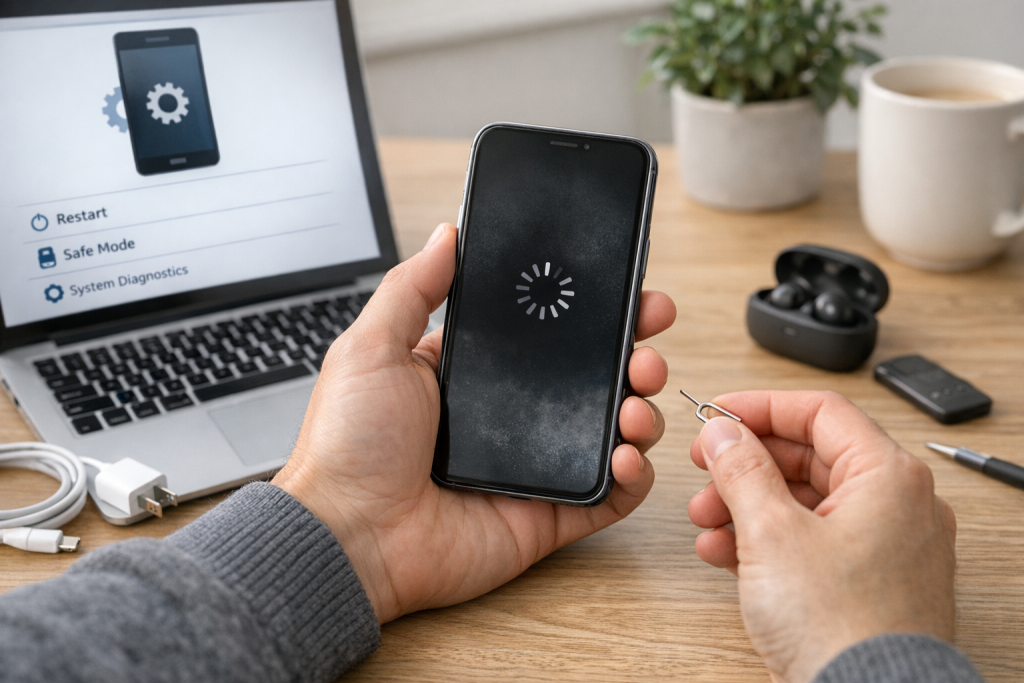
The reasons behind a phone freezing are multifaceted, often stemming from a combination of software and hardware factors. Recognizing these underlying issues is the first step in diagnosing and resolving the problem.
Contents
- 0.1 Software Overload and Glitches
- 0.2 Malfunctioning Applications
- 0.3 Insufficient Storage Space
- 0.4 Hardware Issues
- 0.5 Operating System Problems
- 0.6 The Unresponsive Screen
- 0.7 Stuck Animations or Loading Icons
- 0.8 Lack of Button Responsiveness
- 0.9 Unexpected Reboots or Power-Offs
- 0.10 The Force Restart (Soft Reset)
- 0.11 Closing Resource-Intensive Applications
- 0.12 Removing the Battery (If Possible)
- 0.13 Plugging into a Charger
- 0.14 Booting into Safe Mode
- 0.15 Clearing the Cache Partition
- 0.16 Factory Reset (Data Wipe)
- 0.17 Checking for Malware
- 0.18 Keeping Software Updated
- 0.19 Managing App Usage and Storage
- 0.20 Installing Apps from Trusted Sources
- 0.21 Being Mindful of Overheating
- 0.22 Regular Backups
- 0.23 Persistent Freezing Despite All Attempts
- 0.24 Physical Damage or Recent Incidents
- 0.25 Strange Noises or Smells
- 0.26 Out-of-Warranty Devices with Complex Issues
- 0.27 Android Devices
- 0.28 iPhones
- 0.29 Older vs. Newer Devices
- 0.30 Myth: A Frozen Phone Means Permanent Damage
- 0.31 Myth: Turning it Off and On Again is Always the Solution
- 0.32 Myth: Excessive App Usage is the Sole Cause
- 0.33 Myth: Cleaning the Screen Fixes It
- 0.34 Bug Fixes
- 0.35 Performance Enhancements
- 0.36 Security Patches
- 0.37 Manufacturer Support Websites
- 0.38 Online Tech Forums and Communities
- 0.39 Reputable Tech Blogs and Websites
- 0.40 Professional Repair Shops
- 1 FAQs
- 1.1 1. What are the common causes of a frozen phone?
- 1.2 2. How can I identify if my phone is frozen?
- 1.3 3. What are some quick fixes for a frozen phone?
- 1.4 4. When should I seek professional help for a frozen phone?
- 1.5 5. How do software updates play a role in preventing phone freezing?
- 1.6 About the Author
Software Overload and Glitches
One of the most prevalent culprits is software-related. When too many applications are running simultaneously or an individual app is experiencing a significant bug, it can consume excessive system resources, leading to a freeze. These resource demands can overwhelm the phone’s processing power and memory, making it unable to respond. Similarly, temporary software glitches can occur due to unexpected errors or conflicts between different applications, causing them to seize up. This can manifest as a sluggish interface that eventually becomes completely unresponsive.
Malfunctioning Applications
Specific applications can also be the source of the problem. A poorly coded app, one that hasn’t been updated in a while, or even malware can cause instability. These apps might repeatedly crash or consume a disproportionate amount of system resources, directly impacting the entire phone’s performance and leading to a frozen state. The culprit might be a newly installed app or one that has been functioning normally but has recently developed an issue.
Insufficient Storage Space
A surprisingly common cause of freezing is a lack of available storage space. When your phone’s internal memory is nearly full, it struggles to perform essential operations, including running apps, processing background tasks, and even performing basic system functions. Think of it like trying to cram too many items into a box; eventually, nothing fits properly and the whole operation grinds to a halt. This can lead to lag, app crashes, and ultimately, a frozen device.
Hardware Issues
While less frequent than software problems, hardware failures can also lead to a frozen phone. This could range from a malfunctioning battery that’s no longer able to provide consistent power, to issues with internal components like the motherboard or processor. Overheating is another significant hardware-related cause. When a phone’s internal temperature rises too high, its systems will often shut down or freeze to prevent permanent damage. This can be triggered by demanding tasks like gaming, prolonged video recording, or simply being in a very hot environment.
Operating System Problems
The phone’s operating system (OS) itself can sometimes be the source of the issue. Bugs or errors within the OS can lead to instability and performance degradation, ranging from slow operation to complete freezes. These issues might be inherent defects in the OS version, or they could arise after a recent OS update that introduced unexpected conflicts.
Differentiating between a temporarily sluggish phone and a truly frozen one is crucial for applying the correct troubleshooting steps. A frozen phone exhibits specific tell-tale signs that indicate it’s completely unresponsive.
The Unresponsive Screen
The most obvious indicator is a screen that doesn’t react to touch input. You can tap, swipe, and pinch all you want, but nothing happens on the display. This can occur with the screen completely black, displaying a static image, or showing an app that appears to be stuck. The lack of any visual feedback to your interactions is a strong sign of a freeze.
Stuck Animations or Loading Icons
Frequently, a frozen phone will get stuck on a particular screen or within an app, with a persistent loading icon or animation that never progresses. This could be the spinning circle of death, a progress bar that is perpetually at 99%, or an app’s splash screen that remains fixed. This visual cue clearly demonstrates that the phone’s internal processes have halted.
Lack of Button Responsiveness
Beyond touch input, the physical buttons on your phone might also become unresponsive. This includes the power button, volume rockers, and any home buttons. If pressing these buttons elicits no reaction, such as a screen turning on, a volume adjustment appearing, or a system menu popping up, it further confirms that the device is frozen.
Unexpected Reboots or Power-Offs
While not always a sign of a freeze, if your phone unexpectedly restarts itself or powers off without you initiating the action, and then doesn’t boot up properly or enters a frozen state upon restarting, it can be an indicator that a freeze occurred prior to the reboot. This often happens when the system attempts to recover from a critical error that caused it to freeze initially.
When your phone freezes, immediate action is often required. Fortunately, there are several quick and effective fixes that can resolve the issue without extensive technical knowledge.
The Force Restart (Soft Reset)
The first and most commonly recommended solution is a force restart, also known as a soft reset. This process effectively reboots the phone’s operating system without deleting any data. The exact method varies slightly depending on the phone model and manufacturer, but it typically involves holding down a combination of physical buttons for a set period. For example, on many Android devices, you might need to press and hold the power button and the volume down button simultaneously for about 10-20 seconds. For iPhones, it often involves a sequence of pressing and releasing volume buttons followed by holding the side button. A successful force restart will typically cause the phone to reboot with its usual startup screen.
Closing Resource-Intensive Applications
If you suspect a specific app is causing the freeze, and your phone is still partially responsive, you might be able to close that application. Access your phone’s recent apps menu (often by swiping up from the bottom of the screen or pressing a dedicated multitasking button) and swipe away the problematic app or any apps that were recently opened. This can free up system resources and potentially unfreeze your device.
Removing the Battery (If Possible)
For older phones that have removable batteries, a simple yet effective fix is to remove the battery, wait for a minute or two, and then reinsert it. This completely cuts off power to the device’s components, forcing a hard reset at the hardware level. While this method is becoming less common with sealed battery designs, it remains a viable option for devices where it’s feasible.
Plugging into a Charger
Sometimes, a phone might appear frozen due to critically low battery levels. While it might seem counterintuitive, plugging your phone into a charger and leaving it for a period can sometimes resolve the issue. If the battery is completely depleted, the phone might not have enough power to even show charging indicators. After a while, a sufficient charge might accumulate, allowing the phone to boot up and become responsive again.
If the quick fixes don’t bring your phone back to life, more in-depth troubleshooting methods might be necessary. These techniques involve accessing more system-level settings and potentially wiping data, so proceed with caution and ensure you have backups.
Booting into Safe Mode
Safe Mode is a diagnostic startup mode for Android devices that loads the OS with only essential system apps and drivers. If your phone freezes or becomes unstable in normal mode, but functions correctly in Safe Mode, it strongly suggests that a third-party app is causing the problem. To exit Safe Mode, you typically just need to restart your phone normally.
Clearing the Cache Partition
Over time, temporary files stored in the cache partition can become corrupted or outdated, leading to performance issues and freezes. Clearing the cache partition can resolve these problems without affecting your personal data. This is usually done through the phone’s recovery mode, a special bootable partition that allows for system maintenance. The process involves navigating through a series of menus to select the option to wipe the cache partition.
Factory Reset (Data Wipe)
A factory reset is a drastic but often highly effective solution for persistent freezing issues. It returns your phone to its original factory settings, erasing all personal data, apps, and settings. Therefore, it is crucial to back up all your important information before proceeding with a factory reset. This can be initiated through the phone’s settings menu or via the recovery mode. A factory reset should be considered when all other troubleshooting steps have failed.
Checking for Malware
Malware can significantly impact a phone’s performance and cause it to freeze erratically. If you suspect your phone might be infected, run a reputable antivirus and anti-malware scan. Many security apps are available on app stores, and it’s a good practice to keep one installed and updated. Removing any detected threats can often resolve freezing issues, especially if they are accompanied by other unusual behaviors like excessive pop-ups or rapid battery drain.
While it’s impossible to eliminate all possibilities of a phone freezing, adopting good practices can significantly reduce the likelihood of encountering this problem.
Keeping Software Updated
Regularly updating your phone’s operating system and applications is paramount. Software updates often include bug fixes and performance enhancements that can address underlying issues that lead to freezing. Developers constantly work to improve stability, and by applying these updates, you benefit from their efforts.
Managing App Usage and Storage
Avoid running too many demanding apps simultaneously. Close apps you’re not actively using, especially those that are known to be resource-intensive. Furthermore, regularly clear out unnecessary files, photos, and videos to ensure you have ample free storage space. This proactive approach to storage management can prevent performance bottlenecks.
Installing Apps from Trusted Sources
Only download applications from official app stores (like Google Play Store or Apple App Store) and from developers you trust. Unverified sources can harbor malicious software or poorly coded apps that can destabilize your device.
Being Mindful of Overheating
Avoid exposing your phone to extreme heat, such as leaving it in direct sunlight or using it for intensive tasks in a hot environment. If your phone becomes warm to the touch, give it a break to cool down. Overheating can lead to system shutdowns and freezes.
Regular Backups
While not a preventative measure against freezing itself, having regular backups of your data ensures that if you do need to perform a factory reset, you won’t lose your precious photos, contacts, and other important information.
Despite your best efforts, some freezing issues may be beyond your ability to resolve. Knowing when to entrust your device to a professional is an important part of the troubleshooting process.
Persistent Freezing Despite All Attempts
If you have diligently followed all the troubleshooting steps, including force restarts, app management, safe mode, and even a factory reset, and your phone continues to freeze, it’s a strong indication of a deeper, potentially hardware-related problem. At this point, DIY troubleshooting has likely reached its limit.
Physical Damage or Recent Incidents
If your phone has recently experienced a significant drop, immersion in water, or any other physical trauma, and the freezing began shortly thereafter, it’s highly probable that internal hardware has been damaged. In such cases, attempting further fixes could exacerbate the problem, and professional diagnosis is recommended. A technician can assess for internal component damage that might not be visible externally.
Strange Noises or Smells
If your phone starts emitting unusual noises, such as clicking or buzzing, or if you detect any burning smells, these are critical signs of potential hardware failure. Do not attempt to use or further troubleshoot the device in such circumstances, as it could be a safety hazard. Immediately power it off and seek professional assistance.
Out-of-Warranty Devices with Complex Issues
If your phone is outside of its warranty period and you encounter a complex issue that you’re not comfortable diagnosing or repairing yourself, a professional repair shop can provide an assessment and repair quote. This can be more cost-effective than risking further damage through amateur repairs.
While many troubleshooting steps are universal, certain phone models or operating systems might have specific nuances.
Android Devices
Many Android devices share common methods for force restarts and accessing recovery mode. However, manufacturers like Samsung, Google, Xiaomi, and others may have slightly different button combinations or menu structures. Searching online for “[Your Phone Model] force restart” or “[Your Phone Model] recovery mode” will usually yield the most accurate instructions. For example, older Samsung devices might require holding the power button and volume down, while newer ones might involve a different sequence.
iPhones
iPhones have a standardized method for force restarting across most models, typically involving a sequence of volume button presses followed by holding the side button. Accessing DFU (Device Firmware Update) mode or recovery mode on iPhones also follows specific procedures unique to Apple devices. Again, checking Apple’s official support pages or reputable tech websites for your specific iPhone model is the best approach.
Older vs. Newer Devices
Older devices, especially those with removable batteries, offer simpler hardware-based reset options. Newer smartphones, with their sealed designs, rely more heavily on software-level troubleshooting. Understanding the unique architecture of your device can help you pinpoint the most effective first steps.
The world of technology is rife with misinformation. Understanding common myths can prevent you from wasting time on ineffective solutions.
Myth: A Frozen Phone Means Permanent Damage
One of the most pervasive myths is that a frozen phone is beyond repair. In reality, most frozen phone issues are software-related or easily fixed with a simple restart. Permanent damage is a possibility, but it’s far from the default outcome of a freeze.
Myth: Turning it Off and On Again is Always the Solution
While restarting is often the first and best step, simply turning the phone off and on again might not be sufficient for a true freeze. A force restart, which directly reboots the OS, is often necessary when a standard shutdown/startup is not possible due to the freeze.
Myth: Excessive App Usage is the Sole Cause
While resource-intensive apps can contribute, many factors can cause a freeze. Operating system bugs, hardware issues, or even environmental factors can lead to a frozen phone, even if you’re not running many apps.
Myth: Cleaning the Screen Fixes It
This might sound absurd, but some individuals might believe that a dirty screen is the cause of unresponsiveness. While a dirty screen can affect touch usability, it won’t cause the entire phone’s operating system to freeze and become unresponsive to physical buttons.
As mentioned previously, software updates are a cornerstone of maintaining a healthy and stable smartphone. Manufacturers continuously release updates to address bugs, patch security vulnerabilities, and improve overall performance.
Bug Fixes
Many software updates are specifically designed to fix known bugs within the operating system or individual applications. These bugs, if left unaddressed, can lead to crashes, unresponsiveness, and ultimately, frozen phone states. By installing these updates, you are effectively patching potential vulnerabilities that could cause freezing.
Performance Enhancements
Updates can also introduce performance optimizations. These enhancements can make the operating system run more efficiently, manage resources better, and reduce the likelihood of your phone becoming bogged down to the point of freezing. This is particularly true for major OS version upgrades.
Security Patches
While not directly related to freezing in terms of functionality, security updates are vital. Malware can disrupt phone operations and cause instability. By keeping your device secured through regular updates, you reduce the risk of malicious software contributing to freezing issues.
If you’ve exhausted the troubleshooting steps and still require help, there are numerous resources available to guide you.
Manufacturer Support Websites
The official support websites for your phone’s manufacturer (e.g., Apple, Samsung, Google) are invaluable resources. They provide detailed troubleshooting guides, FAQs, and often have customer support forums or contact options. Searching for your specific model and the issue you’re experiencing on these sites is a great starting point.
Online Tech Forums and Communities
Websites like Reddit (e.g., r/Android, r/iPhone), XDA Developers, and other tech-focused forums are populated by knowledgeable users and experts. You can often find solutions to obscure problems or get personalized advice by posting your issue and detailing the steps you’ve already taken.
Reputable Tech Blogs and Websites
Numerous technology blogs and websites offer comprehensive guides and articles on phone troubleshooting. Searching for “how to fix frozen [your phone model]” on a search engine will likely bring up many helpful articles from trusted sources.
Professional Repair Shops
For hardware-related issues or if you’re simply not comfortable with advanced troubleshooting, a local or online professional repair shop can diagnose and fix your phone. Always choose reputable repair services with good reviews to ensure quality workmanship and fair pricing.
By understanding the potential causes, knowing how to identify a frozen phone, and employing these troubleshooting and preventative measures, you can significantly improve your chances of quickly resolving a frozen phone situation and keeping your device running smoothly. Remember, patience and a systematic approach are key to conquering this common mobile frustration.
FAQs
1. What are the common causes of a frozen phone?
Some common causes of a frozen phone include running too many apps at once, low storage space, outdated software, overheating, and hardware issues.
2. How can I identify if my phone is frozen?
Signs of a frozen phone include unresponsive touch screen, apps not opening or closing, and the phone not responding to button presses.
3. What are some quick fixes for a frozen phone?
Quick fixes for a frozen phone include restarting the device, removing the battery (if possible), force quitting unresponsive apps, and freeing up storage space.
4. When should I seek professional help for a frozen phone?
If quick fixes do not resolve the issue, or if the phone continues to freeze frequently, it may be time to seek professional help from a technician or the phone manufacturer.
5. How do software updates play a role in preventing phone freezing?
Software updates often include bug fixes and performance improvements that can help prevent phone freezing. Keeping your phone’s software up to date is an important step in preventing freezing issues.

About the Author
Maya Ali is the founder of ByteSolving with experience in technology and digital solutions. His mission is to make technology easier to understand and help people solve everyday tech problems in a simple and practical way.