
Mastering the Art of Resetting Your Android Phone: Tips and Tricks for a Smooth Process
Our Android phones, often our digital extensions, can sometimes feel sluggish, buggy, or even compromised. Just like any complex machine, they benefit from a fresh start. Resetting your Android phone isn’t just a technical procedure; it’s an art form that, when mastered, can breathe new life into your device, restore its performance, and safeguard your digital presence.
Contents
- 0.1 Understanding the Importance of Resetting Your Android Phone
- 0.2 Backing Up Your Data Before Resetting Your Android Phone
- 0.3 Choosing the Right Reset Option for Your Android Phone
- 0.4 Tips for a Smooth and Successful Reset Process
- 0.5 Common Pitfalls to Avoid When Resetting Your Android Phone
- 0.6 Restoring Your Android Phone to its Factory Settings
- 0.7 Utilizing Advanced Techniques for a Complete Reset
- 0.8 Troubleshooting Common Issues During the Reset Process
- 0.9 Ensuring Security and Privacy During the Resetting Process
- 0.10 Post-Reset Best Practices for Optimizing Your Android Phone’s Performance
- 1 FAQs
- 1.1 1. Why is it important to reset your Android phone?
- 1.2 2. How can I back up my data before resetting my Android phone?
- 1.3 3. What are the different reset options for an Android phone, and how do I choose the right one?
- 1.4 4. What are some common pitfalls to avoid when resetting an Android phone?
- 1.5 5. What are some post-reset best practices for optimizing my Android phone’s performance?
- 1.6 About the Author
Understanding the Importance of Resetting Your Android Phone
The decision to reset your Android phone isn’t usually made on a whim. It’s often a crucial step in resolving a range of issues, from performance bottlenecks to security concerns. Over time, your phone accumulates a mountain of temporary files, app caches, and residual data from uninstalled applications. This digital clutter can significantly degrade performance, leading to slower app loading, frequent freezes, and diminished battery life. A factory reset effectively wipes this slate clean, returning your phone to its pristine, out-of-the-box state, allowing it to operate with renewed speed and efficiency.
Beyond performance, resetting your phone is an invaluable tool for security and privacy. If you suspect your device has been infected with malware or spyware, a reset can eradicate these malicious programs. Similarly, when selling or giving away your phone, a factory reset is the only truly reliable way to ensure all your personal data – photos, messages, banking information, and login credentials – is irretrievably erased, preventing unauthorized access. It’s the ultimate digital declutter, protecting your past and securing your future.
Backing Up Your Data Before Resetting Your Android Phone
The single most critical step before initiating any reset is a comprehensive data backup. Neglecting this crucial phase can lead to irreversible loss of cherished memories and vital information. Imagine losing all your family photos, important documents, or years of chat history. The regret would be immense. Fortunately, Android offers a variety of robust backup solutions.
Leveraging Google’s Built-in Backup Services
Google Play Services provides a convenient and often automatic backup solution. This typically includes contacts synced to your Google account, calendar events, Wi-Fi passwords, and some app data. Photos and videos can be effortlessly backed up to Google Photos, where they are stored securely in the cloud. Messaging apps like WhatsApp also offer their own cloud backup options, often tied to your Google Drive account, ensuring your conversations are preserved. It’s imperative to verify that these automatic backups are indeed active and up-to-date before proceeding with any reset.
Exploring Local and Third-Party Backup Options
For more granular control or larger data sets, consider local backups. This might involve transferring photos and videos directly to a computer via a USB cable or utilizing an external hard drive. Some manufacturers offer proprietary backup tools that can create a complete image of your device, including app data and system settings. Third-party backup applications, available on the Google Play Store, also provide advanced features, allowing you to selectively back up specific apps or data types. Regardless of the method chosen, consistency and verification are key. Test your backup to ensure the data is accessible and intact before proceeding to the next step.
Choosing the Right Reset Option for Your Android Phone
Not all resets are created equal. Android offers different levels of reset, each designed for specific scenarios. Understanding these distinctions is crucial to performing the most effective and appropriate reset for your needs.
Soft Reset: A Quick Refresh
A soft reset is essentially a reboot. It’s the simplest and least intrusive form of reset, often the first troubleshooting step for minor glitches, unresponsive apps, or temporary slowdowns. It clears the device’s RAM and restarts the operating system, often resolving transient issues without affecting any user data. This is typically achieved by simply holding down the power button and selecting “Restart” or “Reboot.”
Network Settings Reset: Fixing Connectivity Issues
If you’re experiencing persistent Wi-Fi problems, cellular data dropouts, or Bluetooth connectivity issues, a network settings reset is a targeted solution. This option clears all saved Wi-Fi networks and their passwords, Bluetooth pairings, and cellular data settings, effectively resetting all network configurations to their factory defaults without affecting other personal data. This can often resolve stubborn connectivity bugs without the need for a full factory wipe.
Factory Data Reset: The Full Wipe
A factory data reset, also known as a hard reset or master reset, is the most comprehensive reset option. It erases all user data, downloaded applications, and personal settings, returning the device to the state it was in when it left the factory. This option is typically used for resolving major performance issues, preparing a phone for resale, or completely removing suspected malware. It’s a powerful tool, hence the absolute necessity of a thorough backup beforehand.
Tips for a Smooth and Successful Reset Process
Once you’ve backed up your data and chosen the appropriate reset option, a few additional steps can ensure the process goes off without a hitch.
Ensuring Sufficient Battery Life and Power Connection
During a factory reset, your phone will go through several stages of data erasure and system reinstallation. This process is resource-intensive and can take a significant amount of time. It is absolutely vital that your device has ample battery charge, ideally at least 50%, or, even better, is connected to a power source. An interruption to power during a reset can corrupt the operating system, potentially “bricking” your device and requiring professional repair.
Removing SD Cards and SIM Cards
Before initiating a factory reset, it’s a good practice to physically remove any external storage, such as a microSD card, and your SIM card. While a factory reset primarily targets the internal storage, removing these components eliminates any potential for accidental data erasure on the SD card and prevents any interruptions related to network services during the reset process. It also ensures those cards won’t be wiped if there’s an unforeseen software glitch during the reset.
Common Pitfalls to Avoid When Resetting Your Android Phone
Even with careful preparation, certain mistakes can derail the reset process or lead to undesirable outcomes. Awareness of these pitfalls can save you significant frustration.
Forgetting to Back Up Critical Data
This is by far the most significant and regrettable error. As emphasized earlier, failing to back up photos, contacts, documents, and other irreplaceable data before a factory reset will result in permanent loss. There is no undo button for a factory reset. Always double-check your backups.
Interrupting the Reset Process Prematurely
Once a factory reset has commenced, it’s crucial to let it complete uninterrupted. Do not power off the device, remove the battery (if applicable), or attempt to intervene in any way. Interrupting the process can lead to a corrupted operating system, rendering your phone unusable and likely requiring a visit to a service center. Patience is a virtue during this critical phase.
Restoring Your Android Phone to its Factory Settings
Performing the actual factory reset is usually straightforward, typically accessed through your phone’s settings menu.
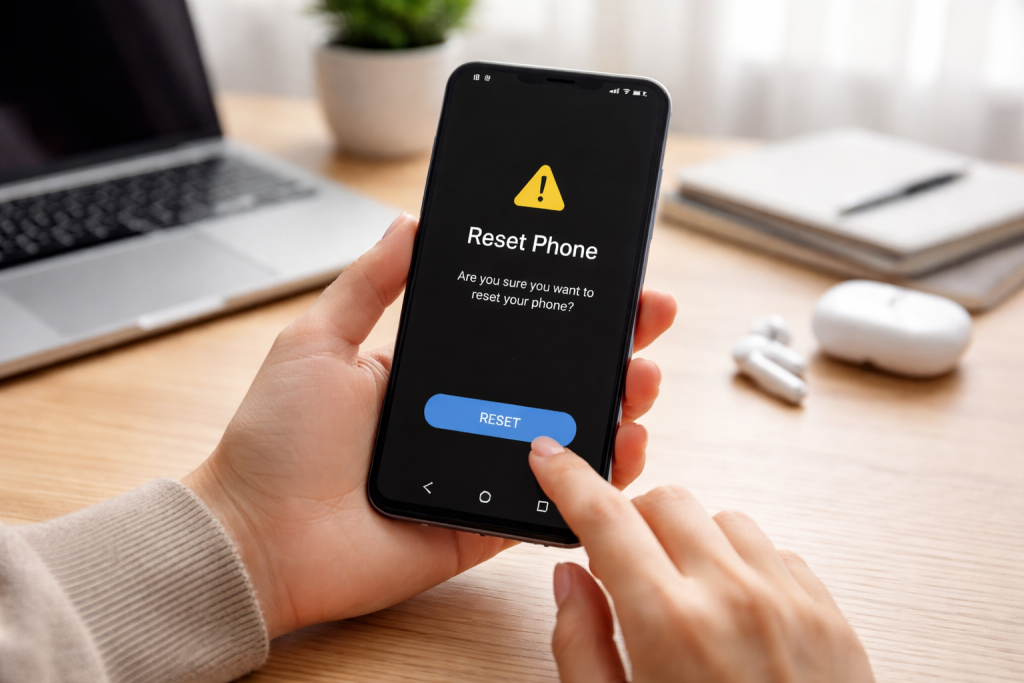
The exact path may vary slightly depending on your Android version and phone manufacturer, but generally, you’ll find the reset options under “Settings” > “System” > “Reset options” or “Backup & reset.” From there, select “Erase all data (factory reset).” Your phone will likely prompt you for your PIN, pattern, or password to confirm the action, and then present a final warning about data loss.
Following On-Screen Prompts for Confirmation
Carefully read all warning messages before confirming the factory reset. These serve as a final safeguard to ensure you understand the irreversible nature of the action. Once you confirm, the phone will begin the reset process, which may involve a reboot and a progress indicator. This can take anywhere from a few minutes to half an hour depending on the device and the amount of data being erased.
Utilizing Advanced Techniques for a Complete Reset
For situations where the standard factory reset isn’t sufficient, or if your phone is unresponsive, advanced methods offer a deeper level of reset.
Using Recovery Mode for a Hard Reset
If your phone won’t boot into the Android operating system, or if you suspect deeper system corruption, accessing recovery mode provides an alternative way to perform a factory reset. This usually involves a combination of pressing and holding power and volume buttons simultaneously while the phone is off. Once in recovery mode, you can navigate with the volume keys and select “Wipe data/factory reset” using the power button. This method is often more thorough and can resolve issues that prevent normal boot-up.
Employing Manufacturer-Specific Tools for Deeper Wipes
Some phone manufacturers provide PC-based tools that allow for a complete reinstallation of their firmware, effectively going beyond a simple factory reset by overwriting the entire software stack. These tools are often more complex to use and typically reserved for situations where a device is seriously bricked or requires a complete firmware flash. Consult your phone’s manufacturer website for specific tools and instructions.
Troubleshooting Common Issues During the Reset Process
While generally smooth, unforeseen issues can sometimes arise during a reset. Knowing how to troubleshoot them can save time and stress.
Addressing Frozen Screens or Unresponsive Devices
If your phone freezes during the reset process, do not panic. First, try a forced restart. This usually involves holding down the power button for an extended period (10-30 seconds) until the device powers off. Once off, try to restart it normally. If it still doesn’t respond or boots into an error state, try entering recovery mode to attempt the “Wipe data/factory reset” option from there.
Resolving “No Command” Errors in Recovery Mode
Occasionally, entering recovery mode might display a “No Command” screen. This is often easily resolved by briefly holding down the power button and then pressing the volume up button once. This should reveal the recovery mode menu, allowing you to proceed with the reset.
Ensuring Security and Privacy During the Resetting Process
Security considerations extend beyond simply wiping your data. Protecting your Google account and ensuring the phone is truly purged are paramount.
Understanding Factory Reset Protection (FRP)
Modern Android devices include Factory Reset Protection (FRP), a security feature designed to prevent unauthorized use of a stolen or lost phone. After a factory reset, FRP requires the user to log in with the Google account previously synced with the device. If you’re selling your phone, it’s crucial to remove your Google account before performing the factory reset. Failing to do so will leave the phone FRP locked for the next owner, rendering it unusable until your Google credentials are entered. To remove your Google account, go to “Settings” > “Accounts” > “Google” > “Remove account.”
Securely Erasing Data Beyond a Standard Reset
For ultimate peace of mind, especially when dealing with highly sensitive data or when selling your phone, consider more robust data erasure methods. After a factory reset, the data is marked as deleted but may still be recoverable with specialized tools until new data overwrites it. To mitigate this risk, some users choose to encrypt their device before the factory reset, making future data recovery significantly harder. Additionally, after a factory reset, you can fill the phone’s storage with dummy data (e.g., large video files) and then perform another factory reset. This overwrites the previously “deleted” data, reducing the chances of forensic recovery.
Post-Reset Best Practices for Optimizing Your Android Phone’s Performance
Once your phone has been reset and you’ve gone through the initial setup, a few post-reset practices can help maintain its optimal performance.
Selective App Installation and Configuration
Resist the urge to install every app you’ve ever used. Start by installing only the essential applications you truly need. This minimizes background processes and reduces resource consumption. As you install apps, be mindful of their permissions and disable any unnecessary access.
Regular System Updates and App Management
Keep your Android operating system and all your apps updated. Updates often include performance enhancements, bug fixes, and security patches. Regularly review your installed applications and uninstall any that you no longer use. Periodically clear app caches through “Settings” > “Apps” > [App Name] > “Storage” > “Clear cache” to prevent digital clutter from accumulating again. By adopting these habits, you can extend the revitalized performance of your Android phone well after the reset.
FAQs
1. Why is it important to reset your Android phone?
Resetting your Android phone can help resolve software issues, improve performance, and clear out unnecessary clutter that may be slowing down your device. It can also be useful if you are planning to sell or give away your phone, as it ensures that your personal data is completely erased.
2. How can I back up my data before resetting my Android phone?
You can back up your data by using the built-in backup feature on your Android phone, or by using third-party apps or cloud services. This will ensure that you don’t lose any important photos, contacts, messages, or other data during the reset process.
3. What are the different reset options for an Android phone, and how do I choose the right one?
There are three main reset options: a soft reset, a hard reset, and a factory reset. A soft reset simply restarts your phone, while a hard reset clears the cache and may fix minor software issues. A factory reset erases all data and restores your phone to its original settings. The right option for you will depend on the specific issues you are experiencing.
4. What are some common pitfalls to avoid when resetting an Android phone?
Common pitfalls to avoid include not backing up your data, not fully understanding the implications of a factory reset, and not disabling factory reset protection if it is enabled on your device. It’s also important to ensure that your phone is fully charged before initiating the reset process.
5. What are some post-reset best practices for optimizing my Android phone’s performance?
After resetting your Android phone, it’s a good idea to reinstall apps selectively, rather than all at once, to avoid cluttering your device again. You should also regularly update your phone’s software and security patches, and consider using a reputable antivirus app to protect your device from malware.

About the Author
Maya Ali is the founder of ByteSolving with experience in technology and digital solutions. His mission is to make technology easier to understand and help people solve everyday tech problems in a simple and practical way.