
Say Goodbye to Storage Woes: Tips and Tricks for Freeing Up Disk Space in Windows
The hum of a computer can be a soothing sound, a testament to its diligent work. But when that hum is accompanied by sluggish performance, frustrating error messages, and the dreaded “low disk space” notification, it’s a clear sign that your digital workspace is becoming cluttered. In today’s interconnected world, where applications grow ever larger and digital content proliferates, managing your disk space isn’t just about convenience; it’s about maintaining a healthy, efficient, and responsive computing experience. Ignoring disk space issues can lead to a cascade of problems, from slow boot times and application crashes to an inability to install critical updates or store new, valuable files. By understanding the critical role of ample free disk space and by implementing a few strategic practices, you can effectively say goodbye to storage woes and reclaim control of your Windows machine.
The bedrock of a smooth Windows experience lies in having sufficient free disk space. Think of your hard drive as a bustling highway. When it’s congested with too many vehicles (files and programs), traffic grinds to a halt. Similarly, a full hard drive impedes your operating system’s ability to perform essential tasks. Windows needs breathing room for temporary files, system updates, application installations, and virtual memory (paging files), which it uses when your RAM is insufficient. Without this necessary space, your PC will inevitably slow down, exhibiting frustrating lag and stuttering. Applications will take longer to launch, files will open sluggishly, and general navigation will feel like wading through treacle.
Beyond performance degradation, a lack of free disk space can also compromise system stability and security. Software updates, particularly those from Microsoft, often require a significant amount of free space to download and install. Failing to update your system leaves it vulnerable to bugs, security exploits, and compatibility issues with newer applications. Furthermore, some applications might refuse to install or even launch if they cannot allocate the necessary temporary storage. In essence, a healthy amount of free disk space is not a luxury but a fundamental requirement for a robust and reliable computing environment.
Contents
- 0.1 The Impact on System Performance
- 0.2 Preventing System Instability and Errors
- 0.3 Hunting Down Redundant Software
- 0.4 Eliminating Digital Clutter from Downloads
- 0.5 The Power of Disk Cleanup
- 0.6 Automating with Storage Sense
- 0.7 Clearing Browser Cache and Data
- 0.8 Deleting Windows Temporary Files Manually
- 0.9 Systematically Reviewing Large Files
- 0.10 Decluttering User Folders
- 0.11 Employing External Hard Drives and SSDs
- 0.12 Using USB Flash Drives for Portable Data
- 0.13 Adjusting System Restore Settings
- 0.14 Managing Hibernation File Size
- 0.15 Integrating with OneDrive, Google Drive, and Dropbox
- 0.16 Leveraging Cloud for Data Redundancy
- 0.17 Systematically Uninstalling Pre-Installed Applications
- 0.18 Using Third-Party Uninstallers for Thorough Removal
- 0.19 Setting Up a Routine for Digital Decluttering
- 0.20 Monitoring Disk Space Usage Proactively
- 1 FAQs
- 1.1 1. Why is it important to free up disk space in Windows?
- 1.2 2. How can I identify and remove unnecessary files and programs in Windows?
- 1.3 3. What are the features of Disk Cleanup and Storage Sense in Windows, and how can I utilize them to free up disk space?
- 1.4 4. What are the best practices for managing temporary files and cache to free up space in Windows?
- 1.5 5. How can I utilize external storage options and cloud storage services to offload data and free up disk space in Windows?
- 1.6 About the Author
The Impact on System Performance
When your hard drive is near capacity, the operating system struggles to find contiguous blocks of space for new data, leading to file fragmentation. While modern operating systems are better at managing fragmentation than their predecessors, excessive fragmentation can still contribute to slower read and write speeds. Moreover, the virtual memory system, which uses a portion of your hard drive as an extension of your RAM, becomes less effective when limited by space. This results in more frequent disk access and a noticeable drop in overall responsiveness, especially when running memory-intensive applications.
Preventing System Instability and Errors
A critically low disk space scenario can trigger a host of system errors. You might encounter “out of memory” warnings, even if your RAM is technically sufficient, because the system cannot expand its paging file. Applications may crash unexpectedly, leading to lost work. Windows updates might fail repeatedly, leaving your system exposed to security vulnerabilities and preventing you from accessing new features. In extreme cases, a completely full drive can even prevent Windows from booting properly, requiring advanced troubleshooting or even a complete reinstallation.
The first step in any effective decluttering effort is to identify the culprits. Over time, your Windows machine accumulates a surprising amount of digital detritus. This can range from forgotten programs you installed once and never used again to old downloads, duplicate files, and remnants of uninstalled software. A proactive approach to identifying and removing these unnecessary items is crucial for maintaining a lean and efficient system.
Hunting Down Redundant Software
Most users are guilty of installing software they rarely, if ever, use. These dormant applications consume precious disk space and can even contribute to longer boot times if they have background processes. Take a critical look at your installed programs. If you haven’t used a piece of software in six months or a year, chances are you don’t need it. Go to “Settings” > “Apps” > “Apps & features” to view a list of all installed programs. Sort them by size to identify the biggest space hogs. Exercise caution before uninstalling anything you’re unsure about, especially if it appears to be a system component or a driver. When in doubt, a quick online search can usually clarify its purpose.
Eliminating Digital Clutter from Downloads
The “Downloads” folder is a notorious black hole for forgotten files. Setup executables, archived documents, zipped folders, and temporary media often languish there long after their usefulness has expired. Make it a habit to periodically review and clear out your Downloads folder. Delete installers for programs you’ve already installed, remove documents you’ve already processed, and be ruthless with anything that no longer serves a purpose. Consider organizing important downloads into specific folders so they don’t get lost in the digital tide.
Windows provides powerful built-in tools to help you manage and free up disk space. Disk Cleanup has been a staple of the operating system for generations, offering a simple yet effective way to remove common types of unnecessary files. Building upon this, Storage Sense, introduced in more recent versions of Windows, provides an automated and more intelligent approach to disk space management.
The Power of Disk Cleanup
Disk Cleanup (type “Disk Cleanup” in the Windows search bar) is a remarkably effective utility. It scans your hard drive for temporary files, system log files, recycle bin contents, temporary internet files, error reports, and various other categories of expendable data. By selecting the categories you wish to clean and clicking “OK,” you can often reclaim several gigabytes of space in a matter of minutes. For a more thorough cleaning, click “Clean up system files” within the Disk Cleanup window. This allows you to remove previous Windows installations (if you’ve upgraded), Windows Update cleanup files, and system restore points that are no longer needed, which can sometimes free up tens of gigabytes.
Automating with Storage Sense
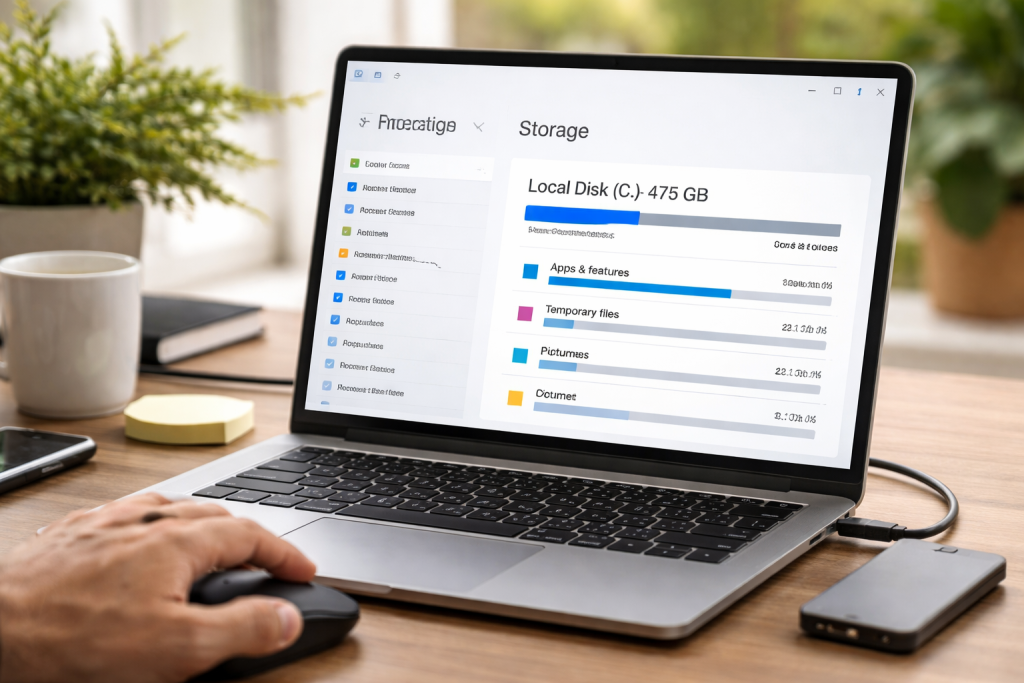
For those who prefer a more hands-off approach, Storage Sense is an invaluable feature. You can find it under “Settings” > “System” > “Storage.” When enabled, Storage Sense automatically monitors your disk space and takes action when it detects low storage. It can automatically delete temporary files, clear items from your Recycle Bin after a set period, and even delete files in your Downloads folder that haven’t been opened for a specified number of days. You can customize its behavior to suit your needs, setting schedules and choosing which types of files to target. Storage Sense also provides a visual breakdown of your disk usage, helping you identify which categories of files are consuming the most space.
Temporary files and cached data are essential for the smooth operation of your computer and web browsing experience. However, if left unchecked, they can accumulate into a significant chunk of wasted disk space. Regularly managing these transient files is a simple yet effective way to reclaim valuable storage.
Clearing Browser Cache and Data
Every web browser, be it Chrome, Firefox, Edge, or others, stores a cache of websites you visit, images, and other data to speed up subsequent visits. While beneficial for performance, this cache can grow extraordinarily large over time. Periodically clearing your browser’s cache and cookies can free up significant space. The exact steps vary by browser but generally involve accessing the browser’s settings or history menu and looking for options related to “Clear browsing data,” “Privacy,” or “Security.” You can usually choose a time range (e.g., last hour, last 24 hours, all time) and select specific data types to clear.
Deleting Windows Temporary Files Manually
Beyond the items targeted by Disk Cleanup, Windows generates other temporary files that sometimes get overlooked. These can include application-specific temporary files or remnants of failed installations. You can manually delete many of these by opening the Run dialog (Windows Key + R), typing %temp%, and pressing Enter. This will open your user-specific temporary files folder. Select all the files (Ctrl + A) and press Delete. Don’t worry if some files refuse to delete; they are likely in use by current applications. Repeat this process with just temp (without the percent signs) to access a more system-wide temporary folder.
The digital equivalent of a cluttered attic, old and unused files and folders contribute significantly to disk space woes. A systematic approach to reviewing, organizing, and deleting these items can drastically improve your available storage.
Systematically Reviewing Large Files
Start by identifying the biggest offenders. Windows’ Storage Sense offers a graphical representation of disk usage, but you can also use third-party tools like WinDirStat or TreeSize Free (available from their respective developers) to visually map your hard drive and pinpoint large files and folders at a glance. Target movies, large archives, old backups, or unneeded software installers that are taking up significant space. If you have multiple versions of the same document or project, consider keeping only the latest version or moving older versions to external storage.
Decluttering User Folders
Your “Documents,” “Pictures,” “Videos,” and “Music” folders, along with the “Desktop,” are prime candidates for excessive clutter. Regularly go through these folders. Delete duplicate photos, old school projects, expired invoices, or any files you no longer need. Consider creating a clear folder structure with descriptive names to prevent future disorganization. For example, instead of a single “Photos” folder, create “Photos 2023,” “Photos 2024,” etc., or by event.
While freeing up space on your primary drive is paramount, some data inherently needs to be preserved but doesn’t require constant, immediate access. This is where external storage solutions become invaluable. Offloading less frequently used data to an external drive can dramatically reduce the burden on your internal storage.
Employing External Hard Drives and SSDs
External hard drives offer a cost-effective way to store large volumes of data, such as extensive photo libraries, video projects, old game installations, or comprehensive backups. Connect them via USB, transfer your files, and then disconnect them when not in use. External SSDs, though more expensive per gigabyte, offer significantly faster transfer speeds, making them ideal for frequently accessed but non-critical large files or for running portable applications. Regularly backing up important data to an external drive also serves as a crucial redundancy measure against data loss.
Using USB Flash Drives for Portable Data
For smaller amounts of data that you need to transport or keep accessible on different machines, USB flash drives are perfect. They are convenient for transferring documents, presentations, or a selection of photos. While not suitable for large-scale storage, they prevent small, temporary files from accumulating on your main drive.
Beyond deleting files, you can configure certain Windows settings to inherently consume less disk space. These optimizations often involve trade-offs, so it’s important to understand their implications before making changes.
Adjusting System Restore Settings
System Restore is a valuable feature that creates snapshots of your system, allowing you to revert to a previous state if problems arise. However, these restore points can consume a considerable amount of disk space, especially if you have it configured to create many points or allocate a large percentage of your drive. Go to “Create a restore point” in the Windows search bar, then click “Configure.” Here, you can adjust the maximum disk space allocated to System Restore or even delete older restore points. While it’s advisable to keep System Restore enabled, reducing the allocated space can free up gigabytes.
Managing Hibernation File Size
Hibernation is a power-saving feature that saves the contents of your RAM to the hard drive before shutting down, allowing for a quicker resume. The hibernation file (hiberfil.sys) is typically as large as your installed RAM. If you rarely use hibernation and prefer a full shutdown (or sleep mode), you can disable hibernation to reclaim this significant chunk of space. Open Command Prompt as an administrator and type powercfg /hibernate off. To re-enable it, use powercfg /hibernate on.
Cloud storage has revolutionized file management, offering a convenient and accessible way to store data off-site. It’s not just for backup; it’s an excellent solution for offloading files that you don’t need on your local drive but still want to access from anywhere.
Integrating with OneDrive, Google Drive, and Dropbox
Services like Microsoft OneDrive (built into Windows), Google Drive, and Dropbox seamlessly integrate with your operating system. They allow you to synchronize files between your local drive and the cloud. The key here is to selectively choose which folders or files you want to keep “online-only.” Most cloud services offer a “Files On-Demand” or similar feature, where files are represented as placeholders on your local drive but only download the full content when you need to access them. This frees up local disk space while still giving you the impression that the files are present. Transferring large, rarely accessed archives, old projects, or extensive media libraries to the cloud can be highly effective.
Leveraging Cloud for Data Redundancy
Beyond offloading, cloud storage provides an invaluable layer of data redundancy. Should your local hard drive fail, your essential files remain safe and accessible in the cloud. This dual benefit of freeing up local space and providing robust backup makes cloud storage a powerful tool in your disk management arsenal. Just ensure you understand the privacy policies and security features of your chosen cloud provider.
Bloatware, the often pre-installed and unwanted software that comes with new PCs, is a notorious consumer of disk space and system resources. Along with user-installed apps that have fallen into disuse, these programs can significantly impact your storage.
Systematically Uninstalling Pre-Installed Applications
Many new computers come with a plethora of trial software, manufacturer utilities, and third-party applications that you may never use. These often run in the background, consuming RAM and CPU cycles in addition to their disk footprint. Take the time to go through “Settings” > “Apps” > “Apps & features” and identify any applications you didn’t explicitly install or don’t need. Be cautious when uninstalling system-critical components, but most pre-installed games, social media apps, or trial antivirus suites can be safely removed. If you’re unsure about a specific app, a quick internet search for “[app name] safe to uninstall” will usually provide clarification.
Using Third-Party Uninstallers for Thorough Removal
While Windows’ built-in uninstaller is generally competent, some programs leave behind residual files, registry entries, and empty folders after being uninstalled. Third-party uninstaller utilities, such as Revo Uninstaller or IObit Uninstaller, can perform a more thorough scan post-uninstallation, identifying and deleting these remnants, thus reclaiming even more disk space and preventing potential conflicts down the line. Use these tools with caution, ensuring you only remove items related to the program you intended to uninstall.
Effective disk space management isn’t a one-time event; it’s an ongoing process. Establishing a routine for maintenance and cleanup ensures that your Windows machine remains responsive and free from storage bottlenecks in the long term.
Setting Up a Routine for Digital Decluttering
Treat your digital environment like your physical one: regular tidying prevents overwhelming messes. Schedule a weekly or monthly “digital hygiene” session. This might involve:
- Emptying the Recycle Bin: A simple act that can free up surprising amounts of space.
- Running Disk Cleanup: Quick and effective for common temporary files.
- Reviewing your Downloads folder: Delete unnecessary installers and old files.
- Checking browser caches: Clear them out regularly, especially if you browse heavily.
- Uninstalling unused programs: A quick check of “Apps & features” identifies dormant software.
Consistency is key. Even short, periodic cleanups can prevent the accumulation of megabytes into gigabytes.
Monitoring Disk Space Usage Proactively
Don’t wait for your system to slow down or for the “low disk space” warning to appear. Proactively monitor your disk space. The “Storage” section in Windows Settings (“Settings” > “System” > “Storage”) offers a detailed breakdown of what’s consuming your space. Keep an eye on this, and if you notice a particular category (like “Apps & features,” “Temporary files,” or “Other”) growing unusually large, investigate further. Tools like Storage Sense, when enabled, can perform automatic cleanups, but understanding your usage patterns provides greater control and allows for more targeted intervention. A healthy amount of free disk space is an investment in your computer’s longevity and your own productivity. By adopting these strategies, you can transform your cluttered digital landscape into a streamlined, efficient workspace, ensuring your Windows experience remains smooth and responsive for years to come.
FAQs
1. Why is it important to free up disk space in Windows?
It is important to free up disk space in Windows to improve system performance, prevent slowdowns, and avoid potential issues such as system crashes or errors. Additionally, freeing up disk space can help optimize storage capacity and organization, making it easier to find and access important files.
2. How can I identify and remove unnecessary files and programs in Windows?
You can identify and remove unnecessary files and programs in Windows by using the built-in Disk Cleanup tool, uninstalling unused programs through the Control Panel, and manually reviewing and deleting old or unnecessary files and folders. Additionally, you can use third-party disk cleaning software to help identify and remove unnecessary files.
3. What are the features of Disk Cleanup and Storage Sense in Windows, and how can I utilize them to free up disk space?
Disk Cleanup is a built-in Windows tool that allows you to remove temporary files, system files, and other unnecessary items from your computer. Storage Sense is a feature that automatically frees up disk space by removing temporary files and items that have been in the recycle bin for a certain period of time. You can utilize these features by running Disk Cleanup regularly and enabling Storage Sense to automatically free up disk space.
4. What are the best practices for managing temporary files and cache to free up space in Windows?
Best practices for managing temporary files and cache in Windows include regularly running Disk Cleanup, clearing browser cache and temporary files, and using the Storage Sense feature to automatically remove temporary files. Additionally, you can manually delete temporary files from specific applications and clear the Windows update cache to free up space.
5. How can I utilize external storage options and cloud storage services to offload data and free up disk space in Windows?
You can utilize external storage options such as USB drives, external hard drives, or network-attached storage (NAS) to offload data from your Windows computer. Additionally, you can use cloud storage services like OneDrive, Google Drive, or Dropbox to back up and offload files from your computer, freeing up disk space while still having access to your data from anywhere.

About the Author
Maya Ali is the founder of ByteSolving with experience in technology and digital solutions. His mission is to make technology easier to understand and help people solve everyday tech problems in a simple and practical way.