
Don’t Panic! How to Easily Fix Missing DLL Files on Your Computer
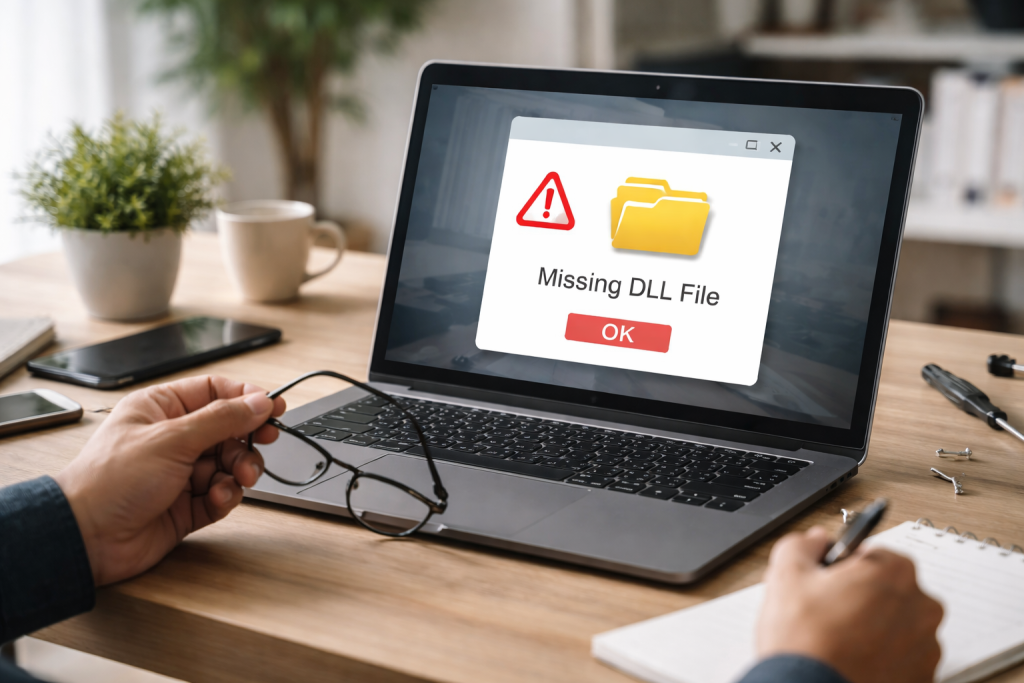
The sudden appearance of an error message proclaiming a missing DLL file can be a truly panic-inducing moment for any computer user. One moment you’re working or playing, and the next, a crucial application refuses to launch, blaming a seemingly innocuous file with a cryptic “.dll” extension. Before you imagine a catastrophic system failure, inhale deeply. Most missing DLL issues are surprisingly simple to resolve with a little understanding and the right approach.
At the heart of every Windows operating system and its applications lie Dynamic Link Libraries, or DLL files. These are not standalone programs but rather collections of pre-written codes, functions, and resources that multiple programs can share simultaneously. Imagine them as a shared toolbox filled with specific tools. Instead of every carpenter (program) carrying their hammer, saw, and drill, they all draw from a central, shared toolbox (DLL file). This ingenious design has several significant advantages.
Contents
- 0.1 The Efficiency and Modularity of DLLs
- 0.2 Accidental Deletion and Uninstallation Glitches
- 0.3 Corrupted Files and Hard Drive Issues
- 0.4 Software Conflicts and Updates Gone Wrong
- 0.5 Analyzing the Error Message
- 0.6 Using Event Viewer for Detailed Information
- 0.7 Using System File Checker to Restore Missing DLL Files
- 0.8 Reinstalling the Program to Fix Missing DLL Files
- 0.9 Downloading and Installing Missing DLL Files from Trusted Sources
- 0.10 Using Windows Update to Restore Missing DLL Files
- 0.11 Running a System Restore to Fix Missing DLL Files
- 0.12 Regular System Maintenance and Antivirus Scans
- 0.13 Keeping Drivers and Software Updated
- 0.14 Careful Software Installation and Uninstallation
- 0.15 When to Consider Professional Assistance
- 1 FAQs
- 1.1 What are DLL files, and why are they important?
- 1.2 What are some common causes of missing DLL files?
- 1.3 How can I identify which DLL files are missing on my computer?
- 1.4 What are some methods to fix missing DLL files on my computer?
- 1.5 How can I prevent future DLL file issues?
- 1.6 About the Author
The Efficiency and Modularity of DLLs
First and foremost, DLLs promote efficiency. By sharing common code, programs can be smaller in size, requiring less disk space and less memory when running. When a DLL is loaded into memory, multiple programs can access its functions without loading redundant copies of the same code. This conserves system resources and improves overall performance. Furthermore, DLLs introduce modularity. Operating system updates or program patches can often replace or update a single DLL file without requiring a complete reinstallation of the entire operating system or application. This saves time and effort for both developers and users. Without DLLs, every application would have to contain all the code it needs, leading to incredibly bloated programs and a much less efficient computing environment. They are fundamental to the architecture of Windows and the smooth operation of your software.
While the sight of a “missing DLL” error can be alarming, the causes are often understandable and preventable. Knowing what usually goes wrong can help in diagnosing and preventing future issues.
Accidental Deletion and Uninstallation Glitches
One of the most frequent culprits is accidental deletion. Users, during a disk cleanup or an attempt to free up space, might inadvertently delete a DLL file, mistaking it for irrelevant junk. Similarly, poorly written uninstallers sometimes remove DLL files that other applications still need. Such an error is particularly common if multiple programs share the same DLL and the uninstaller of one program assumes it’s the sole user.
Corrupted Files and Hard Drive Issues
DLL files can also become corrupted due to various reasons. A sudden power outage during a write operation, a virus infection, or even a failing hard drive can lead to data corruption, rendering a DLL file unusable or partially overwritten. Bad sectors on a hard drive can also prevent the operating system from correctly reading a DLL file, leading to the “missing” error.
Software Conflicts and Updates Gone Wrong
Another common scenario involves software conflicts. Installing new software can sometimes overwrite an existing DLL with an older or incompatible version or move it to a different location, causing other programs to fail. Similarly, during operating system updates or even program updates, an installation might not complete correctly, leaving a DLL file in an inconsistent state or failing to place it where it’s expected to be. These update glitches, while rare, can be frustrating and difficult to pinpoint without the right tools.
Before you can fix the problem, you need to know exactly which DLL file is causing the headache. Fortunately, the error message itself is usually your best source of information.
Analyzing the Error Message
When an application fails to launch due to a missing DLL, a pop-up error message will almost always appear. This message typically states something akin to “The program can’t start because [filename].dll is missing from your computer. Try reinstalling the program to fix this problem.” The key piece of information here is [filename].dll. This is the exact name of the file you need to restore or replace. Jot it down carefully, paying attention to capitalization, as file names in Windows can sometimes be case-sensitive, though less frequently with DLLs.
Using Event Viewer for Detailed Information
If the simple pop-up doesn’t give you enough information, or if you suspect a broader system issue, the Windows Event Viewer can be an invaluable tool. To access it, type “Event Viewer” into the Windows search bar and open the application. Navigate to “Windows Logs” > “Application” or “System.” Here, you’ll find a chronological list of events, including errors. Look for entries around the time the DLL error occurred. These error messages often provide more detailed technical information, including the full path to the missing DLL or the process that failed, which can aid in diagnosis.
Once you know which DLL is missing, you can begin the process of restoring it. There are several tried-and-true methods, ranging from the very simple to slightly more involved.
Using System File Checker to Restore Missing DLL Files
The System File Checker (SFC) is a built-in Windows utility designed to scan for and restore corrupted or missing protected system files, which often include crucial DLLs. This is always the first line of defense for system-related DLL issues.
To run SFC, open the Command Prompt as an administrator. You can do this by typing “cmd” into the Windows search bar, right-clicking “Command Prompt,” and selecting “Run as administrator.” Once the command prompt window appears, type sfc /scannow and press Enter. The scan will take some time, typically 5-20 minutes, depending on your system’s speed and the extent of the scan. Do not close the window until the verification is 100% complete. SFC will attempt to replace any missing or corrupted system files with healthy versions from your Windows installation. After the scan, a message will indicate whether any corrupt files were found and successfully repaired. A system restart is usually recommended after running SFC.
Reinstalling the Program to Fix Missing DLL Files
For DLL errors specific to a particular application, reinstalling that program is often the most straightforward and effective solution. When you install a program, it typically places all the DLLs it needs in the correct directories. If one of these becomes corrupted or missing, a fresh installation will usually restore it.
First, go to “Settings” > “Apps” > “Apps & features” (or “Control Panel” > “Programs and Features” for older Windows versions), locate the problematic program, and uninstall it. It’s often a good practice to restart your computer after uninstalling. Then, download the latest stable version of the program from the official developer’s website and proceed with a clean installation. This method ensures all necessary DLLs for that specific program are present and correctly registered.
Downloading and Installing Missing DLL Files from Trusted Sources
This method should be approached with caution, but it can be effective for very specific or obscure DLLs not covered by SFC or program reinstallation. The internet is replete with websites offering individual DLL files for download. However, many of these sites are untrustworthy and can host outdated, incorrect, or even malicious versions of DLLs.
If you must download a DLL, prioritize official sources such as the software vendor’s website or reputable developer resources. As a last resort, if you cannot find an official source, use a well-known and reviewed DLL download website, but proceed with extreme caution. Always scan any downloaded DLLs with robust antivirus software before placing them on your system. Once downloaded, the DLL usually needs to be placed in the problematic program’s installation directory or, for system-wide DLLs, in C:\Windows\System32 (for 64-bit DLLs on 64-bit systems) or C:\Windows\SysWOW64 (for 32-bit DLLs on 64-bit systems). You may also need to register the DLL using the regsvr32 command in Command Prompt (e.g., regsvr32 filename.dll). This step is for advanced users and carries risks if done incorrectly.
Using Windows Update to Restore Missing DLL Files
Sometimes, missing or corrupted DLLs are part of the core Windows operating system components. In such cases, ensuring your Windows is fully updated can often resolve the issue. Windows Updates not only bring new features but also include security patches and fixes for various system files, including DLLs.
Navigate to “Settings” > “Update & Security” > “Windows Update” and click “Check for updates.” Install all available updates, including optional ones, and restart your computer if prompted. This can often silently replace problematic system DLLs with their correct and most up-to-date versions.
Running a System Restore to Fix Missing DLL Files
If a recent change, such as a software installation or update, triggered the DLL error, performing a system restore can revert your computer’s system files to an earlier state when the DLL was present and functional. This is like a “rollback” feature for your operating system.
Search for “Create a restore point” in the Windows search bar and open the System Properties window. Click on the “System Restore” button. Follow the on-screen prompts to choose a restore point that predates the emergence of the DLL error. System Restore will not affect your personal files (documents, pictures, etc.), but it will uninstall programs and drivers installed after the selected restore point. This can be a very effective way to undo problematic changes.
An ounce of prevention is worth a pound of cure, especially when it comes to the delicate ecosystem of DLLs. Adopting good computer hygiene can significantly reduce the likelihood of encountering these errors.
Regular System Maintenance and Antivirus Scans
Perform regular scans with reputable antivirus and anti-malware software. Viruses and other malicious programs are notorious for corrupting or deleting system files, including DLLs. Keep your antivirus definitions updated. Additionally, use Windows’ built-in Disk Cleanup tool to periodically clear out temporary files and optimize your disk. Running sfc /scannow proactively every few months can also catch potential issues before they become critical.
Keeping Drivers and Software Updated
Outdated or incompatible drivers can sometimes lead to DLL conflicts. Always keep your device drivers updated, especially for graphics cards, network adapters, and chipsets. You can usually find the latest drivers on the manufacturer’s website. Similarly, keep your operating system and all installed applications updated. Developers often release patches that address known DLL-related bugs or update shared libraries.
Careful Software Installation and Uninstallation
When installing new software, always download it from official sources to avoid bundled malware or corrupted installers. During installation, pay attention to custom options, as sometimes optional components can cause conflicts. When uninstalling software, use the official uninstaller provided by the program itself or through the Windows “Apps & features” settings. Avoid simply deleting program folders, as this will leave orphaned files and potentially shared DLLs in an inconsistent state.
While most DLL issues are resolvable with the methods described above, some particularly stubborn or complex problems might be beyond the scope of a typical user.
When to Consider Professional Assistance
If you’ve exhausted all the outlined troubleshooting steps—running SFC, reinstalling the problematic program, checking for Windows Updates, and performing a System Restore—and the error persists, it’s time to consider professional help. This is especially true if the error is impacting multiple applications, preventing Windows from booting correctly, or if you suspect a deeper hardware issue like a failing hard drive.
A professional technician can employ more advanced diagnostic tools, delve deeper into system logs, and potentially perform a clean reinstallation of Windows if necessary. They can also differentiate between software-related DLL issues and underlying hardware problems that might be mimicking software errors. Don’t hesitate to seek expert advice if you feel out of your depth; preserving your data and ensuring your system’s stability is paramount.
FAQs
What are DLL files, and why are they important?
DLL stands for Dynamic Link Library, and it is a file format used for holding multiple codes and procedures for Windows programs. DLL files are important because they allow multiple programs to use the same functionality, which can help save memory and disk space.
What are some common causes of missing DLL files?
Some common causes of missing DLL files include accidental deletion, malware or virus infections, software installation errors, and hardware issues. Additionally, DLL files can become corrupted due to software conflicts or outdated drivers.
How can I identify which DLL files are missing on my computer?
You can identify missing DLL files by paying attention to error messages that mention specific DLL files when you try to run a program. Additionally, you can use tools like Dependency Walker or Process Explorer to identify which DLL files are being used by a specific program.
What are some methods to fix missing DLL files on my computer?
Some methods to fix missing DLL files include using the System File Checker tool to restore missing or corrupted DLL files, reinstalling the program that is showing the DLL error, downloading and installing missing DLL files from trusted sources, using Windows Update to restore missing DLL files, and running a System Restore to revert your system to a previous state where the DLL files were not missing.
How can I prevent future DLL file issues?
To prevent future DLL file issues, you can regularly update your operating system and software, use reliable antivirus software to protect your computer from malware, be cautious when installing new programs to avoid potential conflicts, and regularly back up your important files to prevent data loss in case of DLL file issues. If you encounter stubborn DLL file problems, seeking professional help from a computer technician or IT specialist may be necessary.

About the Author
Maya Ali is the founder of ByteSolving with experience in technology and digital solutions. His mission is to make technology easier to understand and help people solve everyday tech problems in a simple and practical way.