
Unblocking the Web: Tips and Tricks for Resolving Proxy Errors
The internet, a vast ocean of information and connection, can sometimes feel like a labyrinth, especially when proxy errors appear, blocking our access to desired destinations. These digital roadblocks, while frustrating, are often surmountable with a little understanding and the right approach. This comprehensive guide aims to demystify proxy errors, offering practical solutions and insights to help you navigate and unblock the web.
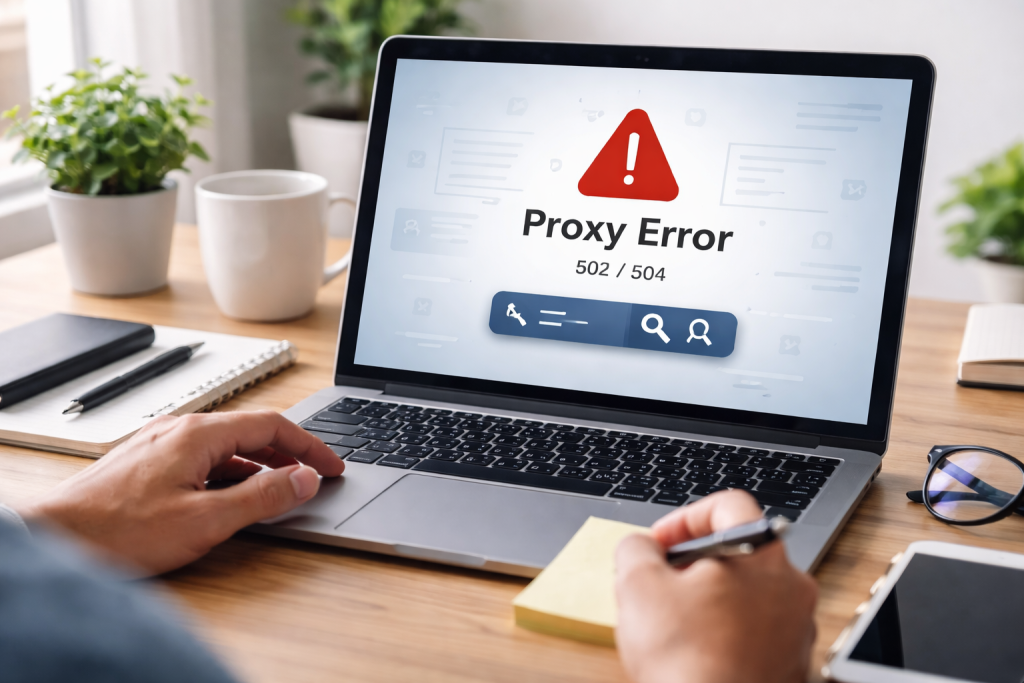
vice versa. Proxy servers act as intermediaries, forwarding requests from your device to the internet and vice-versa. While beneficial for security, privacy, and network management, they can also introduce complexities that lead to errors. Understanding the root cause is the first step to resolution.
Contents
- 0.1 The Gateway to Frustration: Common Proxy Error Scenarios
- 0.2 Bridging the Gap: Practical Solutions for Common Errors
- 0.3 Navigating the Digital Pathways: Browser-Specific Troubleshooting
- 0.4 Advanced Browser Checks: Beyond Basic Settings
- 0.5 Encrypting Your Journey: How VPNs Outsmart Proxies
- 0.6 Choosing the Right Shield: Selecting and Utilizing a VPN
- 0.7 The Language of Roadblocks: Interpreting Common Error Codes
- 0.8 From Glitch to Gateway: Step-by-Step Resolution
- 0.9 Building a Robust Digital Fortress: Maintaining Healthy Proxy Habits
- 0.10 The Vigilant Guardian: Regular Checks and Updates
- 1 FAQs
- 1.1 What are common causes of proxy errors, and how can they be resolved?
- 1.2 How can VPNs be used to bypass proxy errors and access blocked websites?
- 1.3 What are some tips for configuring proxy settings to avoid errors?
- 1.4 How can proxy errors be overcome on mobile devices and tablets?
- 1.5 What are some best practices for preventing proxy errors and ensuring uninterrupted web access?
- 1.6 About the Author
The Gateway to Frustration: Common Proxy Error Scenarios
Proxy errors can manifest in various ways, each pointing to a different underlying issue. One of the most prevalent is the “Proxy server refuses connection” error. This commonly occurs when the proxy server is not running, is inaccessible due to network issues on its end, or is configured to block your specific IP address. Another frequent offender is the “Proxy server is not responding” error, which can signal a temporary outage of the proxy server, high traffic load, or network latency preventing communication. Less common, but equally disruptive, are errors related to authentication, such as “Proxy authentication required,” indicating that your device isn’t providing the correct credentials for accessing the proxy. Data corruption or incorrect configuration can also lead to errors like “Proxy error: invalid response,” where the server sends back data that cannot be interpreted.
Bridging the Gap: Practical Solutions for Common Errors
Fortunately, many common proxy errors have straightforward solutions. For refusal or non-response errors, the initial step is often to simply try again later, assuming a temporary glitch. If the problem persists, verifying your internet connection is crucial. Ensure you can access the internet without the proxy. If you can, the issue likely lies with the proxy itself. If you manage the proxy server, check its status, restart it, and review its logs for any error messages. For authentication errors, double-checking your username and password is paramount. Ensure there are no typos and that you are using the correct credentials for the specific proxy. If you’ve recently changed your password, update it in your proxy settings. In cases of invalid responses, a misconfiguration in the proxy settings on your device is often the culprit. Carefully review the IP address and port number for accuracy. Sometimes, simply re-entering these details can resolve the issue.
The way proxy errors are handled and configured can subtly differ across various web browsers, requiring tailored troubleshooting approaches. Understanding these nuances can save significant time and frustration.
In Google Chrome, proxy settings are typically managed through the system’s network settings. To troubleshoot, you would go to Settings > Advanced > System > Open your computer’s proxy settings. Here, you can disable any automatically detected settings or manually configure a proxy server. If you suspect a specific extension is interfering, temporarily disabling extensions can often reveal the culprit. Mozilla Firefox offers a more integrated approach. Under Options > General, you’ll find a “Network Settings” section. Within this, you can configure proxies manually or choose to use system proxy settings. Firefox also allows for individual proxy configurations for different protocols (HTTP, SSL, FTP), which can be beneficial for targeting specific connection issues. Microsoft Edge, being built on Chromium, shares many similarities with Chrome. Its proxy settings are also found within the system’s network configurations. For Safari on macOS, proxy settings are accessed via System Preferences > Network, then selecting your active network connection and clicking “Advanced,” followed by the “Proxies” tab. For mobile browsers, the process usually involves going into your device’s Wi-Fi settings and configuring the proxy for the connected network.
Advanced Browser Checks: Beyond Basic Settings
Beyond the initial settings, more in-depth browser troubleshooting might be necessary. Clearing your browser’s cache and cookies can sometimes resolve issues caused by corrupted temporary data that might be interacting poorly with proxy configurations. Resetting your browser to its default settings can also be a powerful tool, especially if you suspect a configuration drift or accidental modification. If you are using a proxy that requires specific authentication, ensure that your browser is not set to automatically save and use outdated or incorrect credentials. Sometimes, forgetting and re-entering passwords within the browser’s password manager can resolve stubborn authentication-related proxy errors.
When proxy errors prove persistent or when accessing geographically restricted content is the goal, Virtual Private Networks (VPNs) emerge as a potent solution. VPNs not only bypass proxy restrictions but also offer enhanced security and privacy.
Encrypting Your Journey: How VPNs Outsmart Proxies
A VPN creates an encrypted tunnel between your device and a remote server operated by the VPN provider. All your internet traffic is routed through this tunnel, making it appear as if you are browsing from the VPN server’s location. This process effectively bypasses any proxy server that might be blocking access to certain websites or content. Because your traffic is encrypted, even if a proxy or your ISP intercepts it, they will only see encrypted data, unable to decipher the websites you are visiting. This is particularly useful in environments where network administrators implement strict proxy rules, such as at work or school.
Choosing the Right Shield: Selecting and Utilizing a VPN
Selecting a reputable VPN provider is crucial for both performance and security. Look for services with a wide network of servers in various locations, strong encryption protocols, and a strict no-logs policy. Once you’ve chosen a VPN, downloading and installing its application on your device is straightforward. After logging in, you can select a server location and connect. The VPN will then automatically reroute your internet traffic. For accessing blocked websites, simply connect to a server in a region where those websites are not restricted. The process is generally seamless, with most VPN applications offering an intuitive interface.
The cryptic messages that accompany proxy errors can be daunting. However, with a basic understanding of their meaning, you can often pinpoint the problem and implement the correct fix.
The Language of Roadblocks: Interpreting Common Error Codes
While specific error messages can vary, some are more frequently encountered. For instance, a “407 Proxy Authentication Required” error clearly indicates that the proxy server demands credentials and your device hasn’t provided them correctly. A “502 Bad Gateway” error, while often associated with server issues, can also arise if a proxy server receives an invalid response from the upstream server it’s trying to reach. “Proxy server is unreachable” is another self-explanatory message, pointing to a network issue or an inactive proxy. Understanding these keywords—”authentication,” “unreachable,” “refused,” “invalid,” and “gateway”—provides vital clues.
From Glitch to Gateway: Step-by-Step Resolution
Once you’ve identified the likely cause from the error message, you can proceed with targeted solutions. For “Proxy Authentication Required,” re-verify your username and password in your proxy settings. If you’re unsure, contact the network administrator. For “Proxy server is unreachable,” confirm that the proxy server IP address and port are correctly entered and that your internet connection is stable. For errors suggesting server-side problems, such as “502 Bad Gateway,” the issue might be beyond your immediate control, and waiting for the server administrator to resolve it might be the only option. However, if you suspect a misconfiguration on your end, a thorough review of your proxy settings is always recommended. Regularly clearing your browser’s cache and cookies can also sometimes resolve these issues by removing potentially corrupted temporary data.
Proactive measures are often the most effective way to avoid the frustration of proxy errors. Implementing good habits and understanding the fundamentals of proxy usage can lead to a smoother online experience.
Building a Robust Digital Fortress: Maintaining Healthy Proxy Habits
Regularly updating your operating system and web browser is a fundamental step. Software updates often include patches for security vulnerabilities and improvements in network handling, which can indirectly prevent proxy-related issues. Keeping your proxy settings accurate and up-to-date is paramount. If your network administrator changes proxy details, ensure you update them promptly on all your devices. Avoid connecting to unknown or untrusted Wi-Fi networks, as these can sometimes be compromised or route your traffic through malicious proxy servers, leading to errors or security risks. A clear understanding of your network’s proxy policy, particularly in corporate or educational environments, can prevent accidental violations that might result in blocked access.
The Vigilant Guardian: Regular Checks and Updates
Periodically reviewing your proxy configuration to ensure it aligns with current network requirements is a sound practice. If you’re using a public proxy, understand that these can be unstable and prone to errors. For critical tasks, it’s often advisable to use your direct internet connection or a trusted VPN. For individuals or organizations managing their own proxy servers, regular maintenance, including monitoring server logs for anomalies and ensuring sufficient resources, is crucial for preventing service disruptions. Keeping documentation of your proxy settings readily available can also expedite troubleshooting if an error does occur.
This comprehensive exploration of proxy errors aims to empower you with the knowledge and tools necessary to navigate the digital landscape with confidence. By understanding the causes, troubleshooting effectively across different platforms, and implementing preventative measures, you can ensure your journey across the web remains as smooth and uninterrupted as possible. The future of web access, with its constant evolution of technologies, promises even more sophisticated ways to manage and overcome these digital hurdles.
FAQs
What are common causes of proxy errors, and how can they be resolved?
Proxy errors can be caused by issues such as misconfigured proxy settings, server connectivity problems, or network issues. These errors can often be resolved by checking and adjusting proxy settings, ensuring proper network connectivity, and troubleshooting server issues.
How can VPNs be used to bypass proxy errors and access blocked websites?
VPNs, or virtual private networks, can bypass proxy errors by creating a secure and encrypted connection to a remote server, allowing users to access the internet through that server’s connection. This can help bypass proxy restrictions and access blocked websites.
What are some tips for configuring proxy settings to avoid errors?
To avoid proxy errors, users can ensure that their proxy settings are correctly configured by checking for any typos or errors in the settings, using the correct proxy server address and port, and ensuring that any required authentication credentials are entered correctly.
How can proxy errors be overcome on mobile devices and tablets?
Proxy errors on mobile devices and tablets can be overcome by checking and adjusting the proxy settings on the device, ensuring proper network connectivity, and using VPN apps to bypass proxy restrictions.
What are some best practices for preventing proxy errors and ensuring uninterrupted web access?
Some best practices for preventing proxy errors include regularly checking and updating proxy settings, using reliable VPN services, ensuring proper network connectivity, and staying informed about any changes or updates to proxy technology.

About the Author
Maya Ali is the founder of ByteSolving with experience in technology and digital solutions. His mission is to make technology easier to understand and help people solve everyday tech problems in a simple and practical way.