
5 Simple Steps to Fix a Faulty Mouse and Get Back to Work
The rhythmic click-click of a functioning mouse is an integral part of any digital workspace. Productivity halts when the familiar click-click of a mouse becomes silent, or worse, starts to skip and stutter erratically. A malfunctioning mouse can be exasperating, transforming simple tasks into excruciating struggles. Fortunately, a little patience and systematic troubleshooting can resolve many common mouse issues. This guide will walk you through five simple steps and several crucial considerations to get your trusty peripheral back in top shape, minimizing downtime and getting you back to work efficiently.
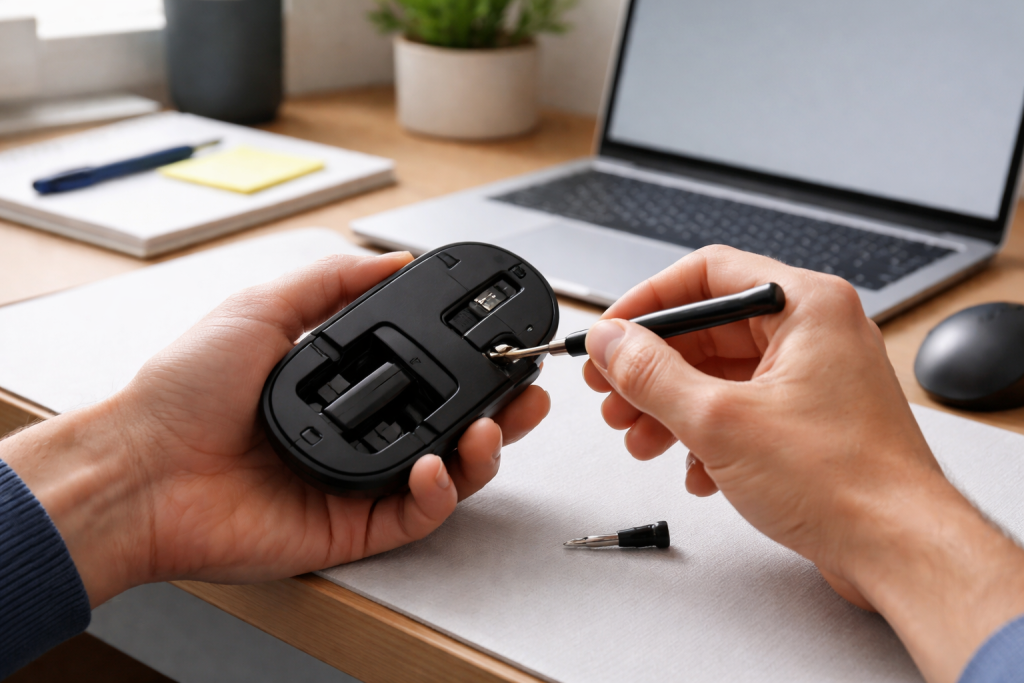
Before you can fix a problem, you must first understand it. A vague “my mouse isn’t working” offers little actionable insight. Pinpointing the exact symptoms is the crucial first step in any repair process.
Contents
- 0.1 Symptoms of a Faulty Mouse
- 0.2 Initial Checks: The Simplest Solutions First
- 0.3 Cleaning the Optical Sensor
- 0.4 Cleaning Buttons and Scroll Wheel
- 0.5 How to Update Mouse Drivers
- 0.6 Reinstalling Mouse Drivers
- 0.7 Customizing Cursor Speed and Acceleration
- 0.8 Configuring Button Assignments and Scroll Speed
- 0.9 Recognizing Low Battery Symptoms
- 0.10 Proper Battery Replacement Practices
- 0.11 Lagging or Stuttering Cursor
- 0.12 Unresponsive Clicks or Scroll Wheel
- 0.13 When to Consider Professional Repair or Replacement
- 0.14 Utilizing Warranty and Support Services
- 0.15 Best Practices for Mouse Care
- 0.16 The Importance of a Clean Work Surface
- 0.17 USB Wired Mice
- 0.18 Wireless (2.4GHz) Mice with Dongles
- 0.19 Bluetooth Mice
- 0.20 Keyboard Shortcuts and Accessibility Features
- 0.21 Temporary Mouse Alternatives
- 1 FAQs
- 1.1 1. How can I identify the problem with my mouse?
- 1.2 2. What are the steps for cleaning my mouse for improved functionality?
- 1.3 3. How do I update my mouse drivers for better performance?
- 1.4 4. What are some common mouse issues I can troubleshoot on my own?
- 1.5 5. How can I prevent future mouse malfunctions with regular maintenance?
- 1.6 About the Author
Symptoms of a Faulty Mouse
Is your cursor freezing randomly? Is it jumping across the screen without input? Do clicks fail to register, or do they register multiple times? Does the scroll wheel feel unresponsive or sticky? Perhaps the most perplexing symptom is no response at all. Observing these specific behaviors will help you narrow down the potential causes significantly. For instance, a sticky scroll wheel likely points to a physical obstruction, while an erratic cursor might indicate a driver issue or a dirty sensor. A completely dead mouse could be a power problem, a connectivity issue, or a more serious hardware failure.
Initial Checks: The Simplest Solutions First
Before exploring more complex diagnostics, make sure to cover the most basic checks. Is the mouse properly plugged into the USB port? Try a different USB port, as a faulty port on your computer can mimic mouse issues. If it’s a wireless mouse, is the receiver securely plugged in? Have you checked the power switch on the mouse itself? Sometimes, the simplest oversight is the culprit. A quick restart of your computer can also resolve temporary software glitches that might be interfering with your mouse’s operation. These seemingly trivial steps often resolve a surprising number of “faulty” mouse complaints.
Dust, debris, and grime are the silent saboteurs of peripheral performance. Over time, these microscopic invaders can accumulate in critical areas, leading to erratic behavior and diminished responsiveness. A thorough cleaning can often breathe new life into a struggling house.
Cleaning the Optical Sensor
For most modern mice, the optical sensor on the underside is the primary culprit for erratic cursor movement. Gently flip your mouse over and locate the small red or blue light. Use a cotton swab dampened with isopropyl alcohol (never dripping wet) to carefully wipe away any dust, hair, or debris that might be obstructing the sensor. Avoid using harsh chemicals or abrasive materials, as these can damage the sensor. Allow the sensor to dry completely before retesting.
Cleaning Buttons and Scroll Wheel
The buttons and scroll wheel can also become sticky or unresponsive due to accumulated dirt. For buttons, a blast of compressed air can dislodge debris caught in the crevices. For the scroll wheel, if your mouse design allows, use a thin, non-metallic object (like a toothpick or a plastic spudger) to carefully dislodge any visible grime around its edges. For more integrated designs, compressed air might be your best bet here as well. If dust is particularly stubborn, a lightly dampened cotton swab passed along the edges of the buttons can also help, but be extremely careful not to let any liquid seep into the internal components.
Software, like hardware, requires regular maintenance to perform optimally. Outdated or corrupted drivers can lead to a host of problems, from intermittent disconnections to completely unresponsive controls.
How to Update Mouse Drivers
On Windows, you can typically update drivers through the Device Manager. Press Windows Key + X and select “Device Manager.” Expand “Mice and other pointing devices,” right-click on your mouse, and select “Update driver.” Choose “Search automatically for updated driver software.” If Windows doesn’t find a new driver, you can visit the manufacturer’s website (e.g., Logitech, Microsoft, Razer) and download the latest drivers directly for your specific mouse model. For macOS, updates are generally handled through system software updates. It’s always best to download drivers directly from the manufacturer to ensure compatibility and avoid potentially malicious software.
Reinstalling Mouse Drivers
If updating doesn’t resolve the issue, reinstalling the drivers can often fix deep-seated software conflicts. In Device Manager, right-click your mouse and select “Uninstall device.” Do not check the box to “Delete the driver software for this device” unless specifically instructed by the manufacturer. Restart your computer. Windows will usually automatically detect the mouse and reinstall the generic drivers. If not, follow the previous steps to re-download and install drivers from the manufacturer’s website.
Sometimes, the mouse itself isn’t faulty, but its settings are simply configured in a way that makes it feel unresponsive or difficult to control. A quick tweak in your operating system’s settings can dramatically improve your experience.
Customizing Cursor Speed and Acceleration
On Windows, navigate to “Settings” > “Devices” > “Mouse.” Here you can adjust the “Cursor speed” to your preference. Many users prefer a faster cursor, but too fast can make precision difficult. Beneath this, often under “Additional mouse options,” you’ll find settings for “Pointer options.” Experiment with “Enhance pointer precision” (also known as mouse acceleration). While it can make the mouse feel faster over larger distances, some gamers and graphic designers prefer to disable it for more consistent, raw input. On macOS, these settings are found in “System Preferences” > “Mouse.”
Configuring Button Assignments and Scroll Speed
Within the same mouse settings, you can often customize button assignments, particularly for mice with extra side buttons. This allows you to assign specific functions (like “back” or “forward” in web browsers) to these buttons, improving workflow. You can also adjust the scroll speed, determining how many lines of text or how quickly a page scrolls with each detent of the scroll wheel. Adjust these to suit your personal preference for a more efficient and comfortable interaction with your computer.
This might seem glaringly obvious, yet it is a surprisingly common oversight for wireless mouse users. A dead or dying battery can manifest as erratic behavior, intermittent connection, or complete unresponsiveness.
Recognizing Low Battery Symptoms
Don’t wait for your mouse to completely die. Many wireless mice have LED indicators that signal low battery. Your operating system might also provide notifications. Early signs of a low battery include a sluggish or unresponsive cursor, intermittent disconnections, or a significant decrease in overall performance. If you experience any of these symptoms, replacing the batteries should be among your very first troubleshooting steps.
Proper Battery Replacement Practices
Always use fresh, good-quality alkaline batteries. Check the polarity (+ and – ends) carefully when inserting them into the battery compartment. Some mice use rechargeable batteries; ensure they are fully charged. If your mouse has a power switch, turn it off before replacing batteries and then back on once new batteries are installed. After replacing it, it’s a good idea to re-pair the mouse with its receiver or Bluetooth connection to ensure a fresh connection.
Beyond these general steps, specific problems often have specific solutions. Knowing how to troubleshoot these can save you time and frustration.
Lagging or Stuttering Cursor
Beyond dirty sensors or outdated drivers, a lagging cursor can sometimes indicate interference if you’re using a wireless mouse. Try moving the receiver closer to the mouse or away from other electronic devices that might be emitting electromagnetic interference (e.g., Wi-Fi routers, cordless phones). If it’s a Bluetooth mouse, ensure your Bluetooth adapter is up to date and that there aren’t too many other Bluetooth devices competing for bandwidth. Resource-intensive applications running in the background can also sometimes cause system-wide lag, affecting mouse responsiveness.
Unresponsive Clicks or Scroll Wheel
If clicks aren’t registering or are registered twice, and cleaning hasn’t helped, it could be a worn-out mechanical switch under the button. While these can be soldered and replaced by someone with expertise, for most users, this signals a closer step towards replacement. For an unresponsive scroll wheel, especially if it feels loose or jammed, it’s often a mechanical failure of the roller mechanism. Again, external cleaning is the first step, but if it persists, it may require professional repair or replacement.
Despite all your efforts, some mouse issues simply defy DIY resolution. Knowing when to seek professional assistance can help you avoid further frustration and potentially prevent damage to your equipment.
When to Consider Professional Repair or Replacement
If you’ve meticulously followed all troubleshooting steps—cleaning, updating drivers, adjusting settings, checking batteries, and trying different ports—and your mouse still isn’t performing correctly, it’s likely a hardware fault. For expensive, high-end gaming or professional mice, professional repair might be a cost-effective option, particularly if it’s still under warranty. However, for most standard mice, the cost of repair often outweighs the cost of replacement, especially given the affordability of many reliable alternatives.
Utilizing Warranty and Support Services
Always check if your mouse is still under warranty. Most peripherals come with at least a one-year warranty. Contacting the manufacturer’s support service can often lead to a free replacement if the fault is deemed to be a manufacturing defect. Be prepared to describe the problem in detail and provide proof of purchase. Their support staff might also have additional troubleshooting steps specific to your model.
It is crucial to prioritize prevention over cure. Adopting simple, regular maintenance habits can significantly extend the lifespan of your mouse and prevent countless frustrations.
Best Practices for Mouse Care
Keep your workspace clean. A tidy desk means less dust and debris to invade your mouse’s internal components. Avoid eating or drinking directly over your mouse. If you do, clean up spills immediately and thoroughly. Use a good-quality mouse pad to provide a smooth, consistent surface for optical tracking and to keep the underside of your mouse cleaner. When transporting your mouse, especially expensive models, consider using a protective pouch to shield it from impacts and dust.
The Importance of a Clean Work Surface
A dirty, uneven, or reflective surface can confuse your mouse’s optical sensor, leading to erratic cursor movement even if the mouse itself is clean. If you use a mouse pad, ensure it’s clean and free of crumbs or sticky residues. If you’re using your mouse directly on a desk, wipe it down regularly. Materials like glass can be particularly challenging for optical mice, sometimes requiring a specific type of mouse pad.
The way your mouse connects to your computer plays a significant role in troubleshooting and understanding potential issues.
USB Wired Mice
These are the simplest and generally most reliable. Problems usually stem from a faulty cable, a damaged USB port, or internal hardware failure. Troubleshooting is straightforward: try a different USB port, then a different computer if possible. Their simplicity makes them excellent for diagnosing if the computer or the mouse is the problem.
Wireless (2.4GHz) Mice with Dongles
These mice connect via a small USB receiver (dongle) using a 2.4GHz radio frequency. Interference from other wireless devices, low battery, and a faulty dongle are common issues. Keeping the dongle close to the mouse and away from other interfering electronics can improve performance.
Bluetooth Mice
Bluetooth mice connect directly to your computer’s built-in Bluetooth adapter, eliminating the need for a dongle. Issues often revolve around Bluetooth pairing problems, driver compatibility, or interference. Ensuring your computer’s Bluetooth drivers are up-to-date and re-pairing the device can often resolve connectivity issues.
When your primary mouse is out of commission, productivity shouldn’t grind to a halt. Knowing how to navigate your computer without a mouse can be a lifesaver.
Keyboard Shortcuts and Accessibility Features
Mastering keyboard shortcuts is an invaluable skill. Alt+Tab (Windows) or Cmd+Tab (macOS) allows you to switch between open applications. The Windows Key (or Cmd on macOS) opens your start menu/launcher, where you can navigate with arrow keys. Enter selects, and Esc often closes dialogs. Windows also has Mouse Keys, an accessibility feature that allows you to control the cursor using the numeric keypad. You can enable it via “Settings” > “Accessibility” > “Mouse.”
Temporary Mouse Alternatives
Most laptops have a built-in trackpad or pointing stick that can serve as a temporary solution. If you have an old, spare mouse somewhere, even a basic wired one, it can get you by. Alternatively, some touch screens double as input devices for desktop applications. These temporary measures won’t offer the same precision or comfort as your dedicated mouse, but they will keep you operational while you address the core problem.
By systematically approaching mouse problems, from basic checks and cleaning to driver updates and understanding connectivity types, you can resolve the vast majority of issues yourself. Remember, proactive maintenance and understanding your peripheral’s behavior will keep you clicking along smoothly.
FAQs
1. How can I identify the problem with my mouse?
To identify the problem with your mouse, you can start by checking for physical damage, loose connections, or debris obstructing the sensor. You can also test the mouse on a different computer to see if the issue persists.
2. What are the steps for cleaning my mouse for improved functionality?
To clean your mouse, you can start by unplugging it or removing the batteries. Then, use a soft cloth or cotton swab with a small amount of rubbing alcohol to gently clean the exterior and the sensor. Be sure to let it dry completely before using it again.
3. How do I update my mouse drivers for better performance?
To update your mouse drivers, you can go to the manufacturer’s website or use the device manager on your computer to check for any available updates. Download and install the latest drivers to ensure optimal performance.
4. What are some common mouse issues I can troubleshoot on my own?
Common mouse issues that you can troubleshoot on your own include erratic cursor movement, unresponsive buttons, and connectivity issues. You can try cleaning the mouse, replacing the batteries, or adjusting the settings to see if it resolves the problem.
5. How can I prevent future mouse malfunctions with regular maintenance?
To prevent future mouse malfunctions, you can regularly clean the mouse, keep it away from liquid and food debris, and store it in a safe place when not in use. Additionally, updating the drivers and adjusting the settings can help maintain its functionality.

About the Author
Maya Ali is the founder of ByteSolving with experience in technology and digital solutions. His mission is to make technology easier to understand and help people solve everyday tech problems in a simple and practical way.