
Don’t Risk Losing Your Phone Data: Learn How to Back Up Like a Pro
In an increasingly digital world, our smartphones have transcended their original purpose as mere communication devices. They are now veritable repositories of our lives: precious memories captured in photos and videos, vital work documents, irreplaceable contacts, and a myriad of personal settings that make our digital existence uniquely ours. The thought of losing all of this information due to a lost, stolen, or damaged device is a chilling prospect. Yet, a surprising number of people neglect the fundamental practice of regularly backing up their phone data. This oversight can lead to immense frustration, significant financial loss, and even irrecoverable damage to personal and professional endeavors. Understanding the critical importance of a robust backup strategy is no longer optional; it’s a necessity.
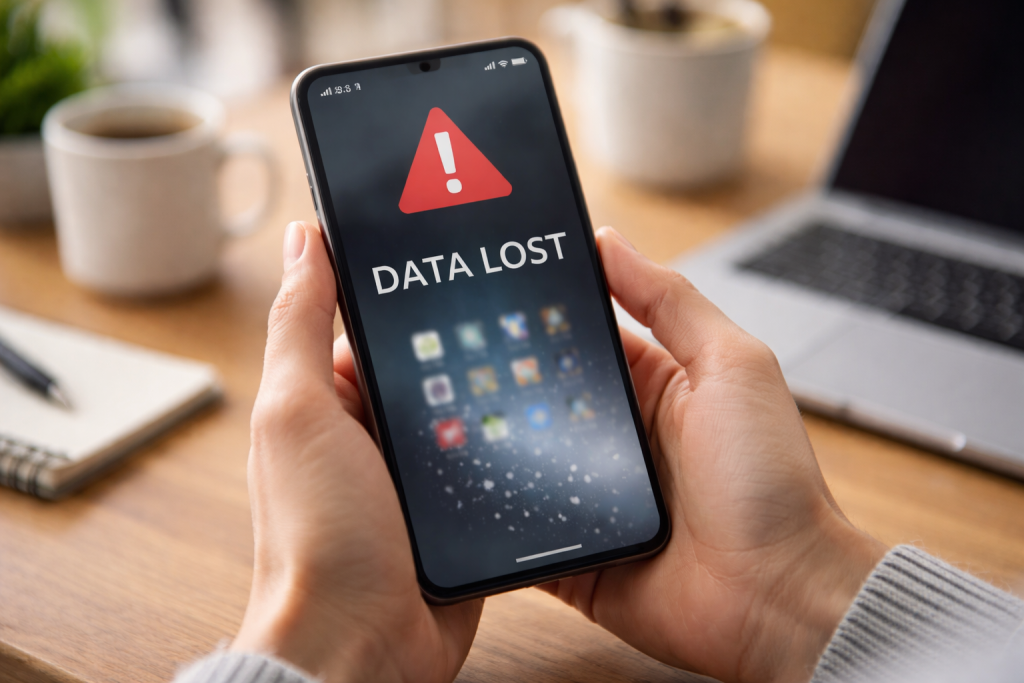
Neglecting to back up your phone data is akin to walking a tightrope without a safety net. The potential for catastrophic data loss looms large, with consequences that range from minor inconveniences to profound disasters. Every day, countless individuals experience the heartbreak of losing years of cherished memories or crucial work files simply because they failed to establish a proper backup routine.
Contents
- 0.1 Understanding the Risks of Not Backing Up Your Phone
- 0.2 How to Backup Your Phone Data Using Built-in Features
- 0.3 Exploring the Best Backup Apps for Your Phone
- 0.4 Tips for Creating a Foolproof Backup Strategy
- 0.5 The Difference Between Cloud and Local Phone Data Backup
- 0.6 How to Safely Transfer Your Phone Data to a New Device
- 0.7 Common Mistakes to Avoid When Backing Up Your Phone
- 0.8 The Benefits of Automating Your Phone Data Backup Process
- 0.9 What to Do If You Lose Your Phone Data: Recovery Options and Best Practices
- 1 FAQs
- 1.1 What is the importance of regularly backing up your phone data?
- 1.2 What are the risks of not backing up your phone?
- 1.3 What are the differences between cloud and local phone data backup?
- 1.4 What are some common mistakes to avoid when backing up your phone?
- 1.5 What should you do if you lose your phone data? What are the recovery options and best practices?
- 1.6 About the Author
Understanding the Risks of Not Backing Up Your Phone
The threats to your phone data are numerous and varied. A seemingly minor drop can shatter a screen and render a device inoperable, making data extraction a costly and often unfeasible endeavor. Water damage, a common occurrence, can wreak havoc on internal components, leaving your phone permanently damaged. Theft is another ever-present danger, instantly severing your connection to all the information stored on your device. Furthermore, software glitches, corrupt updates, or even accidental deletions can lead to the disappearance of vital files. Without a backup, any of these scenarios could mean the permanent loss of everything stored on your phone – from your child’s first steps to an important client presentation. The emotional and practical toll of such a loss can be staggering, underscoring the absolute necessity of proactive data protection.
Fortunately, backing up your phone data doesn’t require a degree in computer science. Modern smartphones come equipped with intuitive built-in features, and a plethora of third-party applications offer even more comprehensive solutions.
How to Backup Your Phone Data Using Built-in Features
Both iOS and Android operating systems provide robust, user-friendly backup options. For iPhone users, iCloud backup is the primary method. When enabled, your iPhone automatically backs up most of your data – including photos, videos, app data, device settings, and purchase history – to Apple’s cloud servers whenever it’s connected to Wi-Fi, plugged into power, and locked. Alternatively, users can opt for iTunes (or Finder on macOS Catalina and later) to create local backups on their computer, offering a complete snapshot of their device.
Android devices similarly offer Google Drive backup. This feature automatically backs up app data, call history, contacts, device settings, and SMS messages to your Google Drive account. For photos and videos, Google Photos provides unlimited (albeit sometimes compressed) storage, seamlessly syncing your visual memories to the cloud. Many Android manufacturers also offer their own proprietary backup solutions, such as Samsung Cloud, which provides additional backup capabilities for specific Samsung device features. Utilizing these built-in options is the first and most critical step towards a secure data strategy.
Exploring the Best Backup Apps for Your Phone
While built-in features are excellent starting points, dedicated backup applications often offer enhanced control, more granular options, and cross-platform compatibility. Services like Dropbox, OneDrive, and Amazon Photos primarily focus on file and photo storage, offering seamless syncing and easy access across multiple devices. For a more comprehensive device backup, apps like G Cloud Backup (for Android) and other specialized tools can back up nearly every aspect of your phone, including contacts, messages, call logs, and even system settings, to their cloud servers. Choosing the right app depends on your specific needs, storage requirements, and budget. Many offer free tiers with limited storage, with paid subscriptions unlocking expanded capacity and advanced features. Researching and selecting a reputable app that aligns with your data protection goals is a worthwhile investment.
A truly effective backup strategy goes beyond simply enabling a single backup option. It involves a thoughtful combination of approaches, regular checks, and an understanding of the different types of backup available.
Tips for Creating a Foolproof Backup Strategy
The foundation of a robust backup strategy lies in redundancy. The “3-2-1 rule” is often cited as the gold standard: keep at least three copies of your data, store them on at least two different types of media, and keep at least one copy offsite. For phone data, this might translate to having a cloud backup (iCloud/Google Drive), a local backup on your computer (iTunes/Finder), and perhaps regularly copying particularly important files to an external hard drive. Automate backups whenever possible to ensure consistency and minimize human error. Regularly verify your backups by attempting to restore a small file or even performing a test restore to an old device if available. This crucial step confirms that your backups are viable and not corrupted. Furthermore, establish a schedule for reviewing and updating your backup strategy as your data usage and storage needs evolve.
The Difference Between Cloud and Local Phone Data Backup
Understanding the distinction between cloud and local backups is crucial for a comprehensive strategy. Cloud backup involves storing your data on remote servers managed by a third-party provider (e.g., Apple, Google, Dropbox). Its primary advantages are convenience, accessibility from anywhere with an internet connection, and protection against local disasters like theft or fire. However, it relies on an internet connection, and privacy concerns regarding data stored on third-party servers are sometimes raised. Local backup, conversely, involves storing data directly on a physical device you own, such as your computer or an external hard drive. This offers greater control over your data, faster restoration times (without internet speed limitations), and is not reliant on third-party services. The downside is the vulnerability to local disasters and the need for manual initiation in many cases. The most effective strategy often combines both, leveraging the strengths of each method to create layers of protection.
How to Safely Transfer Your Phone Data to a New Device
Upgrading to a new phone is an exciting prospect, but the data migration process can be daunting without a proper backup in place. Both iOS and Android offer streamlined solutions for transferring data. For iPhones, restoring from an iCloud or iTunes backup is straightforward. During the initial setup of a new iPhone, you’ll be prompted to restore from a backup, and all your apps, data, and settings will be seamlessly transferred. Android devices simplify this through Google’s “Tap & Go” or “Restore from Android backup” options during setup, allowing you to quickly transfer app data, settings, and other information linked to your Google account. Manufacturers also provide their own transfer tools, such as Samsung Smart Switch, which can transfer even more comprehensive data, including custom layouts and unique Samsung features. Always ensure your old phone has a recent, complete backup before initiating a transfer to a new device.
Even with the best backup strategy, unforeseen circumstances can arise. Being prepared for data loss and understanding recovery options is the ultimate safeguard.
Common Mistakes to Avoid When Backing Up Your Phone
Several common pitfalls can undermine even the most well-intentioned backup efforts. One major mistake is failing to verify backups. A backup that can’t be restored is as good as no backup at all. Another error is relying solely on a single backup method; diversification is key. Neglecting to back up all important data, often overlooking less obvious files like specific app data or encrypted notes, is also a frequent oversight. Furthermore, not backing up regularly, especially after significant changes or additions to your phone’s content, leaves you vulnerable. Finally, ignoring the security of your backup – using weak passwords for cloud accounts or leaving unencrypted local backups vulnerable – can compromise your data’s integrity and privacy.
The Benefits of Automating Your Phone Data Backup Process
Automation is the cornerstone of an effortless and reliable backup strategy. When backups are automated, human error and forgetfulness are virtually eliminated. You set it up once, and your phone quietly and consistently protects your data in the background. This ensures that you always have an up-to-date copy of your information, reflecting your most recent changes and additions. Automated cloud backups, in particular, offer peace of mind, knowing that even if your device is stolen or lost unexpectedly, your essential data is safe and accessible from another device. It frees you from the burden of remembering to perform manual backups, allowing you to focus on using your phone rather than worrying about its data.
What to Do If You Lose Your Phone Data: Recovery Options and Best Practices
Despite all precautions, data loss can still occur. If you find yourself in this unfortunate situation, panic is your worst enemy. First, remain calm and immediately stop using the device if it’s functional, as continued use can overwrite recoverable data. Your initial step should be to attempt to restore from your most recent cloud or local backup. This is precisely why having a robust backup strategy is paramount. If you don’t have a backup, or if the backup is incomplete, specialized data recovery software might be an option, though success is not guaranteed, and it can be a complex process. For severely damaged devices, professional data recovery services exist, but they are often expensive and can take time. In instances of theft or loss, enable any remote wipe or lock features your device or service provider offers to protect your private information. The best practice, above all, is to have multiple, verified backups, making a swift and complete recovery a highly probable outcome rather than a desperate hope.
FAQs
What is the importance of regularly backing up your phone data?
Regularly backing up your phone data is crucial because it ensures that you don’t lose important information in case your phone is lost, stolen, or damaged. It also provides a safety net in case of software malfunctions or accidental deletion of data.
What are the risks of not backing up your phone?
Not backing up your phone data puts you at risk of losing valuable photos, videos, contacts, messages, and other important information. If your phone is lost, stolen, or damaged, you may not be able to recover this data without a backup.
What are the differences between cloud and local phone data backup?
Cloud backup stores your data on remote servers, allowing you to access it from anywhere with an internet connection. Local backup, on the other hand, stores your data on a physical device such as a computer or external hard drive, providing a more hands-on approach to data storage.
What are some common mistakes to avoid when backing up your phone?
Common mistakes to avoid when backing up your phone include not backing up regularly, relying solely on one backup method, not verifying the integrity of your backups, and not encrypting sensitive data.
What should you do if you lose your phone data? What are the recovery options and best practices?
If you lose your phone data, you can attempt to recover it using a backup. Recovery options include restoring from a cloud backup, restoring from a local backup, or using data recovery software. Best practices include acting quickly to prevent overwriting the lost data and seeking professional help if needed.

About the Author
Maya Ali is the founder of ByteSolving with experience in technology and digital solutions. His mission is to make technology easier to understand and help people solve everyday tech problems in a simple and practical way.