
Unleash the Power of Your PC: Top Strategies for Peak Performance
In today’s technologically driven world, your personal computer is more than just a device; it’s a gateway to information, creativity, and entertainment. However, many users only scratch the surface of their PC’s true capabilities, often experiencing sluggish performance that hinders productivity and enjoyment. This comprehensive guide aims to empower you with the knowledge and strategies to unlock your PC’s full potential, transforming it from a hesitant tool into a high-octane powerhouse. We’ll spend time understanding its inherent capabilities, the art of optimization, essential maintenance routines, and sophisticated techniques to ensure your machine consistently operates at its peak.
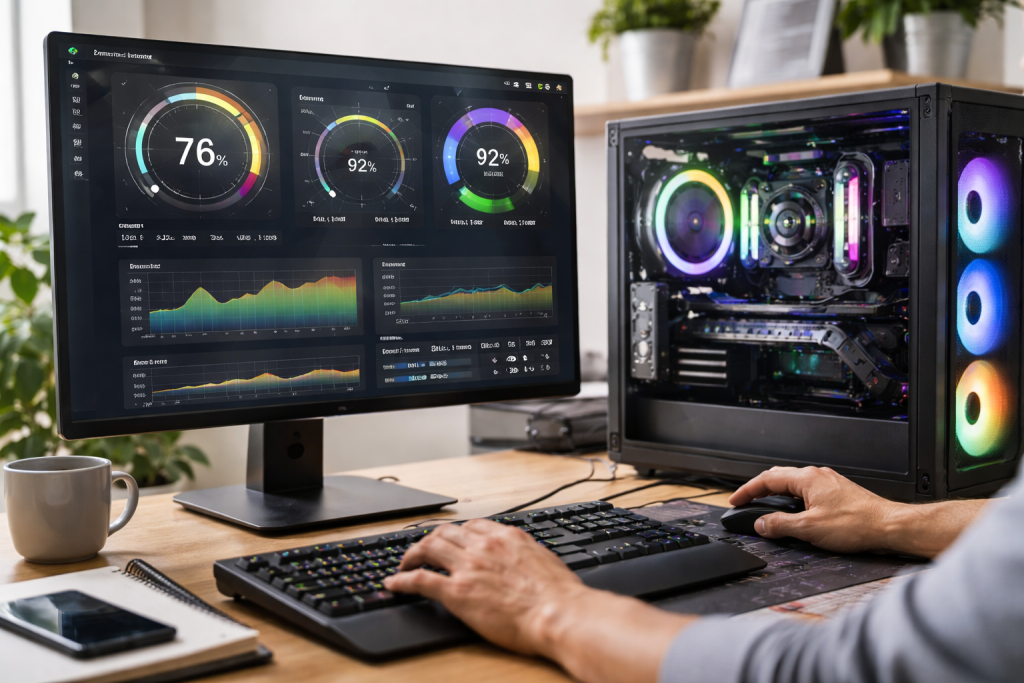
Before we embark on the journey of optimization, it’s crucial to grasp what your PC is currently capable of. This involves understanding the fundamental components that contribute to its overall performance. When you bought your computer, it came with a specific set of hardware designed for certain tasks. Recognizing these specifications is the first step in understanding where its strengths lie and where there might be limitations.
Contents
- 0.1 Identifying Your Hardware Specifications
- 0.2 Recognizing Software Dependencies
- 0.3 Benchmarking Your Current Performance
- 0.4 Cleaning Up Your Digital Environment
- 0.5 Managing Startup Programs
- 0.6 Streamlining System Services
- 0.7 Keeping Your Operating System Up-to-Date
- 0.8 Updating Device Drivers
- 0.9 Regular Malware and Virus Scans
- 0.10 Slow Boot Times
- 0.11 Application Lag and Freezing
- 0.12 Overheating and Throttling
- 0.13 Multitasking Efficiency
- 0.14 Faster Project Completion
- 0.15 Overclocking Components (with caution)
- 0.16 Upgrading Key Components
- 0.17 Security Patches and Vulnerability Mitigation
- 0.18 Performance Enhancements Through Updates
- 0.19 Strategic Upgrades for Long-Term Value
- 0.20 Graphics Settings Optimization
- 0.21 Audio and Video Codec Configuration
- 0.22 Dedicated Gaming and Multimedia Modes
- 0.23 Monitoring System Resources
- 0.24 Identifying Specific Culprits
- 0.25 Network Performance Issues
- 0.26 Strategic Component Selection
- 0.27 Maintaining a Clean and Efficient Software Environment
- 0.28 Embracing Emerging Technologies
- 1 FAQs
- 1.1 1. What are some essential maintenance tips for optimizing PC performance?
- 1.2 2. How can I overcome common performance issues with my PC?
- 1.3 3. What are some advanced strategies for enhancing PC performance?
- 1.4 4. Why are regular updates and upgrades important for PC performance?
- 1.5 5. How can I streamline my PC for gaming and multimedia purposes?
- 1.6 About the Author
Identifying Your Hardware Specifications
The core of your PC’s performance is determined by its hardware. This includes the central processing unit (CPU), the brain of your computer responsible for executing instructions; the random-access memory (RAM), which acts as a temporary workspace for actively running programs; the storage drive, where your operating system, applications, and files reside; and the graphics processing unit (GPU), essential for visual output, especially in gaming and demanding creative applications. Knowing the parts’ make and model gives you a baseline for your PC’s potential and limitations. You can typically find this information within your operating system’s system information utility.
Recognizing Software Dependencies
Beyond hardware, the software installed on your PC plays a pivotal role in its performance. The operating system itself, along with drivers, background applications, and the software you actively use, all contribute to how smoothly your machine runs. A bloated operating system with excessive startup programs or outdated drivers can significantly drag down performance, even on a powerful machine. Awareness of these software dependencies is key to identifying potential performance bottlenecks.
Benchmarking Your Current Performance
To truly understand your PC’s potential, it’s beneficial to establish a baseline. Benchmarking involves using specialized software to test various aspects of your PC’s performance, such as its processing speed, graphics capabilities, and storage read/write speeds. This provides objective data that you can compare against industry averages or your own previous results after implementing optimizations. It allows you to see tangible improvements and identify specific areas that need the most attention.
Once you have a clear understanding of your PC’s current capabilities, the next step is to fine-tune its settings and software to achieve optimal performance. This is an ongoing process that involves a combination of system tweaks and intelligent software management.
Cleaning Up Your Digital Environment
A cluttered digital space can lead to a sluggish PC. This involves more than just emptying the Recycle Bin. Temporary files, program caches, and browser history can accumulate over time, consuming valuable disk space and potentially slowing down system operations. Regularly clearing these out can significantly improve responsiveness.
Disk Cleanup Utilities
Modern operating systems come equipped with built-in disk cleanup tools that can effectively identify and remove unnecessary files. Utilizing these regularly is a simple yet effective way to free up resources.
Uninstalling Unused Programs
Every program you install, even if not actively running, can consume resources in the background. Regularly reviewing and uninstalling applications you no longer use is a fundamental step in reducing system load.
Managing Startup Programs
Many applications are configured to launch automatically when your PC boots up. While some are necessary, a large number of startup programs can significantly increase boot times and consume valuable RAM from the moment your system is ready. Identifying and disabling non-essential startup programs is a powerful optimization.
Startup Manager Tools
Your operating system provides tools to manage which applications launch at startup. Carefully reviewing this list and disabling anything that doesn’t require immediate access upon booting can make a noticeable difference.
Streamlining System Services
Windows and other operating systems run numerous background services that facilitate various functions. While essential for many operations, some services might be unnecessary for your specific usage patterns and can be disabled to conserve resources.
Understanding Service Dependencies
It’s critical to understand the purpose of each service before disabling it. Incorrectly disabling a vital service can lead to system instability. It’s always advisable to research a service’s function before making any changes.
Regular maintenance is the bedrock of sustained PC performance. Neglecting these fundamental practices is akin to driving a car without oil changes; eventually, serious problems will arise. Proactive care ensures your PC runs smoothly and extends its lifespan.
Keeping Your Operating System Up-to-Date
Operating system updates are not just about new features; they are crucial for security and performance. Microsoft and other OS developers release patches that address bugs, improve efficiency, and patch security vulnerabilities.
Automatic Updates
Enabling automatic updates ensures you receive these benefits without manual intervention. While it’s wise to briefly review major update notes, most users benefit the most from a consistent, automatic application.
Manual Checks
Occasionally, it’s a good practice to manually check for updates to ensure your system is completely current, especially if automatic updates have been temporarily disabled or encountered issues.
Updating Device Drivers
Device drivers are the software that allows your operating system to communicate with your hardware. Outdated or corrupted drivers can lead to performance issues, instability, and even hardware malfunctions.
Graphics Driver Updates
For gamers and multimedia enthusiasts, keeping graphics drivers updated from manufacturers like NVIDIA, AMD, or Intel is paramount for optimal visual performance and stability.
Other Hardware Drivers
Don’t forget drivers for your motherboard, network card, audio devices, and other peripherals. Manufacturers frequently release updates that can improve performance and compatibility.
Regular Malware and Virus Scans
Malware and viruses are not only a security threat but also significant performance drains. They can consume system resources, hijack processes, and cause system instability.
Antivirus Software
Installing a reputable antivirus program and keeping it updated with the latest threat definitions is crucial.
Scheduled Scans
Configure your antivirus software to perform regular, full system scans during times when your PC is not in active use to catch any lurking threats.
Even with regular maintenance, you might encounter common performance hiccups. These often have straightforward solutions that can bring your PC back to its agile self.
Slow Boot Times
This is a prevalent issue. As mentioned earlier, an excessive number of startup programs is a primary culprit. However, storage drive performance also plays a significant role; a slow hard drive can dramatically increase boot times.
Defragmenting Your Hard Drive (if applicable)
For traditional Hard Disk Drives (HDDs), files can become fragmented over time, meaning parts of a single file are scattered across the disk. Defragmentation reorganizes these fragments, allowing for faster data retrieval. Keep in mind that defragmentation is neither necessary nor beneficial for solid-state drives (SSDs).
SSD Optimization
If you have an SSD, ensure TRIM is enabled, which is an OS-level command that helps maintain SSD performance over time.
Application Lag and Freezing
When applications become unresponsive, it can be frustrating. This often points to insufficient resources, either RAM or CPU power, being available for the application.
Closing Unnecessary Applications
The simplest fix is often to close any other applications you’re not actively using. This frees up RAM and CPU cycles for the application that is causing the problem.
Checking for Application Updates
Sometimes, an application itself is experiencing a bug that causes it to lag or freeze. Ensuring you have the latest version of the software can resolve these issues.
Overheating and Throttling
When your PC’s components (especially the CPU and GPU) get too hot, they automatically reduce their performance to prevent damage. This is known as thermal throttling.
Cleaning Dust from Fans and Vents
Accumulated dust is a major insulator and impediment to airflow. Regularly cleaning out dust from your PC’s interior, especially from fans and heatsinks, is critical.
Ensuring Proper Airflow
Make sure your PC has adequate space around it for ventilation. Avoid placing it in confined, enclosed spaces.
A high-performing PC isn’t just about gaming or entertainment; it’s a crucial tool for boosting your productivity in all aspects of life and work. By optimizing your machine, you can streamline workflows, reduce waiting times, and accomplish more in less time.
Multitasking Efficiency
With sufficient RAM and a capable CPU, you can seamlessly switch between multiple applications without experiencing significant slowdowns. This is invaluable for professionals who juggle emails, documents, spreadsheets, and communication tools simultaneously.
Strategic Application Usage
Understanding which applications are resource-intensive and managing them accordingly, perhaps by closing less-used ones when working on a demanding task, can significantly improve your multitasking experience.
Leveraging Virtual Desktops
Modern operating systems offer virtual desktop functionality. This allows you to organize your open applications into separate, distinct workspaces, reducing visual clutter and improving focus.
Faster Project Completion
Whether you’re a writer, programmer, designer, or student, a faster PC means less time spent waiting for tasks to complete. This could be as simple as faster file saves, quicker rendering times for creative projects, or more responsive code compilation.
Optimized Software Configurations
You can tweak many productivity applications’ settings to improve performance, like disabling certain visual effects or optimizing rendering pipelines.
Understanding Workflow Bottlenecks
By observing where your PC seems to struggle during your typical workflows, you can identify specific areas where optimization efforts will yield the greatest productivity gains.
Once you’ve mastered the basics, a few more advanced techniques can push your PC’s performance even further, particularly for demanding tasks or for users who want to extract every ounce of power.
Overclocking Components (with caution)
Overclocking involves increasing the clock speed of your CPU or GPU beyond their manufacturer-rated specifications. This can yield a significant performance boost, but it comes with risks.
Understanding Thermal Limits
Overclocking generates more heat. It’s crucial to have adequate cooling solutions (better fans, liquid cooling) and to monitor temperatures rigorously to avoid damaging your hardware.
Stability Testing
After overclocking, thorough stability testing is essential. Running demanding benchmarks and applications for extended periods will reveal any instabilities introduced by the increased clock speeds.
Upgrading Key Components
Sometimes, the most effective way to enhance performance is to physically upgrade hardware. Identifying which component is the primary bottleneck can guide your upgrade choices.
RAM Upgrades
If you frequently find yourself running out of memory, increasing your RAM capacity can drastically improve multitasking and the ability to run memory-intensive applications.
Storage Drive Upgrades to SSDs
Migrating from a traditional HDD to a Solid State Drive (SSD) is one of the most impactful upgrades you can make for overall system responsiveness, boot times, and application loading.
Graphics Card Upgrades
For gaming and professional creative applications, a more powerful GPU is often the key to unlocking higher frame rates, better visual fidelity, and faster rendering.
In the ever-evolving landscape of technology, staying current is not just about possessing the latest gadgets; it’s about maintaining optimal performance and security. Regular updates and timely upgrades are integral to this ongoing process.
Security Patches and Vulnerability Mitigation
Software developers continuously work to identify and patch security vulnerabilities within their products. Your PC becomes vulnerable to malware, data theft, and other cyber threats if you fail to apply these updates.
Operating System Security
Your operating system is the foundation of your digital security. Keeping it updated with the latest security patches is paramount.
Application Security
Updates address the security vulnerabilities of many common applications, including web browsers and productivity suites.
Performance Enhancements Through Updates
Beyond security, updates often include performance optimizations. Developers find new ways to make their software more efficient, leading to faster execution and reduced resource consumption.
Driver Optimizations
As mentioned, driver updates are crucial. They often include performance tweaks that allow your hardware to function more efficiently with the latest software and operating system versions.
Software Efficiency Improvements
Even small updates to applications can sometimes lead to noticeable performance gains due to refined algorithms or better resource management.
Strategic Upgrades for Long-Term Value
While updates are about incremental improvements, upgrades are about significant leaps in capability. Planning for strategic hardware upgrades ensures your PC remains relevant and powerful for years to come.
Identifying Performance Bottlenecks for Upgrades
Before upgrading, it’s vital to understand which component is currently limiting your PC’s performance. A bottleneck is the slowest component in a system, dictating the overall speed.
Future-Proofing Considerations
When considering upgrades, think about future software demands and emerging technologies. Investing in slightly more powerful components than you currently need can extend the useful life of your PC.
For gamers and multimedia enthusiasts, a PC’s performance is paramount. Lagging frames, stuttering video playback, and long loading times can detract significantly from the experience. Streamlining your machine for these purposes requires focused optimization.
Graphics Settings Optimization
The graphics settings within games and multimedia applications have a direct impact on performance. Finding the right balance between visual fidelity and frame rate is key.
In-Game Graphics Settings
Many games offer a plethora of graphics options. Experimenting with settings like texture quality, anti-aliasing, and shadows can significantly impact performance.
Display Refresh Rate Synchronization
Ensuring your display’s refresh rate is synchronized with your PC’s output, using technologies like V-Sync or adaptive sync (G-Sync/FreeSync), can prevent screen tearing and provide a smoother visual experience.
Audio and Video Codec Configuration
For multimedia playback and creation, efficient handling of audio and video codecs is essential.
Codec Packs and Software Updates
Ensuring you have appropriate codec packs installed and that your media player software is up-to-date can prevent playback issues and improve rendering performance.
Hardware Acceleration
Many multimedia applications can leverage your GPU for hardware acceleration, speeding up video decoding and encoding processes. Ensure this feature is enabled in your software settings.
Dedicated Gaming and Multimedia Modes
Some operating systems and third-party utilities offer specialized modes designed to prioritize resources for gaming or multimedia tasks.
Game Mode Features
Windows 10 and 11 include a “Game Mode” that aims to optimize system resources by pausing background updates and notifications when you launch a game.
Resource Prioritization Tools
Third-party software can sometimes offer more granular control over resource allocation, allowing you to explicitly prioritize your gaming or media applications.
Despite your best efforts, you might occasionally encounter performance bottlenecks that require detailed troubleshooting. Identifying the root cause is the first step to a lasting solution.
Monitoring System Resources
Understanding the real-time utilization of your CPU, RAM, and disk is crucial for diagnosing issues.
Task Manager and Resource Monitor
These built-in operating system utilities offer priceless information regarding which processes are consuming the most resources.
Performance Monitoring Tools
More advanced tools offer detailed historical data and more sophisticated analysis of system performance.
Identifying Specific Culprits
Once you see high resource usage, you need to pinpoint the exact application or process causing the problem.
Process Analysis
By examining the list of running processes in Task Manager, you can often identify rogue applications or excessive background activity.
Event Viewer Logs
The Event Viewer in Windows logs system and application errors. These logs can sometimes provide clues about the underlying cause of performance issues.
Network Performance Issues
If your problems appear specifically when using the internet or networked applications, the bottleneck might lie in your network connection.
Speed Tests and Network Diagnostics
Running internet speed tests and using network diagnostic tools can help identify issues with your modem, router, or internet service provider.
Wi-Fi vs. Ethernet
For critical tasks, especially gaming and streaming, a wired Ethernet connection is generally more stable and faster than Wi-Fi.
Investing in a PC is an investment in your digital future. By adopting a forward-thinking approach to its maintenance and potential upgrades, you can ensure it remains a powerful and capable tool for years to come.
Strategic Component Selection
When initially purchasing or upgrading your PC, making informed choices about components that offer a good balance of current performance and future potential is key.
Considering Future Software Demands
Think about the types of software you anticipate using in the coming years. Increasingly demanding applications will require more powerful hardware.
The Value of Expandability
Choosing a motherboard with sufficient RAM slots and PCIe slots, and a case with good internal space, allows for easier and more cost-effective upgrades down the line.
Maintaining a Clean and Efficient Software Environment
A well-maintained software ecosystem reduces the likelihood of performance degradation over time.
Regular Software Audits
Periodically reviewing installed software, removing bloatware, and keeping essential applications updated will prevent accumulating unnecessary digital clutter.
Considering Operating System Reinstallation
While a last resort, a clean installation of your operating system can often resolve deep-seated performance issues and provide a fresh start, effectively future-proofing your software environment.
Embracing Emerging Technologies
Staying aware of new technological advancements can help you make informed decisions about future upgrades and ensure your PC remains compatible with evolving standards.
New Storage Technologies
As faster storage solutions emerge, being ready to incorporate them can provide a significant boost to overall system responsiveness.
Advancements in Connectivity
Keeping abreast of evolving standards in networking and peripheral connectivity can ensure your PC remains integrated and efficient with future devices. By actively understanding, optimizing, maintaining, and strategically upgrading your PC, you empower yourself to harness its full computational might, ensuring a smooth, efficient, and rewarding digital experience for years to come.
FAQs
1. What are some essential maintenance tips for optimizing PC performance?
Regularly clean out dust and debris from the PC, update software and drivers, run antivirus scans, and manage startup programs to improve performance.
2. How can I overcome common performance issues with my PC?
You can resolve common performance issues by checking for malware, freeing up disk space, updating software, and managing background processes.
3. What are some advanced strategies for enhancing PC performance?
Advanced strategies include upgrading hardware components, optimizing system settings, using performance monitoring tools, and implementing cooling solutions.
4. Why are regular updates and upgrades important for PC performance?
Regular updates and upgrades are important to ensure that the PC’s software and hardware are up to date, secure, and capable of handling new applications and tasks.
5. How can I streamline my PC for gaming and multimedia purposes?
To optimize a PC for gaming and multimedia, users can upgrade hardware components, optimize graphics settings, manage background processes, and use specialized software for performance enhancement.

About the Author
Maya Ali is the founder of ByteSolving with experience in technology and digital solutions. His mission is to make technology easier to understand and help people solve everyday tech problems in a simple and practical way.