
The Ultimate Guide to Preventing Laptop Overheating: Tips and Tricks
Laptop overheating is a common and frustrating problem that can lead to performance degradation, system instability, and even permanent hardware damage. Understanding why your laptop gets hot and how to prevent it is crucial for its longevity and your computing experience. This comprehensive guide will equip you with the knowledge and practical solutions to keep your laptop running cool and efficiently.
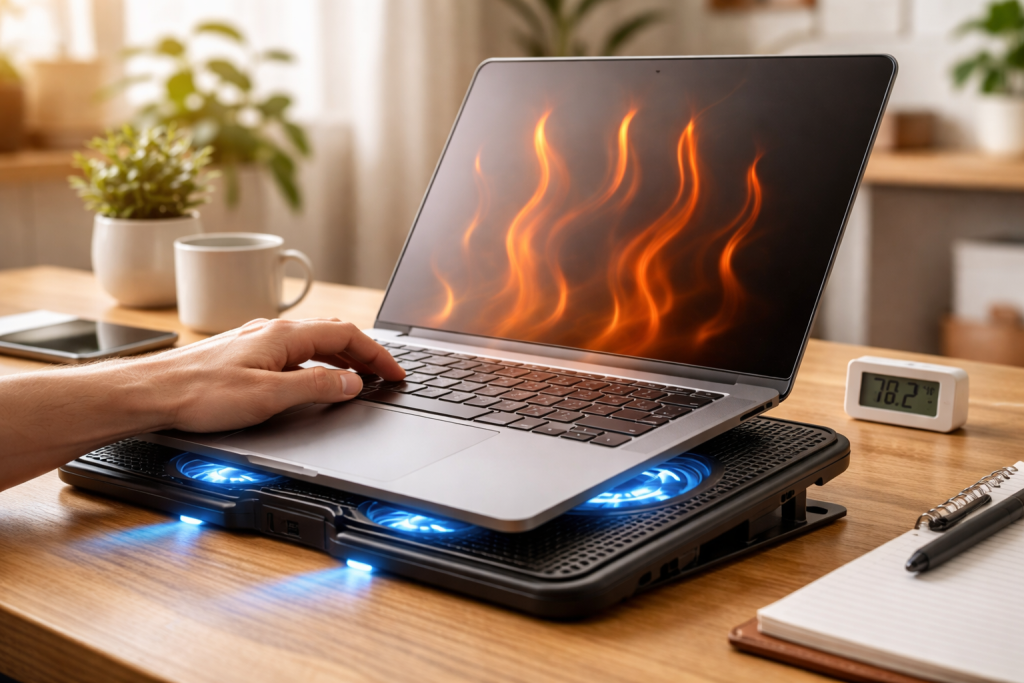
At its core, laptop overheating occurs when the heat generated by the internal components, primarily the CPU and GPU, exceeds the system’s capacity to dissipate it. Several factors contribute to this heat buildup, ranging from internal design limitations to external environmental influences and user habits.
Contents
- 0.1 The Heat-Generating Components: CPU and GPU
- 0.2 The Crucial Role of the Cooling System
- 0.3 Environmental Factors and External Heat Sources
- 0.4 How Airflow Serves the Cooling Mechanism
- 0.5 The Impact of Obstructed Vents
- 0.6 Gentle Cleaning Techniques for Fans and Vents
- 0.7 Deep Cleaning: When to Consider Professional Help
- 0.8 Understanding the Different Types of Cooling Pads
- 0.9 Factors to Consider When Purchasing
- 0.10 Optimizing Your Operating System and Drivers
- 0.11 Minimizing Background Processes and Resource-Intensive Applications
- 0.12 The Role of Thermal Throttling
- 0.13 Avoiding Direct Sunlight and Other Heat Sources
- 0.14 Elevated Surfaces for Better Airflow
- 0.15 Using Built-in System Monitoring Tools
- 0.16 Recommended Third-Party Software for Temperature Monitoring
- 0.17 The Importance of Clear Air Intake and Exhaust
- 0.18 Utilizing Laptop Stands and Risers
- 0.19 Performance Degradation and Lag
- 0.20 Unusual Fan Behavior
- 0.21 Unexpected Shutdowns and Freezing
- 0.22 Hot to the Touch
- 0.23 Cleaning Out Dust and Debris
- 0.24 Checking Software for Resource Hogs
- 0.25 Updating Drivers and BIOS
- 0.26 Verifying Thermal Paste Integrity
- 0.27 Testing and Replacing Faulty Fans
- 1 FAQs
- 1.1 1. What are the common causes of laptop overheating?
- 1.2 2. How can I properly clean and maintain my laptop’s cooling system to prevent overheating?
- 1.3 3. What are the best practices for using my laptop in hot environments to prevent overheating?
- 1.4 4. How can I monitor and control my laptop’s temperature to prevent overheating?
- 1.5 5. What are the signs and symptoms of laptop overheating, and how can I troubleshoot common laptop overheating issues?
- 1.6 About the Author
The Heat-Generating Components: CPU and GPU
The central processing unit (CPU) and the graphics processing unit (GPU) are the workhorses of any laptop. They perform complex calculations and render graphics, respectively, tasks that inherently generate significant amounts of heat. The more demanding the workload—be it gaming, video editing, or running multiple applications simultaneously—the harder these components work, and consequently, the more heat they produce.
The Crucial Role of the Cooling System
Laptops are designed with sophisticated cooling systems to manage this heat. These systems typically consist of heatsinks, heat pipes, and fans. Heatsinks are metal components with fins that absorb heat from the CPU and GPU. Heat pipes then efficiently transfer this heat away from the components to the heatsink. Finally, fans draw cool air from the outside, push it across the heatsink fins, and exhaust the hot air out of the laptop’s chassis. Any compromise in this system will inevitably lead to heat accumulation.
Environmental Factors and External Heat Sources
The environment in which you use your laptop plays a significant role in its temperature. When the ambient temperature is high, the fans draw in warm air, which reduces their effectiveness in cooling the internal components. Direct sunlight is another culprit, directly heating the laptop’s surfaces and exacerbating internal heat. Even placing your laptop on soft surfaces like a bed or a couch can obstruct the air intake vents, severely hindering airflow.
Ventilation is the lifeblood of your laptop’s cooling system. Without adequate airflow, the heat generated internally has nowhere to go, leading to a rapid increase in temperature. This is why the design and maintenance of your laptop’s ventilation pathways are paramount.
How Airflow Serves the Cooling Mechanism
The fans within your laptop are designed to create a constant flow of air. Cool air is drawn in through strategically placed intake vents, typically located on the bottom or sides of the laptop. This cool air then flows over the heatsinks, absorbing the heat from the CPU and GPU. Finally, this heated air is expelled through exhaust vents, usually found at the back or sides of the laptop, preventing it from recirculating and contributing to a less efficient cooling process. A blockage in these pathways means the system cannot effectively perform its primary function.
The Impact of Obstructed Vents
Blocking intake or exhaust vents halts the entire cooling process. Imagine trying to breathe with your nose and mouth covered—it becomes incredibly difficult. Similarly, a laptop with obstructed vents struggles to draw in cool air and expel hot air. The result leads to a dramatic rise in internal temperatures, pushing components beyond their optimal operating ranges. Users may see a sudden drop in performance, the fans running all the time at full speed, or even the computer shutting down without warning.
Dust accumulation silently destroys laptop cooling systems. Over time, dust particles get drawn into the vents and settle on the heatsinks, fans, and other internal components, acting as an insulator and significantly reducing the system’s efficiency. Regular cleaning is not a luxury; it’s a necessity.
Gentle Cleaning Techniques for Fans and Vents
The most accessible and effective way to clean your laptop’s cooling system is by using compressed air. Ensure your laptop is turned off and unplugged. Hold the can of compressed air upright and use short, controlled bursts to blow dust out of the intake and exhaust vents. For stubborn dust, you can gently use a soft brush or a cotton swab, but be extremely careful not to damage any delicate components. Avoid using a vacuum cleaner directly on the vents, as the static electricity generated can harm your laptop’s internal parts.
Deep Cleaning: When to Consider Professional Help
If your laptop is several years old and you’ve never cleaned the cooling system, or if you’re uncomfortable opening your laptop, a more thorough deep cleaning might be necessary. This involves disassembling the laptop to get direct access to the fans, heatsinks, and the thermal paste applied between the CPU/GPU and the heatsink. Thermal paste degrades over time and loses its effectiveness. Replacing it is a crucial step in maintaining optimal cooling. If you lack the experience for such a procedure, it’s highly recommended to take your laptop to a professional service center.
For users who consistently push their laptops to their limits or live in warmer climates, a laptop cooling pad can be an invaluable accessory. These external devices are designed to provide additional airflow and heat dissipation, helping to keep your laptop’s internal temperatures in check.
Understanding the Different Types of Cooling Pads
Cooling pads come in various designs. Some feature passive cooling, relying on heat-conductive materials to draw heat away from the laptop. Others employ active cooling, incorporating one or more fans to blow cool air onto the underside of the laptop. The effectiveness of a cooling pad largely depends on the placement of its fans relative to your laptop’s intake vents and the overall airflow it generates.
Factors to Consider When Purchasing
When selecting a cooling pad, consider the size and weight distribution of your laptop to ensure a stable fit. Look for pads with adjustable fan speeds, allowing you to customize the cooling intensity based on your needs. The noise level of the fans is also an important consideration, especially if you work in a quiet environment. Finally, check the power source—most cooling pads are powered via USB, so ensure your laptop has available USB ports.
Beyond physical maintenance, software and hardware configurations play a significant role in preventing your laptop from overheating. Optimizing settings and being mindful of resource usage can make a substantial difference.
Optimizing Your Operating System and Drivers
Outdated drivers, especially for the graphics card and chipset, can sometimes lead to inefficient hardware operation and increased heat generation. Regularly updating your operating system and all device drivers is a proactive measure. Furthermore, adjusting power management settings in your operating system can help. For instance, selecting a “balanced” or “power saver” plan when high performance isn’t required can reduce the workload on your CPU and GPU.
Minimizing Background Processes and Resource-Intensive Applications
Many applications continue to run in the background even when you’re not actively using them, consuming system resources and generating heat. Regularly review your running processes and close any unnecessary applications. Be particularly mindful of resource-intensive software, such as video editing suites, games, and virtual machines, and close them when not actively in use. You can adjust the in-game graphics settings in some games to lessen the strain on your GPU.
The Role of Thermal Throttling
Modern laptops are equipped with a built-in safety mechanism called thermal throttling. When components reach a critical temperature, the system automatically reduces their clock speed to lower heat production. While this process prevents immediate damage, it also results in a noticeable decrease in performance. Managing your laptop’s temperature proactively ensures you avoid hitting this throttling point as frequently.
Using your laptop in warm or hot conditions requires an extra layer of diligence to prevent overheating. These environments cause major problems for your laptop’s cooling system.
Avoiding Direct Sunlight and Other Heat Sources
Direct sunlight is a powerful source of heat. Always try to use your laptop in the shade or where it’s not exposed to direct sunbeams. Similarly, avoid placing your laptop near other heat-generating devices like radiators, space heaters, or even other electronics that are running hot.
Elevated Surfaces for Better Airflow
As mentioned earlier, using your laptop on a flat, solid surface is crucial for airflow. In hot environments, this becomes even more vital. If possible, use your laptop on a desk or table that allows for unobstructed air intake from the bottom. If you must use it on your lap, consider placing a thin book or a specialized laptop stand underneath to create a gap for air circulation.
Being aware of your laptop’s temperature is the first step in preventing overheating. Fortunately, several tools can help you monitor and, to some extent, control it.
Using Built-in System Monitoring Tools
Most operating systems offer basic system monitoring capabilities. For Windows, you can access the Task Manager to see CPU usage, which often correlates with heat generation. More detailed temperature monitoring often requires third-party software.
Recommended Third-Party Software for Temperature Monitoring
Numerous free and paid software applications are available to provide real-time temperature readings for your CPU, GPU, and other components. Popular options include HWMonitor, Core Temp, and Speccy. These tools often display a graph of temperature fluctuations, allowing you to identify patterns and potential problem areas over time. Some advanced software even allows for fan speed control, giving you direct influence over your cooling system.
The physical placement of your laptop is a surprisingly powerful tool in its cooling arsenal. Simple adjustments can significantly improve airflow and prevent heat buildup.
The Importance of Clear Air Intake and Exhaust
Always ensure that the vents on your laptop are unobstructed. This means avoiding placing your laptop on soft surfaces like beds, blankets, or carpets, which can easily block the intake vents located on the bottom. Similarly, make sure the exhaust vents are not pressed against a wall or other objects, which would prevent hot air from escaping.
Utilizing Laptop Stands and Risers
A laptop stand or riser is an excellent investment for anyone concerned about overheating. These devices elevate your laptop off the surface, creating a significant gap for air to circulate freely underneath. Some stands also come with built-in fans, further enhancing the cooling effect. Choosing a stand that allows for adjustable angles can also improve ergonomics.
Your laptop will often give you warning signs when it’s struggling with heat. Learning to recognize these symptoms can help you intervene before serious damage occurs.
Performance Degradation and Lag
One of the most common indicators of overheating is a noticeable slowdown in performance. Applications might take longer to open, tasks might become jerky, and your overall computing experience will feel sluggish. This is often the result of thermal throttling kicking in.
Unusual Fan Behavior
If your laptop’s fans are constantly running at their highest speed, even during light usage, it’s a strong sign of overheating. Conversely, if you notice your fans are unusually quiet or not spinning at all when they should be, this could indicate a fan failure or a severe blockage in the cooling system.
Unexpected Shutdowns and Freezing
The most severe symptom of overheating is when your laptop unexpectedly shuts down or freezes. This is a safety mechanism designed by the manufacturer to prevent permanent hardware damage. If such an event occurs frequently, it’s a critical warning that needs immediate attention.
Hot to the Touch
When your laptop’s chassis feels excessively hot to the touch, particularly around the vents or the area where the CPU/GPU is located, it’s a clear indication of heat buildup. While laptops do get warm during use, an uncomfortable level of heat is a cause for concern.
When your laptop starts to overheat, there are several common issues you can troubleshoot yourself before seeking professional help.
Cleaning Out Dust and Debris
As discussed extensively, dust is a primary culprit. A thorough cleaning of your laptop’s vents and internal fans with compressed air can often resolve overheating problems caused by clogged airflow.
Checking Software for Resource Hogs
Use your system’s task manager or a third-party monitoring tool to identify any applications that are consuming excessive CPU or GPU resources. Closing these applications can significantly reduce the heat load on your components.
Updating Drivers and BIOS
Outdated drivers and an outdated BIOS (Basic Input/Output System) can sometimes lead to inefficient hardware management and increased heat. Ensuring these are up-to-date can resolve performance and temperature-related issues.
Verifying Thermal Paste Integrity
If your laptop is older, the thermal paste between the CPU/GPU and the heatsink may have degraded. This requires opening the laptop and reapplying new thermal paste. If you are not comfortable with this procedure, seek professional assistance.
Testing and Replacing Faulty Fans
If you suspect your fan is not working correctly, you can often test it by listening for its operation and checking for any unusual noises or vibrations. If a fan appears to be faulty, it will need to be replaced.
By understanding the causes of overheating, implementing proper maintenance, and utilizing the right tools and practices, you can ensure your laptop remains cool, performs optimally, and enjoys a long and healthy lifespan.
FAQs
1. What are the common causes of laptop overheating?
2. How can I properly clean and maintain my laptop’s cooling system to prevent overheating?
3. What are the best practices for using my laptop in hot environments to prevent overheating?
4. How can I monitor and control my laptop’s temperature to prevent overheating?
5. What are the signs and symptoms of laptop overheating, and how can I troubleshoot common laptop overheating issues?

About the Author
Maya Ali is the founder of ByteSolving with experience in technology and digital solutions. His mission is to make technology easier to understand and help people solve everyday tech problems in a simple and practical way.