
Say Goodbye to Glitches: The Safe Way to Reset Windows Like a Pro
The digital world, with its intricate dance of code and hardware, is a marvel of modern engineering. Yet, even the most sophisticated systems aren’t immune to occasional hiccups. For Windows users, these glitches can range from minor annoyances to frustrating roadblocks that cripple productivity. Fortunately, there’s a powerful, albeit sometimes daunting, tool at our disposal: resetting Windows. This process, when approached with knowledge and care, can breathe new life into a sluggish or unstable operating system, effectively banishing those persistent gremlins. It’s not just about fixing what’s broken; it’s about reclaiming a smooth, efficient computing experience.
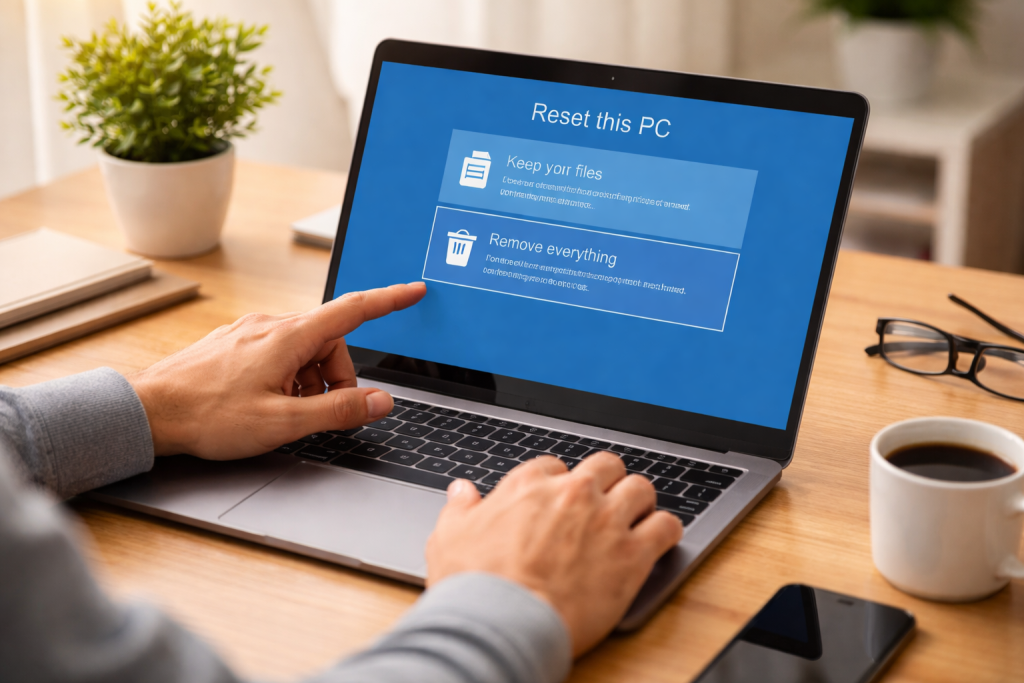
Resetting Windows is more than just a quick fix; it’s a comprehensive rejuvenation for your operating system. Consider it as a comprehensive rejuvenation of your operating system, albeit on a larger scale. This functionality, built into the Windows operating system, allows users to reinstall Windows while either keeping their personal files or removing everything to start fresh. The impact of a well-executed reset can be profound, addressing a wide spectrum of problems that plague everyday computer users.
Contents
- 0.1 Why Resetting Windows is Sometimes Necessary
- 0.2 Common Glitches and Issues That Warrant a Reset
- 0.3 The Grave Risk of Losing Your Precious Data
- 0.4 Other Potential Complications from a Poorly Executed Reset
- 0.5 The Unsung Hero: Backing Up Your Data Before the Reset
- 0.6 Leveraging Built-In Windows Tools for a Seamless Reset
- 0.7 Reinstalling Windows Without Losing Your Vital Data
- 0.8 Pre-Reset Troubleshooting: Is a Full Reset Truly Necessary?
- 0.9 The Sweet Reward: A Smooth, Fast, and Stable System
- 0.10 Enhanced Security and Reduced Risk of Future Glitches
- 0.11 Regular Maintenance and Updates: The Cornerstones of Stability
- 0.12 Smart Software Management: Less is Often More
- 0.13 The Power of Regular Backups: Your Digital Safety Net
- 1 FAQs
- 1.1 1. What are the common glitches and issues in Windows that may require a reset?
- 1.2 2. What are the risks of incorrectly resetting Windows?
- 1.3 3. How can I safely reset Windows without losing data?
- 1.4 4. What are the benefits of a clean Windows reset?
- 1.5 5. What are some expert tips for maintaining a smooth-running Windows system after a reset?
- 1.6 About the Author
Why Resetting Windows is Sometimes Necessary
Over time, our computers accumulate a digital debris field. This can include the remnants of uninstalled programs, corrupted system files, conflicting software, and even malware that has evaded traditional antivirus defenses. These accumulated issues manifest as performance degradation, frequent crashes, error messages, and a general feeling of sluggishness. When troubleshooting becomes an ineffective cycle, a reset provides a more definitive solution by restoring the system to a known good state. It serves as the digital equivalent of resetting your life when things become too complex.
Common Glitches and Issues That Warrant a Reset
Windows users encounter a diverse array of problems that can make a reset a compelling option. Slow boot times are a common complaint, where the operating system takes an inordinate amount of time to load after powering on the computer. Applications may freeze or crash unexpectedly, sometimes even taking down the entire system with them. Frustrating blue screens of death (BSODs) are another hallmark of deeper system instability. Network connectivity issues that defy standard troubleshooting steps, malfunctioning hardware drivers, and persistent pop-ups or unwanted software can also signal that the underlying system is compromised. Essentially, a reset is a strong candidate for any persistent issue that typical software updates or troubleshooting cannot resolve.
While the benefits of resetting Windows are significant, it’s crucial to acknowledge that the process isn’t entirely without risk. Approaching it haphazardly or without understanding the implications can lead to data loss or further system complications. The digital landscape is unforgiving, and a misstep can have tangible consequences.
The Grave Risk of Losing Your Precious Data
The most significant downside of an incorrect Windows reset is the potential for irreversible data loss. If you opt for a full reset and haven’t properly backed up your important documents, photos, videos, and other personal files, they will be permanently erased. This can be a devastating outcome, leading to significant emotional distress and financial loss, especially if those files are irreplaceable. Imagine losing years of cherished memories or crucial work documents simply because you overlooked a critical preparatory step.
Other Potential Complications from a Poorly Executed Reset
Beyond data loss, a poorly executed reset can introduce new problems. Forgetting to record essential software license keys before a full wipe means you’ll have to repurchase expensive applications. Lacking installation media or recovery drives may prevent you from reinstalling Windows, rendering your computer unusable. Rarely, if you don’t promptly reinstall the correct drivers after a fresh installation, it could lead to hardware compatibility issues and device malfunctions.
Embarking on a Windows reset doesn’t have to be a nerve-wracking endeavor. By following a structured approach and paying attention to crucial details, you can navigate the process with confidence and security, ensuring your digital life remains intact. This methodical approach is key to transforming a potentially risky operation into a controlled and beneficial one.
The Unsung Hero: Backing Up Your Data Before the Reset
Before you even consider initiating a reset, the absolute paramount step is to back up all your essential data. This is non-negotiable. Consider every file that holds value to you, whether it’s personal photos, important documents, financial records, or creative projects. You can utilize external hard drives, cloud storage services like OneDrive, Google Drive, or Dropbox, or even USB flash drives for this purpose. Ensure the backup is complete and you’ve verified its integrity. A little extra time spent on this stage can save you immense heartache down the line.
Leveraging Built-In Windows Tools for a Seamless Reset
Windows provides robust, user-friendly tools designed to simplify the reset process. The “Reset this PC” option found within the Windows Settings menu offers two primary choices: “Keep my files” and “Remove everything.” The former reinstalls Windows but keeps your personal files, applications, and settings intact, while the latter performs a more thorough clean. Navigating to Settings > Update & Security > Recovery will reveal these options.
Reinstalling Windows Without Losing Your Vital Data
The “Keep my files” option is the best choice for anyone who wants to preserve their personal files while still enjoying a fresh Windows installation. This process will remove installed applications and settings but safeguard your documents, pictures, music, and other personal data. It’s a powerful way to clear out system clutter and resolve software conflicts without the dread of losing your digital life.
Pre-Reset Troubleshooting: Is a Full Reset Truly Necessary?
Before committing to a full reset, it’s wise to explore other troubleshooting avenues. Sometimes, simple steps can resolve complex issues. Running Windows Update to ensure you have the latest fixes, checking for and updating device drivers, using System File Checker (SFC) scans to repair corrupted Windows files, and performing a malware scan can address many problems without the drastic measure of a reset. Consider uninstalling recently installed software that might be causing conflicts.
A well-executed Windows reset amply rewards the effort with a revitalized computing experience. It’s not just about fixing bugs; it’s about unlocking the full potential of your hardware and software.
The Sweet Reward: A Smooth, Fast, and Stable System
One of the most immediate and gratifying benefits of a clean reset is a dramatic improvement in system performance. Boot times will be significantly reduced, applications will launch and run more smoothly, and multitasking will feel effortless. The nagging slowdowns and frustrating lags that plagued your system will become a distant memory. A clean slate allows Windows to operate as it was intended, maximizing efficiency.
Enhanced Security and Reduced Risk of Future Glitches
A fresh Windows installation also offers a heightened level of security. By removing all existing software and potential malware, you’re essentially starting with a pristine environment, free from underlying threats. This reduces the likelihood of future security breaches and the persistent glitches that often accompany them. It’s like giving your computer a fresh start on the digital battlefield.
Maintaining a smoothly running Windows system doesn’t end with a reset. It requires a proactive approach and an understanding of best practices to prevent future problems and ensure longevity.
Regular Maintenance and Updates: The Cornerstones of Stability
Treating your Windows system with regular care is crucial. Consistently install Windows updates, as they often contain critical security patches and performance enhancements that can prevent future issues. Keep your device drivers updated as well, particularly for graphics cards and network adapters, as outdated drivers are a frequent source of instability and performance problems. Utilize the built-in Windows Update service and manufacturer websites for driver downloads.
Smart Software Management: Less is Often More
Be judicious about the software you install. Only download applications from reputable sources, and uninstall programs you no longer use. Bloated software or poorly coded applications can introduce conflicts and consume system resources, leading to performance degradation. Regularly review your installed programs and remove anything that isn’t essential.
The Power of Regular Backups: Your Digital Safety Net
Never underestimate the importance of regular data backups. Implementing a consistent backup strategy, whether it’s daily, weekly, or as your data changes, ensures that you’re never at risk of losing your most precious digital assets. This proactive measure provides invaluable peace of mind and can transform a potential data disaster into a minor inconvenience. Having a robust backup system in place is the ultimate safeguard against the unpredictable nature of technology.
FAQs
1. What are the common glitches and issues in Windows that may require a reset?
Some common glitches and issues in Windows that may necessitate a reset include slow performance, frequent crashes, software errors, and malware infections. These issues can significantly impact the user experience and productivity, making a reset a viable solution.
2. What are the risks of incorrectly resetting Windows?
Incorrectly resetting Windows can lead to data loss, software corruption, and system instability. It is crucial to follow the proper steps and back up important data before initiating a reset to avoid these risks.
3. How can I safely reset Windows without losing data?
You can safely reset Windows without losing data by utilizing the built-in Windows tools such as “Reset this PC” or “Fresh Start.” These tools allow you to keep your personal files while reinstalling Windows, providing a clean slate without sacrificing your data.
4. What are the benefits of a clean Windows reset?
A clean Windows reset can help resolve persistent issues, improve system performance, and remove unwanted software or malware. It provides a fresh start for your system, allowing you to maintain a smooth-running Windows environment.
5. What are some expert tips for maintaining a smooth-running Windows system after a reset?
After a reset, experts recommend regularly updating Windows and drivers, installing reputable security software, managing startup programs, and performing regular system maintenance tasks such as disk cleanup and defragmentation. These practices can help ensure a smooth-running Windows system post-reset.

About the Author
Maya Ali is the founder of ByteSolving with experience in technology and digital solutions. His mission is to make technology easier to understand and help people solve everyday tech problems in a simple and practical way.