
Elevate Your Software Experience: Tips for Running Programs as Administrator
Every user interaction with their operating system in the dynamic world of computing involves balancing convenience and control. While everyday tasks often require minimal permissions, certain operations necessitate a higher level of authority. This is where the idea of executing programs as an administrator becomes relevant, providing a means to access advanced features, address persistent problems, and ultimately enhance your overall software experience. Understanding when and how to wield these elevated privileges is a crucial skill for any Windows user aiming to optimize their digital environment.
Contents
- 0.1 The Significance of Administrator Privileges
- 0.2 Mastering the Mechanics: Running Programs as Administrator on Windows
- 0.3 Navigating the Landscape: Best Practices and Considerations
- 0.4 Troubleshooting Common Administrator Privilege Hurdles
- 0.5 The Security Imperative of Administrator Privileges
- 0.6 Tailoring Permissions: Running Specific Programs as Administrator
- 0.7 Beyond Elevation: Alternatives and Advanced Tools
- 1 FAQs
- 1.1 What is the significance of running programs as an administrator?
- 1.2 How do I run programs as an administrator in Windows?
- 1.3 What are the best practices for running programs as an administrator?
- 1.4 What are the security considerations when running programs as an administrator?
- 1.5 How can I determine if a program needs to be run as an administrator?
- 1.6 About the Author
The Significance of Administrator Privileges
At its core, running a program as an administrator grants it the highest level of access to your Windows system. This means the program can read from and write to system-wide folders, modify registry settings, install or uninstall software, and interact with hardware components on a deeper level. Without these permissions, many applications would be severely restricted, unable to perform essential functions that contribute to their intended purpose or to the seamless operation of your operating system.
Why Programs Need Elevated Access
Imagine trying to redecorate your entire house with only permission to paint a single wall. That’s akin to what a standard user account faces when attempting tasks that impact the core of the operating system. Programs that require administrator privileges often do so because they need to:
- Install and uninstall software: Installing programs typically involves placing files in protected system directories and registering them with the operating system. Uninstalling requires the reverse process, often needing to remove system-level components.
- Modify system settings: These tasks can range from changing network configurations to adjusting system-wide performance options or applying critical updates.
- Access and modify protected files and folders: Certain system files are locked down to prevent accidental or malicious modification. Programs that need to interact with these, such as drivers or system utilities, require elevated access.
- Manage user accounts and permissions: Programs designed for system administration, like creating new user accounts or setting specific permissions for existing ones, inherently need administrator privileges.
- Run low-level hardware diagnostics and configurations: Interacting with hardware at a fundamental level, such as updating firmware or performing advanced diagnostics, often demands administrator rights.
The Subtle Art of Permission
It’s important to recognize that not every program necessitates administrator privileges. Windows employs a robust permission system designed to protect your system from unauthorized changes. For the vast majority of daily tasks, such as browsing the web, writing documents, or playing games, standard user permissions are sufficient. Overusing administrator privileges can inadvertently open your system to unnecessary risks. Therefore, a discerning approach is key.
Mastering the Mechanics: Running Programs as Administrator on Windows
Windows provides straightforward methods to grant administrator privileges to applications. The most common approach involves a simple right-click action, but there are also ways to configure programs for automatic elevation and to access these settings through more advanced tools.
The Classic Right-Click Method
This is the go-to method for most users when a program requires administrator access:
- Locate the program’s executable file (.exe) or its shortcut. This can be found on your desktop, in the Start Menu, or within its installation folder.
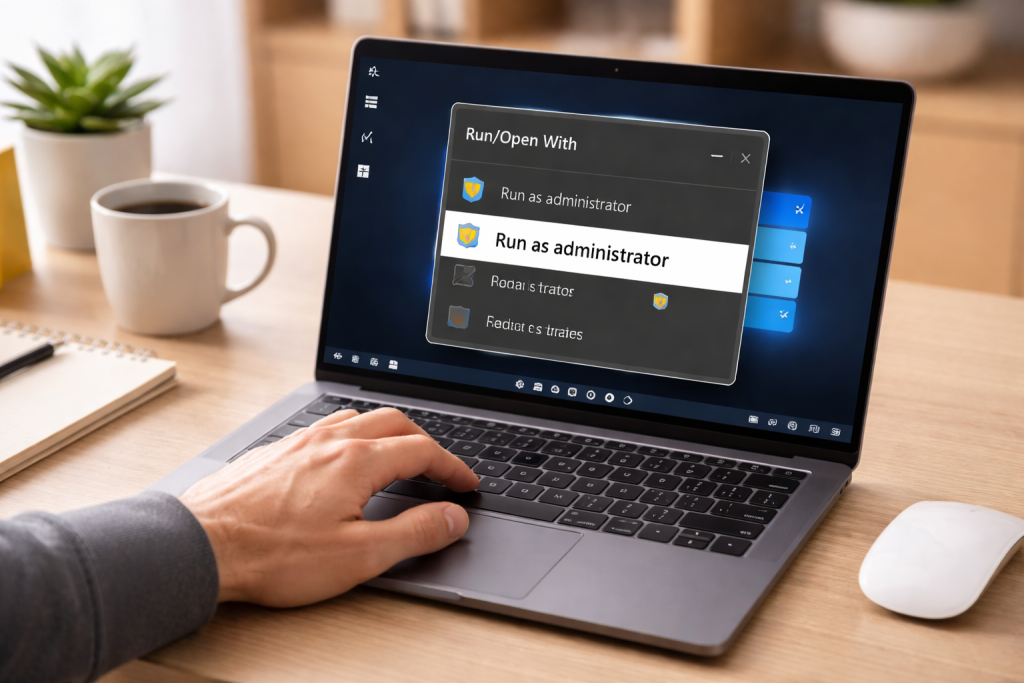
- Right-click on the file or shortcut. A context menu will appear.
- Select “Run as administrator” from the menu.
- User Account Control (UAC) prompt: If UAC is enabled (which it should be for security reasons), you will see a prompt asking for your permission to allow the program to make changes. Click “Yes” to proceed.
Configuring Programs for Automatic Elevation
For applications you frequently use that consistently require administrator privileges, you can set them to launch with elevated permissions automatically. This bypasses the need to manually right-click each time.
- Locate the program’s executable file (.exe) or its shortcut.
- Right-click on the file or shortcut and select “Properties.”
- In the Properties window, navigate to the “Compatibility” tab.
- Under the “Settings” section, check the box that says “Run this program as an administrator.”
- Click “Apply” and then “OK.”
Now, whenever you launch this program, it will automatically request administrator privileges.
Accessing the Command Prompt as Administrator
For more advanced users or when troubleshooting complex issues, running commands from an administrator-level Command Prompt is essential.
- Click the Start button.
- Type “cmd” into the search bar.
- Right-click on “Command Prompt” in the search results.
- Select “Run as administrator.”
- UAC prompt: Click “Yes” on the UAC prompt.
You will now have a Command Prompt window open with elevated privileges, indicated by the title bar stating “Administrator: Command Prompt.”
While running programs as an administrator can be empowering, it’s crucial to approach it with caution and adherence to best practices. Misusing administrator privileges can lead to unintended consequences, including system instability or security vulnerabilities.
Prudent Practice with Elevated Access
- Only run programs from trusted sources: This is paramount. Never run a program as an administrator if you downloaded it from an untrustworthy website or received it from an unverified sender. Malicious software often disguises itself to require administrator privileges to inflict maximum damage.
- Understand the program’s purpose: Before granting administrator rights, have a general understanding of what the program is designed to do. If a simple text editor asks for administrator privileges, be suspicious.
- Avoid running unnecessary programs as an administrator: Every time you elevate a program’s privileges, you increase its potential impact on your system. If a program works perfectly fine with standard user permissions, there’s no need to run it as an administrator.
- Keep UAC enabled: User Account Control is a vital security feature that acts as a gatekeeper. Disabling it significantly reduces your system’s protection against unauthorized changes.
- Regularly review administrator privileges: For applications configured to always run as administrators, periodically revisit their properties to ensure this setting is still necessary.
The Importance of Administrator Accounts
Windows utilizes different account types to manage user privileges. A standard user account has limited access, while an administrator account has full control over the system. It’s best practice to use a standard user account for daily tasks and only log in with an administrator account or use “Run as administrator” when absolutely necessary. This limits the potential damage a compromised standard account can cause.
Troubleshooting Common Administrator Privilege Hurdles
Occasionally, you might encounter issues when trying to run programs as an administrator or after running them. These problems can range from permission-denial errors to unexpected program behavior.
Resolving Permission Denied Errors
If you receive a “Permission denied” error when attempting to run a program as an administrator:
- Check your user account type: Please verify that your current logged-in user account has the necessary administrator privileges. You can verify this in Settings > Accounts > Your info.
- Verify the program’s integrity: The program’s files might be corrupted. Try reinstalling the application.
- Folder permissions: In rare cases, the folder where the program is installed might have incorrect permissions. This is a more advanced troubleshooting step, but you can right-click the folder, go to Properties > Security, and examine the permissions for your user account.
- Antivirus interference: Sometimes, overzealous antivirus software can interfere with administrator operations. Temporarily disabling your antivirus (with caution) to test if it resolves the issue can be a diagnostic step.
Dealing with Program Instability After Elevation
If a program becomes unstable or begins to misbehave after you’ve run it as an administrator:
- Revert administrator privileges: If you had configured the program to always run as an administrator, disable this setting through its compatibility properties.
- System File Checker (SFC): Run the System File Checker tool by opening an administrator Command Prompt and typing
sfc /scannow. This utility scans and repairs corrupted Windows system files. - Look for program updates: A newer version of the software may have addressed a known bug causing the issue.
- Event Viewer: For more in-depth analysis, the Windows Event Viewer can provide detailed logs of system errors, which might offer clues about the cause of the instability.
The Security Imperative of Administrator Privileges
The power wielded by administrator accounts comes with inherent security responsibilities. Granting unrestricted access to programs can be a significant security risk if not managed carefully.
Safeguarding Your System
- Malware Amplification: Malware designed to compromise systems often seeks administrator privileges. Once it has them, it can disable security software, install rootkits, and gain deep control over your system, making it incredibly difficult to remove.
- Unintentional System Modifications: Even well-intentioned programs, when run with administrator privileges, can accidentally alter critical system files or registry entries, leading to system instability or data loss.
- The Principle of Least Privilege: This security tenet suggests that users and programs should only be granted the minimum level of access necessary to perform their intended functions. Adhering to this principle significantly reduces the potential attack surface.
- Password Protection: Ensure your administrator account is protected by a strong, unique password. This is the first line of defense against unauthorized access.
The Role of User Account Control (UAC)
UAC is a crucial security feature that acts as a constant reminder and guard against unintended or malicious changes. When a program requests administrator privileges, UAC prompts you for confirmation. This pause allows you to consider whether the action is legitimate and intended. Always pay attention to these prompts and be critical of any program that repeatedly requests elevated access without a clear justification.
Tailoring Permissions: Running Specific Programs as Administrator
Certain types of software are more likely to require administrator privileges than others. Understanding these categories can help you anticipate when elevation might be necessary and how to manage it effectively.
Common Scenarios for Administrator Access
- Driver Installation and Updates: Device drivers act as intermediaries between your hardware and Windows. Installing or updating them often requires direct interaction with low-level system components, necessitating administrator rights.
- System Utilities and Troubleshooting Tools: Programs designed to manage, diagnose, or repair your operating system, such as disk defragmenters, system monitors, or registry editors, frequently need administrator privileges to access and modify system-wide settings.
- Antivirus and Security Software: These programs need to monitor system-wide activity, scan critical system files, and sometimes even modify system settings to enforce security policies.
- Software Development Tools: Compilers, debuggers, and other development environments might need to access system resources or install components that require administrator permissions.
- Virtualization Software: Programs that create and manage virtual machines, such as VMware or VirtualBox, need to interact with hardware and system resources at a low level, often requiring administrator privileges for optimal performance and functionality.
Beyond Elevation: Alternatives and Advanced Tools
While running programs as an administrator is a powerful capability, it’s not always the only solution, and there are advanced tools that can enhance privilege management.
Exploring Alternatives to Standard Elevation
- Standard User Accounts: As mentioned, for most everyday tasks, a standard user account is perfectly adequate and offers a significant security benefit.
- Specific Folder Permissions: Instead of elevating an entire program, you can sometimes grant specific permissions to individual folders or files that a program needs to access. This is a more granular approach that can be more secure when applicable.
- Windows Sandbox: For untrusted applications, Windows Sandbox provides an isolated, temporary desktop environment where you can run software without affecting your main operating system. This is an excellent way to test potentially risky applications safely.
- Microsoft PowerToys: This set of utilities developed by Microsoft offers various tools that can improve productivity and system management. Some PowerToys features, without directly running programs as administrators, can offer alternative ways to manage system settings or launch applications with specific configurations.
Powerful Utilities for Privilege Management
- Sysinternals Suite: Microsoft’s Sysinternals Suite offers a comprehensive collection of advanced Windows utilities for system administrators and power users. Tools like Process Explorer and Process Monitor can offer comprehensive views of running processes and their privileges, aiding in troubleshooting and understanding program behavior.
- Third-Party Process Managers: Various third-party applications offer more advanced process management features than the built-in Windows Task Manager, sometimes with enhanced capabilities for managing process privileges.
- Virtualization Software: As mentioned earlier, using virtualization platforms allows you to run programs in isolated environments, negating the need for some direct system-level modifications on your host operating system.
By understanding the nuances of administrator privileges, knowing when and how to use them, and being aware of the associated security implications, you can significantly elevate your software experience, ensuring your Windows system runs efficiently, securely, and to its fullest potential.
FAQs
What is the significance of running programs as an administrator?
Running programs as an administrator allows the user to make changes to the system settings, install software, and perform other administrative tasks that require elevated privileges. This is important for ensuring that certain programs can function properly and access necessary system resources.
How do I run programs as an administrator in Windows?
To run a program as an administrator on Windows, right-click on the program’s shortcut or executable file and select “Run as administrator” from the context menu. Alternatively, you can go to the program’s properties, navigate to the Compatibility tab, and check the box that says “Run this program as an administrator.”
What are the best practices for running programs as an administrator?
Some best practices for running programs as administrators include only running programs with elevated privileges when necessary, being cautious about granting administrative access to unknown or untrusted programs, and regularly updating and patching software to minimize security risks.
What are the security considerations when running programs as an administrator?
Running programs as an administrator can introduce security risks, as it grants the program elevated privileges that malicious software could potentially exploit. It’s important to only run trusted programs with administrative access and to be cautious about granting elevated privileges to unknown or unverified software.
How can I determine if a program needs to be run as an administrator?
You can determine if a program needs to be run as an administrator by observing its behavior. If the program encounters errors related to insufficient privileges or if it requires access to system resources that normal users cannot access, it may need to be run as an administrator. Additionally, you can check the program’s documentation or support resources for guidance on running it with elevated privileges.

About the Author
Maya Ali is the founder of ByteSolving with experience in technology and digital solutions. His mission is to make technology easier to understand and help people solve everyday tech problems in a simple and practical way.