
Mastering the Art of Resetting Your Android Phone: Tips and Tricks for Success
The digital companion we carry everywhere, our Android smartphone, is a powerful tool. Yet, over time, it can begin to feel sluggish, buggy, or simply cluttered. This is where the art of resetting your Android phone comes into play, offering a fresh start and often resolving deep-seated issues. Mastering this process isn’t just about pressing a button; it’s about understanding when and why, preparing meticulously, and knowing how to bring your device back to its prime.
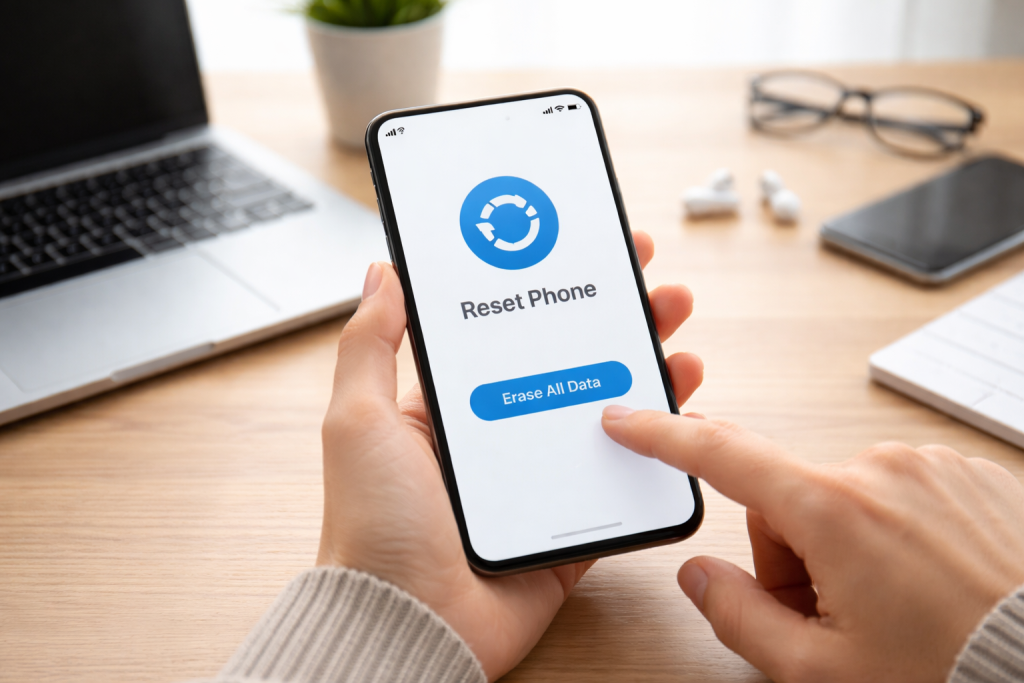
The decision to reset your Android phone is rarely made lightly. It’s a significant action that wipes your device clean, returning it to its original factory settings. However, the benefits of this drastic measure can be profound. Think of it as giving your phone a thorough spring cleaning, removing years of accumulated digital dust that can slow it down, cause errors, and compromise its performance. A reset can breathe new life into an aging device, making it feel as fast and responsive as it did on day one.
Contents
- 0.1 When and Why Should You Reset Your Android Phone?
- 0.2 The Benefits of Regularly Resetting Your Android Phone
- 0.3 Accessing the Reset Option
- 0.4 Initiating the Factory Data Reset
- 0.5 Google Account Backup
- 0.6 Manufacturer-Specific Backup Solutions
- 0.7 Manual Backups and Third-Party Apps
- 0.8 Forgetting to Back Up Data
- 0.9 Not Knowing Your Google Account Credentials
- 0.10 Not Being Connected to Wi-Fi During Setup
- 0.11 Interrupting the Reset Process
- 0.12 Apps Not Restoring Correctly
- 0.13 Connectivity Problems (Wi-Fi/Bluetooth)
- 0.14 Unexpected Behavior or Glitches
- 0.15 Setting Up Your Core Apps
- 0.16 Personalizing Your Home Screen and Settings
- 0.17 How FRP Works
- 0.18 What to Do if You’re Locked Out by FRP
- 0.19 Proactive vs. Reactive Resetting
- 0.20 Understanding When a Reset Isn’t the Solution
- 1 FAQs
- 1.1 1. When and Why Should You Reset Your Android Phone?
- 1.2 2. What are the Steps to Resetting Your Android Phone?
- 1.3 3. What are Some Tips for Backing Up Your Data Before Resetting Your Android Phone?
- 1.4 4. What are Common Mistakes to Avoid When Resetting Your Android Phone?
- 1.5 5. How Can You Troubleshoot Issues After Resetting Your Android Phone?
- 1.6 About the Author
When and Why Should You Reset Your Android Phone?
Understanding the triggers for a reset is crucial to utilizing this powerful tool effectively. Performance degradation is a primary culprit. If your phone has become frustratingly slow, apps frequently freeze or crash, or there’s a general lag in responsiveness, a factory reset is often the most effective solution. Beyond speed, security concerns can necessitate a reset. If you suspect malware or persistent privacy breaches, wiping the device ensures that any malicious software is eradicated. Selling or giving away your phone a reset is absolutely paramount to protect your personal data from falling into the wrong hands. Similarly, if you’re experiencing persistent software glitches, like battery drain issues that can’t be explained by app usage, or Wi-Fi/Bluetooth connectivity problems that persist through normal troubleshooting, a reset can resolve these underlying software conflicts. It’s a powerful way to start fresh and overcome those nagging issues that diminish the user experience.
The Benefits of Regularly Resetting Your Android Phone
While a factory reset is often seen as a last resort, a strategic, albeit less frequent, reset can actually be beneficial for maintaining your Android device’s health. Imagine your phone as a digital garden; regularly pruning allows for healthy growth. Over time, apps leave behind residual files, cache data accumulates, and system settings can become misconfigured. These can all contribute to a gradual decline in performance. A periodic reset, perhaps every year or two, can clear out this digital clutter, optimizing your phone for peak performance. It can also be a proactive measure against future issues, ensuring a clean slate for new app installations and software updates. This proactive approach can save you a lot of troubleshooting time in the long run.
The process of resetting your Android phone is generally straightforward, but the exact steps can vary slightly depending on your device’s manufacturer and Android version. However, the core principle remains the same: accessing the reset option within the device’s settings.
Accessing the Reset Option
Locate the “Settings” app on your Android phone. This is typically represented by a gear icon. Within the Settings menu, you’ll often find a section labeled “System,” “General Management,” or something similar. Tap on this. Within that menu, search for “Reset,” “Backup & reset,” or “Erase all data (factory reset).” Tapping this option will usually present you with further choices.
Initiating the Factory Data Reset
Once you’ve found the “Factory data reset” option, select it. You will likely be presented with a warning that all data on your phone will be erased. This is your final opportunity to back out. If you are sure you want to proceed, you will typically need to confirm your decision, possibly by entering your device’s PIN, pattern, or password. After confirmation, the phone will begin the reset process. This can take several minutes, during which the device will restart. Do not interrupt this process.
The most critical prelude to any factory reset is safeguarding your precious data. Wiping your phone means losing everything stored on it unless you’ve taken steps to back it up. Fortunately, Android offers several robust methods for this.
Google Account Backup
Your Google account is your primary ally for backing up data. Navigate to your phone’s Settings, then look for “Google” or “Accounts.” Within your Google account settings, you should find a “Backup” option. Ensure that “Backup to Google Drive” or a similar setting is enabled. This will automatically back up your contacts, calendar entries, app data (for supported apps), device settings, and photos and videos if Google Photos backup is also enabled. Regularly checking this setting and ensuring it’s active is a fundamental step.
Manufacturer-Specific Backup Solutions
Many manufacturers, such as Samsung and Xiaomi, offer their own cloud-based backup solutions. These often complement Google’s services and can back up additional data like call logs, SMS messages, and even app settings. Explore your phone’s Settings for options like “Samsung Cloud” or “Mi Cloud.” Familiarize yourself with what these services back up and how to initiate a backup.
Manual Backups and Third-Party Apps
For photos, videos, and other media files, you can also consider manually backing them up to a computer via USB cable or to an external storage device like a USB drive or microSD card if your phone supports it. There are also numerous third-party backup apps available on the Google Play Store that offer more granular control over what gets backed up and where it’s stored, often to cloud services like Dropbox or OneDrive.
While the reset process is designed to be user-friendly, several common pitfalls can lead to frustration or data loss. Being aware of these mistakes can ensure a smoother transition.
Forgetting to Back Up Data
This is the most significant and irreversible mistake. Assuming your data is backed up without actually checking can lead to despair when you realize important photos, contacts, or documents are gone forever. Always verify your backups before initiating a reset.
Not Knowing Your Google Account Credentials
Your Google account is vital for setting up your phone after a reset and restoring your backed-up data. If you forget your username or password, you could find yourself locked out of your device due to Factory Reset Protection (FRP), an essential security feature that we’ll discuss later.
Not Being Connected to Wi-Fi During Setup
After a factory reset, your phone will need to connect to the internet for setup and to download necessary updates and apps. Trying to do this on a limited mobile data plan can be costly and slow, so ensure you have a stable Wi-Fi connection readily available.
Interrupting the Reset Process
As mentioned, the reset process can take time. Trying to power off or restart your phone midway through can corrupt the system and potentially render your device unusable, requiring more complex recovery methods.
Sometimes, even after a successful reset, minor issues can arise. Understanding common post-reset problems and their solutions can save you from unnecessary worry.
Apps Not Restoring Correctly
If your apps aren’t restoring as expected from your backup, ensure you have a strong internet connection. Sometimes, simply restarting your phone and re-attempting the restore can resolve this. If the issue persists, you may need to manually reinstall some apps.
Connectivity Problems (Wi-Fi/Bluetooth)
Occasionally, network settings can be stubborn. Try forgetting the Wi-Fi network or unpairing Bluetooth devices and then re-adding them. A soft reboot (simply turning your phone off and on) can also often resolve temporary connectivity glitches.
Unexpected Behavior or Glitches
If you encounter new bugs or unusual behavior, it’s worth checking for system updates. Manufacturers often release updates to fix minor issues shortly after a general software release. If the problem persists and you’ve exhausted app-related troubleshooting, considering another reset might be necessary, but always double-check your backups first.
A factory reset isn’t just about fixing problems; it’s a fantastic opportunity to rebuild your digital environment from the ground up, tailoring it to your current needs and preferences.
Setting Up Your Core Apps
As your phone restarts, you’ll be guided through the initial setup. This is where you’ll sign in to your Google account, which will prompt the restoration of your backed-up apps and data. Take this opportunity to only install the apps you actively use and need. Decluttering your app drawer from the start can significantly improve performance and reduce notification overload.
Personalizing Your Home Screen and Settings
Once your basic setup is complete, it’s time to make your phone your own. Reorganize your home screen widgets, choose a new wallpaper, and adjust notification settings to your liking. Many Android versions offer extensive customization options for app icons, themes, and even the system’s accent colors. Experiment with these features to create an interface that is both functional and visually appealing to you. This is also a good time to review your security settings, enabling features like fingerprint unlock or face recognition if you haven’t already.
Factory Reset Protection (FRP) is a critical security feature designed to prevent unauthorized use of your phone if it’s lost or stolen and then factory reset. It’s a testament to the importance of managing your Google account.
How FRP Works
FRP links your phone to your Google account. If your phone is reset without first removing the Google account from the device, you will be prompted to enter the credentials of the previously associated Google account upon restart. This verifies that the person resetting the device is the legitimate owner.
What to Do if You’re Locked Out by FRP
If you forget your Google account credentials and are locked out by FRP, recovery can be challenging. It’s essential to have access to the email address and password of the Google account that was synced with the device before the reset. If you genuinely own the device but have forgotten your credentials, you may need to contact Google support or your device manufacturer for assistance, which will likely involve proving ownership through serial numbers or purchase receipts. This highlights why maintaining secure and accessible records of your account information is paramount.
Seasoned Android users often approach resets with a strategic mindset, viewing them not as a chore but as a tool for optimization.
Proactive vs. Reactive Resetting
Experts suggest that while a reactive reset is necessary for severe issues, a proactive, less frequent reset can prevent problems from arising in the first place. Think of it as preventative maintenance for your digital life. This doesn’t mean resetting every few months, but rather considering it as part of a regular device care routine, perhaps once a year or after a major operating system upgrade.
Understanding When a Reset Isn’t the Solution
Not every issue can be resolved with a factory reset. Sometimes, problems are caused by a specific buggy app, a faulty app update, or even hardware issues. Before resorting to a reset, try uninstalling recently installed apps, clearing app caches and data, or performing a simple reboot. If the problem persists and you suspect a hardware defect, contacting customer support is a more appropriate next step than repeated resets that won’t address the underlying cause. Mastering the art also involves knowing when not to reset.
By understanding the nuances of resetting your Android phone, from the initial decision-making to the post-reset customization, you can ensure your device remains a reliable and efficient companion for years to come. It’s a powerful tool for resolving issues and a fantastic opportunity to start fresh, making your Android experience truly your own.
FAQs
1. When and Why Should You Reset Your Android Phone?
You should consider resetting your Android phone if you are experiencing persistent software issues, slow performance, or if you are planning to sell or give away your device. Resetting can help resolve software glitches and improve overall performance.
2. What are the Steps to Resetting Your Android Phone?
To reset your Android phone, you can navigate to the “Settings” menu, select “System,” then “Reset options,” and choose “Erase all data (factory reset).” It’s important to back up your data before proceeding with the reset.
3. What are Some Tips for Backing Up Your Data Before Resetting Your Android Phone?
You can back up your data by using cloud storage services, such as Google Drive, or by transferring your files to a computer. It’s important to back up your contacts, photos, videos, and any important documents before resetting your phone.
4. What are Common Mistakes to Avoid When Resetting Your Android Phone?
Common mistakes to avoid when resetting your Android phone include not backing up your data, not disabling Factory Reset Protection, and not ensuring that your phone is fully charged before initiating the reset process.
5. How Can You Troubleshoot Issues After Resetting Your Android Phone?
If you encounter issues after resetting your Android phone, you can try troubleshooting by clearing the cache partition, performing a software update, or contacting your device manufacturer for further assistance.

About the Author
Maya Ali is the founder of ByteSolving with experience in technology and digital solutions. His mission is to make technology easier to understand and help people solve everyday tech problems in a simple and practical way.