
Troubleshooting Tips: How to Solve Internet Disconnecting Issues
The rhythmic whirring of a computer fan often accompanies the seamless flow of information that defines our modern existence. However, when that flow abruptly stops, replaced by the dreaded “no internet connection” message, a wave of frustration quickly sets in. Constant internet disconnections disrupt work, leisure, and communication, transforming productive time into a game of digital whack-a-mole. This guide aims to equip you with a comprehensive arsenal of troubleshooting steps, helping you diagnose and rectify those vexing internet drops.
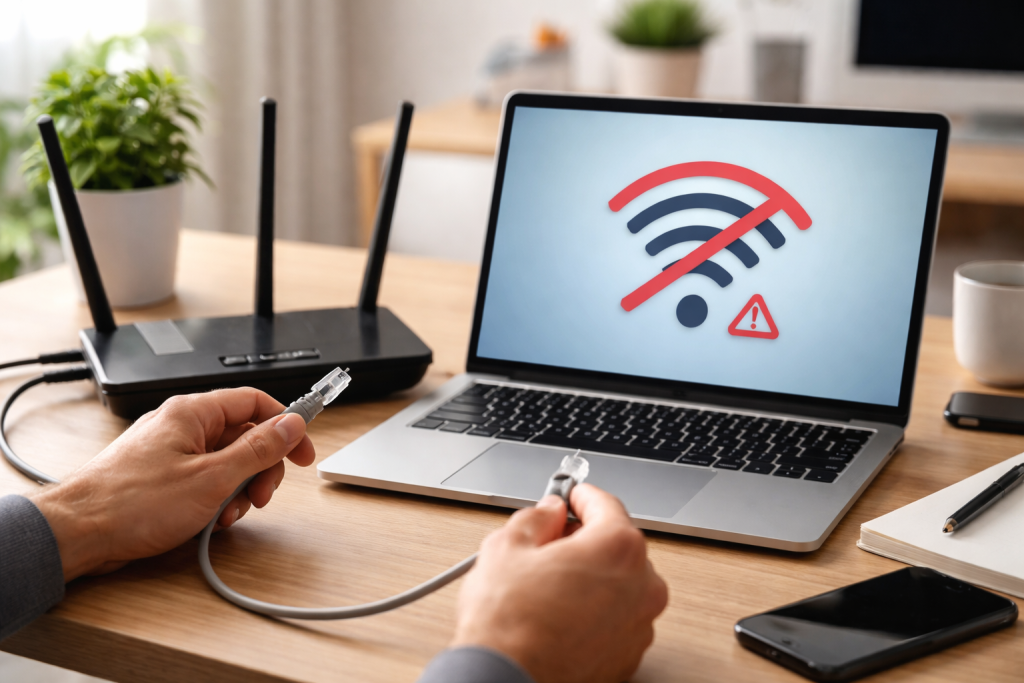
Before diving into complex solutions, it’s crucial to establish whether the problem lies with your local setup or further afield. A methodical approach can save you time and unnecessary effort.
Contents
- 0.1 Checking Your Internet Connection Status
- 0.2 Restarting Your Modem and Router
- 0.3 Updating Your Network Adapter Drivers
- 0.4 Updating Your Router’s Firmware
- 0.5 Checking for Interference
- 0.6 Resetting Your Network Settings
- 0.7 Contacting Your Internet Service Provider (ISP)
- 0.8 Considering Upgrading Your Equipment
- 0.9 Using a Wired Connection as a Diagnostic Tool
- 0.10 Checking for Malware or Viruses
- 1 FAQs
- 1.1 1. What are some common troubleshooting tips for solving internet disconnecting issues?
- 1.2 2. How can I check my internet connection to troubleshoot internet disconnecting issues?
- 1.3 3. What is the importance of updating network drivers in troubleshooting internet disconnecting issues?
- 1.4 4. How can I check for interference when troubleshooting internet disconnecting issues?
- 1.5 5. When should I consider upgrading my equipment when troubleshooting internet disconnecting issues?
- 1.6 About the Author
Checking Your Internet Connection Status
The very first step is to confirm if the internet is truly out. Occasionally, a single application might lose connection while the rest of your system remains online.
- Test with Multiple Devices: Try accessing a website on your smartphone (disconnected from Wi-Fi, using mobile data) or another computer. If other devices can connect, the issue is likely specific to the device you’re currently using. If all devices are offline, the problem is more widespread, pointing towards your router, modem, or ISP.
- Observe Router/Modem Lights: Most routers and modems have indicator lights that provide clues about their operational status. Look for a light indicating internet connectivity (often labeled “Internet,” “WAN,” or a globe icon). If this light is off, blinking erratically, or showing an amber/red color, it signifies a problem with the connection from your ISP. A solid green or blue light usually indicates a healthy connection. Refer to your device’s manual for specific light interpretations.
It might sound clichéd, but a simple restart can often resolve a myriad of technical glitches. Electronic devices, much like humans, can become overwhelmed or experience temporary software hiccups that a fresh boot can resolve.
Restarting Your Modem and Router
This is arguably the most frequently recommended and often effective troubleshooting step. It clears temporary data, renews IP addresses, and allows the devices to re-establish a fresh connection with your ISP.
- The Proper Power Cycle: Begin by disconnecting the power cord from both your modem and your router. Wait for a full 30 seconds to allow any residual charge to dissipate. This ensures a complete reset.
- Modem First, Then Router: Plug your modem back in first. Wait for all its indicator lights to stabilize and show a successful internet connection (this can take a few minutes). Once the modem is fully online, plug in your router. Allow the router a few minutes to fully boot up and establish its own network. After both devices are online and stable, check your internet connection.
Outdated software can be a significant bottleneck, causing instability and communication errors that lead to disconnections. Ensuring your device’s network components are running the latest versions is crucial for optimal performance.
Updating Your Network Adapter Drivers
Your computer’s network adapter is the hardware component responsible for connecting to your network and the internet. Outdated or corrupt drivers for this adapter can lead to intermittent connectivity or complete disconnections.
- Accessing Device Manager (Windows): Right-click the Start button and select “Device Manager.” Expand the “Network adapters” section, then right-click on your primary network adapter (e.g., “Intel(R) Dual Band Wireless-AC 7260” or “Realtek PCIe GbE Family Controller”). Select “Update driver.” You can choose to “Search automatically for updated driver software” or “Browse my computer for driver software” if you’ve downloaded a driver from the manufacturer’s website.
- Checking System Preferences (macOS): Unlike Windows, macOS handles most hardware driver updates through system updates. Go to “System Settings” (or “System Preferences” on older macOS versions) > “General” > “Software Update” to ensure your operating system is up to date. For specific network hardware, you might need to visit the manufacturer’s website.
- Manufacturer Websites for Specific Drivers: For the most reliable and up-to-date drivers, always visit the website of your network adapter’s manufacturer (e.g., Intel, Realtek, Broadcom, Atheros). Search for your specific adapter model and download the latest drivers for your operating system. Install them following the manufacturer’s instructions.
Updating Your Router’s Firmware
Router firmware is the embedded software that controls its operations. Manufacturers frequently release firmware updates to improve security, enhance performance, fix bugs, and improve compatibility, all of which can impact connection stability.
- Accessing Router Settings: Open a web browser and type your router’s IP address into the address bar (e.g., 192.168.1.1 or 192.168.0.1). You’ll typically find this on a sticker on the bottom of your router or in your router’s manual.
- Locating Firmware Update Section: Once logged in (using the username and password, often “admin/admin” or “admin/password” by default—change this for security!), navigate to the “Administration,” “System,” “Maintenance,” or “Firmware Update” section.
- Downloading and Installing Firmware: Download the latest firmware file from your router manufacturer’s support website, ensuring it is for your exact router model. Follow the on-screen instructions in your router’s interface to upload and install the new firmware. Crucially, do not interrupt the update process, as this can brick your router. Your router will likely restart during this process.
Sometimes, the cause of disconnections isn’t software or hardware malfunction but rather external influences impacting your signal. Understanding these can help you optimize your network environment.
Checking for Interference
Wireless signals are susceptible to interference from other electronic devices, which can degrade signal quality and lead to dropped connections.
- Common Sources of Interference: Microwaves, cordless phones (especially older 2.4 GHz models), baby monitors, Bluetooth devices, fluorescent lights, and even your neighbor’s Wi-Fi network (if on the same channel) can all cause interference.
- Relocating Your Router: Position your router in a central location, away from walls, large metal objects, and other electronic devices. Elevate it if possible to improve signal dispersion.
- Changing Wi-Fi Channel: If your router is on the same channel as a neighboring network, it can cause congestion. Access your router’s settings and look for a “Wireless Settings” or “Wi-Fi Settings” section. Experiment with changing the Wi-Fi channel (especially on the 2.4 GHz band) to a less congested one (channels 1, 6, and 11 are often recommended as non-overlapping). Specialized Wi-Fi analyzer apps can help you identify the least crowded channels in your area.
Resetting Your Network Settings
A corrupted network profile or incorrect IP configurations on your device can lead to connection issues. Resetting these settings can often clear up such problems.
- Network Reset (Windows): Go to “Settings” > “Network & Internet” > “Status.” Scroll down and click “Network reset.” Confirm the reset. This will reinstall network adapters and reset network components to their original settings, requiring you to re-enter Wi-Fi passwords.
- Renewing IP Address (macOS): Go to “System Settings” > “Network.” Select your Wi-Fi connection, click “Details,” then “TCP/IP.” Click “Renew DHCP Lease.” This will request a new IP address from your router.
- Flushing DNS and Resetting IP (Command Prompt – Windows): Open “Command Prompt” as an administrator. Type
ipconfig /flushdns(press Enter), thenipconfig /release(press Enter), followed byipconfig /renew(press Enter). These commands clear the DNS cache and release/renew your IP address.
Despite your best efforts, some problems necessitate external intervention. Knowing when to escalate can prevent prolonged frustration.
Contacting Your Internet Service Provider (ISP)
If you’ve exhausted all the above troubleshooting steps and are still experiencing disconnections, the problem likely lies beyond your local network equipment. Your ISP is the next logical point of contact.
- Gather Information Before Calling: Before you call, have your account number, modem/router model, and a clear description of the problem (e.g., “internet drops every 15 minutes,” “no internet light on modem”) ready. Inform them of the troubleshooting steps you’ve already taken.
- Requesting a Line Test: Ask your ISP to perform a line test to check for any issues with the connection coming into your home. They can often detect signal degradation, cable faults, or problems at their local exchange.
- Scheduling a Technician Visit: If the line test reveals issues, or if remote troubleshooting fails, request a technician to visit your home. They have specialized equipment to diagnose and repair external infrastructure problems.
Considering Upgrading Your Equipment
Sometimes, old or inadequate hardware is simply the root cause of persistent connection problems, especially as your internet usage demands increase.
- Aging Routers and Modems: Just like any electronic device, routers and modems have a lifespan. Older models may struggle to keep up with modern internet speeds, handle multiple connected devices efficiently, or lack support for newer Wi-Fi standards (e.g., Wi-Fi 5 or Wi-Fi 6).
- Matching Hardware to Speed: If you’re paying for high-speed internet (e.g., 200 Mbps or more), ensure your modem and router are rated to handle those speeds. An older DOCSIS 2.0 modem won’t be able to deliver 1 Gbps speeds, for example.
- Router Features and Coverage: If you live in a large home or have many smart devices, a more powerful router with broader coverage (e.g., a mesh Wi-Fi system) might be necessary to eliminate dead zones and ensure stable connections throughout your property.
- Faulty Network Adapters: In rare cases, the network adapter in your device itself might be failing. If all other devices connect fine but one specific device consistently disconnects, consider replacing its internal Wi-Fi card or using a USB Wi-Fi adapter to test.
Beyond reactive troubleshooting, adopting certain practices can enhance network stability and help identify latent issues.
Using a Wired Connection as a Diagnostic Tool
Connecting your device directly to your router or modem with an Ethernet cable can provide valuable diagnostic information.
- Isolating Wireless Issues: If your internet connection is stable when wired but frequently disconnects on Wi-Fi, this strongly indicates a problem with your wireless network (router’s Wi-Fi, wireless interference, or your device’s Wi-Fi adapter). It rules out issues with the modem or ISP line.
- Ensuring Consistent Connection: For critical devices like gaming consoles, desktop PCs, or work laptops, a wired connection is always more stable, faster, and less susceptible to interference than Wi-Fi.
Checking for Malware or Viruses
Malicious software can severely impact your internet connection, consuming bandwidth, interfering with network processes, or even blocking access to certain websites.
- Run a Full System Scan: Regularly run a comprehensive scan with reputable antivirus or anti-malware software (e.g., Windows Defender, Malwarebytes, AVG, Norton, or Bitdefender). Ensure your security software definitions are up to date.
- Look for Suspicious Activity: Be vigilant for unusual pop-ups, slow browsing speeds when the connection should be fast, or unexpected data usage, as these can be signs of malware.
When facing persistent internet disconnections, a systematic approach is key. By methodically working through these troubleshooting steps, from the simplest reboots to more advanced diagnostics and potential equipment upgrades, you can significantly increase your chances of restoring a stable and reliable internet connection. Patience and a logical mindset are your best tools in this digital detective work.
FAQs
1. What are some common troubleshooting tips for solving internet disconnecting issues?
Some common troubleshooting tips for solving internet disconnecting issues include checking your internet connection, restarting your modem and router, updating your network drivers, checking for interference, resetting your network settings, contacting your internet service provider, using a wired connection, checking for malware or viruses, updating your firmware, and considering upgrading your equipment.
2. How can I check my internet connection to troubleshoot internet disconnecting issues?
You can check your internet connection by ensuring that your modem and router are properly connected and powered on, checking for any error lights on your modem or router, and testing your internet connection on multiple devices to see if the issue is isolated to a specific device.
3. What is the importance of updating network drivers in troubleshooting internet disconnecting issues?
Updating your network drivers is important in troubleshooting internet disconnecting issues because outdated drivers can cause connectivity issues, and updating them can improve the stability and performance of your network connection.
4. How can I check for interference when troubleshooting internet disconnecting issues?
You can check for interference by ensuring that your modem and router are placed away from other electronic devices that may cause interference, such as cordless phones, microwaves, and Bluetooth devices. Additionally, you can use a Wi-Fi analyzer tool to identify any sources of interference in your area.
5. When should I consider upgrading my equipment when troubleshooting internet disconnecting issues?
You should consider upgrading your equipment for troubleshooting internet disconnecting issues if your modem and router are outdated and no longer supported by the manufacturer, if you are experiencing frequent connectivity issues despite trying other troubleshooting steps, or if you are looking to improve the speed and reliability of your internet connection.

About the Author
Maya Ali is the founder of ByteSolving with experience in technology and digital solutions. His mission is to make technology easier to understand and help people solve everyday tech problems in a simple and practical way.