
Don’t Panic! Here’s How to Solve Your Internet Connection Issues
The digital umbilical cord connecting us to the vast universe of information can feel like a lifeline. When it sputters, disconnects, or crawls at a snail’s pace, frustration is a natural, albeit unhelpful, reaction. The good news is that most common internet connection issues are not insurmountable mysteries. With a systematic approach and a little understanding, you can often diagnose and resolve these problems yourself, saving you time, money, and a significant amount of irritation. This guide aims to be your reassuring hand, guiding you through the labyrinth of connectivity woes, offering practical solutions, and empowering you with the knowledge to reclaim your online experience.
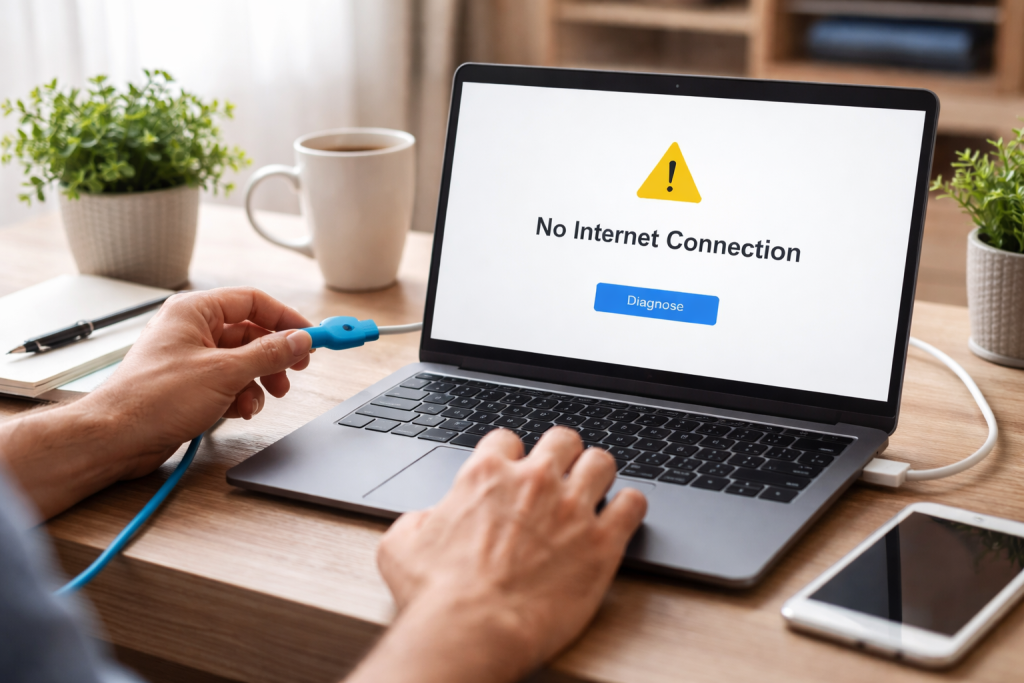
Before diving into specific fixes, it’s crucial to grasp some fundamental concepts behind internet connectivity. Understanding how your connection is established and what factors can influence it is the first step to effective troubleshooting. The internet works by transmitting data in packets across a complex network of cables, satellites, and servers. Your home network, typically involving a modem and a router, acts as the gateway between your devices and this wider network. Issues can arise at any point along this chain, from the physical lines entering your home to the software running on your computer.
Contents
- 0.1 The Modem-Router Duo: The Gatekeepers of Your Connection
- 0.2 The Invisible Highway: Understanding Data Packets and Bandwidth
- 0.3 The Simple First Steps: Reboot and Reconnect
- 0.4 Identifying the Congestion: Your Home Network’s Demand
- 0.5 The Great Outdoors: External Factors Affecting Your Speed
- 0.6 The Unseen Interference: Physical Connections and Cables
- 0.7 The Wireless Whispers: Wi-Fi Interference and Signal Fade
- 0.8 The Software Glitches: Device-Specific Connectivity Problems
- 0.9 Decluttering Your Digital Airwaves: Optimizing Router Placement
- 0.10 Extending Your Reach: Understanding Wi-Fi Extenders and Mesh Systems
- 0.11 The Power of Channels: Adjusting Your Router’s Wi-Fi Channel
- 0.12 The Quick Fix: Flushing Your DNS Cache
- 0.13 The Global Network: Switching DNS Servers
- 0.14 The Underlying Cause: ISP DNS Issues
- 0.15 The Always Effective Power Cycle: Modem and Router Reboot
- 0.16 The Firmware Factor: Updating Your Router’s Software
- 0.17 When All Else Fails: Resetting Your Router to Factory Defaults
- 0.18 The Browser’s Baggage: Clearing Cache and Cookies
- 0.19 The Program’s Puzzles: Software Updates and Conflicts
- 0.20 The Malicious Menace: Scanning for Malware
- 0.21 The Uninvited Guests: Securing Your Wi-Fi Network
- 0.22 The Imposter Alert: Recognizing Phishing and Scam Attempts
- 0.23 The Vigilant Watch: Keeping Your Devices Protected
- 0.24 The Scripted Approach: Basic Troubleshooting with Your ISP
- 0.25 The Diagnostic Tools: What Your ISP Can See
- 0.26 Escalating the Issue: When to Request a Technician
- 0.27 The Regular Check-Up: Firmware Updates and Device Maintenance
- 0.28 The Power Saver: Managing Your Network Load
- 0.29 The Secure Sanctuary: Maintaining Strong Network Security
- 1 FAQs
- 1.1 1. What are some common internet connection problems that users may encounter?
- 1.2 2. How can I troubleshoot slow internet speed?
- 1.3 3. What should I do if I experience intermittent connection drops?
- 1.4 4. How can I improve Wi-Fi signal strength in my home?
- 1.5 5. When should I seek help from my internet service provider for internet connection problems?
- 1.6 About the Author
The Modem-Router Duo: The Gatekeepers of Your Connection
Your modem is the device that translates the digital signals from your Internet Service Provider (ISP) into a format your router can understand, and vice versa. It’s the bridge between your internal network and the external world. The router, on the other hand, takes that single internet connection from the modem and distributes it wirelessly and/or via Ethernet cables to multiple devices in your home. Problems with either of these devices, whether it’s a firmware glitch, hardware malfunction, or simply outdated technology, can significantly impact your internet performance.
The Invisible Highway: Understanding Data Packets and Bandwidth
When you browse the web, stream videos, or download files, your data is broken down into small packets. These packets travel across the internet, reassembling at their destination. The speed at which these packets travel and the sheer volume of data that can be transmitted per unit of time is known as bandwidth. If your bandwidth is insufficient for your needs, or if there are bottlenecks along the network path, you’ll experience slow internet speeds. Congestion on your ISP’s network, or even within your own home network due to too many devices demanding data, can contribute to this.
There’s a unique kind of agony in watching a webpage load pixel by agonizing pixel or experiencing buffering wheels that seem to mock your desire for instant gratification. Slow internet speeds are one of the most prevalent and frustrating internet connection issues. Fortunately, several common culprits can be identified and addressed.
The Simple First Steps: Reboot and Reconnect
The universal IT solution—turning it off and on again—is surprisingly effective for internet issues. A simple reboot of your modem and router can clear temporary glitches and reset connections. Unplug both devices, wait at least 30 seconds, and then plug the modem back in first. Once the modem’s lights indicate a stable connection, plug in the router. Allow a few minutes for both devices to fully boot up before testing your internet speed.
Identifying the Congestion: Your Home Network’s Demand
Sometimes, your internet isn’t inherently slow; it’s just being overwhelmed by the demand from your own devices. If multiple devices are actively streaming high-definition content, downloading large files, or engaged in online gaming simultaneously, your available bandwidth can be spread too thin. Try temporarily disconnecting devices from your Wi-Fi to see if your speed improves. This can help pinpoint whether the issue lies with your overall internet plan or the usage within your home.
The Great Outdoors: External Factors Affecting Your Speed
Your internet speed is also influenced by factors outside your direct control, particularly the capacity of your ISP’s network and the distance to the nearest server. During peak hours, when many people are online, network congestion can lead to slower speeds for everyone. If you consistently experience slow speeds during specific times of the day, this might be the reason. Additionally, the physical distance your data has to travel can play a role, though this is less of a concern for most home users.
Even more unnerving than slow internet is an internet connection that works one moment and vanishes the next. Intermittent connection drops can feel like a cruel trick, disrupting your workflow and online activities without warning. These issues can stem from a variety of sources, requiring a more detective-like approach to unravel.
The Unseen Interference: Physical Connections and Cables
Loose or damaged cables are an often-overlooked but common cause of intermittent connectivity. Check that all Ethernet cables connecting your modem to your router and your router to any wired devices are securely plugged in and show no signs of fraying or damage. The coaxial cable connecting your modem to the wall outlet is equally important; ensure it’s tightly screwed in.
The Wireless Whispers: Wi-Fi Interference and Signal Fade
Wireless connections are susceptible to interference from other electronic devices, such as microwaves, cordless phones, and even neighboring Wi-Fi networks. The further you are from your router, the weaker the signal becomes, leading to drops. Try moving closer to your router or repositioning the router to a more central location, away from potential sources of interference. Using a Wi-Fi analyzer app on your smartphone can help you identify less congested channels to switch to.
The Software Glitches: Device-Specific Connectivity Problems
Sometimes, the problem isn’t with your network but with the specific device you’re using. A network adapter driver that’s outdated or corrupted can cause erratic behavior. On Windows, you can often resolve this by going to Device Manager, finding your network adapter, and selecting “Update driver.” Similarly, rebooting your device itself can clear temporary software issues that might be affecting its connection.
A weak Wi-Fi signal is a recipe for slow speeds and dropped connections, especially in larger homes or areas with many walls. The invisible waves that carry your internet can be easily weakened or blocked. Fortunately, several strategies can help you boost your Wi-Fi’s reach and reliability.
Decluttering Your Digital Airwaves: Optimizing Router Placement
The location of your router is paramount for effective Wi-Fi coverage. Avoid placing it in corners, behind large furniture, or near appliances that emit electromagnetic interference. Ideally, position your router in a central, elevated location, free from obstructions, to allow the signal to spread evenly throughout your home.
Extending Your Reach: Understanding Wi-Fi Extenders and Mesh Systems
If repositioning your router doesn’t provide adequate coverage, consider using a Wi-Fi extender or a mesh Wi-Fi system. Extenders simply repeat the existing Wi-Fi signal, effectively placing it further from the router. Mesh systems, on the other hand, create a more seamless network of multiple nodes that work together to provide consistent coverage across a larger area. While extenders are generally less expensive, mesh systems often offer superior performance and a more unified network experience.
The Power of Channels: Adjusting Your Router’s Wi-Fi Channel
As mentioned earlier, Wi-Fi networks operate on specific channels. If your neighbors are using the same channel, it creates congestion. Most routers allow you to manually select a less crowded Wi-Fi channel through their administrative interface. This can significantly improve signal clarity and reduce interference, leading to a more stable connection.
When you type a website address, like “google.com,” your computer needs to translate that human-readable name into an IP address—a series of numbers that the internet understands. This translation is handled by Domain Name System (DNS) servers. If these servers are not functioning correctly, or if your computer can’t connect to them, you’ll encounter DNS server errors, often preventing you from accessing websites that otherwise seem to be working correctly.
The Quick Fix: Flushing Your DNS Cache
Over time, your computer stores a cache of DNS lookups to speed up future visits to familiar websites. However, this cache can sometimes become outdated or corrupted. Flushing your DNS cache clears this temporary information and forces your computer to make a fresh DNS lookup. On Windows, this is typically done by opening Command Prompt as administrator and typing ipconfig /flushdns.
The Global Network: Switching DNS Servers
Your ISP assigns specific DNS servers to your network, but these may not always be the fastest or most reliable. Many users opt to switch to public DNS servers offered by companies like Google or Cloudflare, which are known for their speed and reliability. You can change your DNS settings within your operating system’s network configuration or, for more comprehensive control, directly within your router’s settings.
The Underlying Cause: ISP DNS Issues
In some cases, the DNS problems you’re experiencing might be on your ISP’s end. If you’re unable to resolve DNS errors after trying other troubleshooting steps, it’s worth contacting your ISP to inquire if they’re experiencing any widespread DNS issues.
Your modem and router are the central hubs of your home network. When they malfunction, it can bring your entire internet connection to a grinding halt. Issues can range from minor firmware glitches to hardware failures.
The Always Effective Power Cycle: Modem and Router Reboot
As previously mentioned, a power cycle is often the first and most effective troubleshooting step for modem and router issues. Unplug both devices, wait for at least 30 seconds to allow them to discharge fully, and then plug them back in, starting with the modem. This simple act can resolve a surprising number of intermittent problems.
The Firmware Factor: Updating Your Router’s Software
Like any complex piece of technology, routers have firmware—the embedded software that controls their operation. Outdated or corrupted firmware can lead to performance issues, security vulnerabilities, and connectivity problems. Most routers offer a firmware update feature through their web-based administrative interface. Regularly checking for and installing these updates is a crucial maintenance task.
When All Else Fails: Resetting Your Router to Factory Defaults
If you’ve tried everything else and your router is still behaving erratically, a factory reset might be necessary. This will revert all your router’s settings back to their original default configurations, essentially wiping the slate clean. Be aware that you will need to reconfigure your Wi-Fi network name and password, as well as any other custom settings you may have previously applied, after performing a factory reset.
Sometimes, the internet connection itself is perfectly fine, but the problem lies with the applications you’re using to access it. Browser glitches, outdated software, or even malware can masquerade as internet connectivity problems.
The Browser’s Baggage: Clearing Cache and Cookies
Your web browser stores temporary files (cache) and small pieces of data (cookies) to speed up browsing. However, these can sometimes become corrupted and interfere with website loading or general browsing functionality. Clearing your browser’s cache and cookies can often resolve these issues. The process varies slightly between browsers but is usually found within the privacy or history settings.
The Program’s Puzzles: Software Updates and Conflicts
Outdated software, particularly your operating system and web browser, can sometimes cause unexpected internet-related problems. Ensure that your operating system and all your applications, especially your browser, are kept up to date. Software conflicts can also occur if multiple programs try to manage your network connection simultaneously.
The Malicious Menace: Scanning for Malware
Malware, including viruses and spyware, can significantly disrupt your internet connection. These malicious programs can hijack your network traffic, redirect your searches, or even disable your internet access. Running a thorough scan with a reputable antivirus and anti-malware program is essential if you suspect a security compromise.
In today’s interconnected world, network security is paramount. A compromised network can lead to more than just connectivity issues; it can expose your personal information to considerable risk. Understanding common security threats and how to mitigate them is crucial.
The Uninvited Guests: Securing Your Wi-Fi Network
The most basic and critical step in securing your home network is to set a strong, unique password for your Wi-Fi network. Avoid using easily guessable passwords like “password123” or your address. Additionally, ensure your router’s security protocol is set to WPA2 or WPA3, which offer the strongest encryption. Regularly changing your Wi-Fi password adds another layer of security.
The Imposter Alert: Recognizing Phishing and Scam Attempts
Phishing attempts often try to trick you into revealing sensitive information by impersonating legitimate organizations. Be wary of unsolicited emails or messages asking for personal details, account information, or credit card numbers. Always verify the sender’s identity through official channels before providing any information.
The Vigilant Watch: Keeping Your Devices Protected
Beyond your router, individual devices connected to your network also need protection. Ensure all your devices have strong passwords, and keep their operating systems and security software up to date. This creates a more robust defense against various cyber threats.
While many internet connection issues can be resolved with self-help, there are times when you’ll need to reach out to your Internet Service Provider (ISP). Knowing when and how to contact them can save you a lot of frustration.
The Scripted Approach: Basic Troubleshooting with Your ISP
When you call your ISP, be prepared for them to guide you through a series of basic troubleshooting steps, similar to those outlined in this article. Having already performed these yourself can expedite the process. Be ready to provide them with information about your modem and router, as well as the symptoms you’re experiencing.
The Diagnostic Tools: What Your ISP Can See
Your ISP has access to diagnostic tools that can assess the health of your connection from their end. They can check for signal problems on the lines coming into your home, identify potential network congestion in your area, and even remotely test your modem’s functionality.
Escalating the Issue: When to Request a Technician
If your ISP’s remote diagnostics and troubleshooting do not resolve the problem, they may schedule a technician to visit your home. This is often necessary for issues related to physical line damage, problems with the external wiring, or if your equipment is suspected to be faulty.
Proactive measures are always better than reactive fixes. By implementing a few preventative strategies, you can significantly reduce the likelihood of future internet connection woes.
The Regular Check-Up: Firmware Updates and Device Maintenance
Make it a habit to check for and install firmware updates for your router regularly. Similarly, ensure your devices’ operating systems and network drivers are kept up-to-date. This simple maintenance routine can prevent many common issues.
The Power Saver: Managing Your Network Load
Be mindful of how many devices are actively using your internet connection simultaneously. If you consistently find your speeds suffering, consider upgrading your internet plan to accommodate your household’s needs. Offloading certain tasks to off-peak hours can also help.
The Secure Sanctuary: Maintaining Strong Network Security
Never underestimate the importance of strong passwords and consistent security practices. Regularly reviewing your Wi-Fi password, keeping your router’s security settings robust, and scanning your devices for malware are essential for a secure and stable connection. By understanding the potential pitfalls and being armed with these troubleshooting techniques, you can approach internet connection issues with a sense of calm and capability, transforming those moments of digital despair into manageable challenges.
FAQs
1. What are some common internet connection problems that users may encounter?
Some common internet connection problems include slow internet speed, intermittent connection drops, Wi-Fi signal strength issues, DNS server errors, router and modem problems, browser and software issues, and network security concerns.
2. How can I troubleshoot slow internet speed?
To troubleshoot slow internet speed, you can try restarting your modem and router, checking for background downloads or uploads, running a speed test to determine your actual internet speed, and contacting your internet service provider to inquire about any potential network issues.
3. What should I do if I experience intermittent connection drops?
If you experience intermittent connection drops, you can try relocating your router to a more central location, checking for interference from other electronic devices, updating your router’s firmware, and ensuring that your modem and router are in good working condition.
4. How can I improve Wi-Fi signal strength in my home?
To improve Wi-Fi signal strength in your home, you can try using a Wi-Fi range extender, positioning your router in an elevated location, minimizing obstructions between your device and the router, and considering upgrading to a newer router with better signal coverage.
5. When should I seek help from my internet service provider for internet connection problems?
You should seek help from your internet service provider if you have tried troubleshooting common issues on your own, such as restarting your modem and router, checking for signal interference, and updating your devices, but are still experiencing persistent internet connection problems. Your internet service provider can assist in diagnosing and resolving more complex network issues.

About the Author
Maya Ali is the founder of ByteSolving with experience in technology and digital solutions. His mission is to make technology easier to understand and help people solve everyday tech problems in a simple and practical way.