
Safeguarding Your System: Tips for Installing Software Safely and Securely
In today’s increasingly digital world, software is the engine that powers our computers, smartphones, and countless other devices. From the operating system that wakes our machines to the applications that allow us to communicate, create, and entertain ourselves, software is indispensable. However, with the pervasive nature of software comes an inherent set of risks. If not approached with caution and diligence, the seemingly innocent act of installing a new program can lead to a cascade of security vulnerabilities, data breaches, and system instability. Safeguarding your system against these threats begins with a proactive and informed approach to software installation.
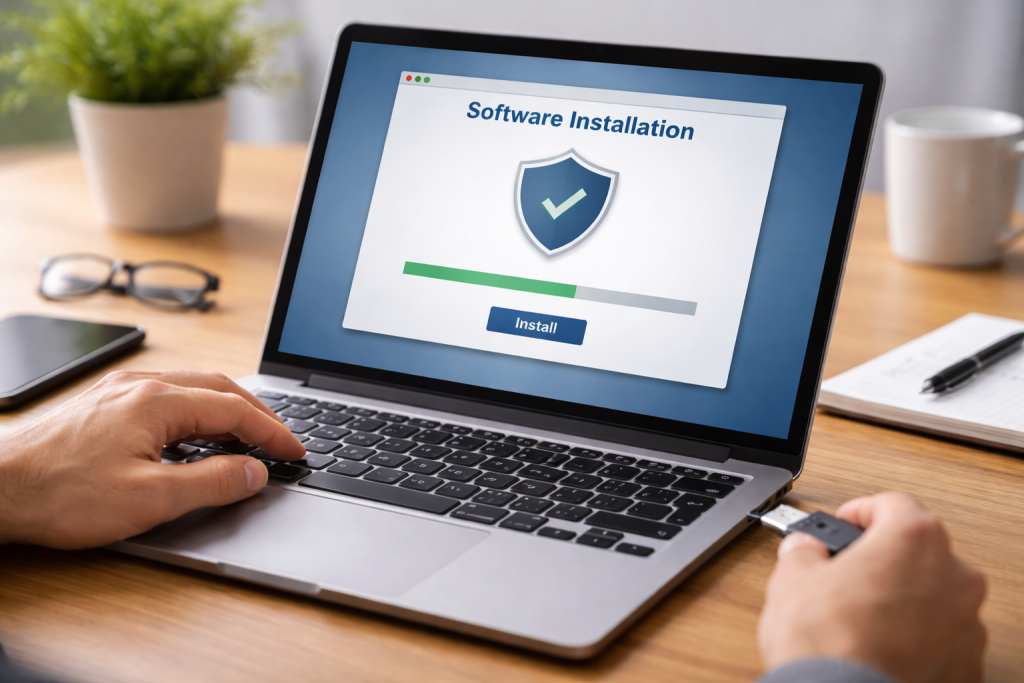
The allure of new software is undeniable. It promises enhanced functionality, improved productivity, and access to novel experiences. Yet, beneath the surface of this exciting potential lies a landscape fraught with hazards. Unbeknownst to many, software installations can be a gateway for malicious actors to gain unauthorized access to your system and sensitive data. This is not an exaggeration; it’s a stark reality of the modern digital environment.
Contents
- 0.1 The Spectrum of Software Threats
- 0.2 The Social Engineering Aspect
- 0.3 The Official Channels: Your First Line of Defense
- 0.4 Beyond the Official: Evaluating Third-Party Sources
- 0.5 The Power of Community and Reviews
- 0.6 Digital Signatures: A Seal of Trust
- 0.7 File Hashes: A Unique Identifier
- 0.8 Antivirus Scans on Downloaded Files
- 0.9 Understanding the Two Pillars of Protection
- 0.10 Key Features of Effective Security Software
- 0.11 The Importance of Regular Scans and Updates
- 0.12 What is a system restore point?
- 0.13 The Convenience and Effectiveness
- 0.14 How to Create a System Restore Point
- 0.15 When to Use a Restore Point
- 0.16 The EULA’s Multifaceted Role
- 0.17 The Dangers of Unread Agreements
- 0.18 Strategies for Reviewing EULAs
- 0.19 The Deceptive Installation Process
- 0.20 The Consequences of Bundled Software
- 0.21 Strategies for Avoiding Bundled Software:
- 1 FAQs
- 1.1 What are the risks of installing software from untrustworthy sources?
- 1.2 How can I verify the authenticity of software downloads?
- 1.3 Why is it important to keep software updated with security patches?
- 1.4 What are the benefits of using virtual machines for testing new software?
- 1.5 Why is it important to back up your system before installing new software?
- 1.6 About the Author
The Spectrum of Software Threats
The dangers posed by improperly installed software can manifest in a variety of forms, each with its own insidious impact.
Malware: The Invisible Invaders
Malware, a broad term encompassing viruses, worms, Trojans, ransomware, and spyware, is perhaps the most well-known threat. These malicious programs, often disguised as legitimate software, aim to infiltrate your system without your knowledge or consent. Once inside, they can perform a range of harmful actions.
- Data Theft: Spyware can silently monitor your online activities, capturing keystrokes, login credentials, credit card numbers, and other sensitive personal information. This stolen data can then be used for identity theft, financial fraud, or sold on the dark web.
- System Damage: Viruses and worms can corrupt or delete files, rendering your operating system unstable or completely inoperable. This can lead to significant data loss and costly repairs.
- Ransomware: This particularly devastating form of malware encrypts your files, making them inaccessible, and demands a ransom payment for their decryption. The lack of a guarantee that you’ll get your files back makes this a highly frustrating and potentially ruinous attack.
- Botnets: Some malware transforms your computer into a “bot,” a remotely controlled device that can be used as part of a larger network (a botnet) to launch distributed denial-of-service (DDoS) attacks, send spam, or engage in other illicit activities without your knowledge.
Unwanted Programs: The Annoying Intruders
Beyond outright malicious software, installations can also introduce unwanted programs that degrade your user experience and potentially pose security risks.
- Adware: Adware bombards you with intrusive advertisements, often appearing as pop-ups or banners, or even altering your browser’s homepage and search engine. While primarily an annoyance, some adware can also track your browsing habits.
- Potentially Unwanted Programs (PUPs): These programs, while not always strictly malicious, often bundle themselves with legitimate software, performing actions you didn’t intend or desire, such as modifying system settings or installing additional toolbars.
System Instability and Performance Degradation
Even if software isn’t outright malicious, improper installation or poorly written code can lead to a host of problems.
- Conflicts: New software can conflict with existing programs or even with your operating system, leading to crashes, freezes, and unpredictable behavior.
- Resource Hogging: Excessive system resources (CPU, RAM) can be consumed by poorly optimized software, causing your computer to slow down and become frustrating to use.
- Registry Bloat: Over time, numerous software installations and uninstalls can clutter your system’s registry, leading to performance issues and potential instability.
The Social Engineering Aspect
Remember, software installation risks are not solely technical. Cybercriminals frequently employ social engineering tactics to trick users into willingly downloading and installing malicious software. This can involve deceptive email attachments, websites that mimic legitimate ones, or even urgent-sounding pop-up messages demanding immediate action.
In the vast expanse of the internet, identifying trustworthy sources for software is paramount. The difference between a secure download and a potential security breach often hinges on where you obtain your programs. [The original sentence is clear and effective.]
The Official Channels: Your First Line of Defense
The safest and most reliable place to acquire software is directly from the developers themselves.
- Developer Websites: Always prioritize downloading software from the official website of the software vendor. This ensures you’re getting the genuine product, free from tampering or malicious additions.
- Official App Stores: For mobile devices and even some desktop operating systems, official app stores (e.g., Apple App Store, Google Play Store, Microsoft Store) offer a curated selection of applications. These platforms generally have security vetting processes in place, although vigilance is still required.
Beyond the Official: Evaluating Third-Party Sources
While official sources are ideal, there are times when you might consider third-party download sites. This is where discerning judgment becomes critical.
- Reputation Matters: Look for well-established and respected download portals that have a long history of providing legitimate software. Examine user reviews and community feedback to gauge a site’s trustworthiness.
- Avoid Suspicious Links: Be wary of websites that appear unprofessional, are overloaded with aggressive advertising, or that offer software that is suspiciously free or outdated.
- Download Managers with Caution: Some legitimate download managers can be helpful for managing multiple downloads, but always ensure you’re downloading the manager itself from its official source and understand its intentions and any bundled software it might offer.
The Power of Community and Reviews
Engage with the software community. Online forums, tech blogs, and reputable review sites can provide helpful opinions about the quality and safety of specific software and the sources from which it can be obtained. Avoid a particular download site or software program that frequently receives negative reviews mentioning viruses or malware.
Even after choosing a seemingly reputable source, there’s an additional layer of security that can be implemented: verifying the authenticity of the software download itself. This procedure guarantees that the source and your computer haven’t tampered with the file you’ve downloaded.
Digital Signatures: A Seal of Trust
Many software developers digitally sign their applications. This signature acts like a digital fingerprint, proving that the software originates from the claimed developer and that it hasn’t been altered since it was signed.
- What to Look For: When downloading software, especially from a developer’s website, look for information about digital signatures or certificates. Some download managers or security software will also flag unsigned or improperly signed applications.
- How to Check (Windows): On Windows, you can often check a file’s digital signature by right-clicking the executable file (usually an .exe file), selecting “Properties,” and then navigating to the “Digital Signatures” tab. If a signature is present and valid, it will be listed there.
File Hashes: A Unique Identifier
Beyond digital signatures, file hashes (like MD5 or SHA-256) are unique cryptographic fingerprints for files. Developers often publish the expected hash for their software downloads. By calculating the hash of the file you’ve downloaded and comparing it to the published hash, you can confirm its integrity.
- How it Works: This process requires using specific tools or command-line utilities to generate a hash. While more technical, it provides a robust way to confirm that the file hasn’t been modified. Many reputable software download sites will provide these hashes alongside their download links.
Antivirus Scans on Downloaded Files
Before executing anything you’ve downloaded, it’s a crucial practice to scan the file with your updated antivirus and anti-malware software. This is an essential step, even if you trust the source.
- On-Demand Scanning: Most antivirus programs allow you to right-click a file and initiate a manual scan. This ensures that any immediate threats within the downloaded package are detected before they have a chance to execute.
In the ongoing battle for system security, antivirus and anti-malware software are your indispensable allies. They act as vigilant sentinels, constantly monitoring your system for threats and taking action to neutralize them. Without this vital layer of protection, your system would be far more vulnerable to the numerous dangers lurking in the digital realm.
Understanding the Two Pillars of Protection
While often used interchangeably, antivirus and anti-malware software serve slightly different, though complementary, purposes.
- Antivirus Software: Primarily designed to detect and remove known viruses and other malware that have already infiltrated your system. It relies on signature databases to identify malicious codes.
- Anti-Malware Software: A broader category that also includes tools designed to detect and remove other types of malicious software, such as spyware, adware, and Potentially Unwanted Programs (PUPs), which may not be detected by traditional antivirus solutions. Many modern security suites combine both functionalities.
Key Features of Effective Security Software
When choosing and utilizing security software, consider the following features:
- Real-Time Scanning: This essential feature constantly monitors your system for suspicious activity, intercepting threats as they attempt to enter or execute.
- Automatic Updates: Malware tactics evolve rapidly. Your security software must be regularly updated with the latest threat definitions to remain effective. Ensure automatic updates are enabled.
- Scheduled Scans: In addition to real-time protection, scheduled full system scans can detect potential threats that may have evaded detection or emerged when real-time protection was temporarily suspended.
- Heuristic Analysis: This advanced detection method analyzes the behavior of programs rather than just relying on known signatures, helping to identify new or unknown threats.
- Ransomware Protection: Specialized modules designed to detect and block ransomware attacks are increasingly important.
The Importance of Regular Scans and Updates
Simply installing security software is not enough. Its effectiveness hinges on diligent maintenance.
- Keep it Updated: This feature cannot be stressed enough. Outdated security software is akin to having a security guard who is unaware of the latest criminal methods. Enable automatic updates for both the software itself and its threat definitions.
- Perform Regular Scans: Schedule periodic full system scans to ensure a thorough check of your entire system. Don’t neglect quick scans as well.
Before embarking on any significant system change, like installing new software, it is always wise to create a safety net. In the event that the new software causes unforeseen problems, a system restore point acts as a time machine, allowing you to revert your computer to a previous stable state.
What is a system restore point?
A system restore point is essentially a snapshot of your system’s critical files, installed applications, Windows registry, and system settings at a specific point in time. If a new software installation leads to issues, you can use a restore point to undo those changes and return your system to how it was before the problematic installation.
The Convenience and Effectiveness
The beauty of system restore points lies in their ease of use and effectiveness.
- Reversing Undesired Changes: If a new program causes crashes, conflicts, or unexpected behavior, you can often resolve these issues by simply restoring your system to a point before the installation.
- No Data Loss (Generally): Crucially, system restore points typically do not affect your personal files, documents, pictures, or music. They focus on system-level changes. However, any programs or drivers installed after the restore point was created will be uninstalled.
How to Create a System Restore Point
Creating a restore point is a straightforward process on most Windows operating systems.
- Accessing System Protection: Search for “Create a restore point” or “System Protection” in the Windows search bar. This will open the System Properties window with the “System Protection” tab active.
- Configuring Protection: Ensure that system protection is turned on for your primary drive (usually C:).
- Initiating the Restore Point: Click the “Create” button. You’ll be prompted to give the restore point a descriptive name, such as “Before installing [Software Name].” Provide a name and click “Create.”
When to Use a Restore Point
- After a Problematic Installation: If you notice unusual system behavior, crashes, or errors immediately after installing new software, using a restore point is one of your first diagnostic steps.
- Before Major Updates or Installations: It’s good practice to create a restore point before any significant system updates or the installation of any software you’re unsure about, even if it seems reputable.
The End User License Agreement (EULA) is a legal contract between you, the user, and the software developer. While often overlooked or automatically clicked through, the EULA contains important information about how you are permitted to use the software, as well as crucial details regarding privacy, data collection, and potential security risks.
The EULA’s Multifaceted Role
The EULA is more than just a bureaucratic hurdle. It serves several vital functions:
- Usage Rights and Restrictions: It details what you can and can’t do with the software, like copying, modifying, or distributing it.
- Privacy Policies: Many EULAs will detail how the software collects and uses your data. This can include information about telemetry data, usage statistics, and how your personal information is handled. Understanding these matters is key to knowing what information you might be sharing.
- Disclaimers and Liability: Developers often use the EULA to limit their liability in case the software causes issues or data loss.
- Terms of Service: It may also contain other terms related to the software’s functionality, support, and updates.
The Dangers of Unread Agreements
Skipping the EULA can lead to unintended consequences:
- Unwanted Data Collection: You might unknowingly agree to the software collecting and sharing your browsing habits, personal information, or system data with third parties.
- Restrictive Usage: You might find yourself unable to use the software in a way you intended due to hidden restrictions.
- Acceptance of Risk: By agreeing to the EULA, you are legally accepting the terms, including any disclaimers of liability.
Strategies for Reviewing EULAs
While reading every EULA can be time-consuming, adopting some strategies can help:
- Skim for Keywords: Look for terms like “data collection,” “privacy,” “telemetry,” “advertising,” “third parties,” and “licensing.”
- Focus on Privacy and Data Usage: Pay particular attention to sections detailing how your data is handled. If the language is vague or concerning, consider seeking alternative software.
- Look for Red Flags: Be wary of EULAs that grant excessive permissions or seem overly intrusive regarding your system or personal information.
- Use Online Summarizers (with caution): Some online tools can summarize EULAs, but always cross-reference their summaries with the original text and maintain a healthy skepticism.
One of the most common and frustrating ways users end up with unwanted software is through “bundling.” This is a deceptive practice where additional software, often adware or Potentially Unwanted Programs (PUPs), is included with the installer of a program you actually want to download.
The Deceptive Installation Process
Bundled software is often hidden within the installation wizard, pre-selected for installation, and designed to be easily overlooked.
- “Express” or “Recommended” Installation: These options are frequently the culprits, automatically installing bundled programs without explicit consent.
- Hidden Checkboxes: Sometimes, the option to install bundled software is present but disguised among other less important settings or presented in a way that encourages you to click “Next” quickly.
- Visual Misdirection: The bundling might be presented in a visually appealing way, making it seem like a beneficial addition rather than an intrusive one.
The Consequences of Bundled Software
The problems caused by bundled software can range from annoying to highly detrimental:
- Performance Slowdown: Bundled programs often run in the background, consuming system resources and slowing down your computer.
- Constant Advertisements: Adware bundles are notorious for bombarding users with intrusive pop-up ads, banners, and redirects.
- Privacy Concerns: Many bundled programs are designed to track your online behavior and collect data, which can then be sold to advertisers.
- Security Risks: Some bundled software may contain vulnerabilities or even act as a precursor to more malicious infections.
- Difficulty in Removal: Unwanted bundled software can be notoriously difficult to uninstall, often leaving behind remnants or reappearing even after removal attempts.
Strategies for Avoiding Bundled Software:
The key to avoiding bundled software lies in meticulous attention during the installation process:
- Always Choose “Custom” or “Advanced” Installation: Never use the “Express” or “Recommended” installation options. These are almost always designed to bundle extra software.
- Read Every Screen Carefully: Proceed through the installation wizard one step at a time. Read the text on each screen carefully, looking for any mention of additional software or optional components.
- Uncheck All Optional Installations: Actively look for checkboxes, radio buttons, or other options that indicate the installation of additional programs, toolbars, or utilities and unselect them.
- Be Wary of “Free” Software: While many free programs are legitimate, be extra cautious when downloading freeware, as it’s a common vehicle for bundling.
By embracing a vigilant and methodical approach to software installation, you can significantly reduce the risks and ensure that your digital environment remains a safe and productive space.
FAQs
What are the risks of installing software from untrustworthy sources?
Installing software from untrustworthy sources can expose your system to malware, viruses, and other security threats. These threats can compromise your personal information, damage your system, and disrupt your computer’s performance.
How can I verify the authenticity of software downloads?
To verify the authenticity of software downloads, you can check the publisher’s website, look for digital signatures, and use reputable download sources. It’s important to ensure that the software you are downloading is from a legitimate and trusted source.
Why is it important to keep software updated with security patches?
Keeping software updated with security patches is crucial for protecting your system from vulnerabilities and security threats. Software updates often include patches that address known security issues, so staying up to date can help prevent potential attacks on your system.
What are the benefits of using virtual machines for testing new software?
Using virtual machines for testing new software allows you to isolate the software from your main system, reducing the risk of potential harm to your computer. Virtual machines provide a safe environment for testing software without affecting your primary operating system.
Why is it important to back up your system before installing new software?
Backing up your system before installing new software is essential in case the installation causes any issues or conflicts. Having a backup ensures that you can restore your system to a previous state if the new software negatively impacts your computer.

About the Author
Maya Ali is the founder of ByteSolving with experience in technology and digital solutions. His mission is to make technology easier to understand and help people solve everyday tech problems in a simple and practical way.